How to connect to server via FTP
Servers with the BeAdmin control panel come with a pre-installed FTP server. To start using it for file access, follow these steps.
Encryption is required
The BeAdmin FTP server accepts only secure TLS connections. The server rejects unencrypted connections with an error. In your FTP client choose the FTP-with-TLS mode (also known as FTPS) — plain FTP will not work. Do not confuse it with SFTP — that is a different protocol and is not used in BeAdmin.
Step 1: Activate the FTP server
Go to the Files section and look for the FTP icon:
- 🟢 If the icon is green, FTP is already active and ready to use.
- 🔴 If the icon is red, click on it to activate FTP.
A pop-up window may prompt you to enter an IP address. Only fill in this field if you are sure that your server is operating behind a proxy server. In most cases, you can leave this field blank.
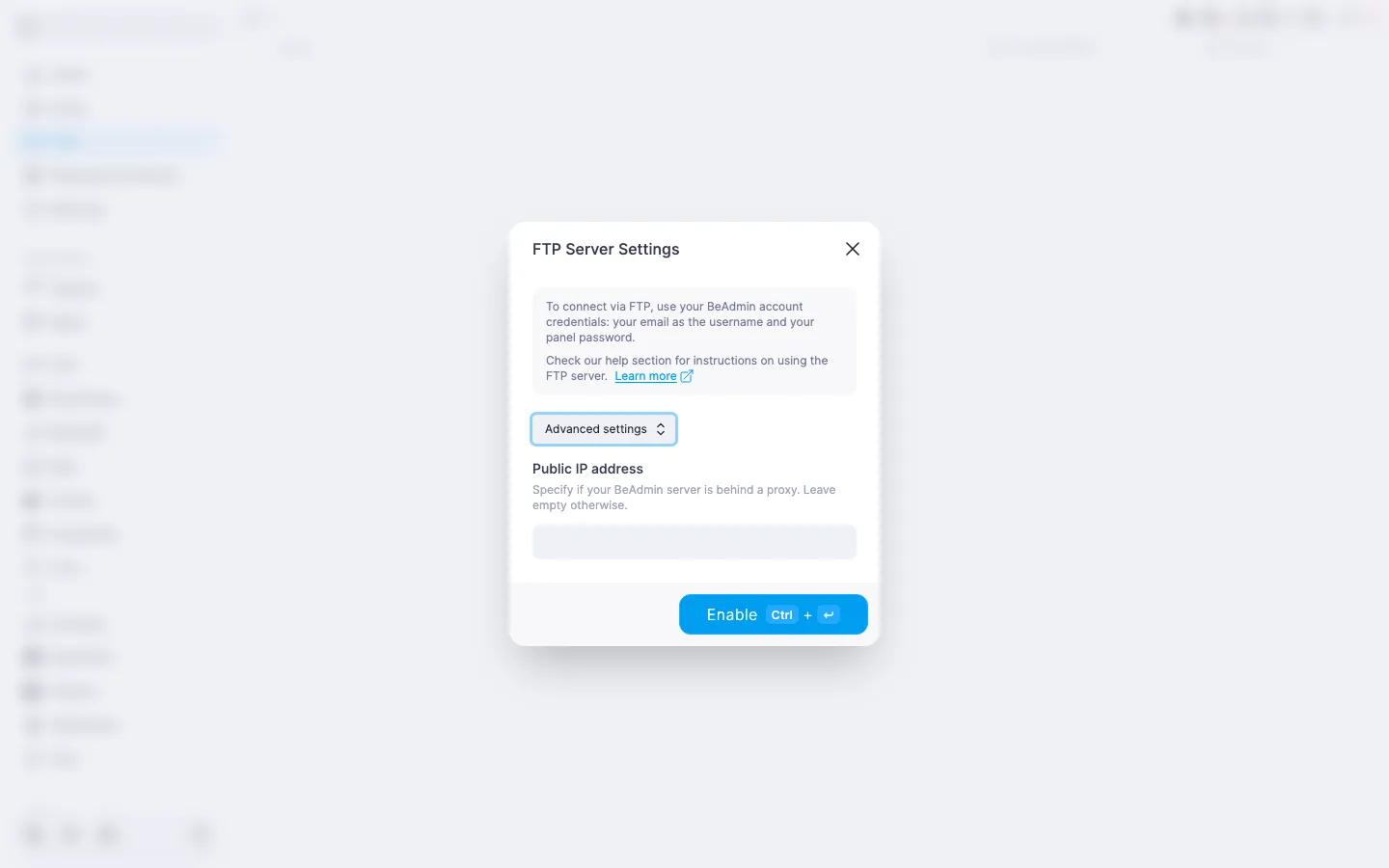
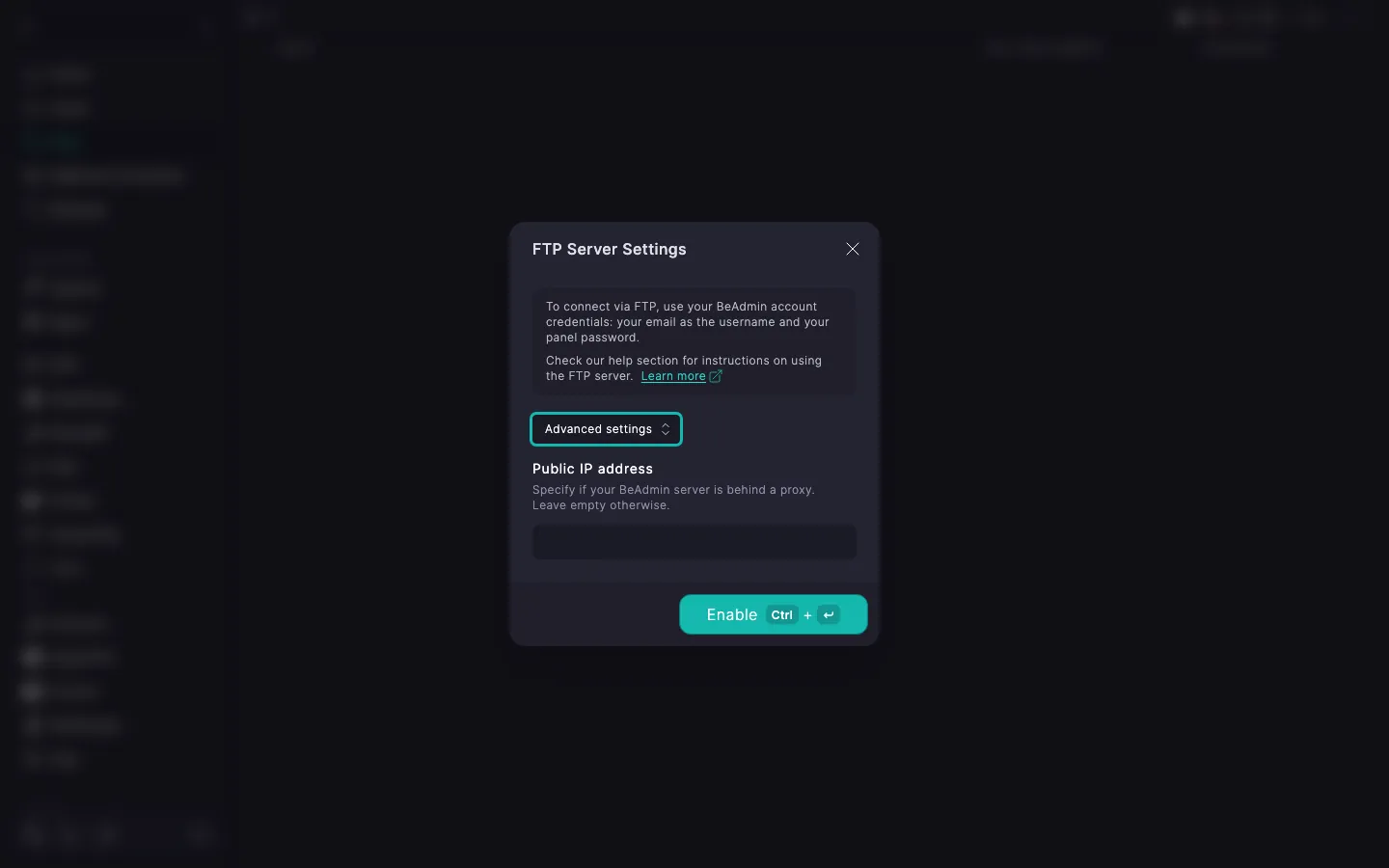
Step 2: Choose the account to connect with
There is no separate FTP account in BeAdmin — FTP accepts the same email and password you use to sign in to the panel itself. So the only question is which panel user to connect as.
There are two options:
- The primary panel account — the one you administer
BeAdminwith. A good fit if you are the only person using the server. - A dedicated user created under the Users section — if you need a separate account for a colleague, contractor, or CI. This way you can scope access and revoke it later without touching your main account.
In both cases, in your FTP client you enter the email and password of the panel account that person signs in with. What exactly to put into each FTP client field is covered in step 3.
Step 3: Connect using any FTP client
Any FTP client will work (for example, FileZilla, WinSCP, Total Commander).
Use the following settings:
- Host: Your server’s IP address or domain name
- Port: 21
- Protocol: FTP with TLS (FTPS) — not to be confused with SFTP, which is a different protocol
- Username: the email of the account you sign in with to the
BeAdminpanel on this server. For example,admin@local.hostis the default primary user's email on a freshly installed panel, whileadmin@12345.fornex.cloudis a typical email address from a hosting provider. This is the same string you type into the Email field on the panel’s sign-in screen. - Password: the password of the same account — the one you use to sign in to
BeAdminon this server.
Configuring encryption in popular clients
The FTP server uses the same TLS certificate as the control panel — no extra server-side setup is needed. You only need to pick the right mode in the client.
FileZilla
In the Encryption field, select Use explicit FTP over TLS — this is the only mode the server accepts.
WinSCP
In the File protocol field, select FTP, and in the Encryption field, select TLS/SSL Explicit encryption. Without this the server will refuse the connection.
Total Commander
In the new FTP connection dialog, enable the secure TLS connection — Total Commander provides a dedicated checkbox in the connection settings. Do not choose the unencrypted option, and do not use the separate SFTP menu entry: SFTP is a different protocol and will not connect to the BeAdmin FTP server.