Amnezia. Managing the module
This article continues from Amnezia quick start. If you have not installed the module and created the first user yet, start there. The topics here cover operations on the module itself: starting and stopping the service, changing the UDP port, updating, and uninstalling. VPN user management is covered in a separate article — Amnezia. Managing users.
Managing the service
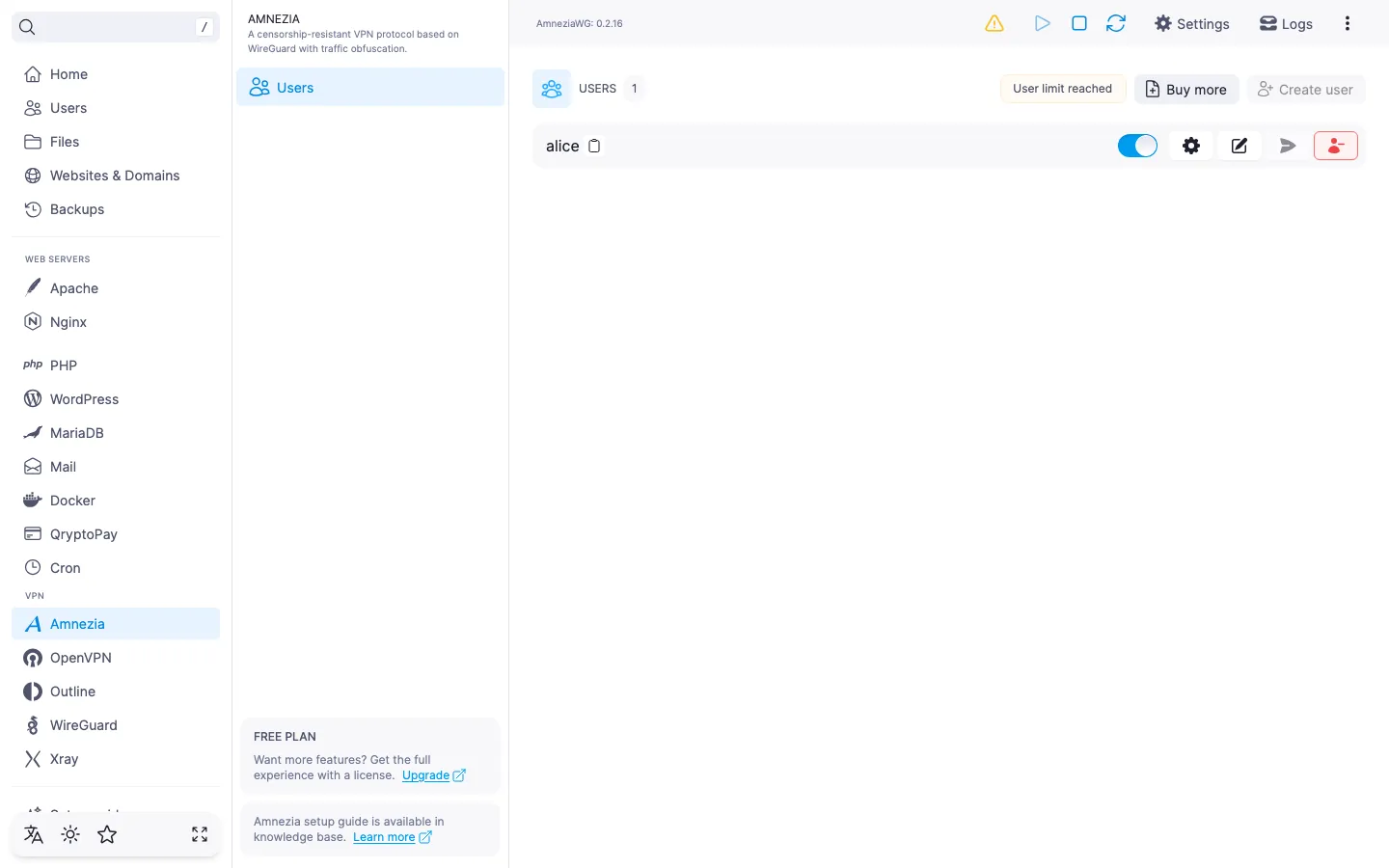
In the top-right corner of the module page, three service controls are available for the Amnezia service: "Start", "Stop", and "Restart".
- "Start" — brings the service up from a stopped state. The button is active only when the service is currently down.
- "Stop" — shuts the service down. All active VPN connections are dropped, and new ones cannot be established.
- "Restart" — stops the service and immediately starts it again. Open connections are dropped.
The server applies user list changes on the fly, without restarting the service: adding, disabling, or deleting a user is picked up immediately. However, if the client DNS or persistent keepalive has changed in the user profile, the .conf file on the device needs to be re-imported — see the details in Amnezia. Managing users.
⚠️ Stopping the service drops every VPN connection
While the service is down, no user can connect. Plan stops and restarts for a maintenance window, or notify users in advance.
While the module is being updated or uninstalled, the service controls are temporarily unavailable.
ℹ️ Port
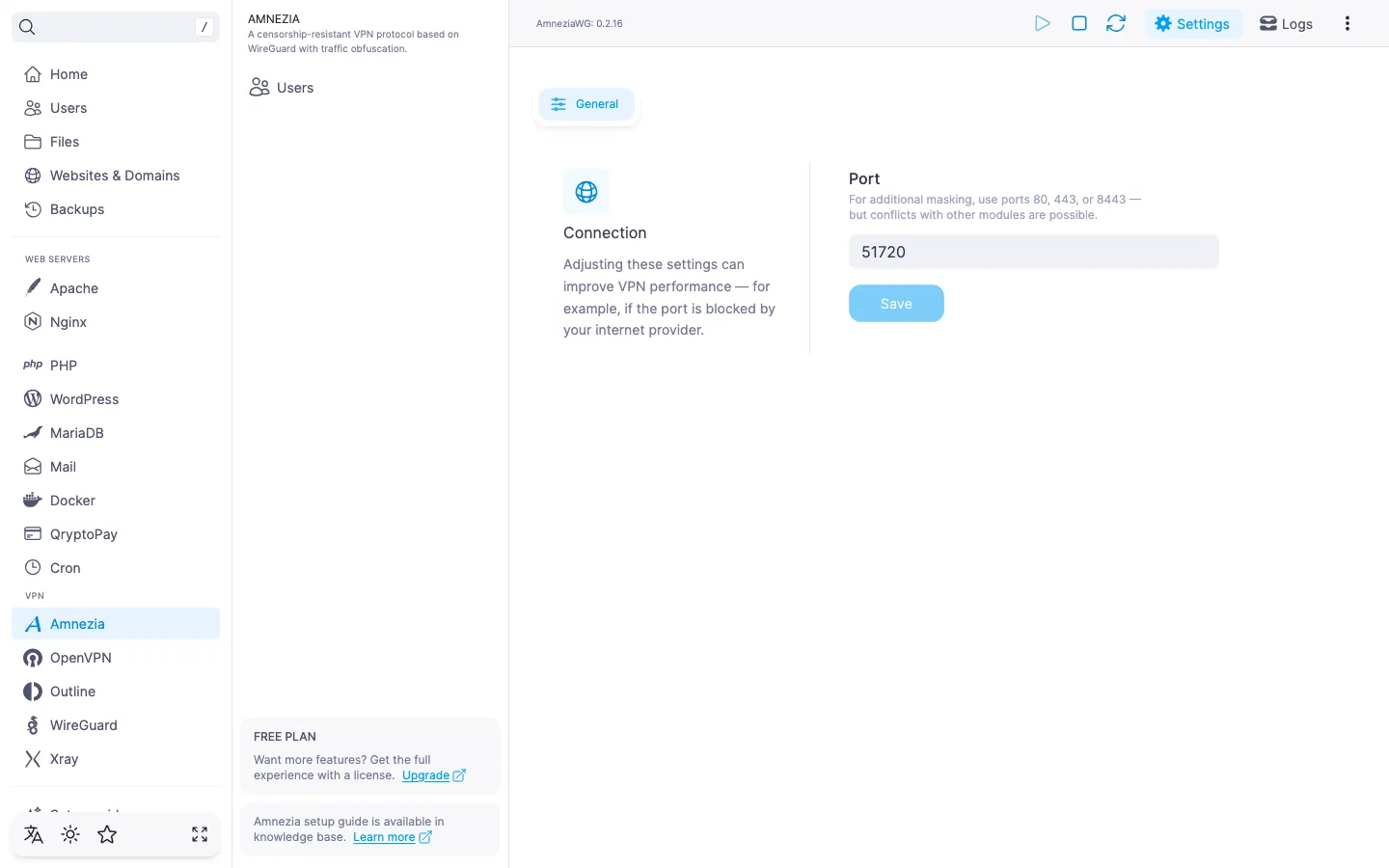
By default AmneziaWG runs on UDP port 51720. The port can be changed on the "Settings" tab of the module page.
⚠️ ISP restrictions
Traffic encryption makes a VPN a reliable way to protect a connection, but in some countries and regions internet providers actively interfere with VPN protocols. Because of this, full availability of the service cannot be guaranteed — regardless of the connection type. If one protocol does not work for you, try another VPN module available in the panel. If none of them work on your network, contact support and we will issue a refund for the license.
SMTP-not-configured alert
The module page header may show an "Email sending not configured" banner with a link to the SMTP settings. This means the .conf file cannot be emailed to users at the moment. The VPN itself keeps working: the banner concerns email sending only, and downloading the .conf and the QR codes in the "Connection settings" dialog stay available. SMTP setup is described in How to set up an SMTP relay for sending emails.
Module settings
In the module page header, next to the title, there is a "Settings" tab that opens the "Connection" section with the server-side parameters. Right now one setting is available — changing the UDP port.
UDP port
- Switch to the "Settings" tab.
- In the "Port" field, enter the new number. For extra masking,
80,443, or8443are common choices, but a conflict with another module is possible — the panel warns about it below the field. - Click "Save". The panel asks you to confirm the port change; after confirmation the new value is saved and the service is restarted automatically.
⚠️ Changing the port drops active connections
Once the new port takes effect, existing client configurations stop working: the old endpoint is hard-coded in the .conf file. Configurations have to be regenerated and re-imported on the devices. If you decide to revert to the previous port, the old configurations will start working again without re-issuing the keys.
Updating the module
In the module action menu next to the "Amnezia" title, choose "Update Amnezia". The panel pulls the latest AmneziaWG version from the repository and installs it over the current one. The user list and their keys are preserved.
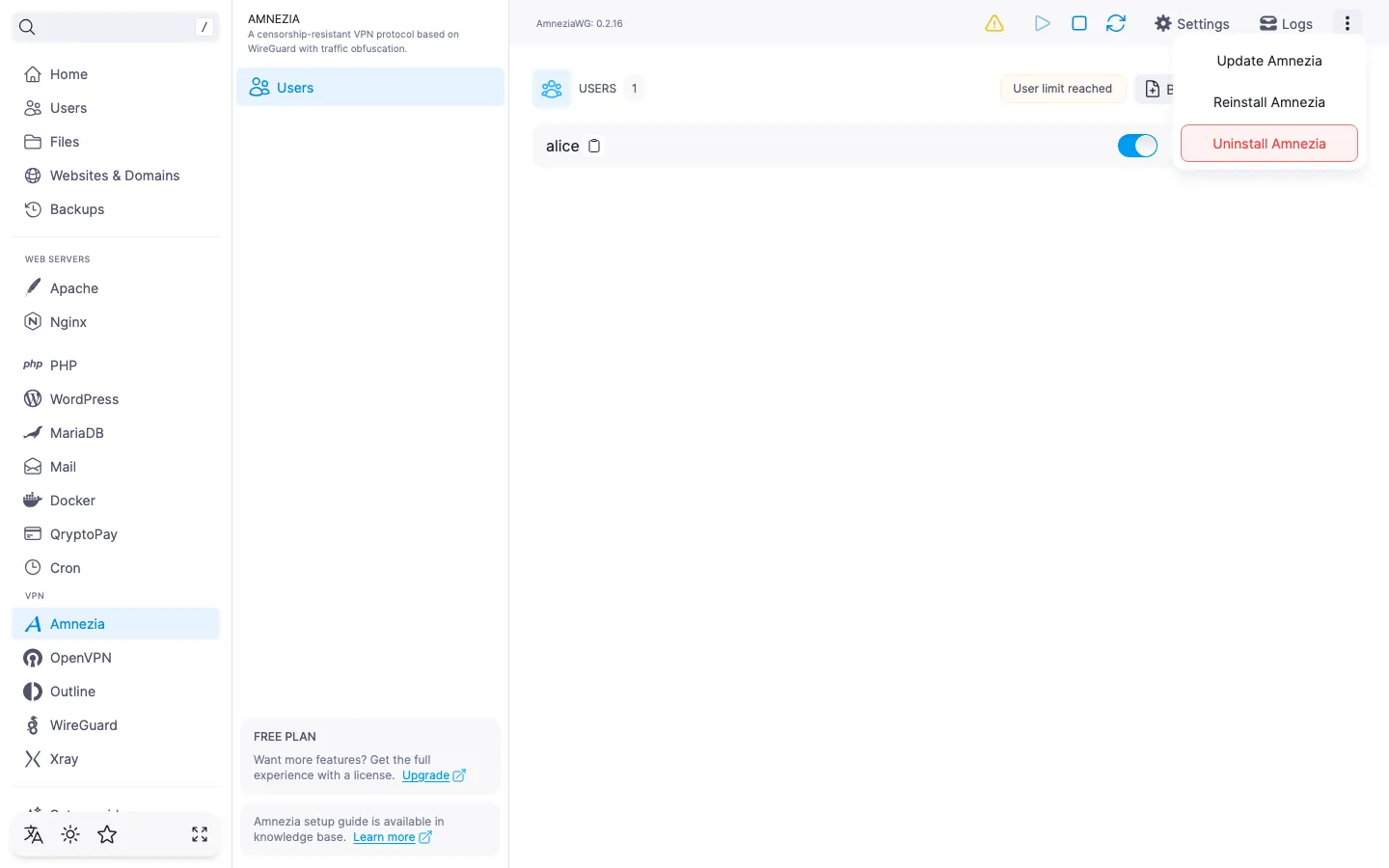
The update has no confirmation prompt — the action starts right away. While it is running, the header shows an "Updating Amnezia" indicator, and the service controls and menu items are unavailable. The module version is shown under the title as a string in the form "AmneziaWG: 1.2.3".
Reinstalling the module
In the module action menu next to the "Amnezia" title, choose "Reinstall Amnezia". The panel reinstalls the same AmneziaWG version over the current one and restarts the service. The user list and their active connections are preserved — there is no need to re-import the .conf files on devices.
The panel asks you to confirm the reinstall — click "Confirm". While the operation is running, the header shows a "Reinstalling Amnezia" indicator, and the service controls and menu items are unavailable.
Use a reinstall if the module is running unstably and you want to run the install again without losing users.
ℹ️ User data is preserved
Unlike uninstalling, reinstalling does not wipe users or their keys. Already issued .conf configurations keep working after the operation — there is no need to reconnect or re-import the files.
ℹ️ Port during reinstall
A reinstall keeps the same UDP port — the module comes back up on the port it was using before. To reinstall and change the port at the same time, run the two steps separately in any order: change the port on the "Settings" tab and reinstall the module from the actions menu.
ℹ️ If a connection doesn't recover
If a user cannot reconnect after the reinstall, disable them in the list, enable them again and re-import the .conf file or QR code in the app on their device. If the errors persist, the last resort is to fully uninstall the module and install it again.
Uninstalling the module
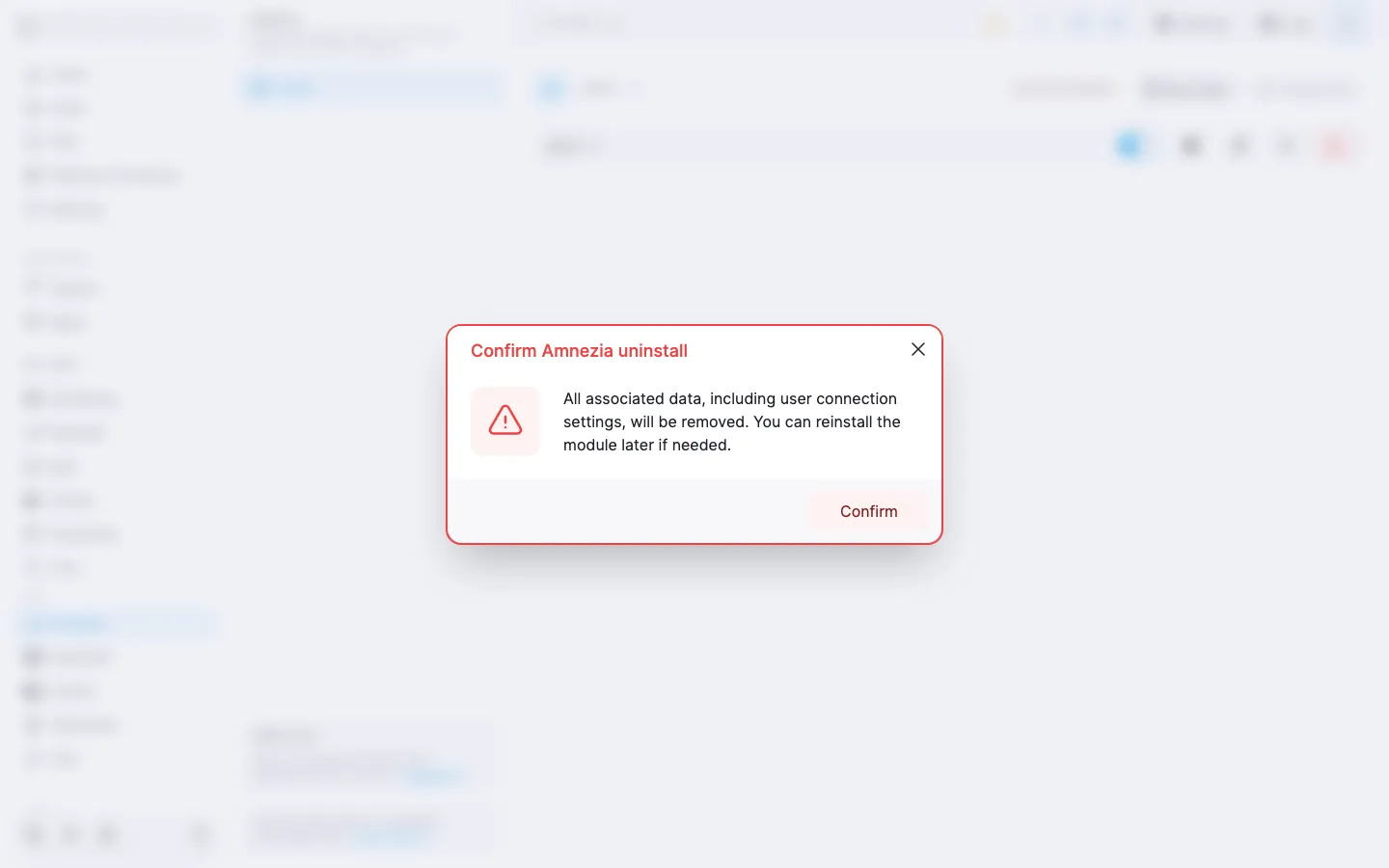
In the module action menu, choose "Uninstall Amnezia". The panel asks you to confirm: all user connection settings will be removed together with the module; after a fresh install the server starts from scratch.
‼️ Uninstalling the module wipes every VPN user
The action is irreversible: along with the module, all Amnezia users, their keys, and the generated .conf configuration files are deleted. Already imported client configurations will not be able to connect afterwards. After a reinstall, the module and the users have to be created from scratch; new keys will be issued, and clients will need to re-import their configuration.
After confirmation, the panel starts the uninstall; the process is shown as an "Uninstalling Amnezia" indicator in the header. When it finishes, the module page returns to its initial state with the "Install" button.
Task log
The module page header has a link to the module task log. It records every lifecycle operation triggered on the module — install, update, uninstall, port change — along with their statuses and execution logs. Useful when an installation or update fails and you need to find the cause.
Useful links
- Amnezia quick start — installing the module and the first connection.
- Amnezia. Managing users — creating, editing, and deleting users, and buying more slots.
- How to set up an SMTP relay for sending emails — so that the
.conffile can be emailed to users.