Amnezia quick start
The Amnezia module in the BeAdmin panel runs your own VPN on the server based on AmneziaWG — a fork of WireGuard with traffic obfuscation. The masking makes the connection resilient to deep packet inspection (DPI) and helps preserve access where plain WireGuard no longer gets through. Obfuscation parameters are generated automatically — the panel sets up the server side, the keys, and the network interface itself.
This article walks through the minimum scenario: install the module, create the first user, and connect a client device to it.
ℹ️ Note
A VPN server of your own beats commercial services: bandwidth is not shared with hundreds of clients, and each server gets its own obfuscation parameters — which lowers the risk of the traffic being caught by mass blocks.
⚠️ ISP restrictions
Traffic encryption makes a VPN a reliable way to protect a connection, but in some countries and regions internet providers actively interfere with VPN protocols. Because of this, full availability of the service cannot be guaranteed — regardless of the connection type. If one protocol does not work for you, try another VPN module available in the panel. If none of them work on your network, contact support and we will issue a refund for the license.
Install the module
In the panel side menu, open "VPN" → "Amnezia" and click "Install" — the module installs with a single click and is ready to use right away. The default UDP listen port is 51720.
If you need a different port (for example, to hide the traffic behind 443 or 8443), click the gear icon next to the button (tooltip — "Setup") — the install dialog opens with a single field, "Port". Enter the number and confirm with the "Launch" button. If the port is already taken by another BeAdmin module, the panel highlights the error and does not let the value through.
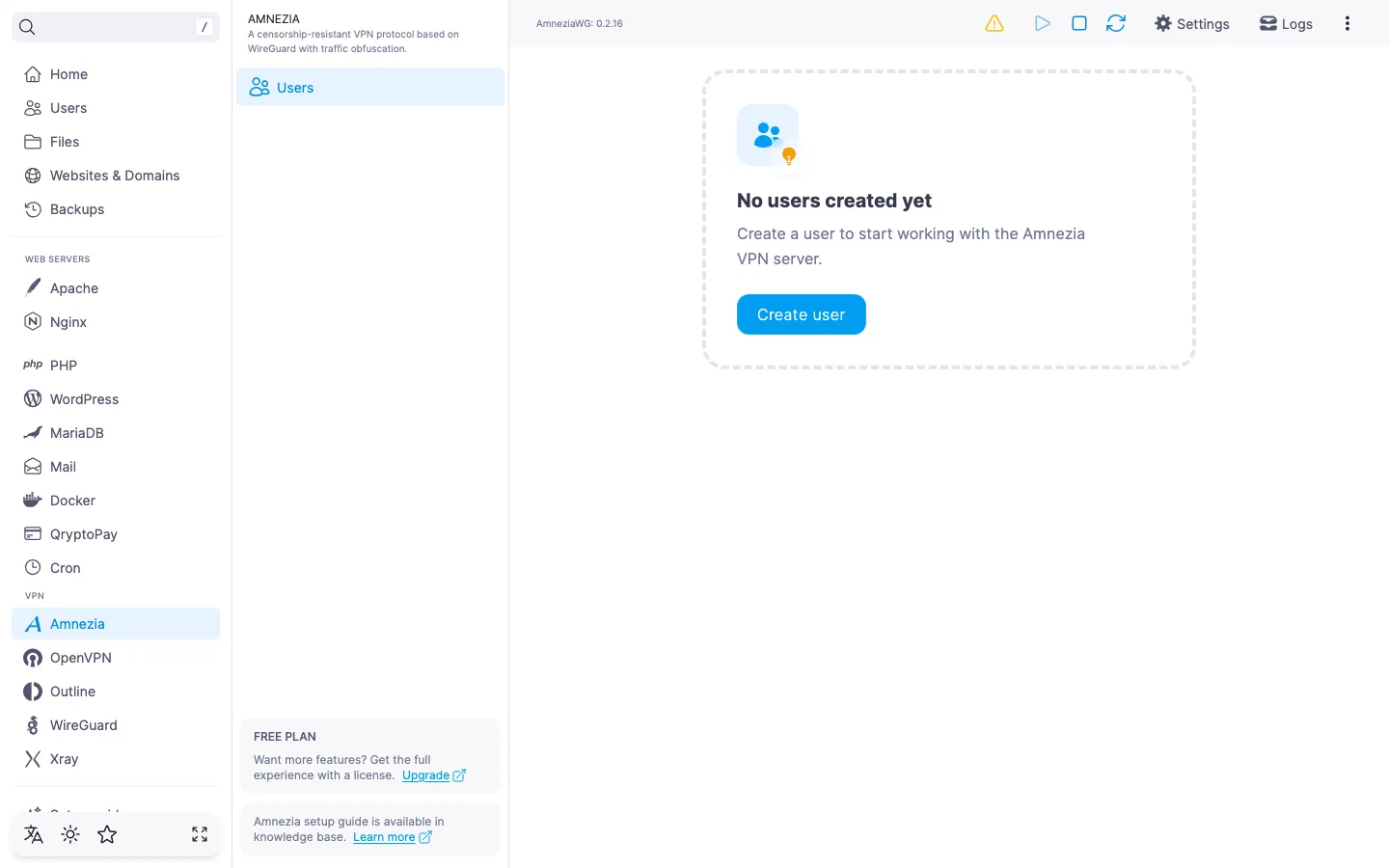
Once it finishes, the panel automatically opens the "Users" page — that is the main screen of the module. Installation usually takes a few minutes; you can follow the progress in the task log.
Create the first user
An Amnezia user is a separate account with its own key pair and configuration file. We recommend creating a separate user for every device that will connect: it makes revoking access for a single device easy, without touching the others.
- On the "Users" page, click "Create user".
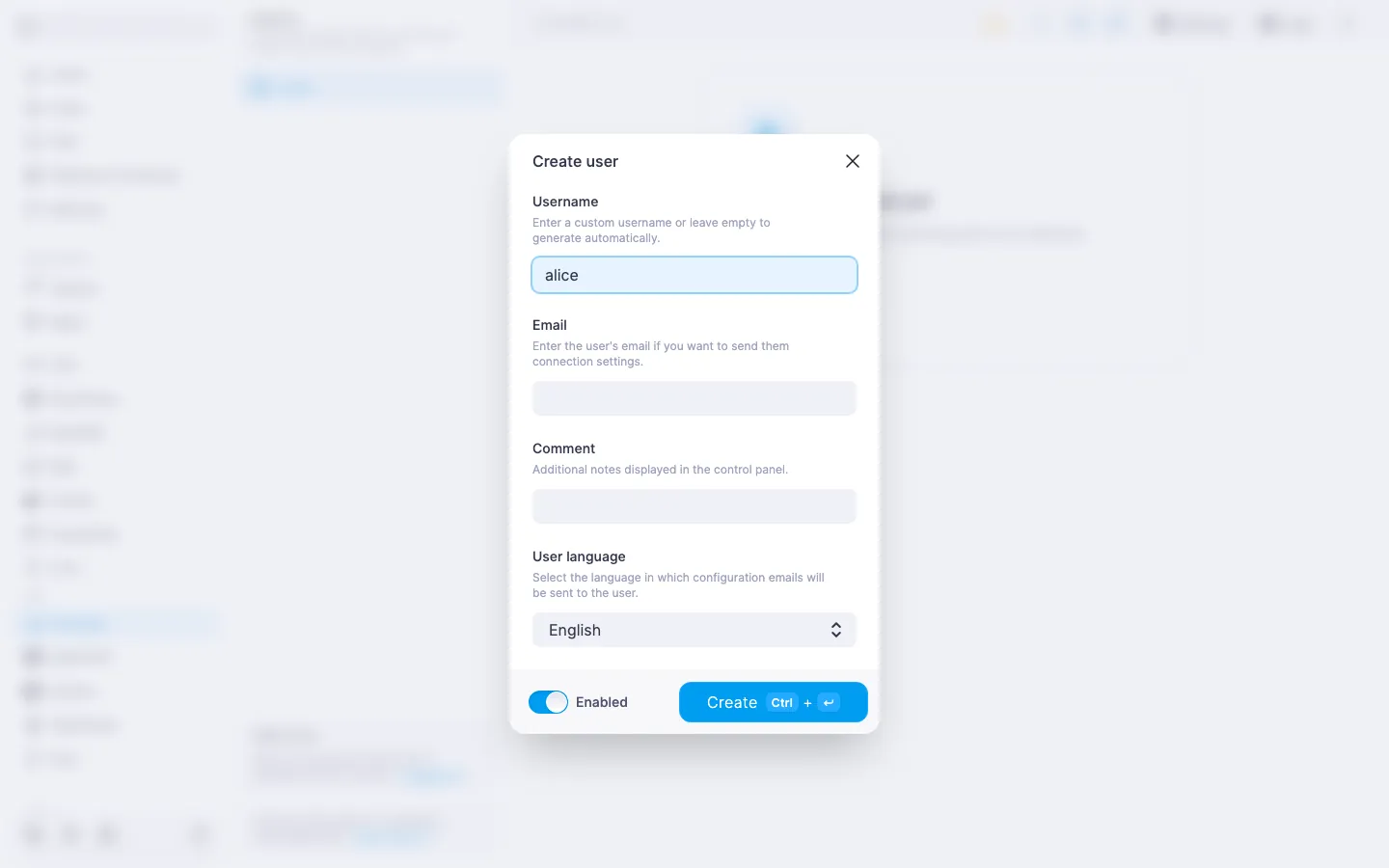
- Fill in the fields:
- "Username" — a short identifier of 2 to 32 characters: Latin letters, digits, dot, hyphen, underscore. The field can be left empty — the panel will generate the name itself. The name has to be unique.
- "Email" — optional. Needed to send the configuration file to the user by email; if you do not plan to do that, leave it empty.
- "Comment" — an optional label of up to 64 characters: for example, "Anna's iPhone" or "work laptop". Helps you find users in the list.
- "User language" — language of the email with the configuration. Defaults to English.
- "Enabled" — if you don't want to activate the user immediately after creation, turn off the toggle.
- Click "Create".
The user appears in the list. The server generates a key pair for them and assembles the configuration — you can grab it right from the connection settings dialog.
ℹ️ Free-plan limit
The free plan includes one Amnezia user — that lets you try the service out and see whether it fits you. When you need to connect more devices, get extra slots. See Amnezia. Managing users for details.
ℹ️ Default DNS and keepalive
On creation, the panel sets DNS to 1.1.1.1 (Cloudflare) and persistent keepalive to 25 seconds. Both values can be changed in the user edit dialog — see Amnezia. Managing users for details.
Connect a client device
Connecting works with one of the official Amnezia apps:
- AmneziaVPN — a multi-protocol client for Windows, macOS, Linux, Android, iOS. Uses the "container" configuration format embedded in the AmneziaVPN QR code.
- AmneziaWG — a dedicated AmneziaWG-only client: Windows, Android, iOS. Accepts a regular
.conffile with obfuscation parameters.
Install one of the apps on the device that will route traffic through the VPN. Next, grab the configuration from the panel.
- In the user row, click the "Settings" button (gear icon).
- In the "Connection settings" dialog you will find:
- The username — shown in monospace, with a button next to it to copy it to the clipboard.
- Two QR codes — one for AmneziaVPN and one for AmneziaWG; click the smaller QR to switch the active one.
- A button to download the
.conffile — an AmneziaWG-format configuration. The file name matches the username.
- Import the configuration into the app:
- AmneziaVPN on a phone: in the app pick the QR import option and scan the AmneziaVPN QR code straight from the panel screen.
- AmneziaWG on a phone: in the app pick the QR import option and scan the AmneziaWG QR code. Alternatively, import the downloaded
.conffile. - On a desktop: in the app pick the file import option and choose the downloaded
.conf(the AmneziaWG variant). For AmneziaVPN on desktop the QR option also works — point the camera at the correct code.
- Activate the VPN in the app. On iOS, confirm the system prompt to install the VPN profile.
⚠️ Which QR to scan
The QR codes for AmneziaVPN and AmneziaWG are different: they store different configuration formats. If you scan the "wrong" one, the app will either refuse to import it, or the connection will not work. Check the labels under the QR codes.
To verify that the VPN works, open any IP-check page in the browser, for example myip.com. If everything is set up correctly, the page shows the country of your server.
Send the configuration by email
If SMTP is configured in the panel, the configuration file can be emailed to the user — handy when you do not have the device on hand. The email carries the .conf file in AmneziaWG format.
In the "Connection settings" dialog, click "Send to email"; the same button is also available in the user row in the list. The file is sent to the address entered in the user's profile.
ℹ️ When SMTP is not configured
The send-to-email buttons are disabled, and the module page header shows an "Email sending not configured" banner with a link to the SMTP settings. See How to set up an SMTP relay for sending emails for details. Downloading the .conf file and the QR codes work in any case.
What's next
For service management, port changes, updates, and uninstalling the module, see Amnezia. Managing the module. For creating, editing, and deleting users and buying extra slots, see Amnezia. Managing users. Disabling and re-enabling a user can be done right from the list — no need to re-import the configuration on the device afterwards.