Mail. Mailboxes, aliases, and domains
This article continues How to deploy a mail server with BeAdmin. It does not repeat installing the module: if the module is not installed yet, start there. Here you will find the day-to-day work with mail: connecting a domain, DNS records, mailboxes and changing their passwords, aliases, and catch-all. Connecting a mailbox to a mail client is covered in a separate article, Mail. Connecting a mailbox to a mail client.
How mail works
All mail is built on the domains from "Websites & Domains". The server accepts mail only for domains connected to mail, so mailboxes, aliases, and catch-all are created on such domains, and the domain itself is connected automatically when you create its first mailbox, alias, or catch-all. The three entities work differently:
- Mailbox — an address with its own password and its own storage for emails. You can connect to it through Roundcube or a mail client.
- Alias — an extra address with no storage and no password: it receives mail and forwards it to each recipient. Recipients can be mailboxes on this server and external addresses in any combination, so an alias does not need a single mailbox on the server. You cannot sign in with an alias, so it cannot be connected to a mail client.
- Catch-all — a domain setting that collects mail sent to non-existent addresses and hands it to the mailboxes you choose. Without it, such mail is rejected.
Connecting a domain to mail
You do not need to connect a domain separately: just create a mailbox, alias, or catch-all on it, and the domain connects to mail automatically. If the domain is not in "Websites & Domains", the panel adds it there as a domain without a site, so that it shows up in the server's single list of domains. If a mailbox or alias could not be created, for example because the address is taken, the domain is not connected to mail.
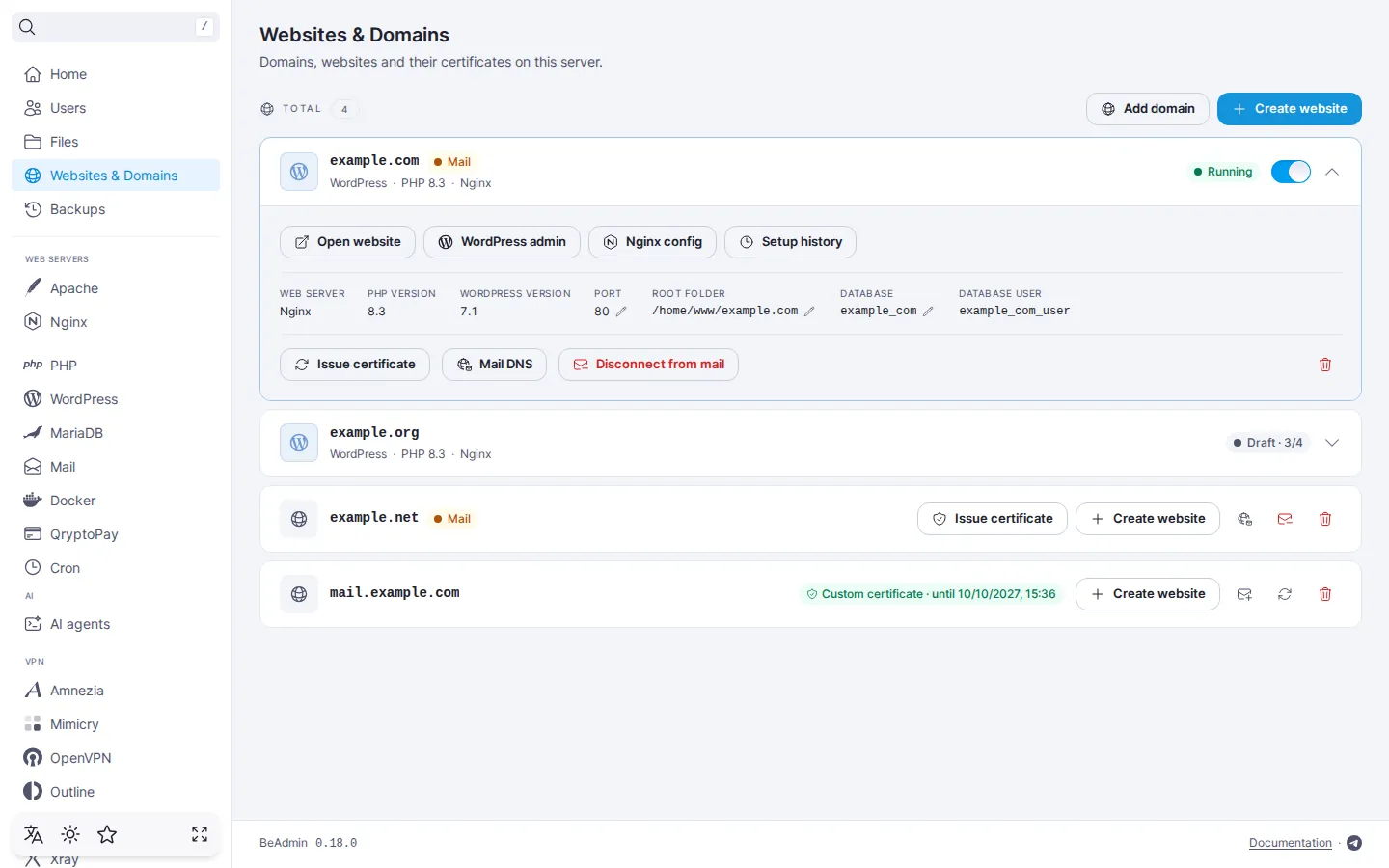
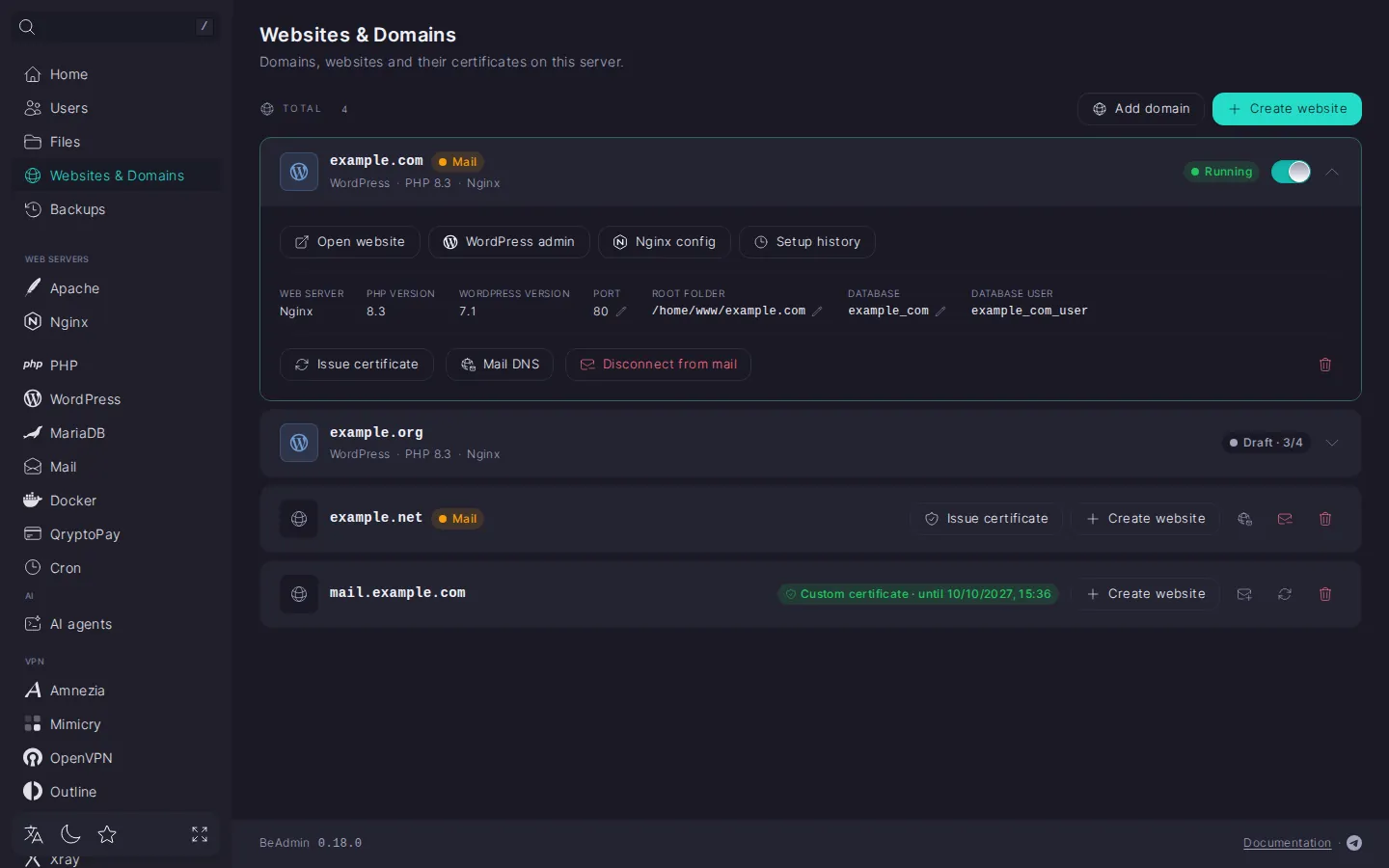
You can also connect a domain to mail in advance, before creating mailboxes, and disconnect it again: both actions are done on the domain in "Websites & Domains". Connecting in advance is handy when you want the DKIM key and the DNS records ready right away: you will need them before the first message. Here is what happens to mail with each action on a domain:
- Connecting allows the server to accept the domain's mail and creates a DKIM key, which is used to sign outgoing mail. The DNS records are not published at this point: you need to add them yourself, as described in DNS records.
- Disconnecting stops accepting the domain's mail, because the server accepts mail only for connected domains. That is why disconnecting also deletes everything on the domain: its mailboxes, aliases, and catch-all, and the mailboxes are also removed from the recipient lists of aliases on other domains. Before disconnecting, the panel lists exactly what will be deleted and asks you to enter the domain name, so that mail cannot be deleted by accident. If something appeared on or disappeared from the domain while you were confirming, the panel deletes nothing and shows what is on the domain now. A domain with nothing on it is disconnected right away. The DKIM key is kept when you disconnect, so you will not need to change DNS when you reconnect.
- Emails on disconnecting stay on the server's disk by default: the "Keep emails on the server" option is selected, and the emails come back if you create mailboxes with the same addresses again. If you choose "Delete emails from the server", they are deleted permanently.
- Deleting a domain in "Websites & Domains" works the same way as disconnecting: if the domain has mail, the panel shows what will be deleted along with it, lets you choose what happens to the emails, and asks you to enter the domain name. The domain's certificate and its connection to mail are deleted with it.
- Deleting a site does not affect mail: the domain stays in the list and stays connected to mail, and the mail keeps being accepted.
DNS records
Connecting a domain does not publish records in DNS, so you need to add them at your registrar. Without them, mail does not reach recipients or lands in spam: each record has its own job. MX defines which server mail for the domain is delivered to, SPF lists the servers allowed to send it, DKIM signs messages, and DMARC defines what to do with messages that fail the SPF and DKIM checks. To set them up:
- Open the "Mail DNS" dialog for the domain in "Websites & Domains" to see which records you need and whether they are published correctly.
- Add the missing records at your domain registrar.
- Click "Check DNS". The check result is kept for a short time, so without this the dialog may show old data, and DNS does not update instantly, so new data can take a while to appear.
Each record is described in detail in How to configure DNS records for a mail server, including A and PTR.
⚠️ A new DKIM key stops message signing
You need a new key if it was not created when the domain was connected, or if you want to replace it: click "Update DKIM" in the "Mail DNS" dialog. The old key is replaced, so message signing fails until you publish the new TXT record.
Creating a mailbox
You can create a mailbox on any domain from "Websites & Domains" or on a new one. To do it:
- On the "Mailboxes" tab, click "Create mailbox".
- Enter the mailbox address: type the part before the
@and select a domain from the list or enter a new one. The panel adds a new domain to "Websites & Domains" and connects it to mail. - If needed, set a quota — the maximum size of the mailbox storage. It limits the space the mailbox takes on the server's disk.
The part of the address before the @ can contain Latin letters, digits, and the characters ., _, +, and -, and it must start and end with a letter or a digit. The address must not match the address of an alias: an alias is processed before a mailbox and would intercept its mail.
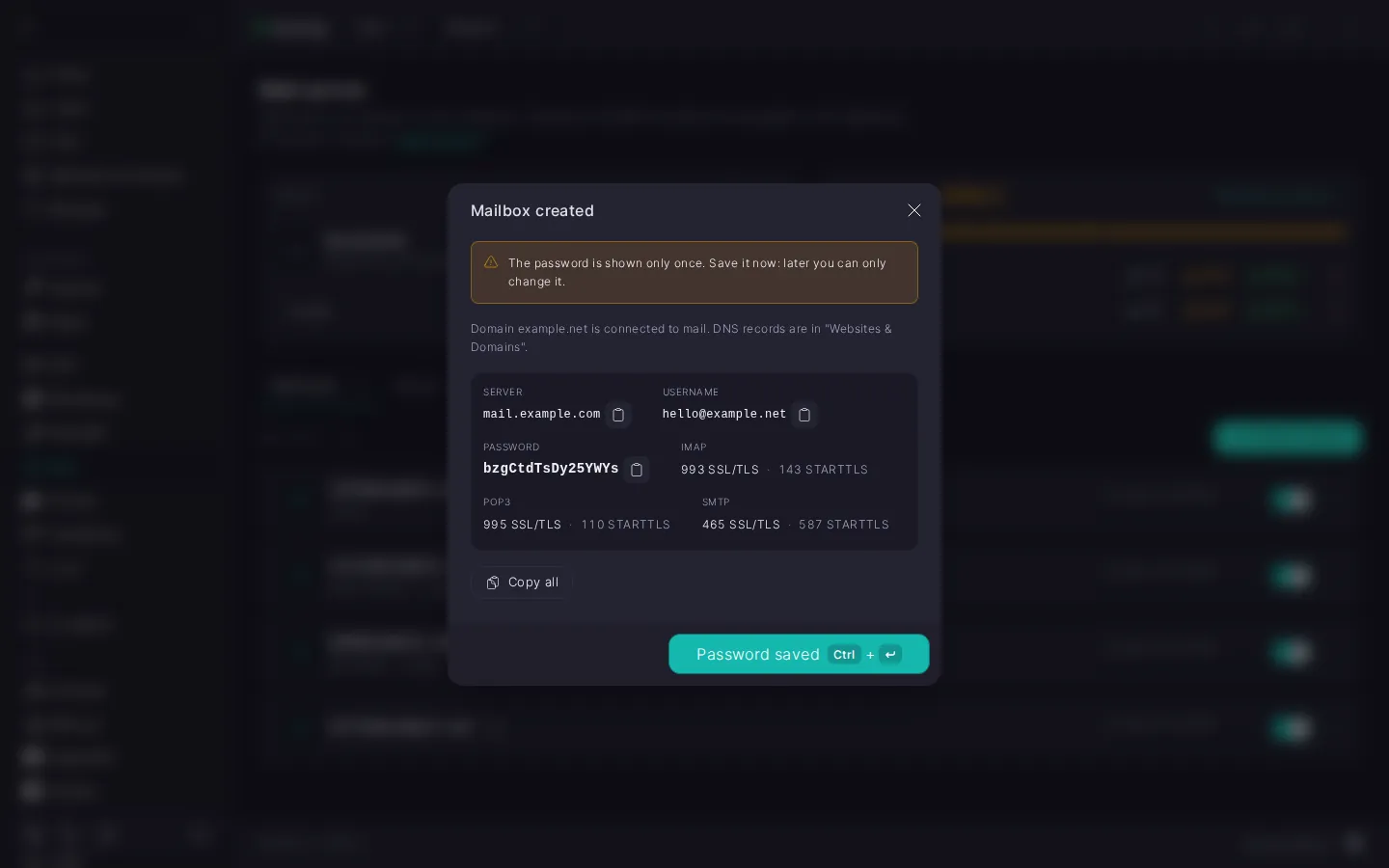
The server generates the password and shows it only once, in the "Mailbox created" dialog: the panel cannot read the password back. Save it right away: the password cannot be shown again, only changed. For the settings to enter in a mail client, see Mail. Connecting a mailbox to a mail client.
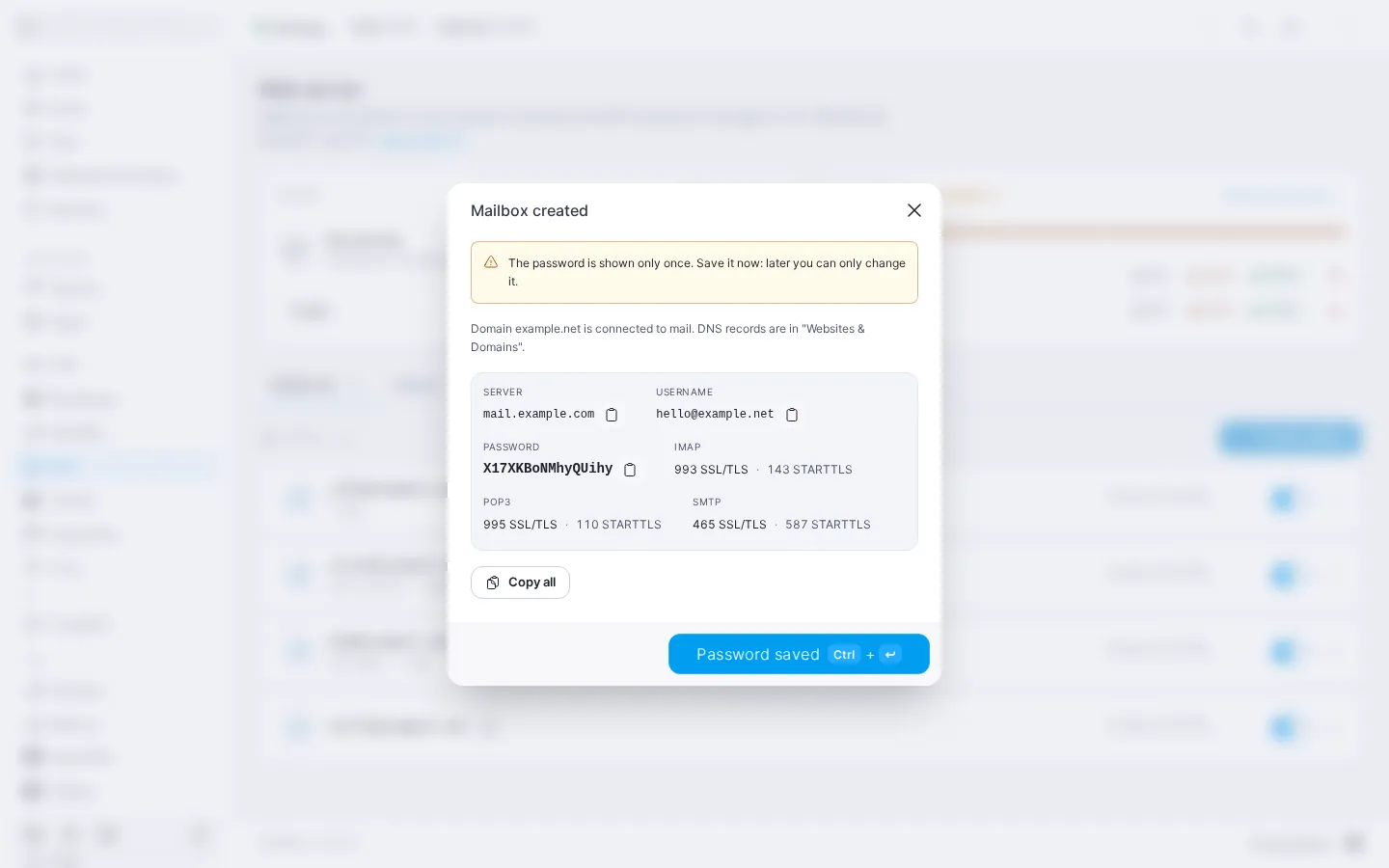
You can change the quota later. When a mailbox is full, new mail to it is not accepted: the sender gets a bounce right away. The same happens if you set a quota lower than the space already used.
Changing a mailbox password
You can change the password at any time: for example, if you did not save it when creating the mailbox, or if someone else learned it. You do it in the expanded mailbox. The old password stops working immediately: this cuts off access for anyone who knew it, but your mail clients with the saved password also stop connecting, so you need to enter the new one in every client and on every device where the mailbox is connected.
The new password must contain at least one Latin letter and one digit. If it does not meet other requirements, the panel warns you.
Managing a mailbox
Here is what happens to a mailbox with each action:
- Disabling is for when you need to close a mailbox temporarily without deleting its emails: the mailbox does not accept mail and you cannot sign in to it, but the emails already in it are kept. Mail that arrives through aliases is not delivered to a disabled mailbox either. After you enable it, the mailbox works as before.
- Editing covers the display name (for example, the mailbox owner's name), the comment, and the quota, while the address stays the same. The name and the comment help you tell mailboxes apart in the list, and the quota limits the space used. You can edit a mailbox in its expanded view.
- Deleting removes the mailbox from the server, and you choose what happens to the emails when you delete — see the warning below.
⚠️ You cannot change a mailbox address
To get a different address, create a new mailbox and delete the old one.
‼️ Deleting a mailbox cannot be undone
A deleted mailbox no longer accepts mail, and you cannot sign in to it. Aliases and catch-all where the mailbox was the only recipient are deleted along with it: they have nobody left to forward mail to. From all the others, the mailbox is simply removed from the recipient list. You choose what happens to the emails when you delete. "Keep emails on the server" is selected by default: they stay on the server's disk, in the /home/vmail directory, and come back if you later create a mailbox with the same address again. If you choose "Delete emails from the server", the emails are deleted permanently. If the emails could not be deleted, the mailbox stays, and you can repeat the deletion.
Aliases
A typical scenario: the addresses info@, sales@, and support@ lead to your employees' mailboxes, while customers write to familiar addresses that are not tied to a particular person.
Creating an alias
You can create an alias on any domain, including one that has no mailboxes yet: recipients can be external addresses too. To do it:
- On the "Aliases" tab, click "Create alias".
- Enter the alias address on the domain you need (the domain connects to mail the same way as when you create a mailbox) and the recipients.
An alias address cannot match the address of a mailbox: an alias is processed before a mailbox and would intercept its mail. It cannot match another alias either. After creation, an alias address cannot be changed: to get a different address, delete the alias and create a new one. An alias can have several recipients; if there are too many, the panel warns you.
Send as
For a recipient mailbox to be able to reply as the alias, turn on "Send as" for it when creating or editing the alias: replies then go out from the alias address instead of the mailbox address. This is possible only for mailboxes on this server; external addresses cannot be given this right. Roundcube adds the alias address to the mailbox's senders automatically, while in other mail clients you need to add it manually as an additional sender address.
Role aliases
Common addresses such as support, sales, and info can be created for one mailbox in a single step, without creating them one by one. To do it, click "Role aliases" on the "Aliases" tab and choose a mailbox. The aliases are created on the domain of the chosen mailbox, mail to them arrives in that mailbox, and it can reply as them. If some addresses could not be created, the rest are still created, and the panel names the ones that failed.
Adding a mailbox to an alias
When you need to add a recipient to an existing alias, you can do it without opening the alias itself: expand the mailbox and click "Add to alias". If you enter an alias address that does not exist yet, it is created.
Disabling and deleting an alias
Here is what happens to mail with each action on an alias:
- Disabling an alias stops forwarding: mail sent to its address does not reach the recipients. The alias and its recipient list stay, so you can enable it again.
- Disabling a recipient mailbox cuts only that mailbox off from the alias's mail; the other recipients receive it as usual.
- Deleting an alias stops forwarding mail sent to its address. The recipients' mailboxes and the emails in them stay.
Catch-all
You set up a catch-all separately for each domain connected to mail: all you need is to choose the mailboxes that will receive such mail. It exists so that you do not lose mail sent to an address with a typo or to an address you never created. Recipients can only be mailboxes on this server: a catch-all also collects the spam that arrives at random addresses of the domain, and if you forward it to Gmail and other large mail services, they start treating the server itself as a spammer, and delivery of all mail from its IP address suffers. Each chosen mailbox receives such a message, so alongside the mail you need, accidental and unwanted messages will arrive there too.
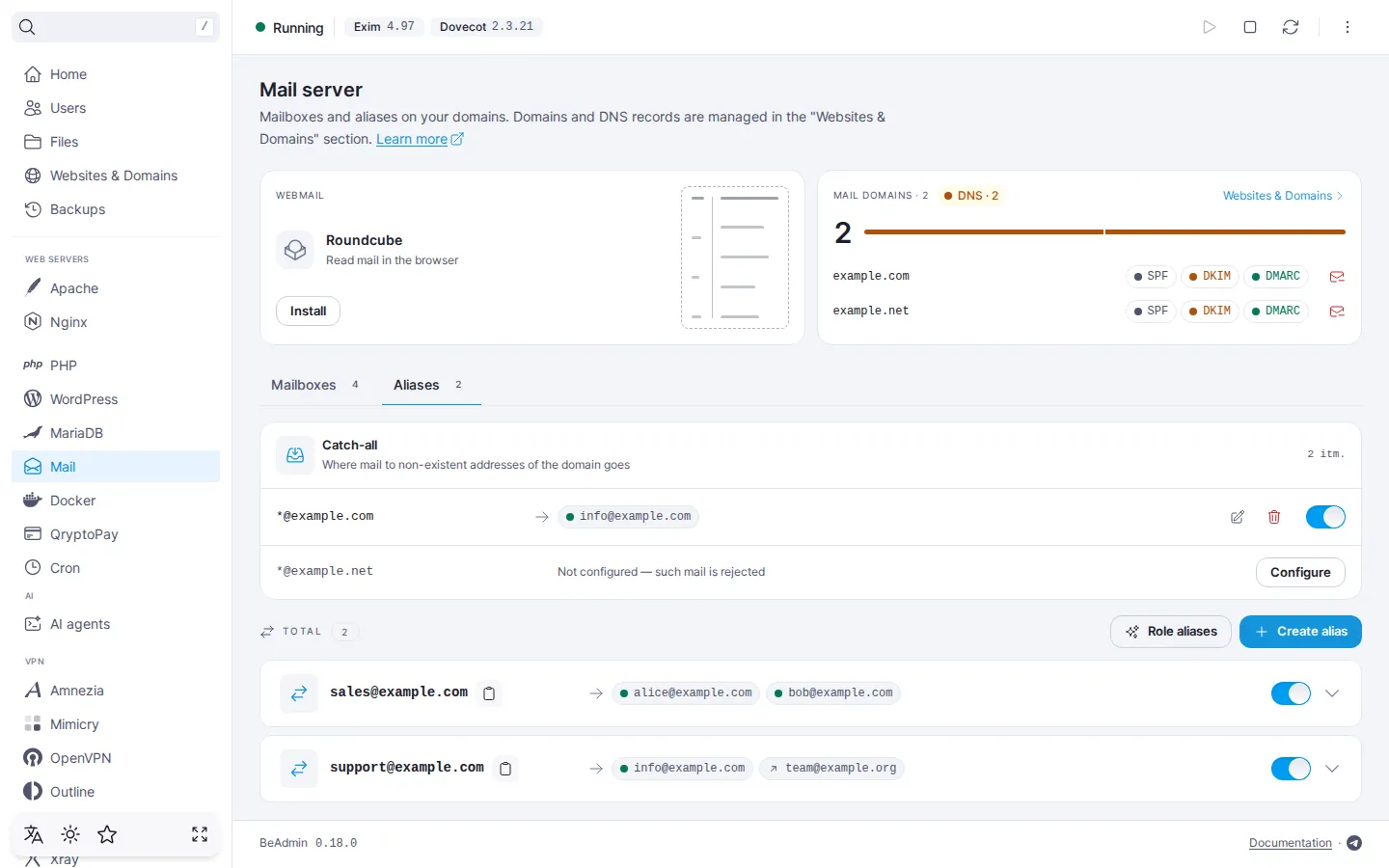
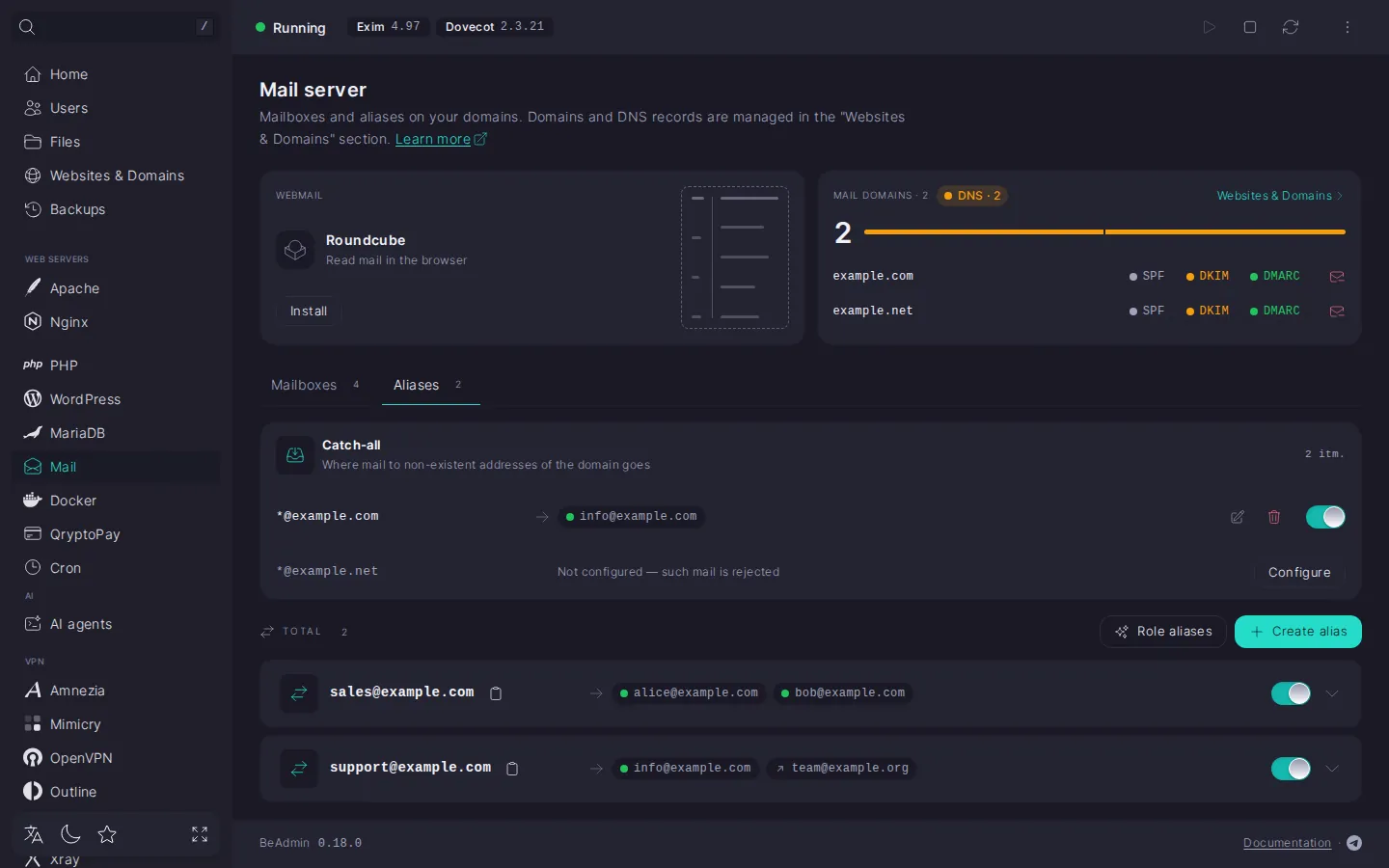
Here is what happens with each action on a catch-all:
- Disabling keeps the setting, but mail to non-existent addresses is rejected again. This is handy when you need to stop collecting mail for a while.
- Deleting removes the setting: such mail is rejected as well, and to get the catch-all back you need to set it up again.
A catch-all does not intercept mail sent to the address of an existing but disabled mailbox, so that it does not quietly end up with other recipients: such mail is not delivered to anyone.
What's next
- Mail. Connecting a mailbox to a mail client — IMAP and SMTP settings and guides for mail clients.
- Mail. Managing the module — starting, stopping, reinstalling, and removing the server; managing Roundcube.
- How to deploy a mail server with BeAdmin — installing the module and the Roundcube web client.
- How to configure DNS records for a mail server — the full set of DNS records: A, MX, SPF, DKIM, DMARC, PTR.