Proven over 15 years in hosting. Your VPS with BeAdmin is ready to go out of the box.
 Germany
 Netherlands
 Sweden
 Switzerland
 Spain
Spain USA
USA
The BeAdmin panel lets you run your own mail server: create mailboxes on your own domains, set up forwarding aliases, and work with mail through the Roundcube web interface or mail clients over IMAP and SMTP. Exim sends and receives the mail, Dovecot stores it and gives access to the mailboxes, and the mailboxes and aliases themselves are kept in MariaDB.
This article describes a minimal scenario: install the module, create the first mailbox, add Roundcube, and connect a mail client. Working with the module itself is covered in Mail. Managing the module, and mailboxes, aliases, and domains in Mail. Mailboxes, aliases, and domains.
You'll need a server with BeAdmin — our partners ship a ready‑to‑use VPS the moment you order.
Proven over 15 years in hosting. Your VPS with BeAdmin is ready to go out of the box.
GermanyNetherlandsSwedenSwitzerlandSpainUSAEuropean reliability made simple. Launch BeAdmin with your VPS in just one click.
GermanyNetherlandsSweden Estonia
 RomaniaSwitzerlandSpain
'%3e%3cpath%20fill='%2300008b'%20d='M0%200h384v256H0z'/%3e%3cpath%20stroke='%23fff'%20stroke-width='42'%20d='m1.914-.001%20382.086%20256m-382.086%200L384-.001'/%3e%3cpath%20stroke='red'%20stroke-width='14'%20d='M5.437%200%20192%20122M378.563%200%20192%20122M5.437%20256%20192%20134m186.563%20122L192%20134'/%3e%3cpath%20fill='%23fff'%20d='M157.787-.001h68.359v256h-68.359z'/%3e%3cpath%20fill='%23fff'%20d='M-.067%2093.999H384v68H-.067z'/%3e%3cpath%20fill='red'%20d='M384%20107.789H211.862V-.001h-39.724l.001%20107.79H0v40.419h172.139v107.79h39.723v-107.79H384z'/%3e%3c/g%3e%3c/svg%3e) United KingdomUSA
United KingdomUSAOpen "Mail" in the panel's side menu and click "Install". Mail needs MariaDB: it stores mailboxes, aliases, and account credentials. If MariaDB is not installed yet, install it first on the module page: the module's install button stays inactive until the dependency is installed.
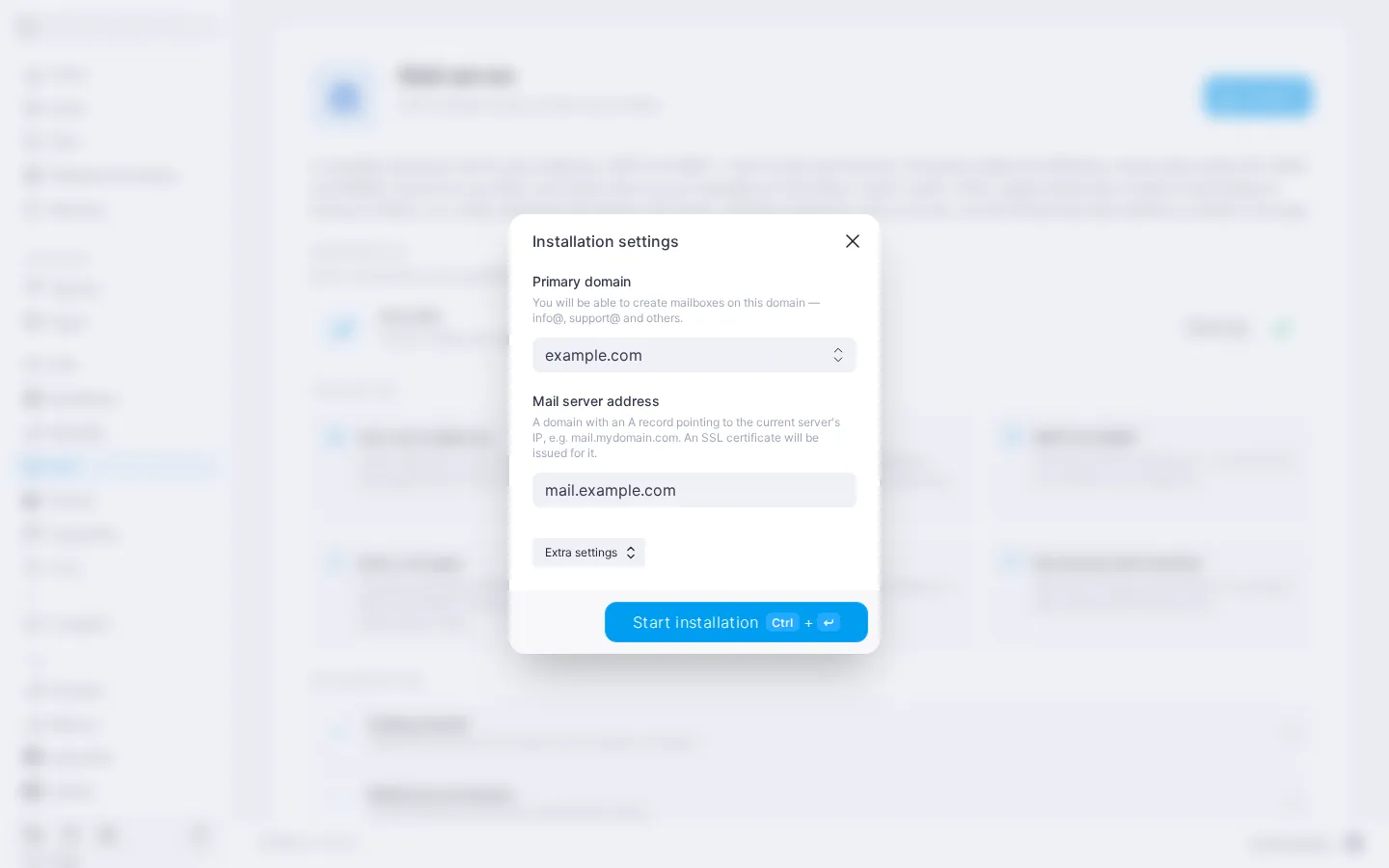
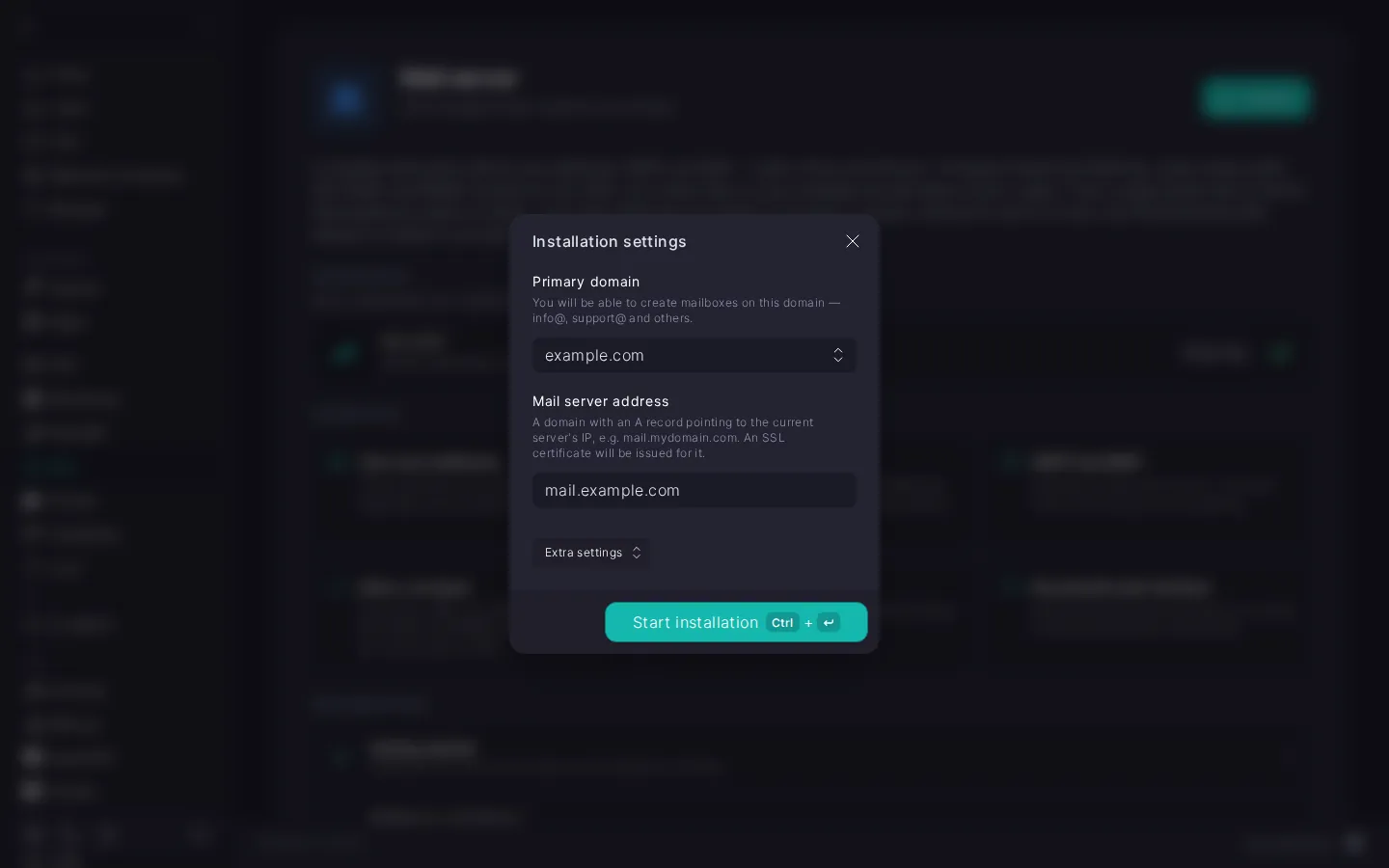
In the installation parameters dialog, enter:
example.com. It connects to mail right away and appears in "Websites & Domains" as a domain without a site, and a DKIM key is created for it.mail.example.com. It must be the same as the primary domain or one of its subdomains. The panel requests an SSL certificate for this address from Let's Encrypt so that the connection between clients and the server is protected, so before installing, create an A record at your registrar pointing this address to the server's IP address. If there is no record, or it points to another server, the certificate cannot be issued and the server runs with a self-signed one: mail clients will warn about it.Click "Start installation". The installation takes a few minutes, and you can follow its progress in the log. When it finishes, the mailbox list opens.
A certificate failure does not stop the installation: the module is installed either way, and you can issue the certificate later. For how to do it, see Mail. Managing the module.
ℹ️ The mail server uses MariaDB
Do not remove the MariaDB module while mail is running: without the mailbox database, the server stops receiving and sending mail.
Create the first mailbox on the primary domain. The server generates the password and shows it only once, so save it right away. How to create a mailbox and what happens to the password is described in the Creating a mailbox section.
The installation does not publish records in DNS, so you need to add MX, SPF, DKIM, and DMARC at your registrar. Without them, mail will not reach the mailboxes or will land in spam. Which records you need and how to check that they are published is described in the DNS records section, and the full set of records in How to configure DNS records for a mail server.
Roundcube is a web interface for mail: it lets you read and send messages right in the browser without setting up a mail client. Roundcube installs in one step and does not ask for any extra parameters:
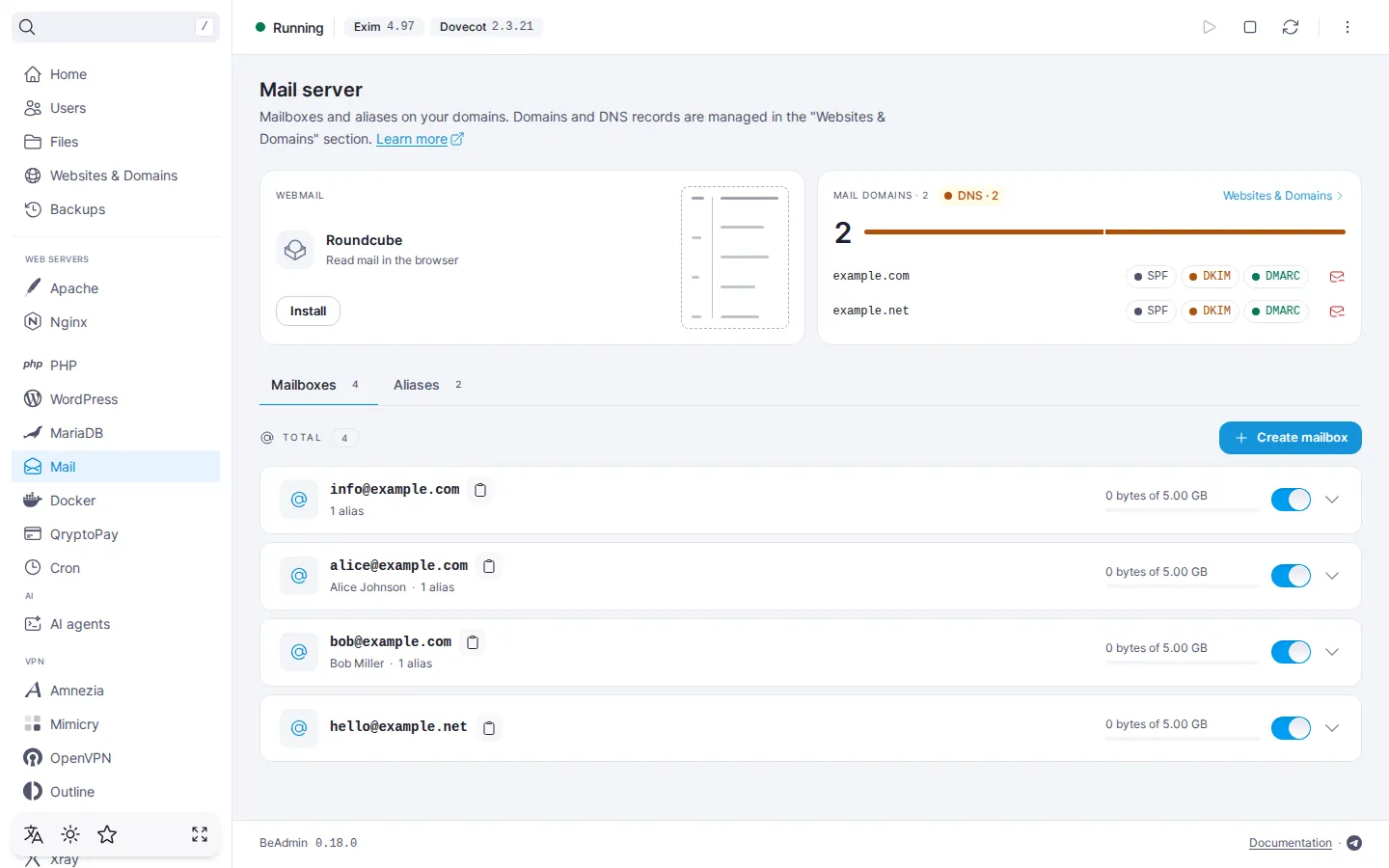
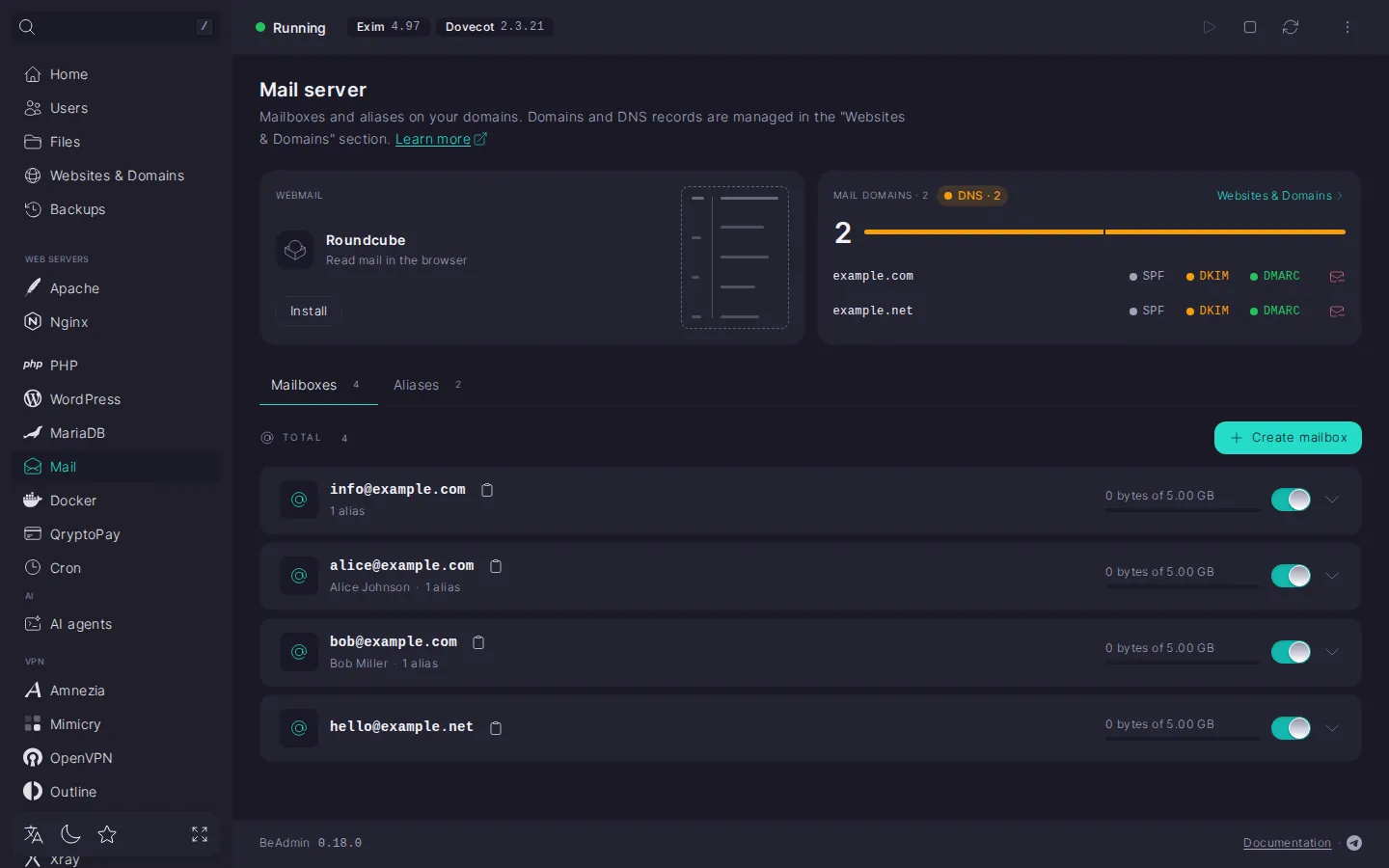
To sign in, enter the full mailbox address, for example info@example.com, and its password. Aliases cannot be used to sign in: they only forward messages. There is no single sign-on from the panel: you enter the mailbox address and password in Roundcube itself.
Roundcube runs on PHP, and a suitable PHP version may be missing on the server. In that case the block shows "Install PHP" instead of "Install": click it, wait for PHP to install, and then click "Install". You do not need to pick a version: the panel installs the newest suitable one. On older systems there may be no suitable PHP version at all: then Roundcube cannot be installed, but you can still use mail through mail clients.
You can connect a mailbox to any mail client over IMAP and SMTP — for example, Thunderbird, Apple Mail, Outlook, or Gmail on Android. The server settings and the guide for each client are in Mail. Connecting a mailbox to a mail client.