Outline quick start
The Outline module in the BeAdmin panel runs a proxy server on top of the Shadowsocks protocol: every client's traffic is encrypted with the modern ChaCha20-Poly1305 (AEAD) cipher. Each user gets a unique access key as either an ss://... link or a QR code — that is enough to connect from any Outline- or Shadowsocks-compatible client.
This article walks through the minimum scenario: install the module, create the first user, and connect a client device to it.
ℹ️ Note
A proxy server of your own beats commercial services: bandwidth is not shared with hundreds of clients, and the Outline module in BeAdmin has no limits on the number of users.
⚠️ ISP restrictions
Traffic encryption makes a VPN a reliable way to protect a connection, but in some countries and regions internet providers actively interfere with VPN protocols. Because of this, full availability of the service cannot be guaranteed — regardless of the connection type. If one protocol does not work for you, try another VPN module available in the panel. If none of them work on your network, contact support and we will issue a refund for the license.
Install the module
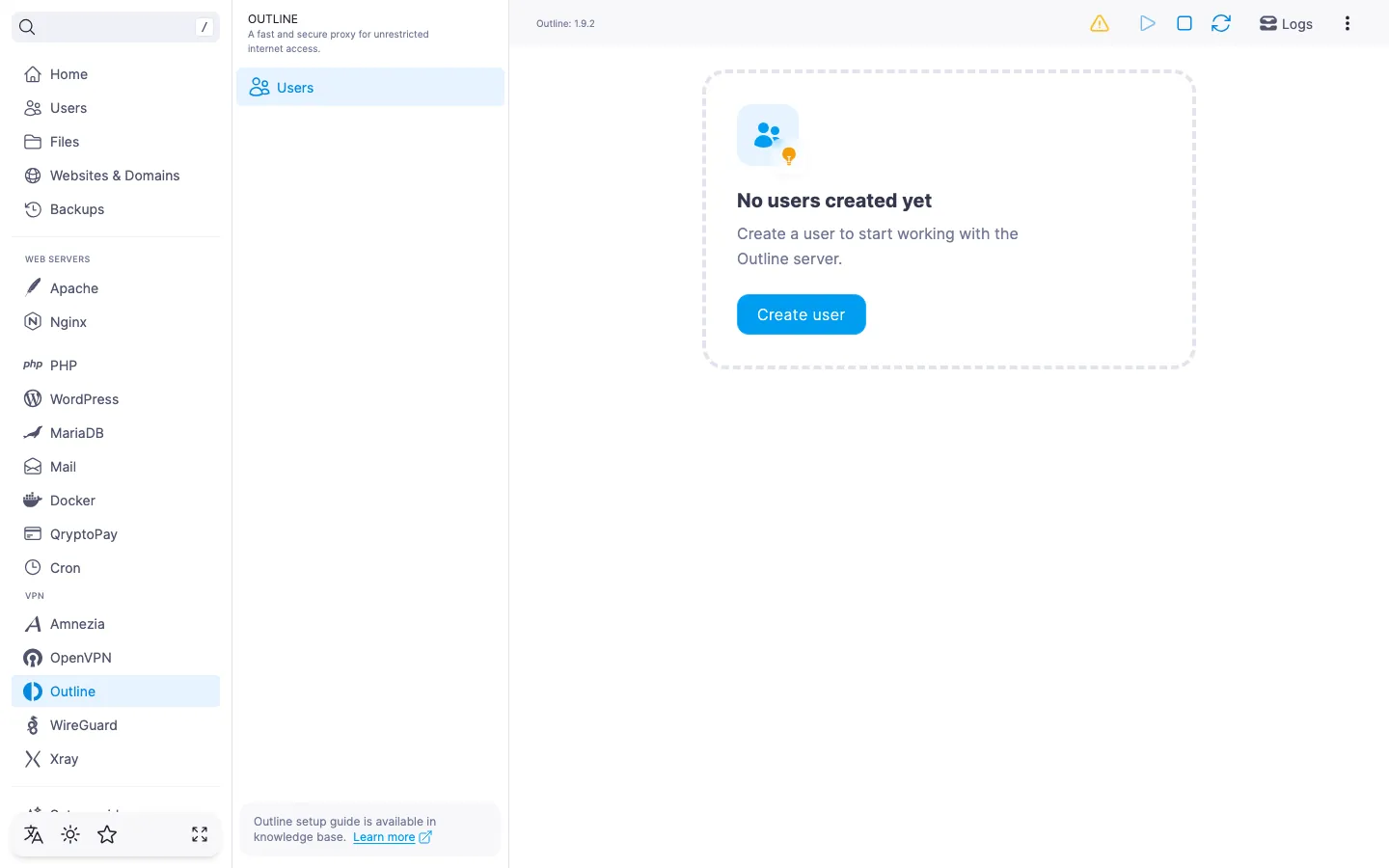
In the panel side menu, open "VPN" → "Outline" and click "Install". Installation takes a few minutes; you can follow the progress in the task log.
Once it finishes, the panel automatically opens the "Users" page — that is the main screen of the module.
💡 Hint
If installation fails, try running it again.
Create the first user
An Outline user is a separate access key with its own ss://... link. We recommend creating a separate user for each device that will connect: that way you can revoke access for one device without touching the others.
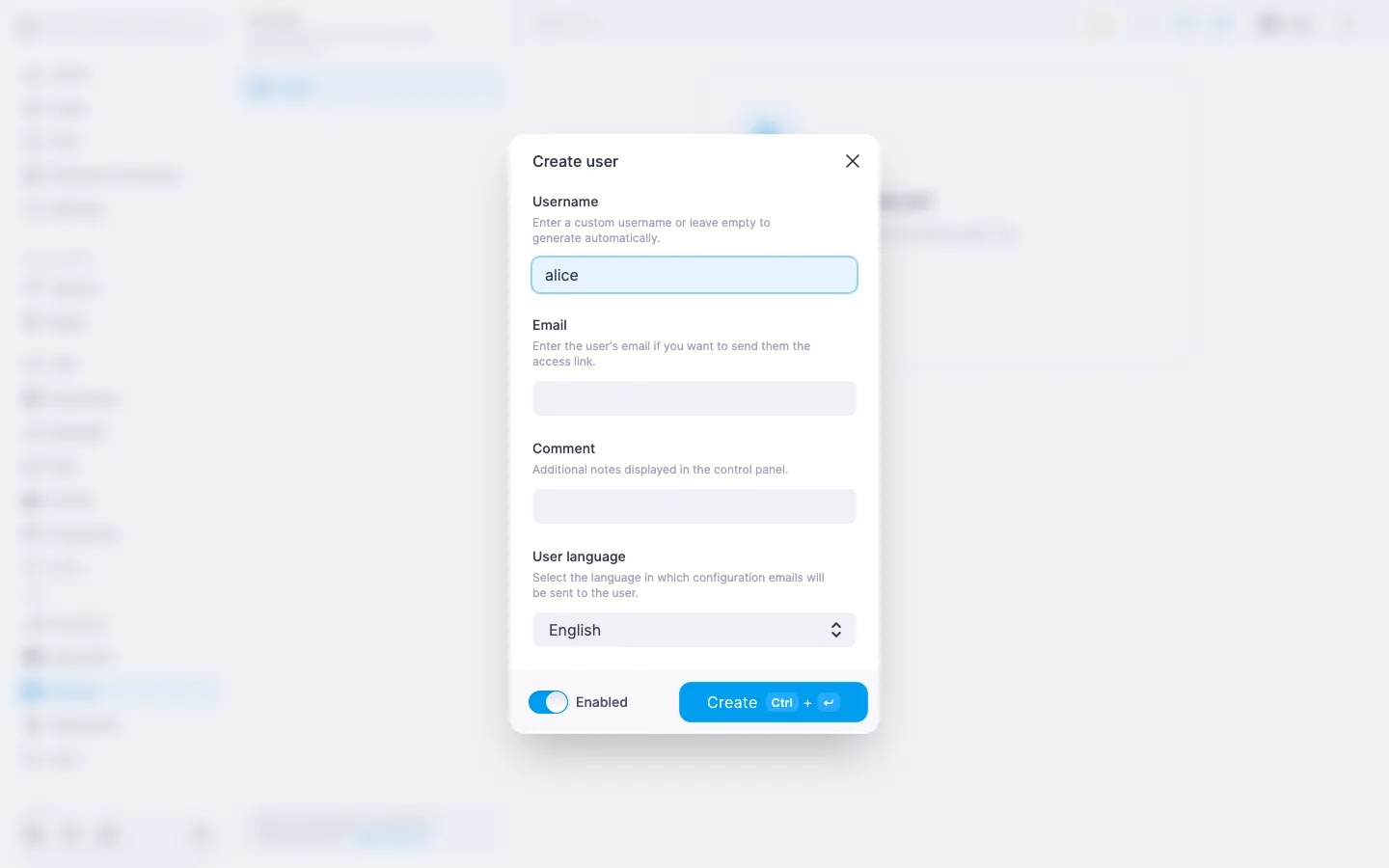
- On the "Users" page, click "Create user".
- Fill in the form (all fields are optional):
- "Username" — 2 to 32 characters: Latin letters, digits, and a hyphen; must be unique. If left empty, the panel generates the name itself.
- "Email" — needed only if you plan to send the connection link by email.
- "Comment" — a label of up to 64 characters; helps you find users in the list (for example, "Anna's iPhone" or "work laptop").
- "User language" — language of the email with the connection link. Defaults to English.
- "Enabled" — by default the user is created enabled; turn the toggle off if you don't want to activate them right away.
- Click "Create".
Connect a client device
You need an Outline- or Shadowsocks-compatible client. Suitable apps include:
- Outline Client — the official app for Android, iOS, Windows, macOS, and Linux.
- Shadowsocks — Android, Shadowrocket for iOS, Windows, macOS.
Install a suitable app on the device that will route traffic through the proxy, then grab the access link from the panel.
- In the user row, click the settings icon. The "Connection settings" dialog shows a link of the form
ss://...and a QR code — the link can be copied with the button next to it, the QR is convenient to scan with a mobile camera. - In the mobile app, tap "Add server" and either paste the copied link or scan the QR code. On desktop, paste the link to add a server.
- Start the connection in the app. On iOS the system may ask permission to install a VPN profile — confirm it.
To make sure the proxy works, open any IP-check page in your browser, for example myip.com. If everything is set up correctly, it will show the country of your server.
ℹ️ If the link did not generate
If the "Connection settings" dialog shows the message "Access link is not available", close the dialog and reopen it. If the problem persists, delete the user and create them again — this issues a new access key.
Send settings by email
If SMTP is configured in the panel, the connection link can be sent to the user by email — convenient when the device is not at hand.
In the "Connection settings" dialog, click "Send to email"; the same button is available in the user row in the list. The link is sent to the address from the user's profile.
ℹ️ If SMTP is not configured
The send-to-email buttons are disabled, and the module page header shows a banner "Email sending not configured" with a link to the SMTP settings. See How to set up an SMTP relay for sending emails for details. Copying the link and the QR code work either way.
What's next
For service management, updates, and uninstalling the module, see Outline. Managing the module. For creating, editing, and deleting users, see Outline. Managing users. To change a user's access key, recreate the user — a new key is issued automatically.