Proven over 15 years in hosting. Your VPS with BeAdmin is ready to go out of the box.
 Germany
 Netherlands
 Sweden
 Switzerland
 Spain
Spain USA
USA
The BeAdmin panel can install MariaDB on the server — a database management service — and connect it to your sites. The module exposes database, user, and access management, and more. You can also install phpMyAdmin — a graphical web interface for working with database contents.
You'll need a server with BeAdmin — our partners ship a ready‑to‑use VPS the moment you order.
Proven over 15 years in hosting. Your VPS with BeAdmin is ready to go out of the box.
GermanyNetherlandsSwedenSwitzerlandSpainUSAEuropean reliability made simple. Launch BeAdmin with your VPS in just one click.
GermanyNetherlandsSweden Estonia
 RomaniaSwitzerlandSpain
'%3e%3cpath%20fill='%2300008b'%20d='M0%200h384v256H0z'/%3e%3cpath%20stroke='%23fff'%20stroke-width='42'%20d='m1.914-.001%20382.086%20256m-382.086%200L384-.001'/%3e%3cpath%20stroke='red'%20stroke-width='14'%20d='M5.437%200%20192%20122M378.563%200%20192%20122M5.437%20256%20192%20134m186.563%20122L192%20134'/%3e%3cpath%20fill='%23fff'%20d='M157.787-.001h68.359v256h-68.359z'/%3e%3cpath%20fill='%23fff'%20d='M-.067%2093.999H384v68H-.067z'/%3e%3cpath%20fill='red'%20d='M384%20107.789H211.862V-.001h-39.724l.001%20107.79H0v40.419h172.139v107.79h39.723v-107.79H384z'/%3e%3c/g%3e%3c/svg%3e) United KingdomUSA
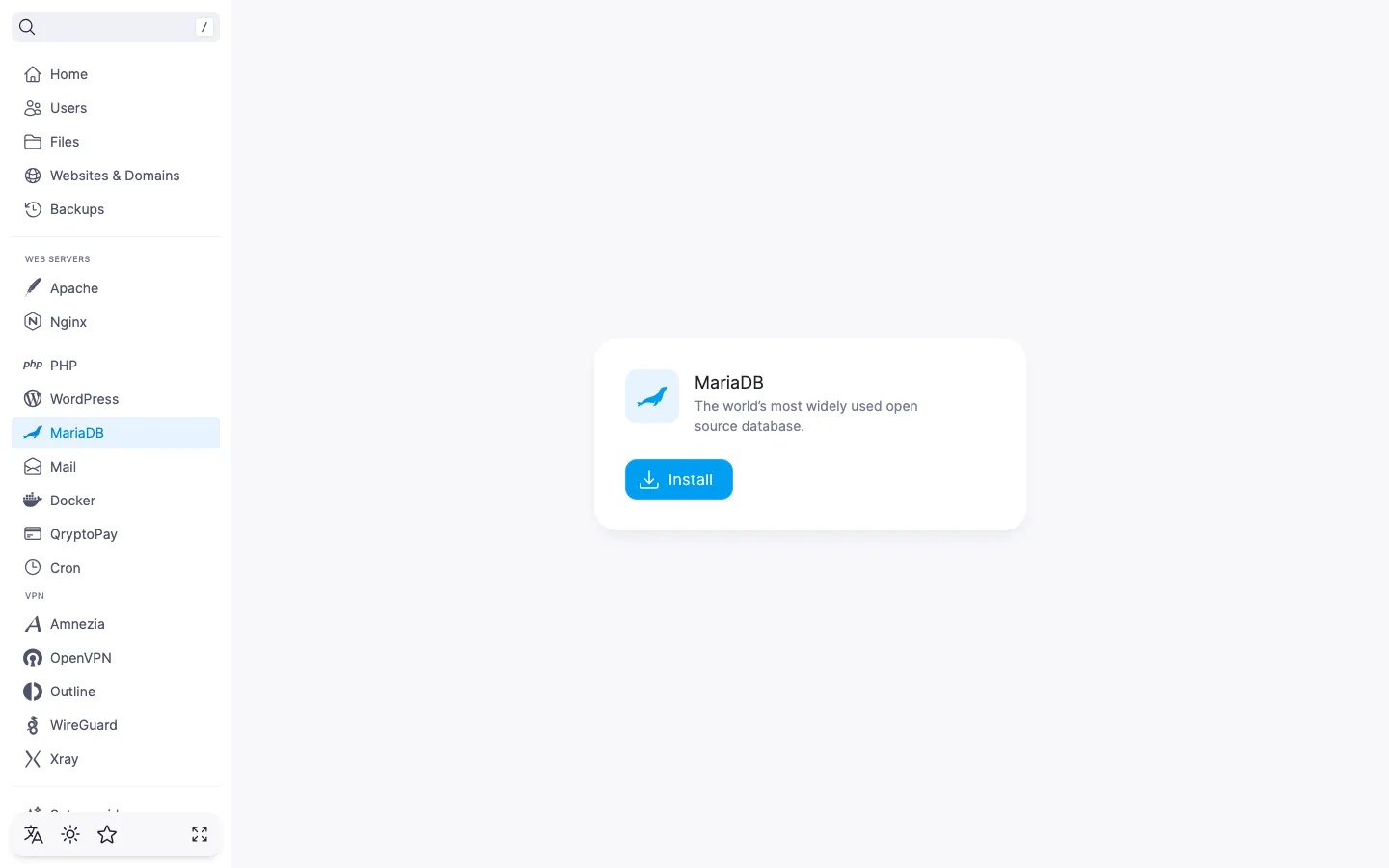
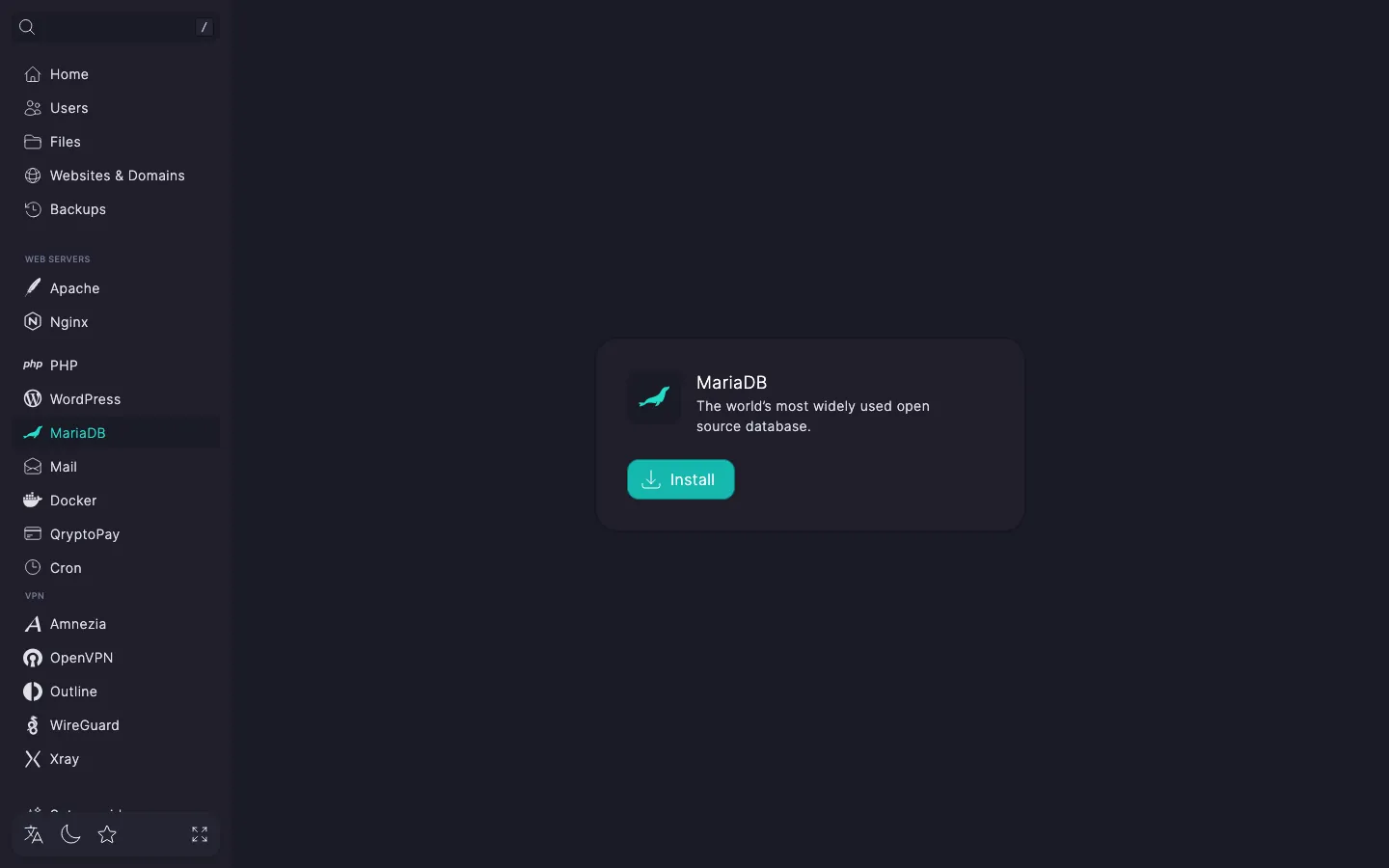
United KingdomUSAOpen MariaDB in the side menu and click "Install". Installation takes a few minutes — the progress is shown in the logs. Once installed, the module page exposes the "Databases" and "Users" tabs. If installation fails, try running it again: another process may have prevented the package manager from completing the task.
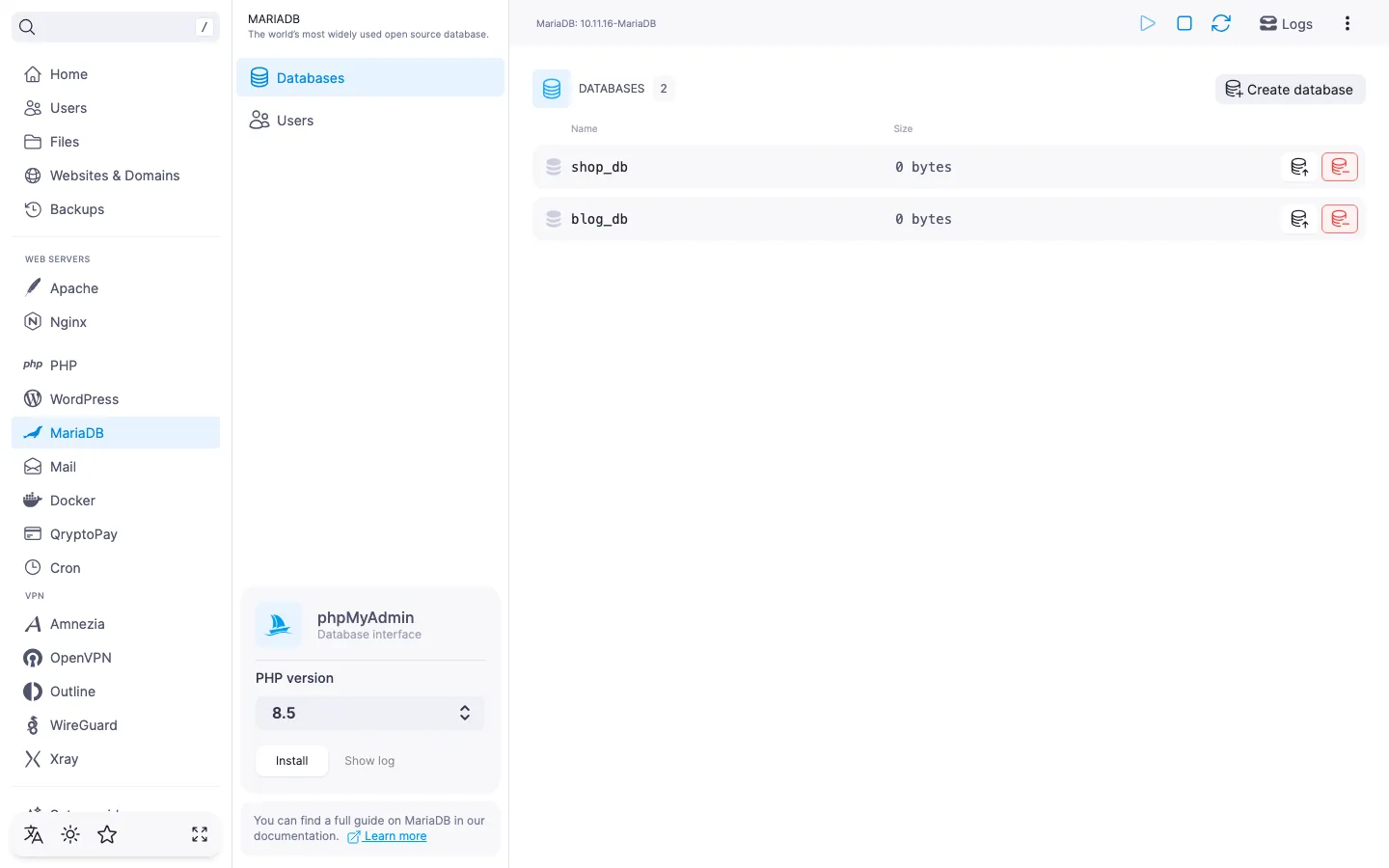
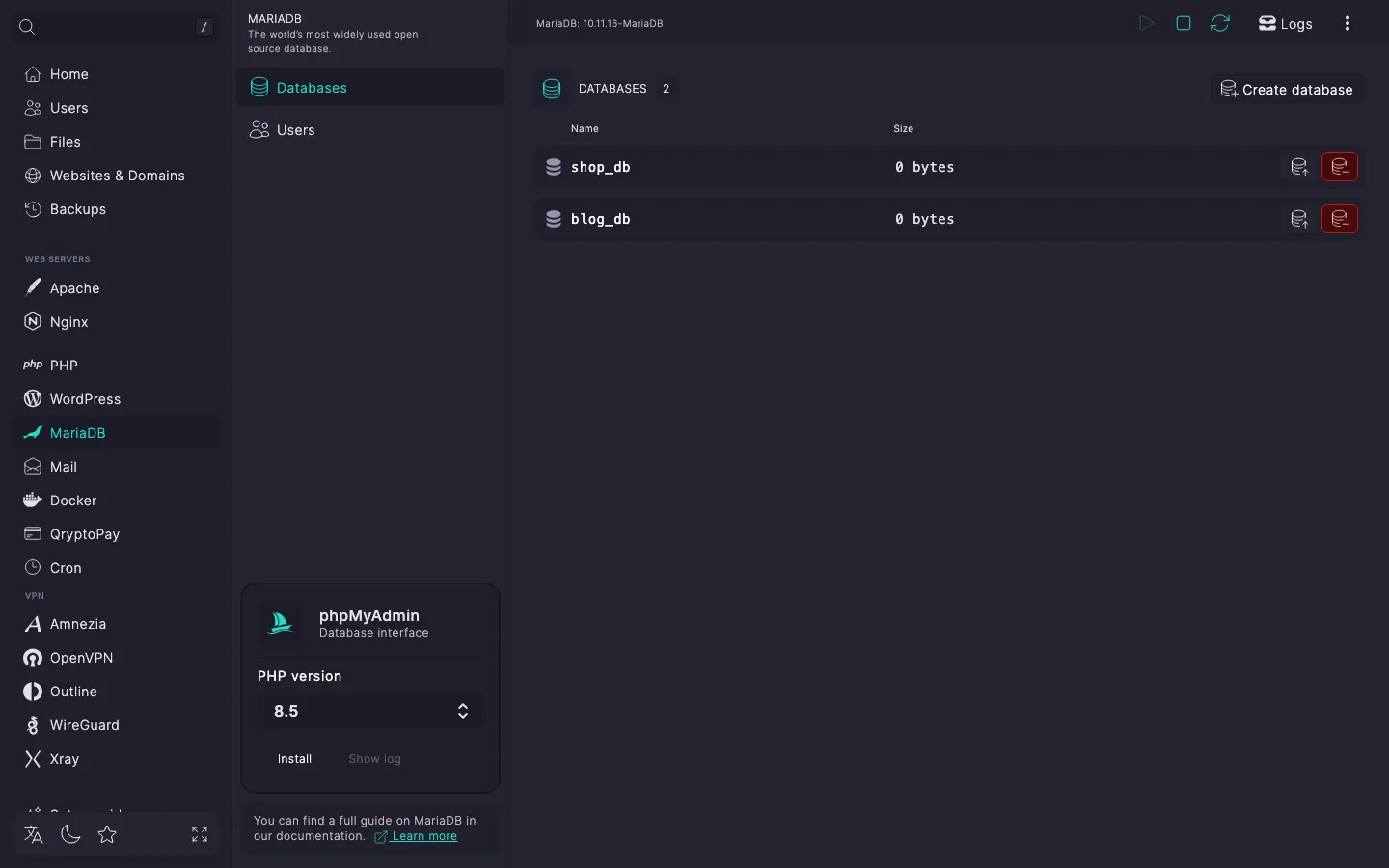
A database is the core entity of the module — a container in which applications keep their data. Applications work with it as users that have been granted access to the database in question. To get started, create a database.
The database will be created and shown in the list.
A user is required to work with a database. As a rule, every application has one or more users it uses to talk to the database. Create a user and pick the database for them right away.
The user will be created and shown on the "Users" tab with the list of databases they have access to.
For convenient work with the contents of databases, BeAdmin can install phpMyAdmin — a web interface for MariaDB. It requires one of the supported PHP versions, so it is installed as a separate step.
⚠️ phpMyAdmin service database and user
The panel will automatically create a service database and a user for the service. Do not delete them — the service cannot work without them. If you do delete them, run a phpMyAdmin reinstall — that will restore the service.
After installation, the block shows a "Go to phpMyAdmin" button — it opens the web interface.
The "phpMyAdmin" block on the module page shows the login and the root password for the MariaDB server. Use them to sign in to phpMyAdmin and work with all databases on the server.
If you need limited access, sign in as one of the users you created. phpMyAdmin lets you sign in as any MariaDB user on the server, so you can work only with the databases that user has access to.