Proven over 15 years in hosting. Your VPS with BeAdmin is ready to go out of the box.
 Germany
 Netherlands
 Sweden
 Switzerland
 Spain
Spain USA
USA
The Outline module in the BeAdmin panel runs your own proxy on the server, based on Shadowsocks with ChaCha20‑Poly1305 (AEAD) encryption. Outline was designed from the start as the simplest VPN: each user gets a short ss://… link that you just paste into the Outline Client — and the connection is ready. No configuration files, no manual client tweaks.
This article walks through the minimum scenario: install the module, create the first user, and connect a client device.
ℹ️ Note
Your own proxy server pays off compared with commercial services: bandwidth is not split between hundreds of clients, and the number of users in an Outline module on BeAdmin is not capped even on the free licence.
⚠️ ISP restrictions
Traffic encryption makes a VPN a reliable way to protect a connection, but in some countries and regions internet providers actively interfere with VPN protocols. Because of this, full availability of the service cannot be guaranteed — regardless of the connection type. If one protocol does not work for you, try another VPN module available in the panel. If none of them work on your network, contact support and we will issue a refund for the license.
You'll need a server with BeAdmin — our partners ship a ready‑to‑use VPS the moment you order.
Proven over 15 years in hosting. Your VPS with BeAdmin is ready to go out of the box.
GermanyNetherlandsSwedenSwitzerlandSpainUSAEuropean reliability made simple. Launch BeAdmin with your VPS in just one click.
GermanyNetherlandsSweden Estonia
 RomaniaSwitzerlandSpain
'%3e%3cpath%20fill='%2300008b'%20d='M0%200h384v256H0z'/%3e%3cpath%20stroke='%23fff'%20stroke-width='42'%20d='m1.914-.001%20382.086%20256m-382.086%200L384-.001'/%3e%3cpath%20stroke='red'%20stroke-width='14'%20d='M5.437%200%20192%20122M378.563%200%20192%20122M5.437%20256%20192%20134m186.563%20122L192%20134'/%3e%3cpath%20fill='%23fff'%20d='M157.787-.001h68.359v256h-68.359z'/%3e%3cpath%20fill='%23fff'%20d='M-.067%2093.999H384v68H-.067z'/%3e%3cpath%20fill='red'%20d='M384%20107.789H211.862V-.001h-39.724l.001%20107.79H0v40.419h172.139v107.79h39.723v-107.79H384z'/%3e%3c/g%3e%3c/svg%3e) United KingdomUSA
United KingdomUSAIn the side menu open VPN → Outline and click Install — the module installs with a single button and is ready to use right away. On install, Outline takes port 443 — it is rarely blocked. If 443 is already taken — Nginx or Apache is installed, or another BeAdmin module holds it over TCP or UDP — the panel picks 9000. You can choose a different port during installation with the Custom installation button. If the port you chose is taken, the module installs but won't start until the port is freed.
ℹ️ On port 443, Outline takes both TCP and UDP
Outline uses the same port for TCP and UDP, because an ss://… link carries a single port. It settles on 443 only if that port is free over both protocols, and then occupies it entirely. Other VPN modules (Amnezia, WireGuard, Xray, Mimicry, Hysteria) will pick fallback ports when you install them afterwards, and won't start if you enter 443 for them by hand. A web server can't use that port either. If you need 443 for websites or another VPN module, install Outline on a different port, for example 9000.
When installation finishes, the panel takes you straight to the Users page — the module's main screen. Installation usually takes a few minutes; you can follow the progress via the Log button on the install card.
The page header exposes the core module actions — start, stop, and restart. The three-dot menu groups the rest: action log, update check and run, reinstall, and uninstall.
To get started, create the first user.
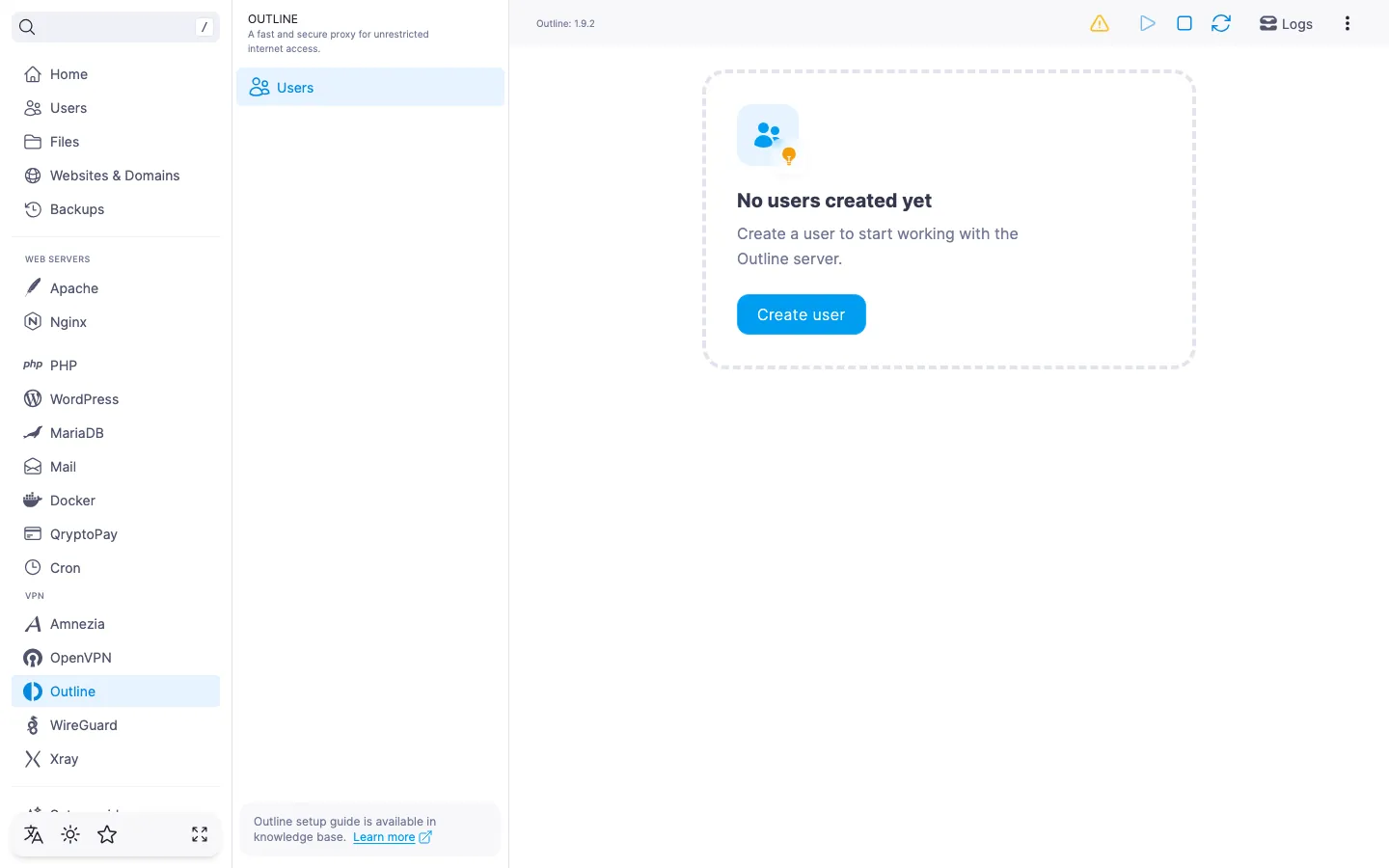
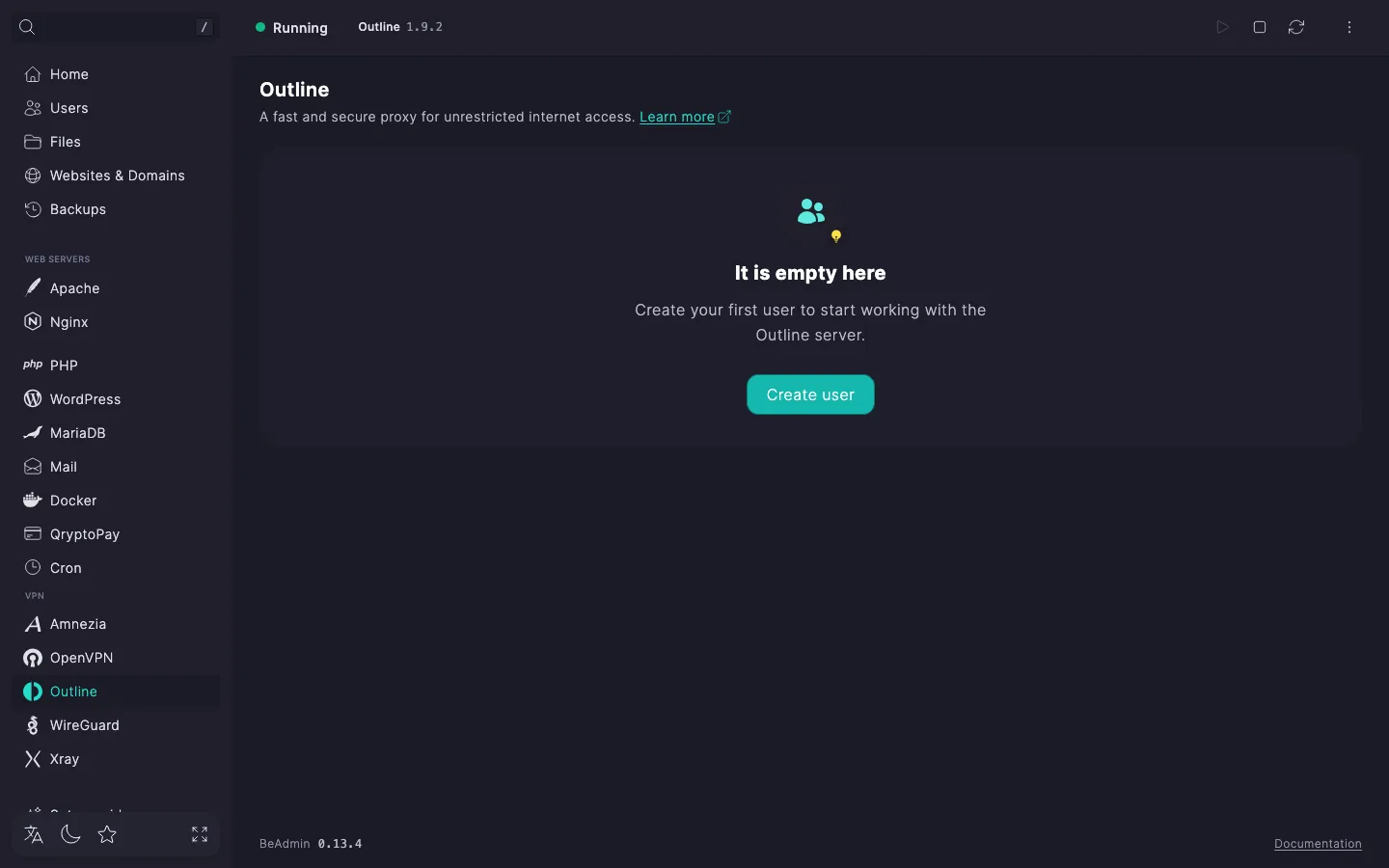
An Outline user is a separate access key with its own ss://… link. We recommend creating a separate user per device that will connect: that way you can revoke access for a single device without touching the others.
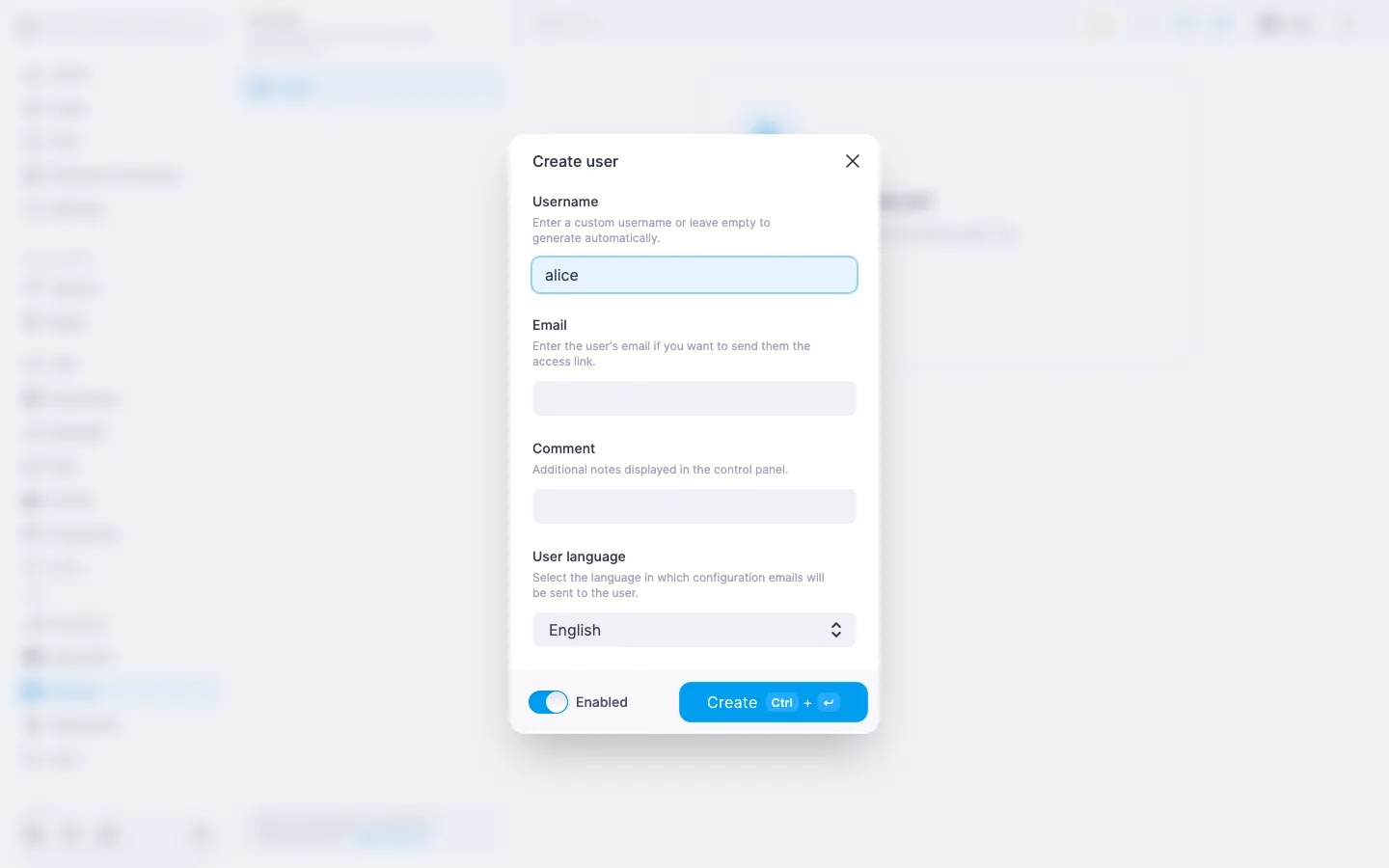
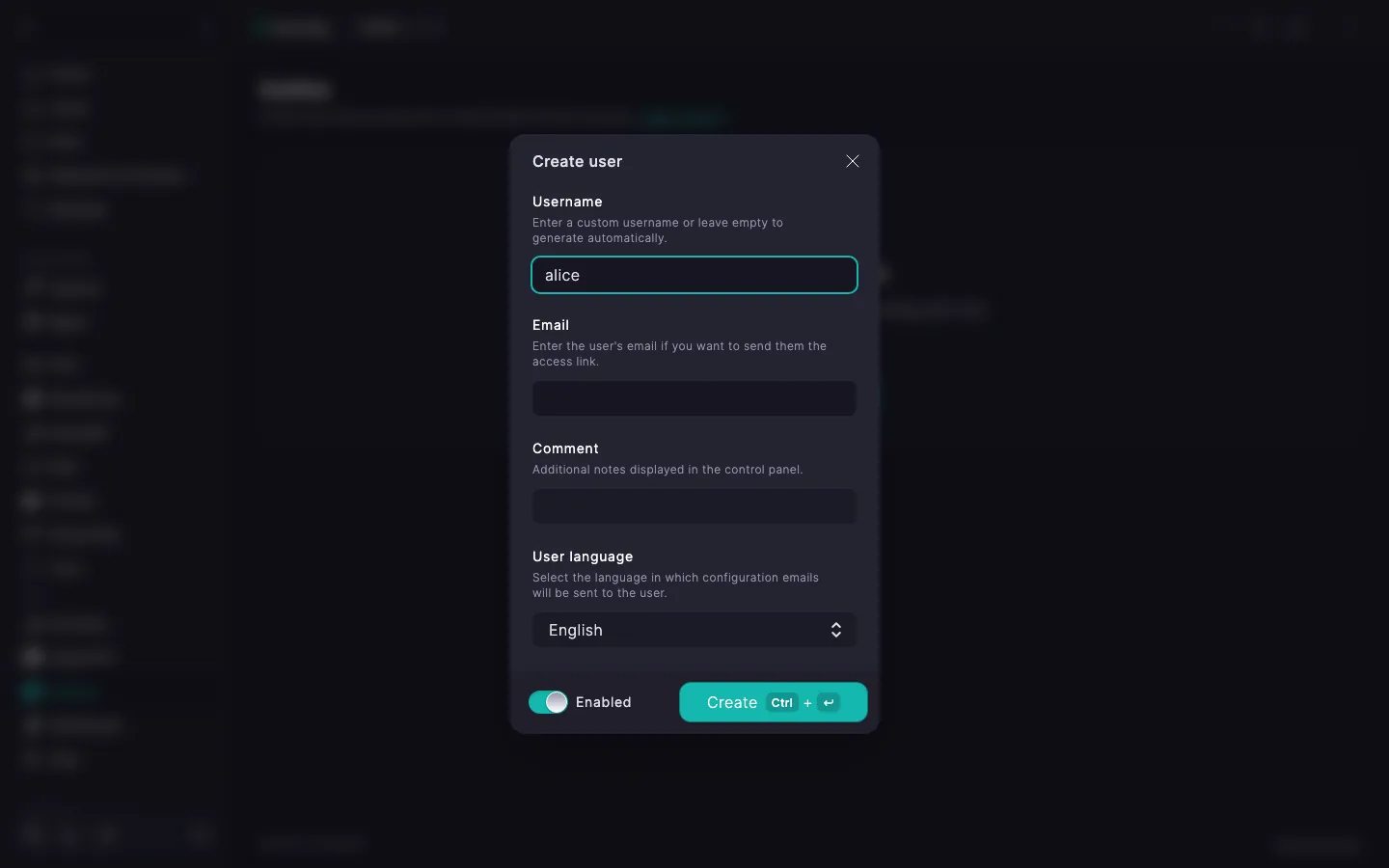
The user appears in the list. The server generates an access key for them and assembles the ss://… link together with a QR code — you can grab both right away.
Outline uses links of the form ss://… — a compact string carrying the connection parameters. The Outline Client accepts it either by scanning the QR code or by pasting it from the clipboard. No configuration file is involved.
ss://… string to the clipboard. Handy when the device you're setting the connection up on is the same one you opened the panel from: paste the link into the Outline Client without a camera.Editing and deleting users — see the user management article.
To confirm the proxy is working, open any IP-check page in your browser, for example myip.com. If everything is set up right, it will show your server's country.
If SMTP is configured in the panel, the connection link can be sent to the user by email — handy when the device isn't on hand.
In the expanded user row click Email. The link will be sent to the address provided when the user was created.
ℹ️ If SMTP is not configured
The email button stays disabled, and the expanded row shows a note with a link to the SMTP settings. Details — in the article How to set up an SMTP relay for sending email. Copying the link and downloading the QR code work either way.