Proven over 15 years in hosting. Your VPS with BeAdmin is ready to go out of the box.
 Germany
 Netherlands
 Sweden
 Switzerland
 Spain
Spain USA
USA
This article is a continuation of AI agents quick start. The quick start describes how to add the first shared key; here you will find which provider keys there are, which one a workspace uses, and what happens to the keys when a key, a workspace, a provider, or the module is deleted. The workspaces themselves are covered in the article AI agents. Workspaces and access.
You'll need a server with BeAdmin — our partners ship a ready‑to‑use VPS the moment you order.
Proven over 15 years in hosting. Your VPS with BeAdmin is ready to go out of the box.
GermanyNetherlandsSwedenSwitzerlandSpainUSAEuropean reliability made simple. Launch BeAdmin with your VPS in just one click.
GermanyNetherlandsSweden Estonia
 RomaniaSwitzerlandSpain
'%3e%3cpath%20fill='%2300008b'%20d='M0%200h384v256H0z'/%3e%3cpath%20stroke='%23fff'%20stroke-width='42'%20d='m1.914-.001%20382.086%20256m-382.086%200L384-.001'/%3e%3cpath%20stroke='red'%20stroke-width='14'%20d='M5.437%200%20192%20122M378.563%200%20192%20122M5.437%20256%20192%20134m186.563%20122L192%20134'/%3e%3cpath%20fill='%23fff'%20d='M157.787-.001h68.359v256h-68.359z'/%3e%3cpath%20fill='%23fff'%20d='M-.067%2093.999H384v68H-.067z'/%3e%3cpath%20fill='red'%20d='M384%20107.789H211.862V-.001h-39.724l.001%20107.79H0v40.419h172.139v107.79h39.723v-107.79H384z'/%3e%3c/g%3e%3c/svg%3e) United KingdomUSA
United KingdomUSAThe agent works on your behalf, so it needs your own API key: the module does not issue keys. You issue a key in your provider account. For Claude Code that is an Anthropic key, which you can issue in your account at platform.claude.com. For other providers, you issue the key in the provider's own account.
Tokens are billed by the provider. The panel does not see the spend and does not limit it, so you need to monitor spend and set limits in the provider account.
Once saved, a key cannot be viewed: it is stored on the server encrypted. If you lose a key, issue a new one with the provider and replace the old one with it. The panel also does not check that the key works: a typo or a revoked key shows up only when the agent fails to reach the provider.
You can set two types of key for each provider:
| Type | Where it is set | Where it applies |
|---|---|---|
| Shared key | In the module settings, on the provider's card | In all workspaces that have no key of their own |
| Workspace key | On the workspace page, in the Provider API keys section | Only in this workspace; overrides the shared key |
Keys are set per provider: each provider has its own shared key, and a workspace has its own key for each provider. One provider's key will not work for another. Without a licence you get one provider, so you will have one shared key; to connect more providers, buy slots in your licence — see How to get a licence for details.
The shared key is convenient when all workspaces run on one account: you set the key once. A workspace key is needed when you want to split spend: for example, so that a colleague's or a client's tokens are billed to their account rather than yours.
In a workspace, the agent uses whichever key exists:
How to add the shared key for the first time is described in the quick start. Later you can replace it, for example if the key was revoked or you moved to another account, or delete it. The old key cannot be viewed, so you need to get the new one from the provider.
After the shared key is deleted, workspaces without a key of their own stop working. Workspaces with their own key keep working as before.
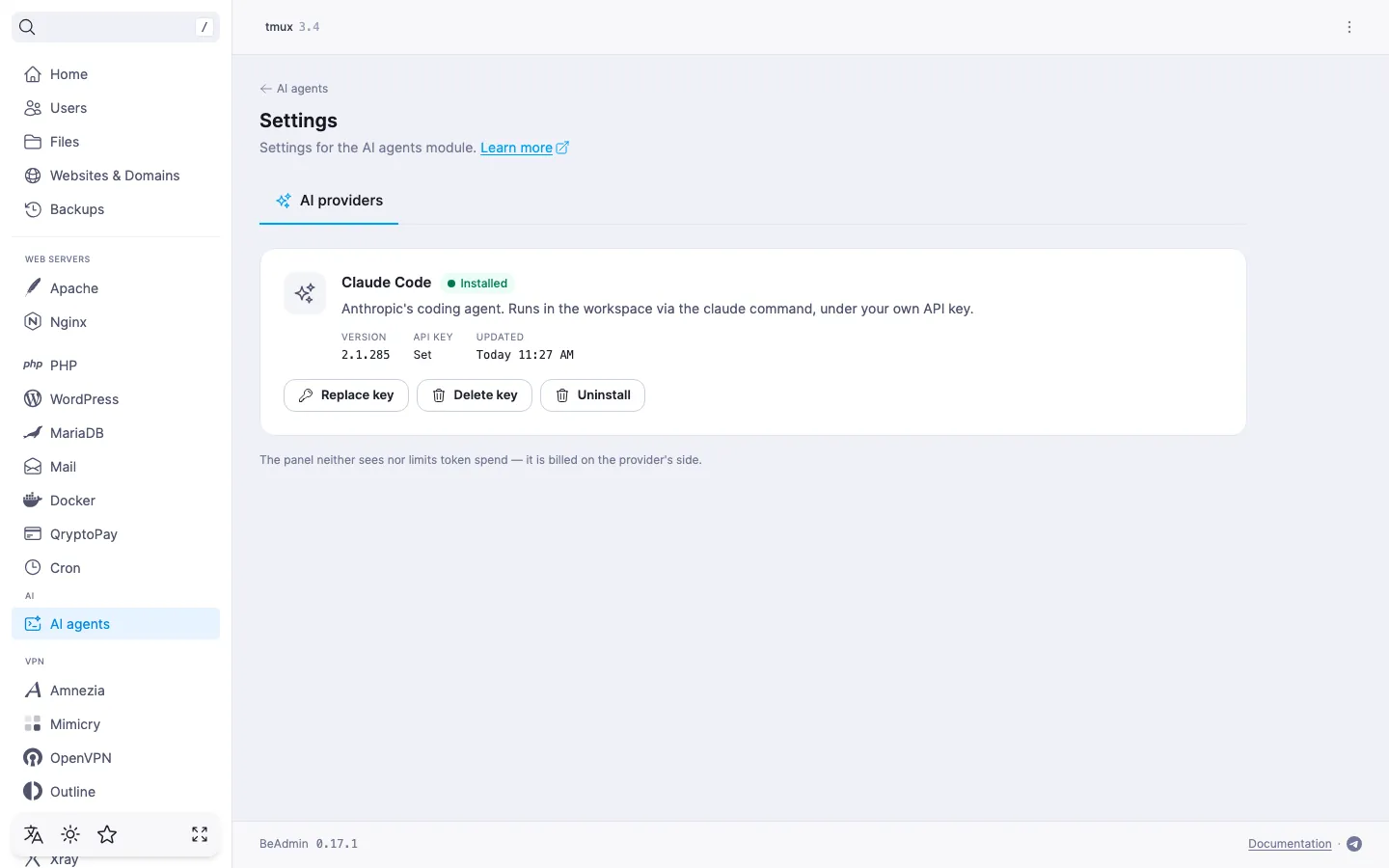
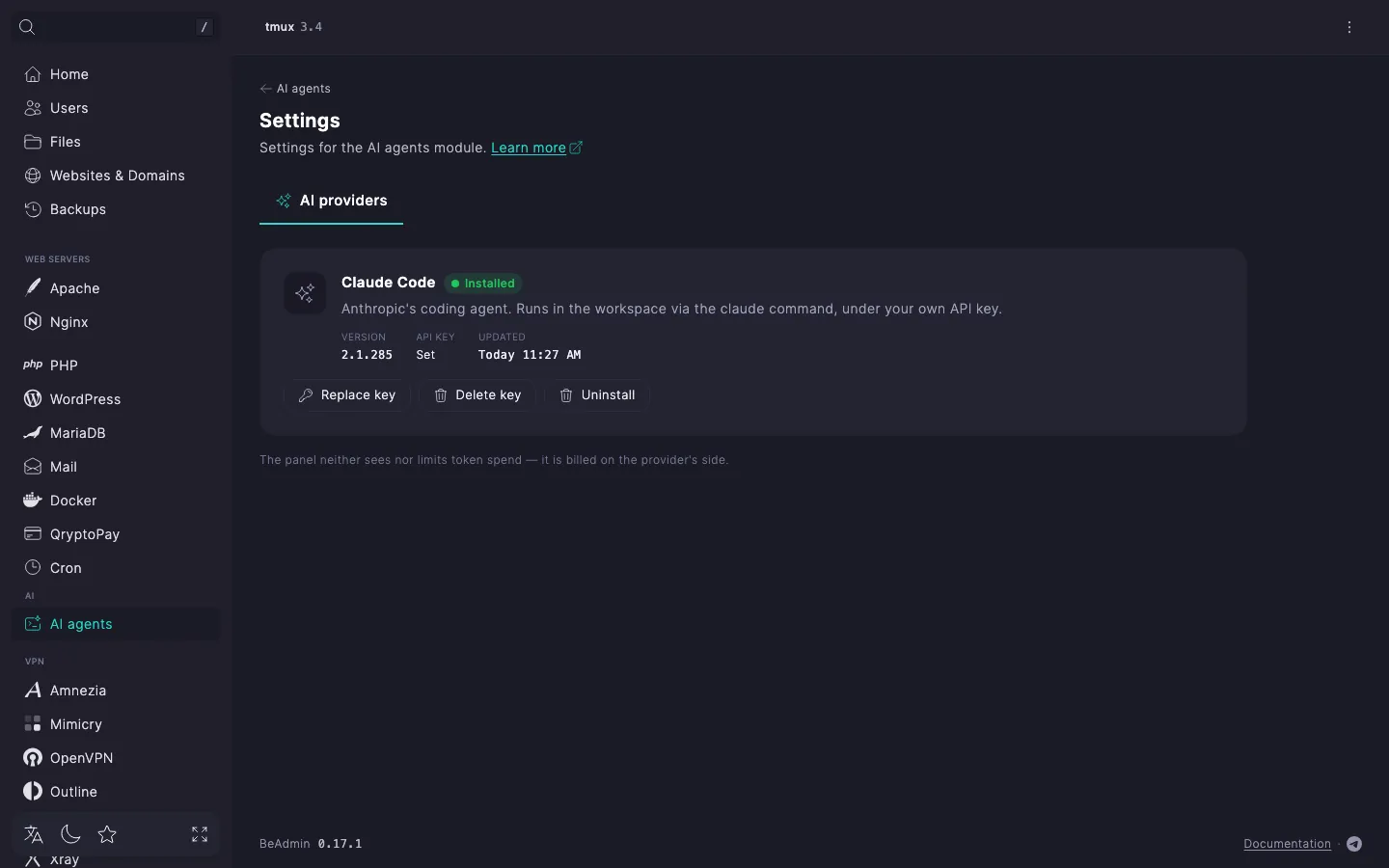
Open the page of the workspace you need and, in the Provider API keys section, set a key for the provider with the Set a separate key for this workspace button. The section is available once the provider is installed: until then there is nowhere to set keys.
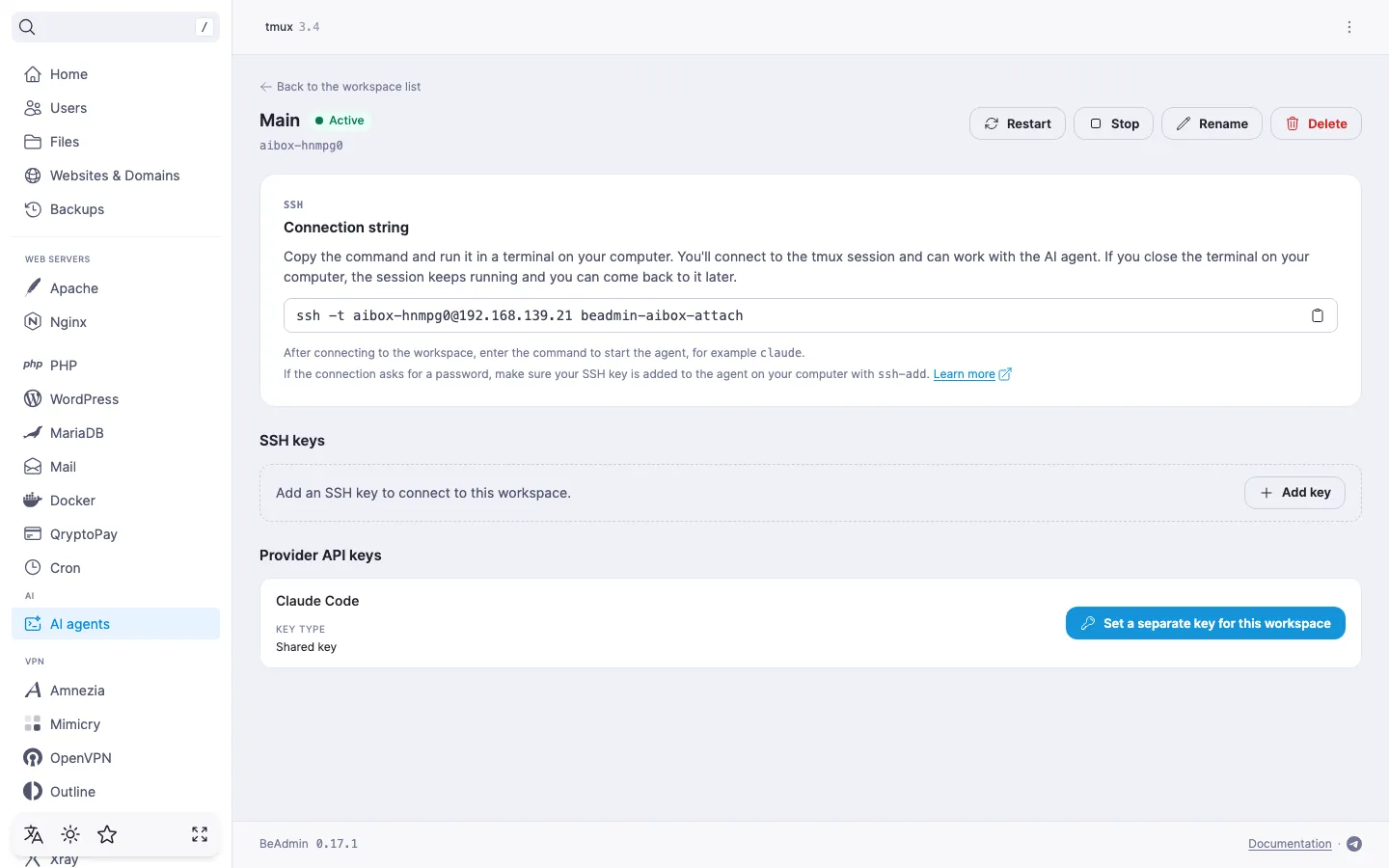
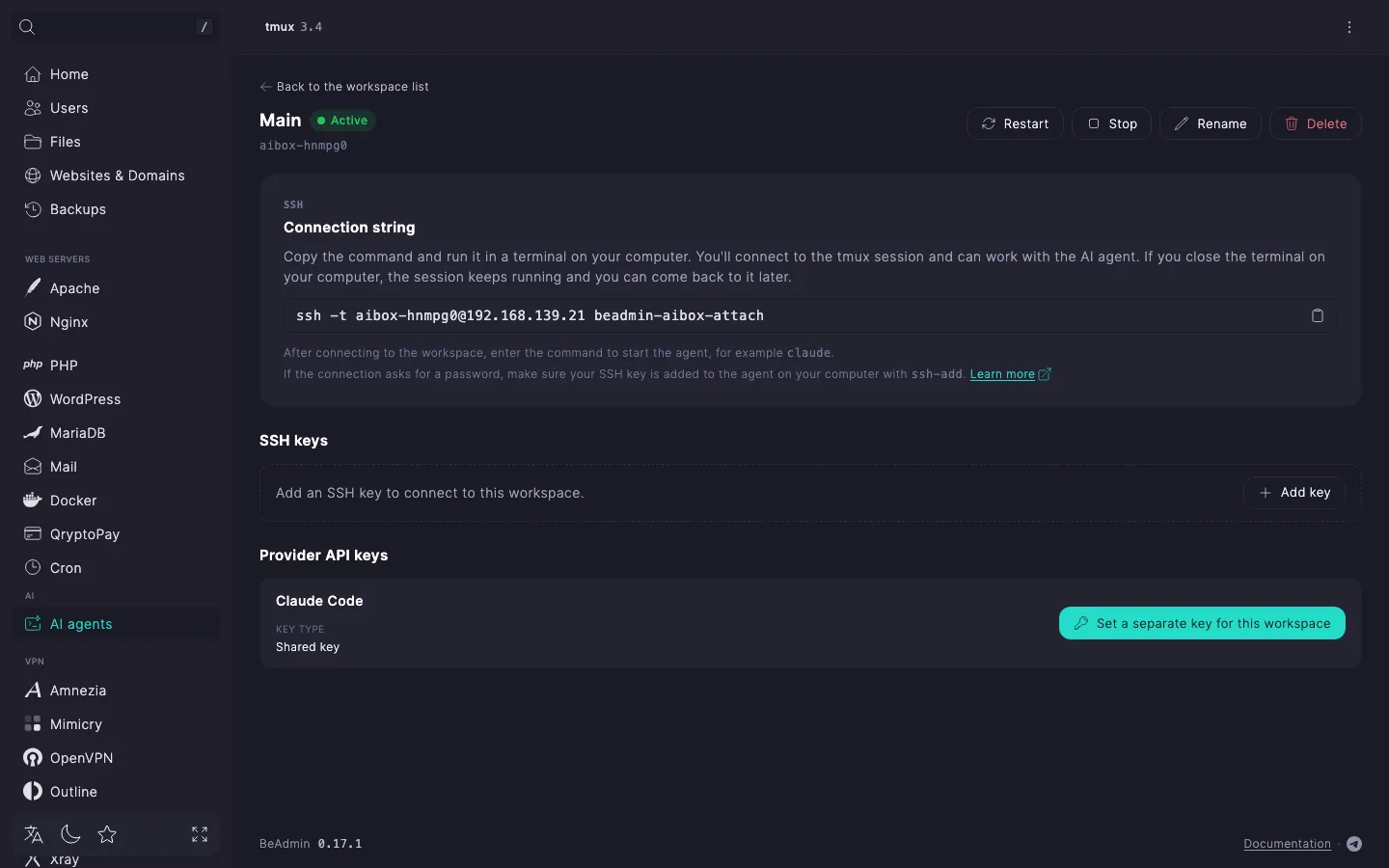
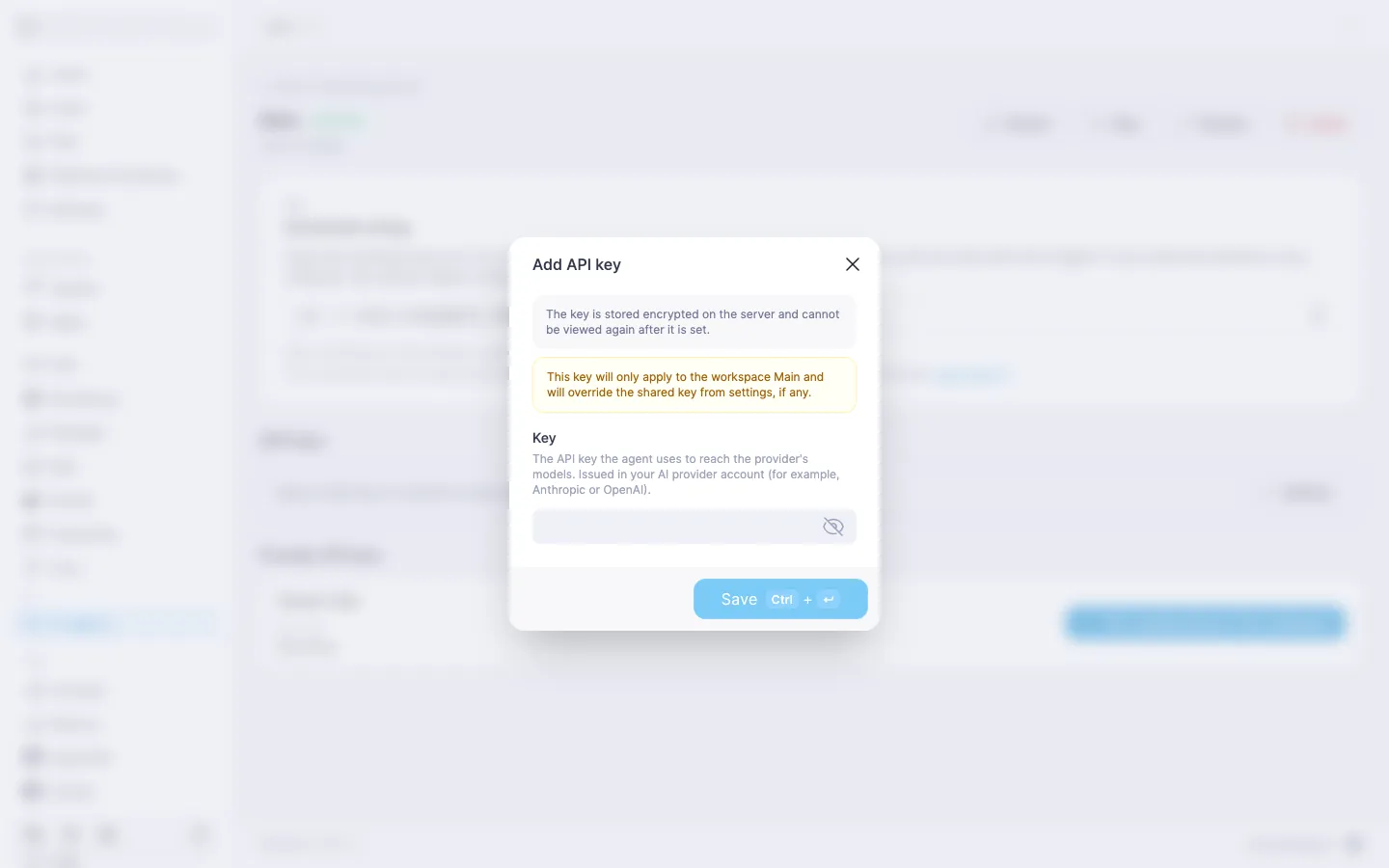
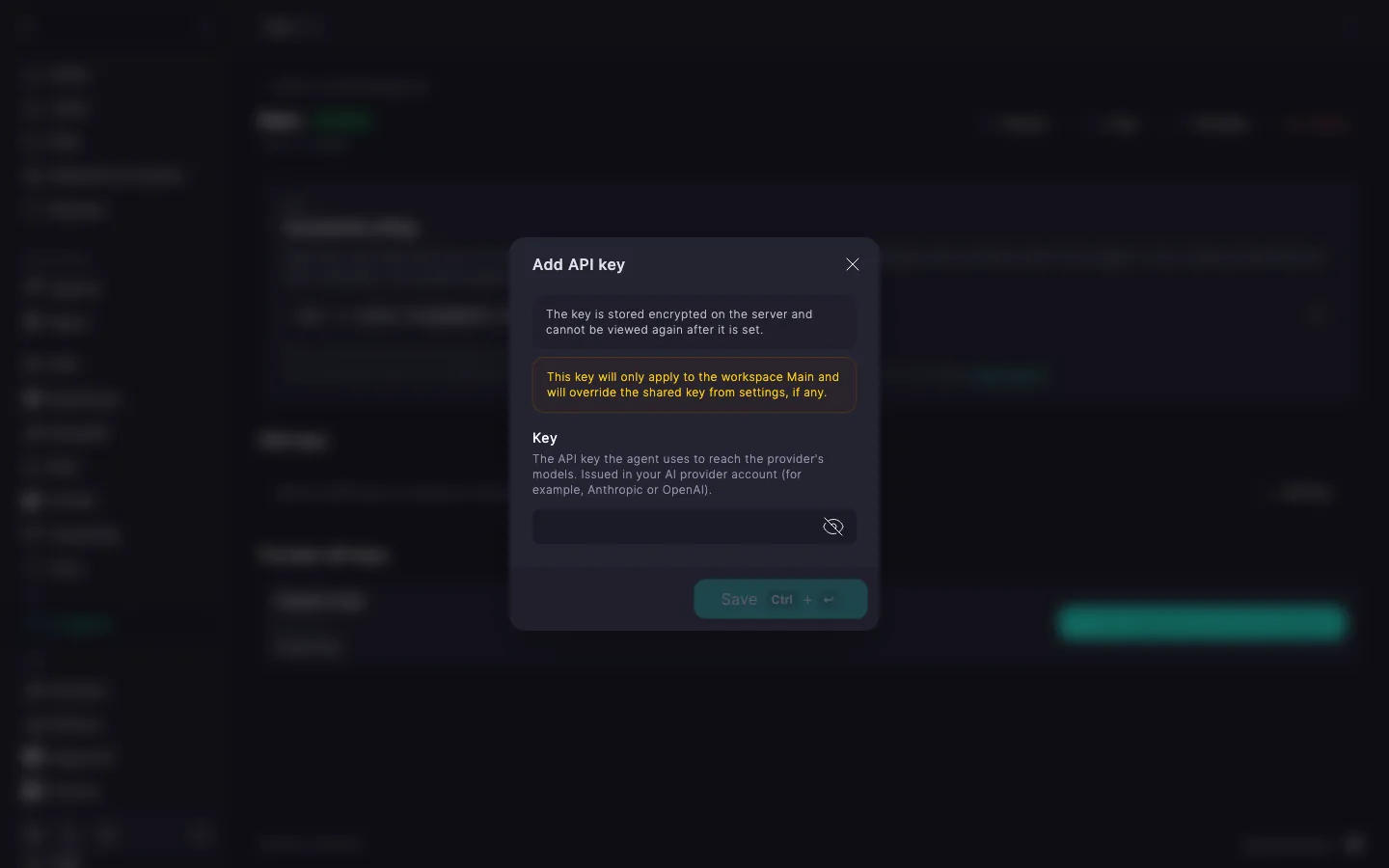
A workspace key overrides the shared one only in this workspace; the other workspaces keep using the shared key. To change a workspace key, replace it. To return a workspace to the shared key, delete the workspace key. If there is no shared key, the agent stops working in the workspace after its key is deleted, so set the shared key first.
The shared key belongs to an installed provider, and a workspace key belongs to the workspace itself. That is why the shared key does not survive deleting a provider or the module, while a workspace key lives as long as the workspace exists.
| What you do | Shared key | Workspace key |
|---|---|---|
| You delete the shared key | Deleted | Stays; workspaces with their own key keep working |
| You delete a workspace key | Stays | Deleted; the workspace falls back to the shared key, and if there is none, the agent in it stops working |
| You delete a workspace | Stays | Deleted along with the workspace |
| You delete a provider | Deleted | Stays and applies again after the provider is installed again |
| You delete the module without Delete workspace files | The shared keys of all providers are deleted | Stay with their workspaces and return after the module is installed again |
| You delete the module with Delete workspace files | The shared keys of all providers are deleted | Deleted along with the workspaces |
| You reinstall the module | Not affected | Not affected |
⚠️ After installing again, set the shared key again
Deleting a provider or the module erases the shared key, and it does not come back after installing again. Until you set it again, workspaces without a key of their own cannot start the agent.
If the agent in a workspace does not start or cannot reach the provider, check the following in order: