Proven over 15 years in hosting. Your VPS with BeAdmin is ready to go out of the box.
 Germany
 Netherlands
 Sweden
 Switzerland
 Spain
Spain USA
USA
This article is a continuation of AI agents quick start. It covers operations on the module itself: AI providers, reinstalling, and removal. The module has no service of its own that you could start or stop: individual workspaces are started and stopped, see Starting, stopping, and restarting. The workspaces themselves are covered in the article AI agents. Workspaces and access, and provider keys in AI agents. Provider API keys.
You'll need a server with BeAdmin — our partners ship a ready‑to‑use VPS the moment you order.
Proven over 15 years in hosting. Your VPS with BeAdmin is ready to go out of the box.
GermanyNetherlandsSwedenSwitzerlandSpainUSAEuropean reliability made simple. Launch BeAdmin with your VPS in just one click.
GermanyNetherlandsSweden Estonia
 RomaniaSwitzerlandSpain
'%3e%3cpath%20fill='%2300008b'%20d='M0%200h384v256H0z'/%3e%3cpath%20stroke='%23fff'%20stroke-width='42'%20d='m1.914-.001%20382.086%20256m-382.086%200L384-.001'/%3e%3cpath%20stroke='red'%20stroke-width='14'%20d='M5.437%200%20192%20122M378.563%200%20192%20122M5.437%20256%20192%20134m186.563%20122L192%20134'/%3e%3cpath%20fill='%23fff'%20d='M157.787-.001h68.359v256h-68.359z'/%3e%3cpath%20fill='%23fff'%20d='M-.067%2093.999H384v68H-.067z'/%3e%3cpath%20fill='red'%20d='M384%20107.789H211.862V-.001h-39.724l.001%20107.79H0v40.419h172.139v107.79h39.723v-107.79H384z'/%3e%3c/g%3e%3c/svg%3e) United KingdomUSA
United KingdomUSAA provider is an AI agent that the module runs in workspaces, for example Claude Code or Codex. Providers are installed, updated, and removed in the module settings. Operations on providers run one at a time: while one provider is being installed, updated, or removed, the others wait, because package manager runs must not overlap.
A provider is installed from its developer's signed repository, which usually takes a couple of minutes. A step-by-step example for Claude Code is in the quick start. For the agent to work, the provider needs an API key — how to set it is described in AI agents. Provider API keys.
Without a licence you get one provider. To install another one, you need to buy a provider slot in your licence (see How to get a licence for details) or first remove the installed one: while there are no free slots, a new provider cannot be installed.
Each provider's agent is updated separately, on its card in the module settings, and only on your command: auto-update is disabled in the agents so that you decide which version runs. Running workspaces are not restarted during an update, and their sessions are not interrupted. If an update changed the workspace launch settings, for example the resource limit, they take effect after the workspace is restarted.
The panel removes the provider's package from the server, and the agent's data — history, sessions, and anything it saved — from every workspace. The workspaces, the code, and the tmux sessions stay, and the agents of other providers keep running.
⚠️ Deleting a provider stops its agent
The provider's agent running in workspaces is stopped. Wait for it to finish the work you need: the agent's data is deleted permanently.
The provider's shared key is erased on deletion, while workspace keys stay; see the table in the keys article for details. That is why you need to set the shared key again after installing the provider again.
Deletion frees the provider's slot in the licence: if another provider was blocked by the limit, it becomes available again.
If the licence's provider limit drops below the number of installed providers — for example, the licence expired or slots were removed — the extra providers get the Over the licence limit state. The newest providers are blocked; the oldest keep working.
A blocked provider stays installed, but no workspace can run its agent. The provider's keys are kept, but they cannot be changed: the cause of the block is the limit, not the key. You can delete a blocked provider as usual.
To lift the block, you need to either buy more provider slots or delete extra providers. After that the block is lifted on its own. The panel checks the limit when the licence changes and after a provider is deleted, and otherwise once a day, so a block and its lifting may not happen instantly. Workspaces are blocked by the same rules — see Blocked workspace.
Reinstalling applies the module settings again on top of the current ones. It is for when the module misbehaves and you want to run the installation again without losing anything. Workspace files and SSH keys are kept, providers and keys are not affected, and running tmux sessions and the tasks in them are not interrupted: the workspaces keep working.
As after an agent update, changed workspace launch settings take effect in a running workspace only after it is restarted.
Deleting the module removes the installed providers together with their agents' data (history, sessions) and the module settings, and ends all tmux sessions. What happens to the workspaces depends on the Delete workspace files option:
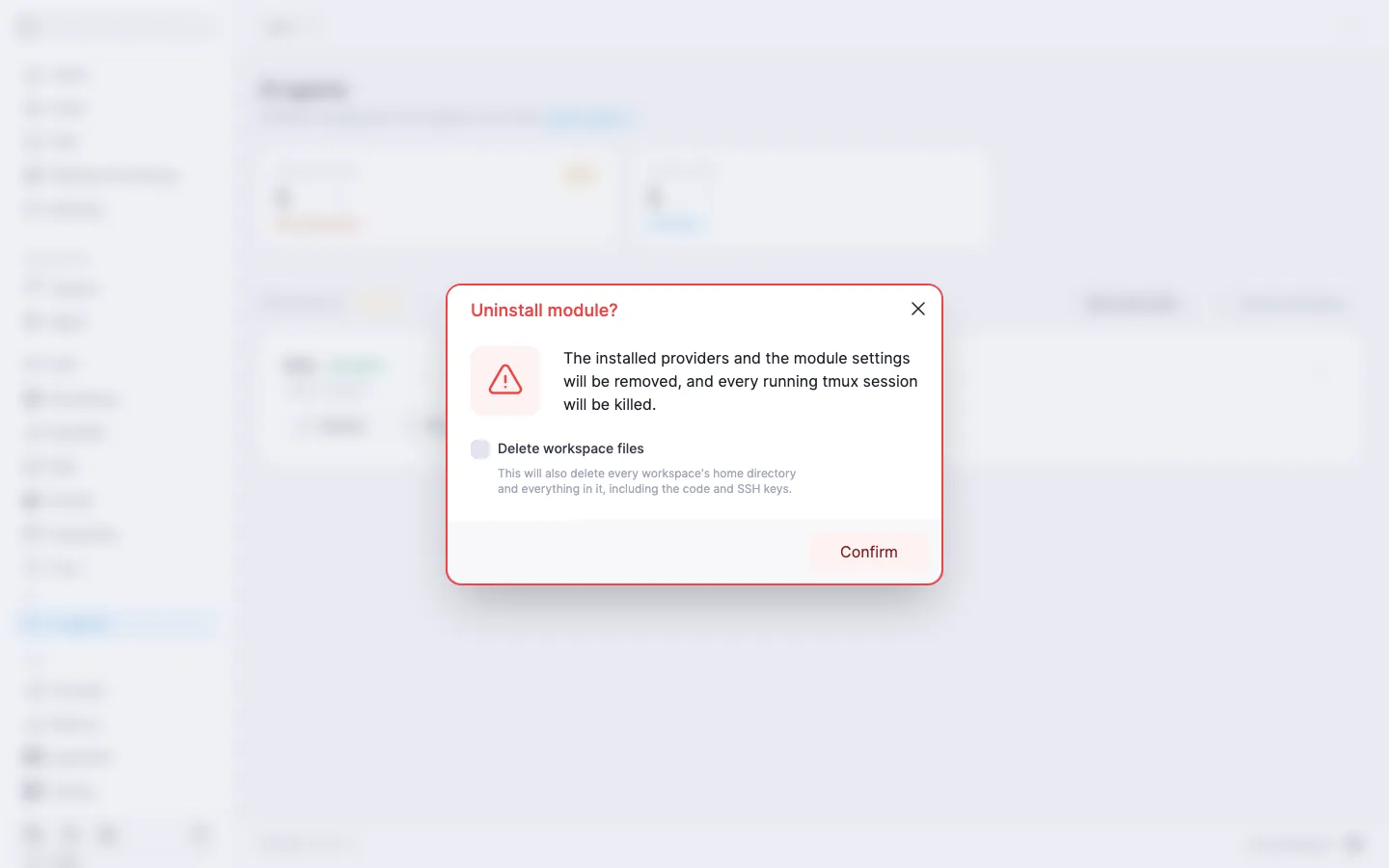
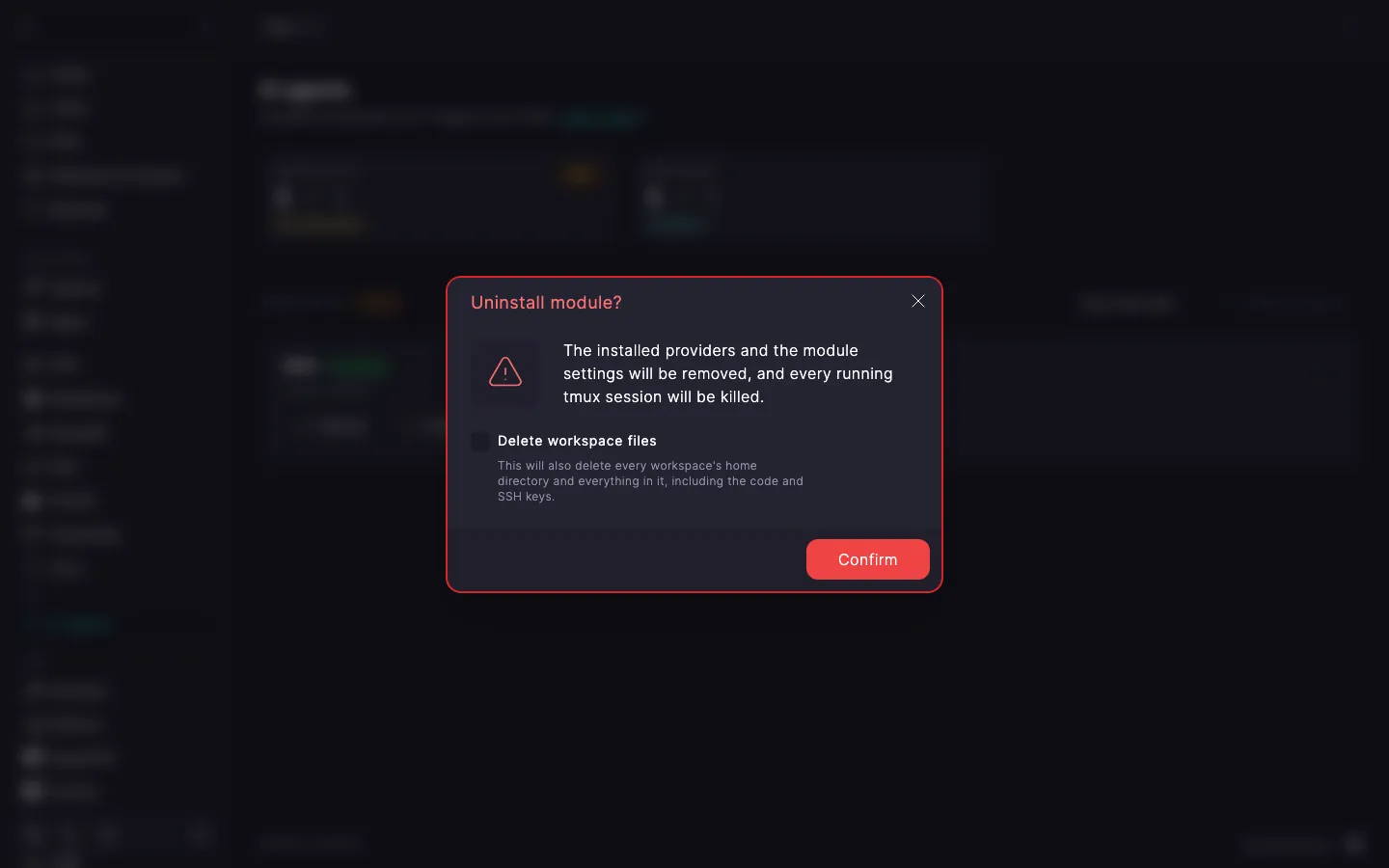
‼️ Deleting workspace files is irreversible
If you select Delete workspace files, the home directories of all workspaces are deleted together with the code and SSH keys, and the workspaces themselves disappear. They cannot be restored. If you may need the files, copy them to your computer first.
The shared keys of all providers are deleted whenever the module is deleted, while workspace keys are deleted only together with their workspaces: see the table in the keys article for details. The packages the module installed for the workspaces to work (tmux, git, curl, and others) stay on the server, because other programs may use them too.