Proven over 15 years in hosting. Your VPS with BeAdmin is ready to go out of the box.
 Germany
 Netherlands
 Sweden
 Switzerland
 Spain
Spain USA
USA
The Mimicry module in the BeAdmin panel runs your own VPN on the server, built to mask traffic so well that a connection is indistinguishable from ordinary internet use by a regular person. It holds up in networks that already block other VPN protocols, obfuscated ones included. The panel sets up everything the module needs on its own.
This article walks through the minimum scenario: install the module, create the first user, and connect a client device.
ℹ️ Note
Your own VPN server pays off compared with commercial services: bandwidth is not split between hundreds of clients, and Mimicry's traffic masking is unique to your server. Install the module, create a user, and try it out for free.
⚠️ ISP restrictions
Traffic encryption makes a VPN a reliable way to protect a connection, but in some countries and regions internet providers actively interfere with VPN protocols. Because of this, full availability of the service cannot be guaranteed — regardless of the connection type. If one protocol does not work for you, try another VPN module available in the panel. If none of them work on your network, contact support and we will issue a refund for the license.
You'll need a server with BeAdmin — our partners ship a ready‑to‑use VPS the moment you order.
Proven over 15 years in hosting. Your VPS with BeAdmin is ready to go out of the box.
GermanyNetherlandsSwedenSwitzerlandSpainUSAEuropean reliability made simple. Launch BeAdmin with your VPS in just one click.
GermanyNetherlandsSweden Estonia
 RomaniaSwitzerlandSpain
'%3e%3cpath%20fill='%2300008b'%20d='M0%200h384v256H0z'/%3e%3cpath%20stroke='%23fff'%20stroke-width='42'%20d='m1.914-.001%20382.086%20256m-382.086%200L384-.001'/%3e%3cpath%20stroke='red'%20stroke-width='14'%20d='M5.437%200%20192%20122M378.563%200%20192%20122M5.437%20256%20192%20134m186.563%20122L192%20134'/%3e%3cpath%20fill='%23fff'%20d='M157.787-.001h68.359v256h-68.359z'/%3e%3cpath%20fill='%23fff'%20d='M-.067%2093.999H384v68H-.067z'/%3e%3cpath%20fill='red'%20d='M384%20107.789H211.862V-.001h-39.724l.001%20107.79H0v40.419h172.139v107.79h39.723v-107.79H384z'/%3e%3c/g%3e%3c/svg%3e) United KingdomUSA
United KingdomUSA⚠️ Route your own country's traffic outside the tunnel
The Mimicry app has a direct split tunnel option: pick a country, and traffic to its sites goes out directly instead of through the VPN, while everything else stays tunnelled.
Set it to your own country if local sites detect and block VPN access — reaching them repeatedly through your BeAdmin server's IP marks that IP as a VPN exit, and a target for blocking. Route those sites directly instead, and the server's IP never shows up there. For example: based in Russia, set the direct split tunnel to Russia — Russian sites load directly with the VPN still on, everything else stays protected, and you don't have to switch the VPN on and off for local browsing.
In the side menu open VPN → Mimicry and click Install — the module installs with a single button and is ready to use right after. By default it listens on tcp 443 — the port that gives the strongest masking — if the port is free (no Nginx or Apache installed, and no other BeAdmin module already holds it). If 443 is already taken, the panel falls back to tcp 2083 instead.
To set the port yourself, click the gear button next to Install (tooltip Custom installation) — the Installation settings dialog opens with a Port field. It already contains 443: keep it or enter another number and click Launch. If 443 is taken by another BeAdmin module, a conflict warning appears under the field right away: you can still install, but the service won't start until the port is freed.
Mimicry only runs on amd64 hosts — on servers with a different architecture (for example ARM), the Install button stays disabled and the panel explains why.
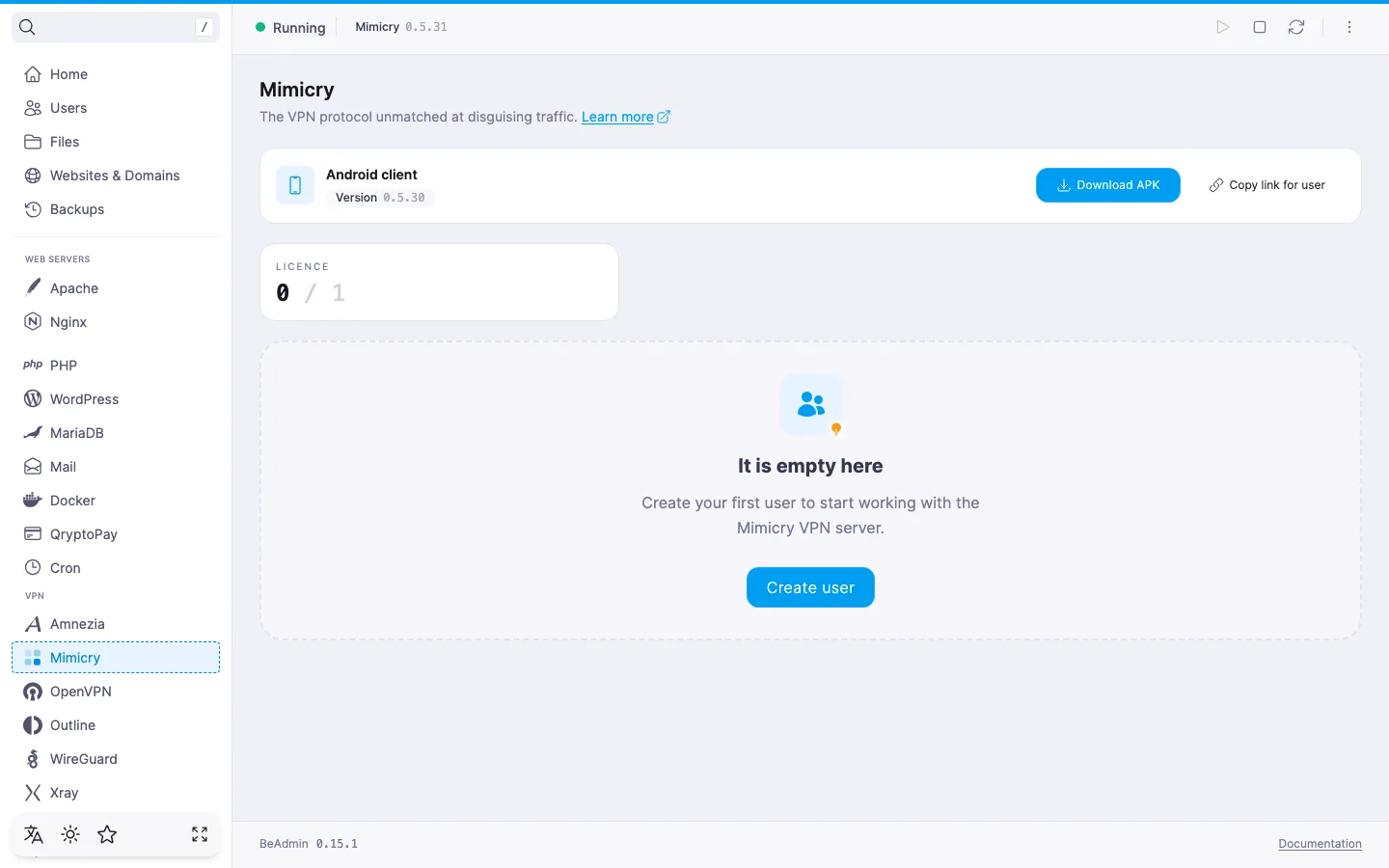
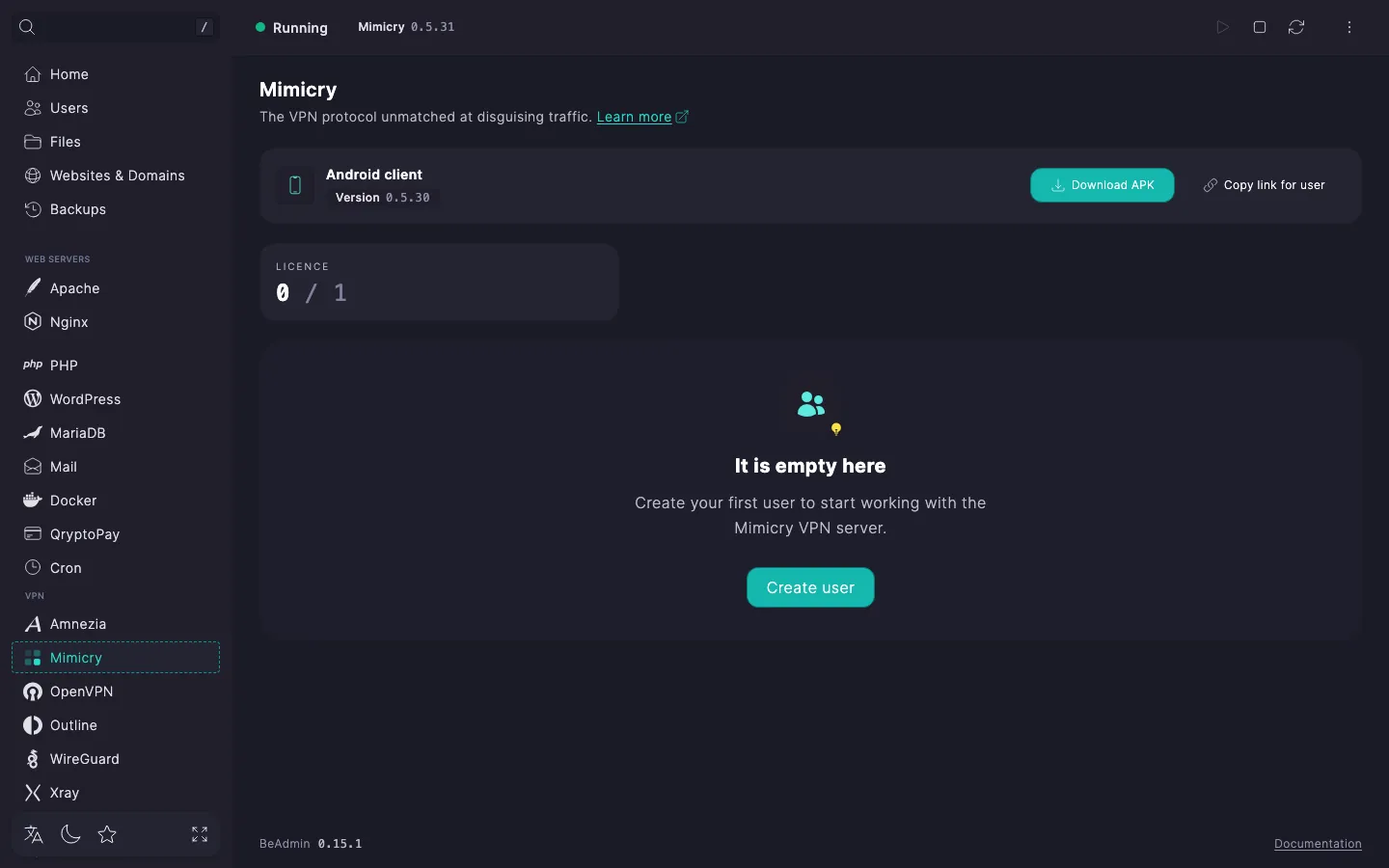
When installation finishes, the panel takes you straight to the Users page — the module's main screen. Installation usually takes a few minutes; you can follow the progress via the Log button on the install card.
The page header exposes the core module actions — start, stop, and restart. The three-dot menu groups the rest: logs, module settings, update check and run, reinstall, and uninstall.
To get started, create the first user.
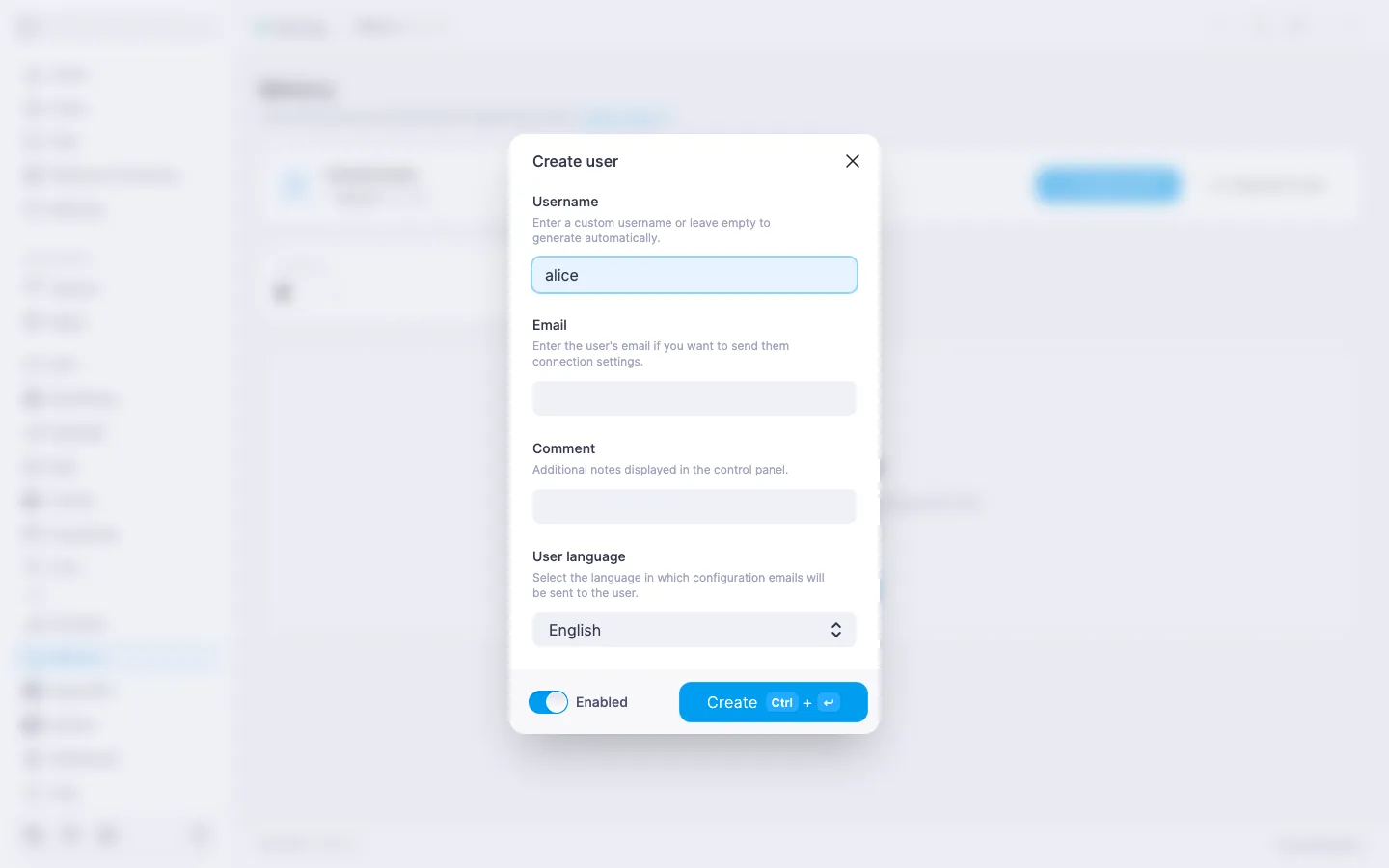
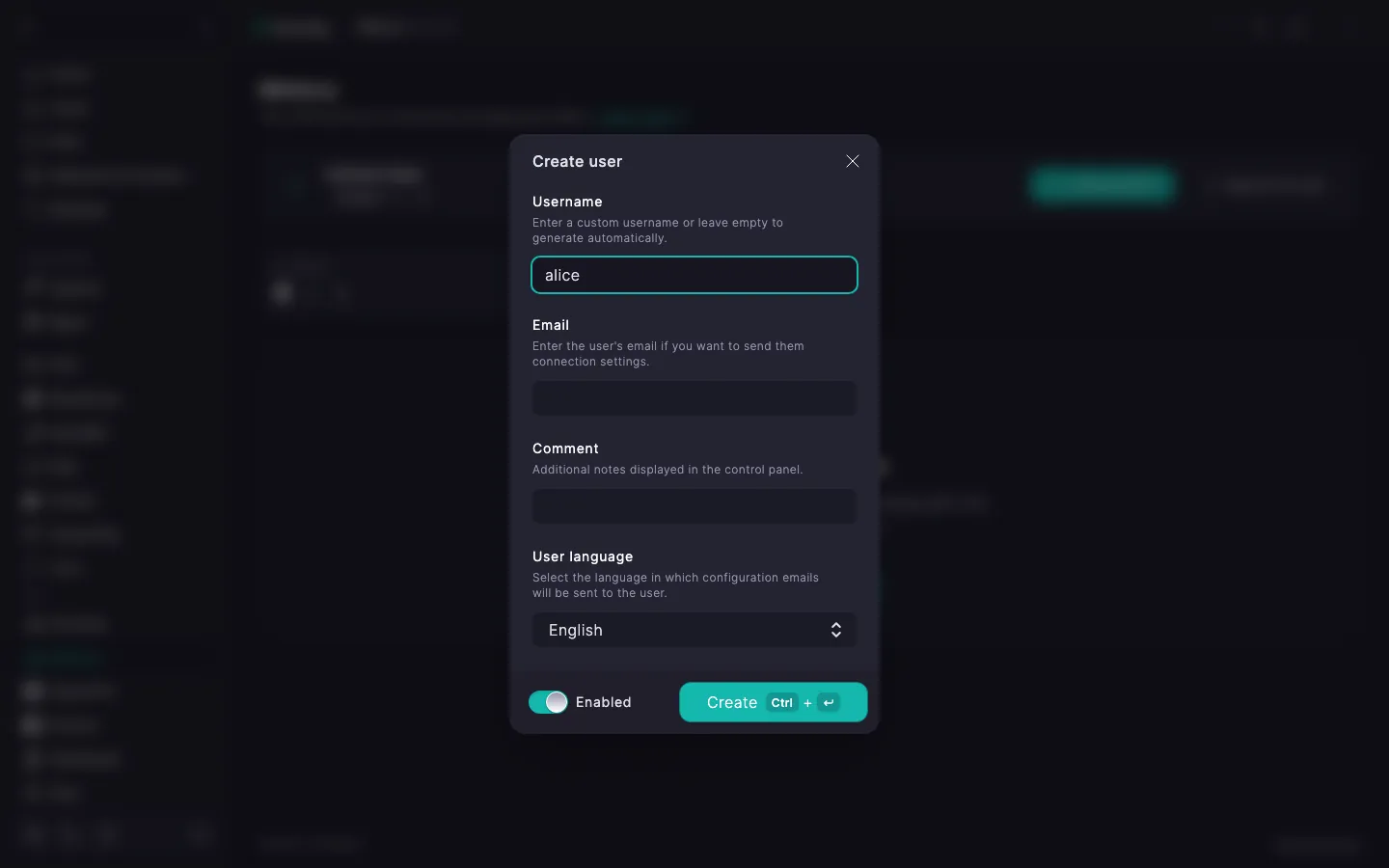
A Mimicry user is a separate account with its own key material and configuration. We recommend creating a separate user per device that will connect: that way you can revoke access for a single device without touching the others.
The user appears in the list. The server prepares its key material, and the panel is ready to hand you a configuration for it.
ℹ️ Limit on the free plan
The free licence allows one Mimicry user — enough to try the service out and see whether it fits. When you need more, purchase additional slots. Details — in Mimicry. Managing users.
Mimicry has client apps for Android, Windows, and Apple devices — see Mimicry client apps for where to get each one and which Windows versions are supported. Get the Android app straight from the panel: on the Users page, the Android client card offers Download APK for a direct download, or Copy link to send an installable link to the device instead (the link works without a panel account and expires after 24 hours). Since the app isn't distributed through Google Play yet, Android may ask you to allow installing from this source the first time — allow it to continue.
ℹ️ Connecting from an iPhone, iPad, or Mac
Install the Mimicry app from the App Store, then scan the QR code from the panel the same way as on Android or Windows — see the steps below.
Install the app on the device that will route its traffic through the VPN, then hand it a configuration:
To confirm the VPN is working, open any IP‑check page in your browser, for example myip.com. If everything is set up right, it will show your server's country.