Proven over 15 years in hosting. Your VPS with BeAdmin is ready to go out of the box.
 Germany
 Netherlands
 Sweden
 Switzerland
 Spain
Spain USA
USA
The Xray module in the BeAdmin panel runs your own VPN on the server using modern protocols — VLESS, Reality, and Trojan. The traffic is masked as a regular HTTPS request to a real website — to the ISP and DPI filters it looks like normal web browsing, not a VPN. Useful where OpenVPN and WireGuard are already recognized and blocked.
This article walks through the minimum scenario: install the module, create the first user, and connect a client device.
ℹ️ Note
Your own VPN server pays off compared with commercial services: bandwidth is not split between hundreds of clients, and the traffic is indistinguishable from regular HTTPS — which lowers the risk of falling under mass blocking.
⚠️ ISP restrictions
Traffic encryption makes a VPN a reliable way to protect a connection, but in some countries and regions internet providers actively interfere with VPN protocols. Because of this, full availability of the service cannot be guaranteed — regardless of the connection type. If one protocol does not work for you, try another VPN module available in the panel. If none of them work on your network, contact support and we will issue a refund for the license.
You'll need a server with BeAdmin — our partners ship a ready-to-use VPS the moment you order.
Proven over 15 years in hosting. Your VPS with BeAdmin is ready to go out of the box.
GermanyNetherlandsSwedenSwitzerlandSpainUSAEuropean reliability made simple. Launch BeAdmin with your VPS in just one click.
GermanyNetherlandsSweden Estonia
 RomaniaSwitzerlandSpain
'%3e%3cpath%20fill='%2300008b'%20d='M0%200h384v256H0z'/%3e%3cpath%20stroke='%23fff'%20stroke-width='42'%20d='m1.914-.001%20382.086%20256m-382.086%200L384-.001'/%3e%3cpath%20stroke='red'%20stroke-width='14'%20d='M5.437%200%20192%20122M378.563%200%20192%20122M5.437%20256%20192%20134m186.563%20122L192%20134'/%3e%3cpath%20fill='%23fff'%20d='M157.787-.001h68.359v256h-68.359z'/%3e%3cpath%20fill='%23fff'%20d='M-.067%2093.999H384v68H-.067z'/%3e%3cpath%20fill='red'%20d='M384%20107.789H211.862V-.001h-39.724l.001%20107.79H0v40.419h172.139v107.79h39.723v-107.79H384z'/%3e%3c/g%3e%3c/svg%3e) United KingdomUSA
United KingdomUSAIn the side menu open VPN → Xray and click Install — the module installs right away, without a dialog. Xray accepts connections on port 443 — masking works best there — if the port is free: neither Nginx nor Apache is installed and no other BeAdmin module holds it. If 443 is taken, the panel picks 8443. The remaining technical parameters (masquerade domain, keys) the panel generates on its own.
To set the port yourself, click the gear button next to Install (tooltip Custom installation) — the Installation settings dialog opens with a Port field. It already contains 443: keep it or enter another number and click Launch. If 443 is taken by another BeAdmin module, a conflict warning appears under the field right away: you can still install, but the service won't start until the port is freed. The port and the masquerade domain can be changed later too — see Xray. Managing the module.
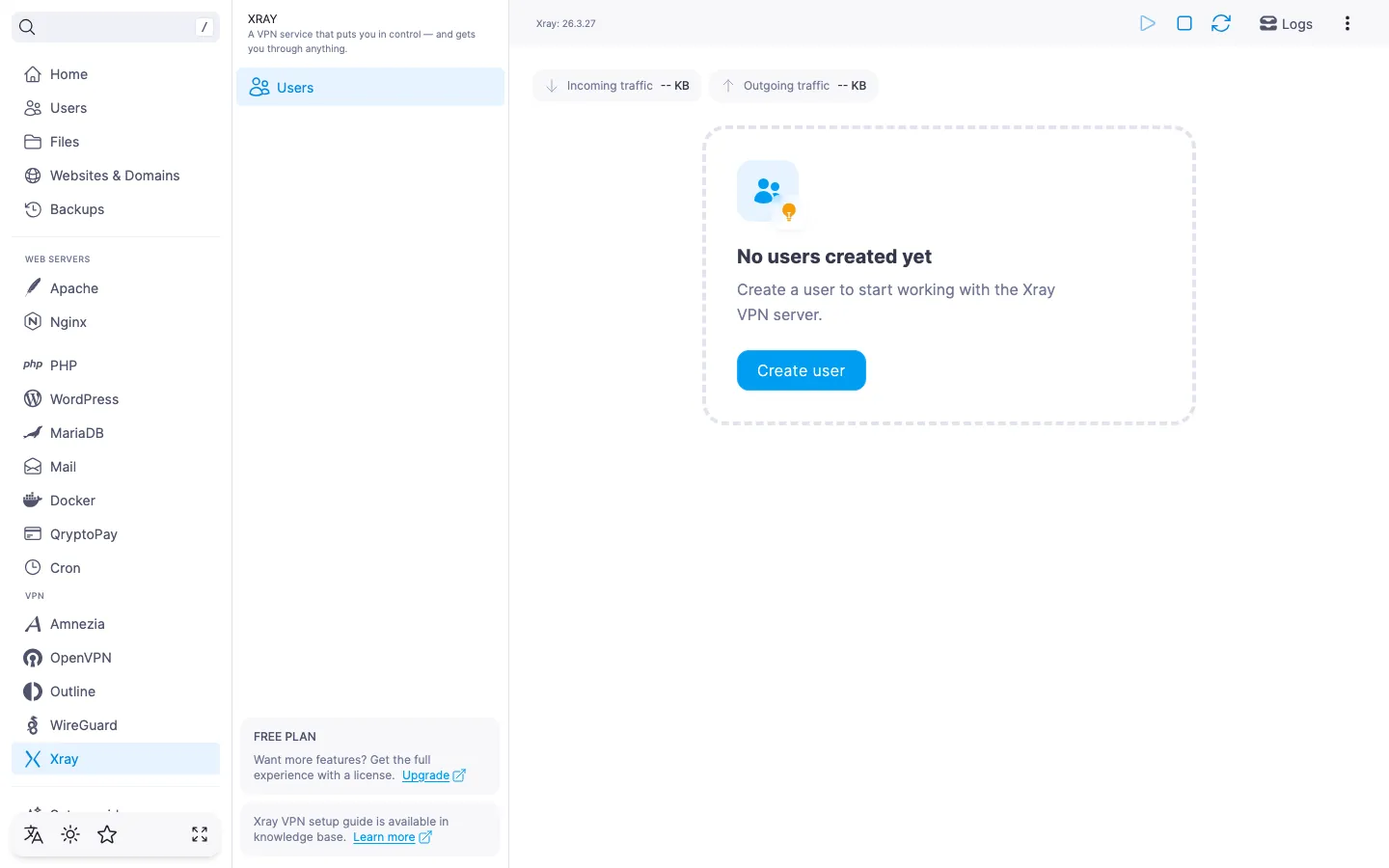
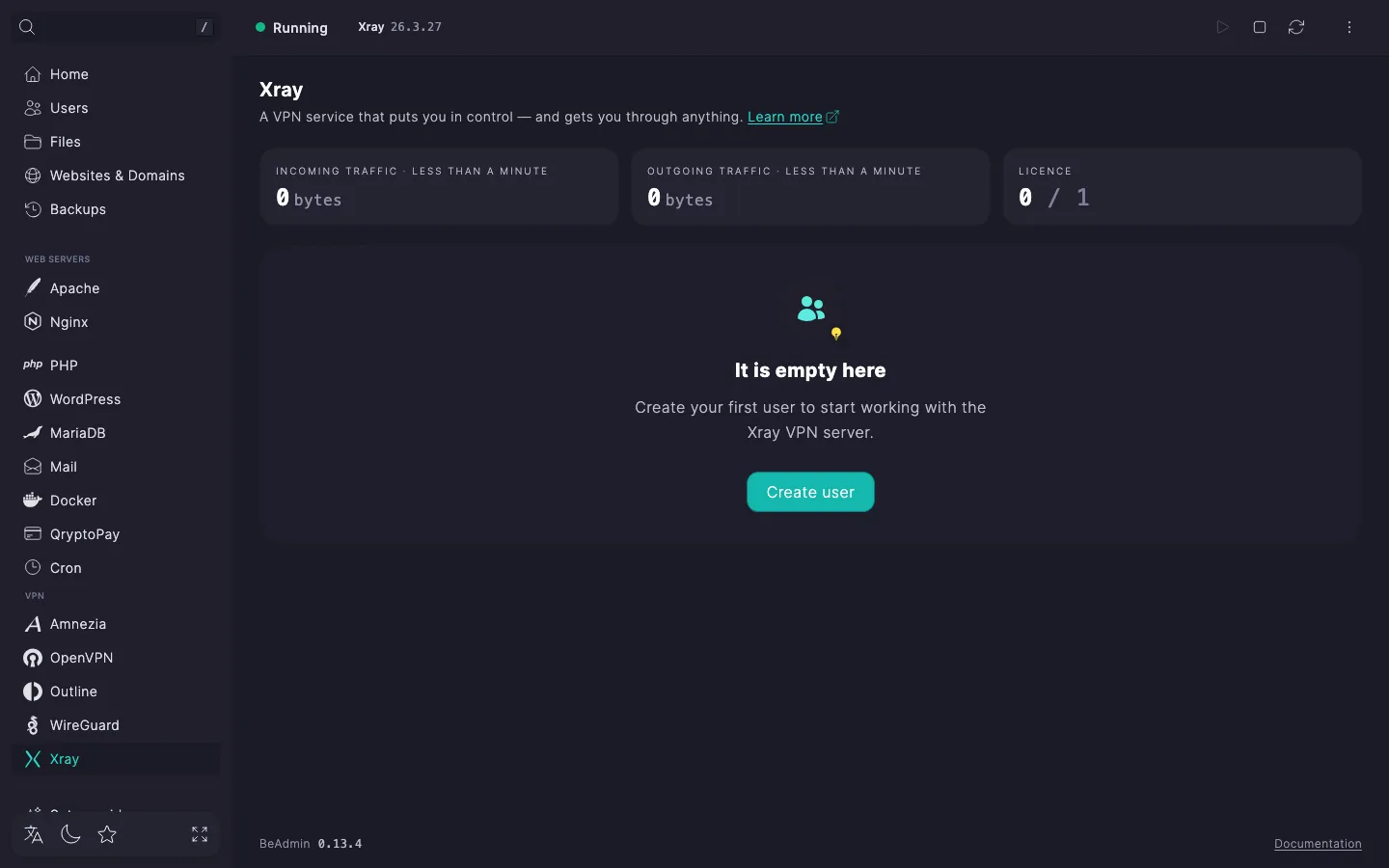
When installation finishes, the panel takes you straight to the Users page — the module's main screen. Installation usually takes a few minutes; you can follow the progress via the Log button on the install card.
The page header exposes the core module actions — start, stop, and restart. The three-dot menu groups the rest: Logs, update check and run, reinstall, and uninstall.
To get started, create the first user.
An Xray user is a separate account with its own identifier and connection link. We recommend creating a separate user per device that will connect: that way you can revoke access for a single device without touching the others.
BeAdmin installs into an entry → exit chain — a separate scenario, see Xray. Multi-hop mode.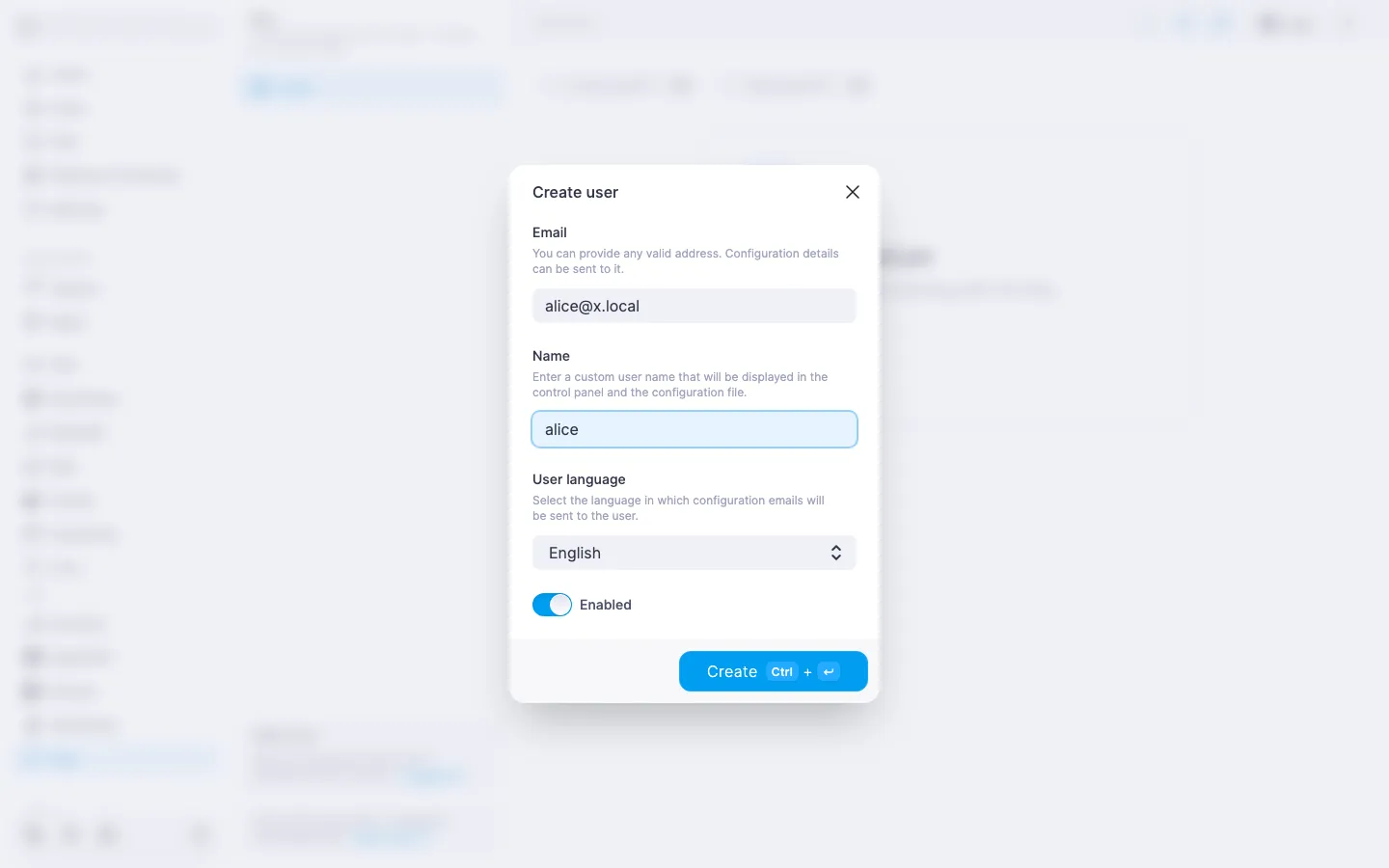
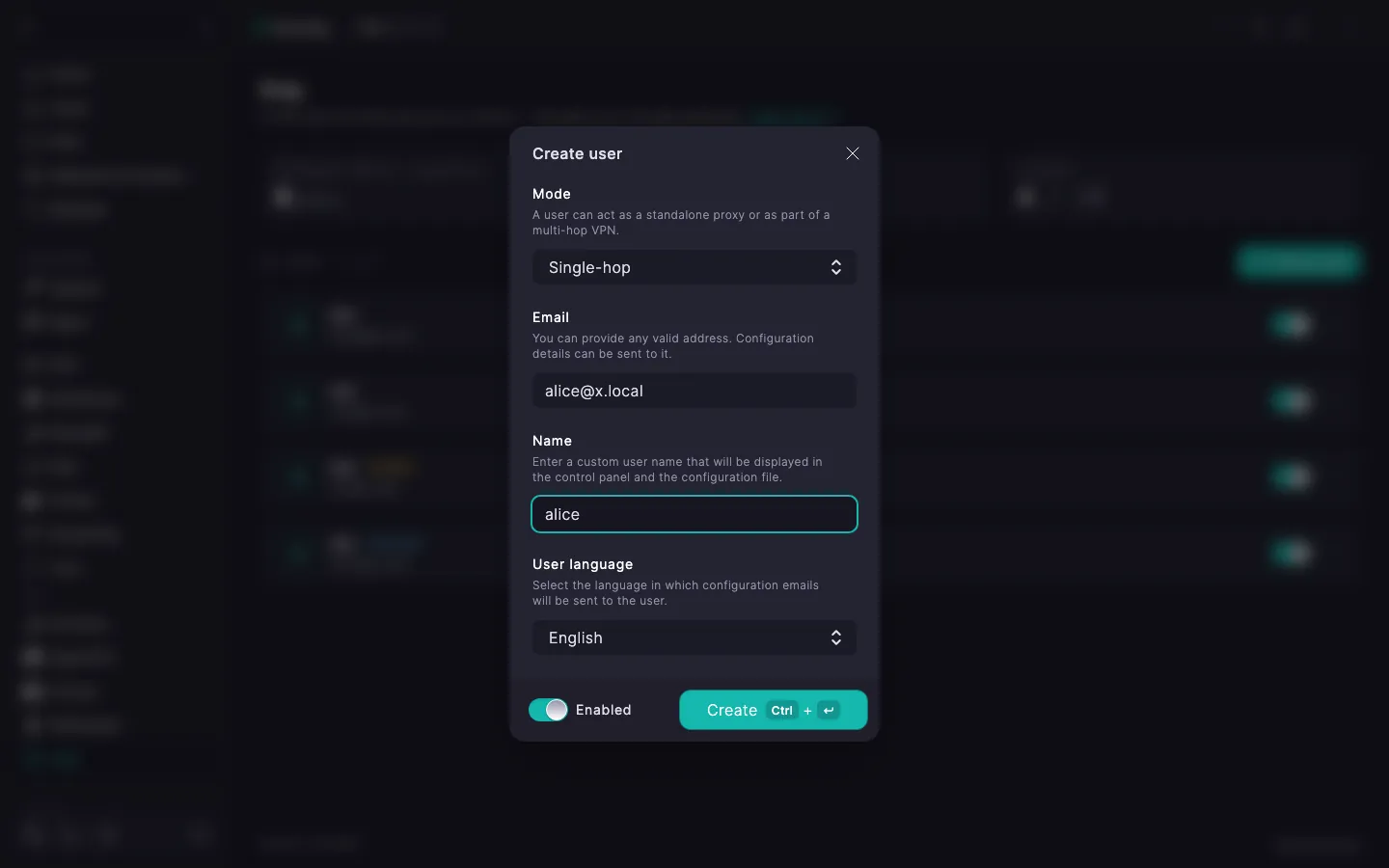
The user appears in the list. The server generates the connection string and a QR code — you can grab them right away. If you enter an identifier that already belongs to another user, an error is highlighted under the field and the form can't be saved.
ℹ️ Limit on the free plan
The free licence allows one Xray user — enough to try the service out and see whether it fits. When you need more, purchase additional slots. Details — in Xray. Managing users.
Xray uses links of the form vless://… — a compact string with connection parameters. Any Xray-compatible client accepts it via QR code scan or paste from the clipboard. A .conf file is not used.
vless://… string as the link button.vless://… string to the clipboard. Useful when the device you're setting up the VPN on is the same one the panel is open on: you paste the link into the client without a camera.To confirm the VPN is working, open any IP-check page in your browser, for example myip.com. If everything is set up right, it will show your server's country.
If SMTP is configured in the panel, you can send the connection link to the user by email — useful when the device isn't on hand.
In the expanded user row click Email. The link goes to the address set when the user was created. If there is no address, the button is inactive — add one in the Edit user dialog.
ℹ️ If SMTP is not configured
The email button stays disabled, and the expanded row shows the note "Email sending is not configured on the server" with a link to the settings. Details — in How to set up an SMTP relay for sending emails.