Mimicry. Managing the module
This article continues Mimicry quick start. If you haven't installed the module and created the first user yet, start there. Here we cover operations on the module itself: starting and stopping the service, changing the port, updating, reinstalling, and uninstalling. VPN user management lives in a separate article — Mimicry. Managing users.
Page header and actions menu
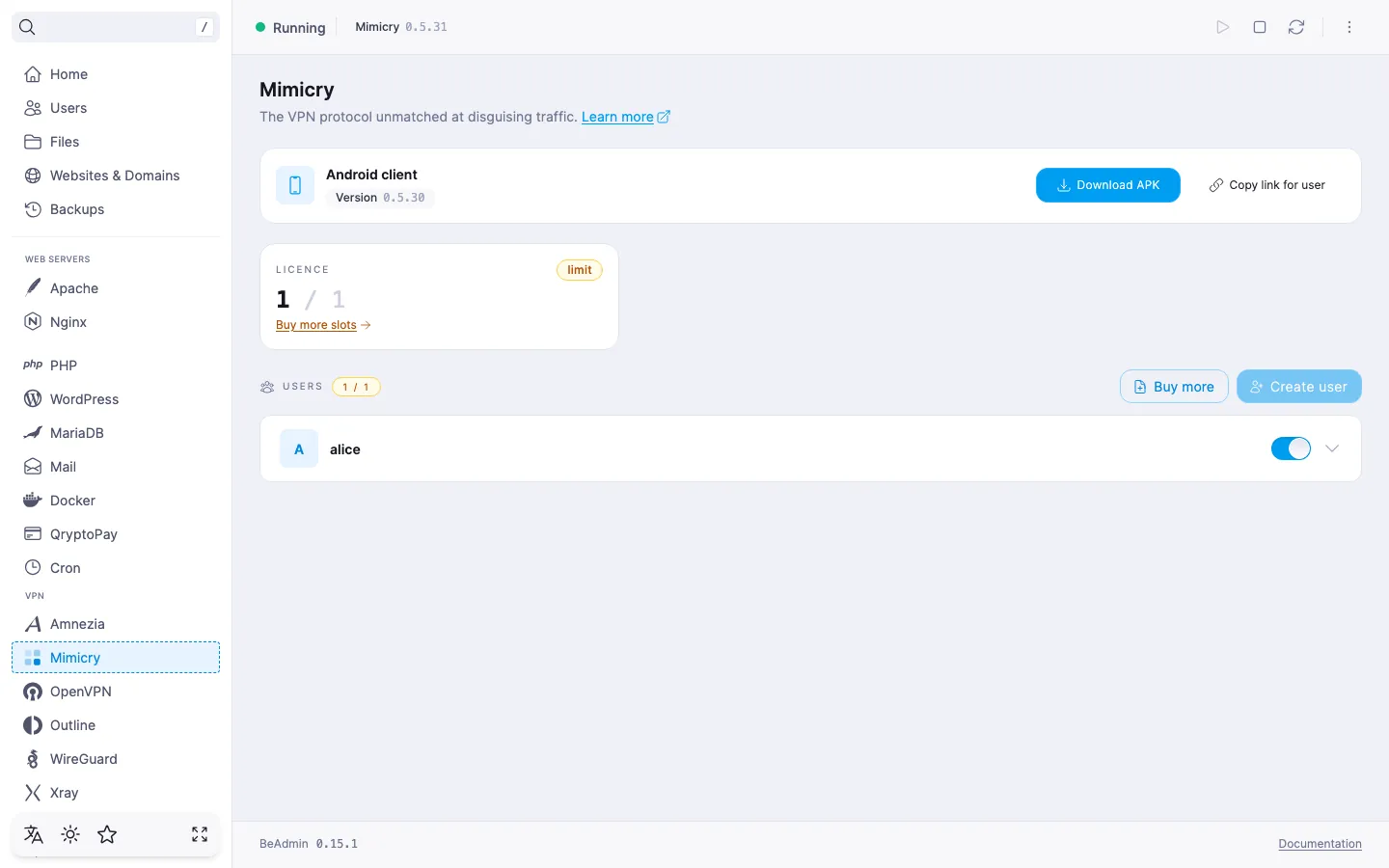
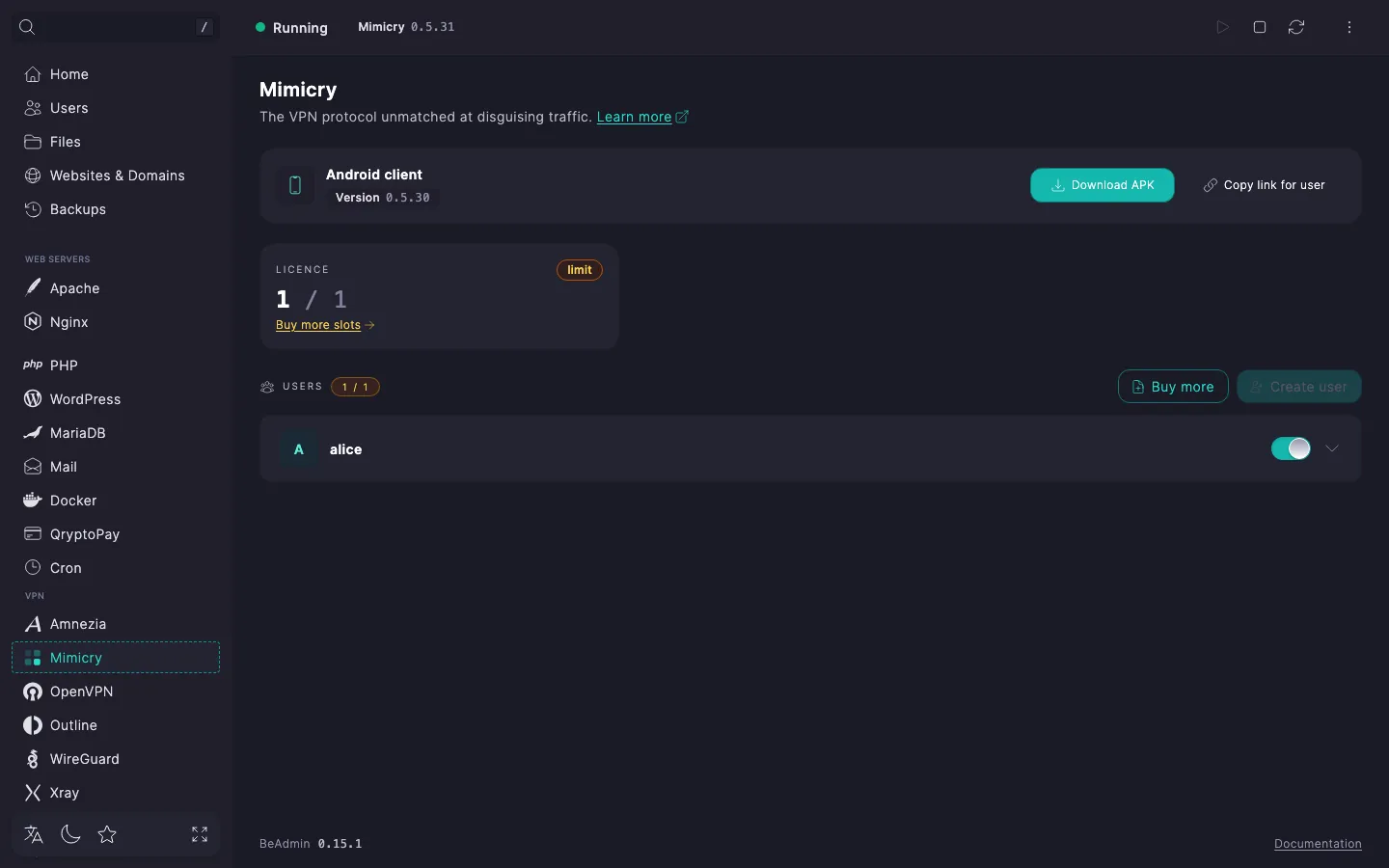
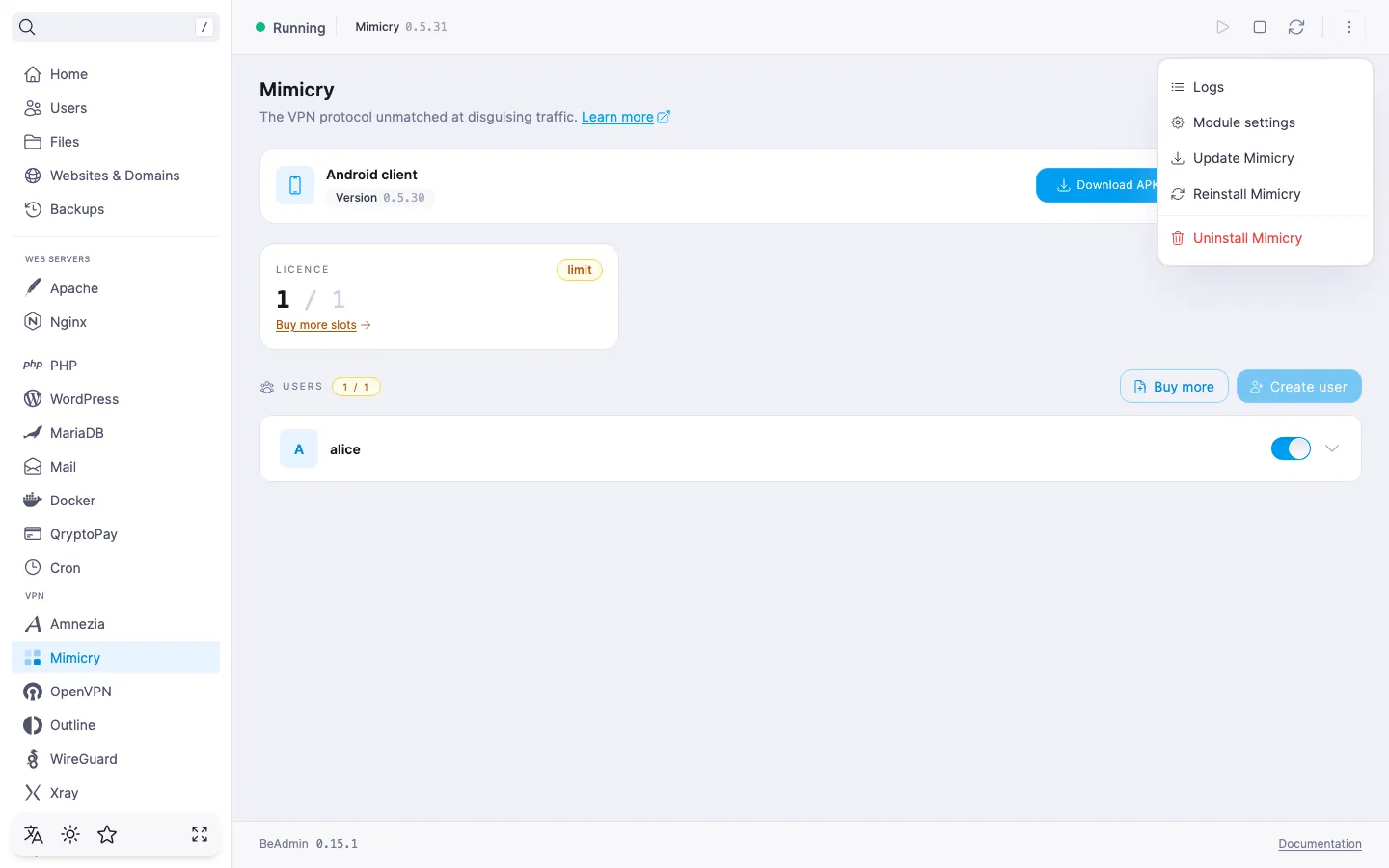
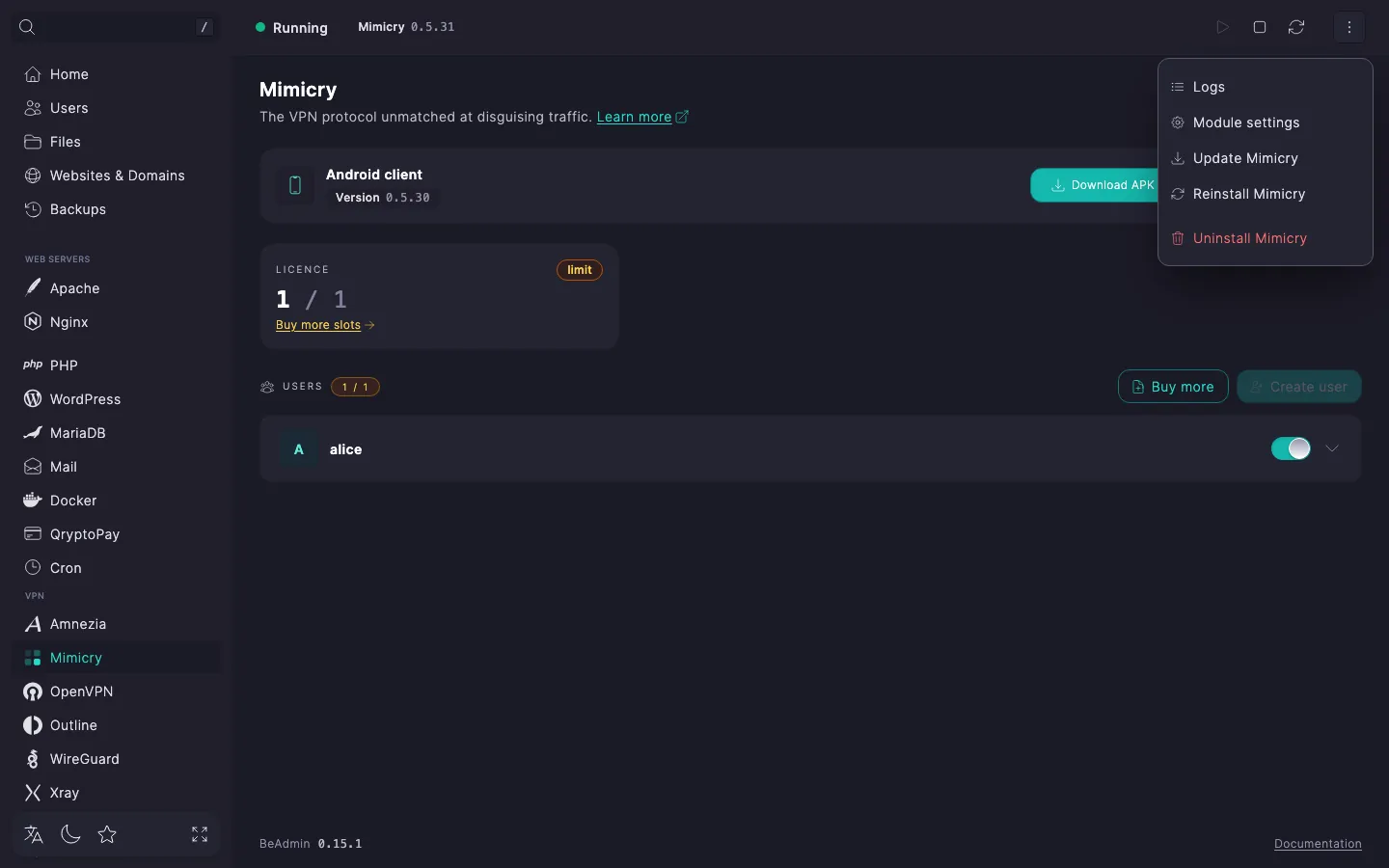
The page header exposes the core module actions — start, stop, and restart the service. The service state is shown by a status indicator and a chip with the Mimicry version. The three-dot menu next to it holds the rest: open logs, go to module settings, check and run an update, reinstall, or uninstall the module.
Managing the service
- Start — brings the Mimicry service up from a stopped state.
- Stop — shuts the service down. All active VPN connections drop, and new ones cannot be established.
- Restart — stops and immediately starts the service again. Open connections are reset.
Changes to the user list are applied without a service restart: adding, enabling, disabling, or deleting a user takes effect right away — the daemon reloads its client list on the fly.
⚠️ Stopping the service drops all VPN connections
While the service is off, no user can connect. Plan stops and restarts for a maintenance window or warn users in advance.
While the module is being updated, reinstalled, or deleted, the service controls and the actions menu are temporarily unavailable.
Module logs
In the actions menu pick Logs — the journal of module lifecycle operations opens: install, update, reinstall, delete, port change. Each record shows a status and the full execution output. Useful when an action ends with an error and you need to figure out why.
Module settings
The server side of the module is configured on a separate page. Open it via the actions menu → Module settings. The tabs here are General and Routing rules. The General tab has the Connection section with the TCP port Mimicry listens on for incoming connections (set at install: 443 if the port was free, otherwise 2083), and the Updates section with the auto-update toggle. The Routing rules tab covers custom rules for addresses the Mimicry country directory gets wrong — it's covered in a separate article, Mimicry. Routing rules.
Changing the port
- In the actions menu pick Module settings and go to the General tab.
- In the Port field of the Connection section enter a new number (valid range —
1–65535). For the strongest masking, port443is the best pick — moving away from it weakens the masking and may conflict with a web server or anotherBeAdminmodule; the panel will warn you under the field. - Click Save. The panel asks you to confirm the change in the Confirm module settings change dialog; after confirmation the new port is stored and the service restarts automatically.
⚠️ Changing the port breaks active connections
After a new port is applied, existing client configurations stop working — the old one has the previous server address and port baked in. The configurations need to be regenerated and re‑imported to the devices. If you switch back to the previous port, the old configurations work again without re‑issuing keys.
ℹ️ A busy port doesn't block the save
If the port you pick is already held by another process, the panel still stores the setting — but the service stays stopped until the conflict is resolved. Free the port, or pick a different one, then restart the service to bring Mimicry back up.
Auto-update
In the Updates section, a toggle decides whether Mimicry installs its own updates. Auto-update is on by default, and the label under the toggle reads Auto-update enabled: the module tries to update itself at night, server time. Turn the toggle off and the label switches to Auto-update disabled — Mimicry can then only be updated manually, via Update Mimicry in the actions menu (see Updating the module). The toggle applies right away, with no confirmation dialog.
Updating the module
In the actions menu pick Update Mimicry. The panel checks whether a newer Mimicry version exists in the repository, installs it on top of the current one, and restarts the service. The user list and their keys are preserved — there is no need to re‑import configurations on devices.
The update has no confirmation step — the action starts immediately. While it runs, the service controls and the menu entries are unavailable; the current module version is visible on the Mimicry chip in the header. If the latest version is already installed, the update is not started — the panel will tell you so.
Reinstalling the module
In the actions menu pick Reinstall Mimicry. The panel asks you to confirm the reinstall — click Confirm. The same Mimicry version is deployed on top of the current one and the service is restarted. The user list and their keys are preserved — there is no need to re‑issue connections to devices.
Reinstall the module if it behaves unstably and you want to run installation again without losing users. Unlike uninstall, reinstall does not wipe users and their keys — already issued configurations keep working without reconnecting or re‑importing.
A reinstall keeps Mimicry on its current port. To move the module to a different port, enter it in the reinstall dialog or change it in Module settings — see Changing the port.
After the move, the configurations issued earlier stop working — the port is baked into them. The keys stay the same, but the configurations need to be issued to users again.
If clients stop connecting after a reinstall, open the expanded user row on the Users page and download the configuration again, or generate a fresh QR code. If the errors persist, the last resort is to fully uninstall the module and install it again.
Uninstalling the module
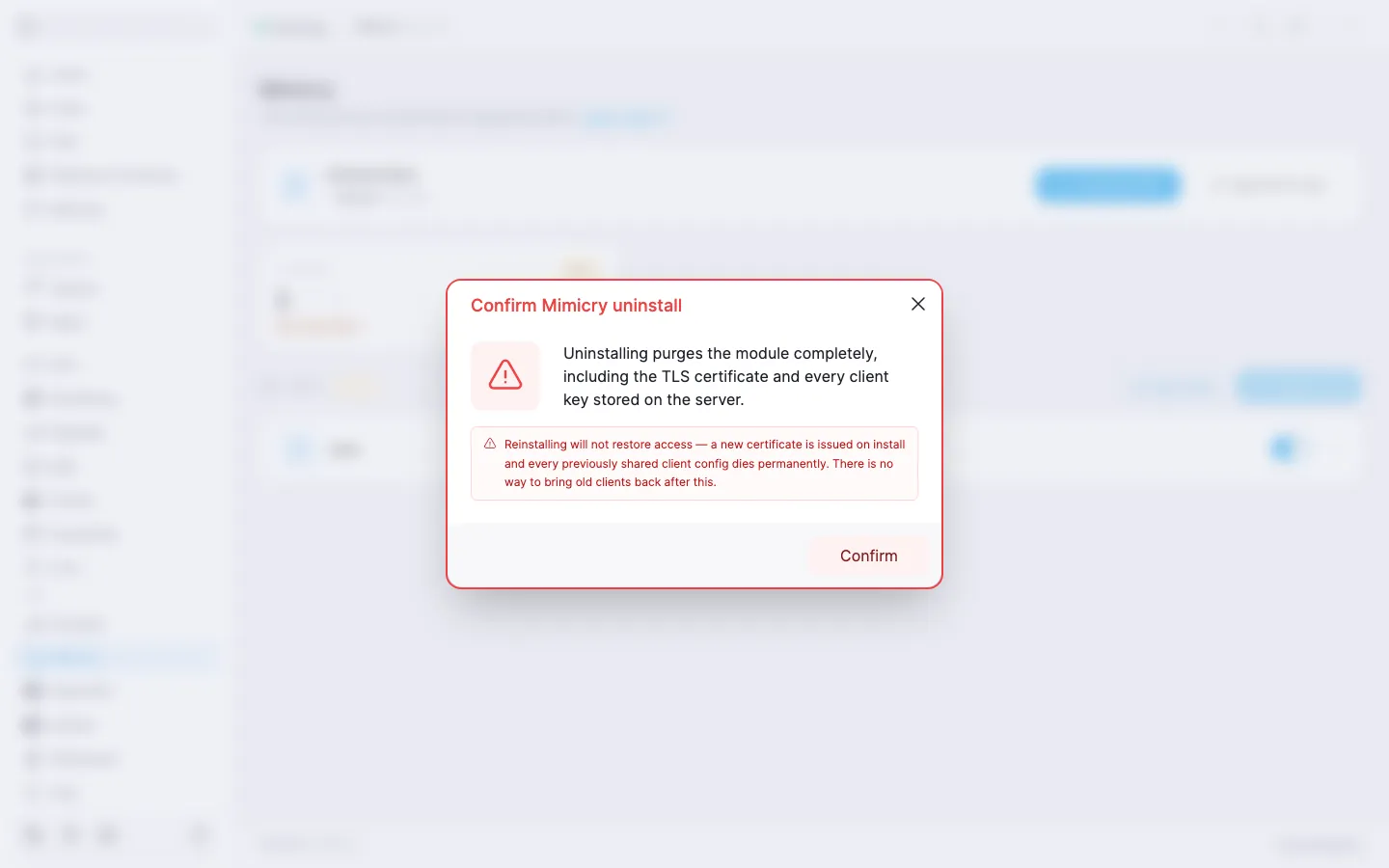
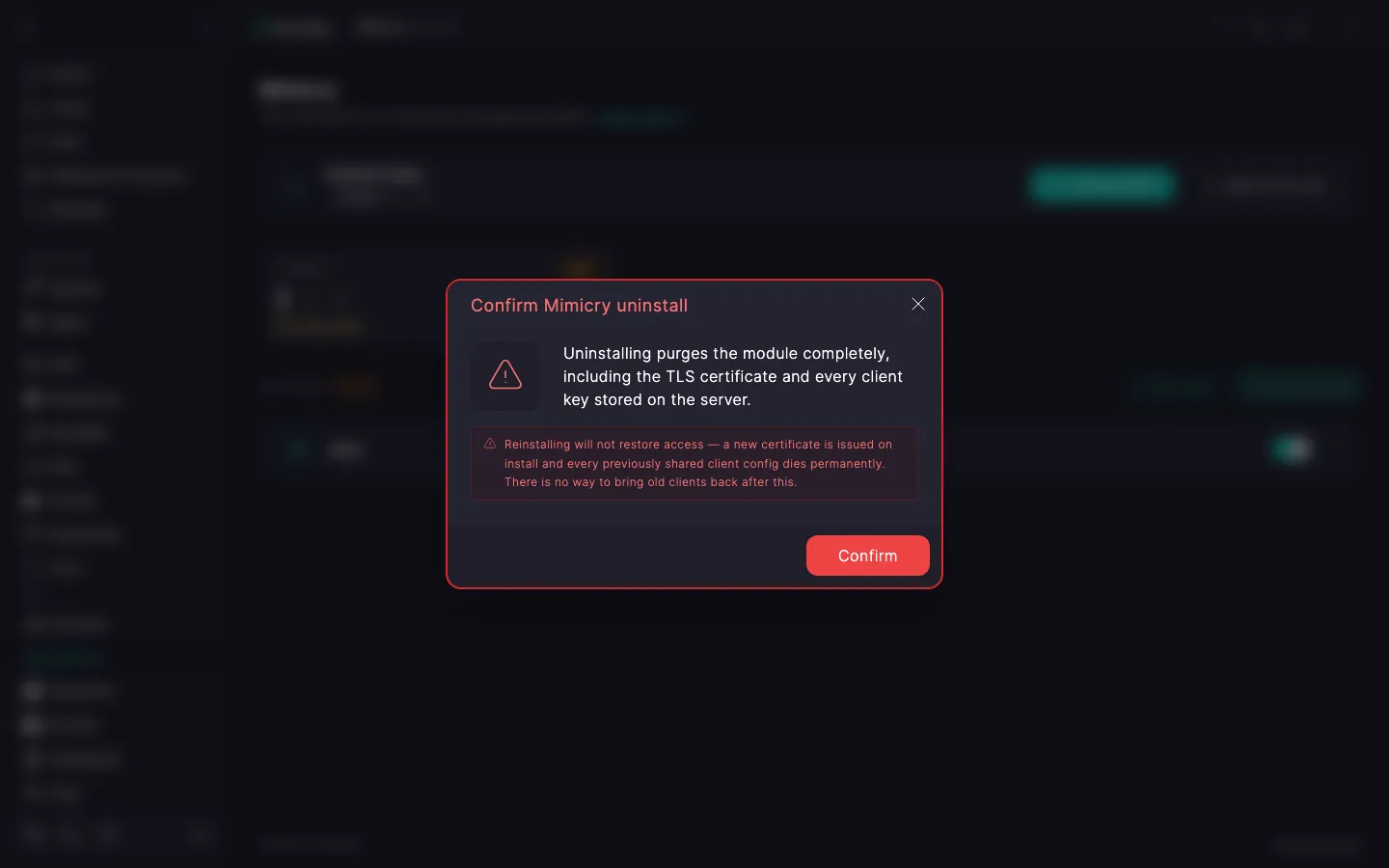
In the actions menu pick Uninstall Mimicry. The panel asks you to confirm the deletion in the Confirm Mimicry uninstall dialog: uninstalling purges the module completely, including the TLS certificate and every client key stored on the server.
‼️ Reinstalling does not restore access after uninstall
Uninstall is irreversible — and unlike the other VPN modules, a fresh reinstall does not bring old clients back either: a new TLS certificate is issued on every install, so every previously shared client configuration dies permanently along with the old one. There is no way to restore a deleted client. After a fresh install you will have to recreate the module and its users from scratch, and every device will need a newly issued configuration. Mimicry licence slots are freed up — you can reuse them or forget about the module until the next install.
After confirmation the panel starts the deletion. When it finishes, the module page returns to its initial state with the Install button.
Distributing client apps
The Android client and Windows client cards on the Users page stay available for as long as the module is installed — download an app again for a new device, or mint a fresh share link at any time with Copy link (each link is valid for 24 hours). The panel keeps a cached copy of each app and refreshes it automatically; if a card shows Temporarily unavailable, click Retry to re‑check. Each app's own version is independent from the Mimicry module version shown in the header — updating the module does not update the apps, and vice versa. The Apple client card next to them just links out to the App Store — there's nothing to cache or retry, Apple handles delivery and updates on its own. See Mimicry client apps for supported Windows versions.
What's next
- Mimicry quick start — installing the module and the first connection.
- Mimicry. Routing rules — custom rules for addresses the country directory gets wrong.
- Mimicry client apps — Android, Windows, and Apple apps, and supported Windows versions.
- Mimicry. Managing users — creating, editing, deleting users, and purchasing additional slots.
- How to set up an SMTP relay for sending email — so you can email users their configuration.