Proven over 15 years in hosting. Your VPS with BeAdmin is ready to go out of the box.
 Germany
 Netherlands
 Sweden
 Switzerland
 Spain
Spain USA
USA
You can get a BeAdmin licence right from the panel: buy one from scratch, add options to an active licence, or extend its term. Open the section from the sidebar — the Licence item — or go straight to /licence. Pay by card, cryptocurrency, or your beadmin.com account balance — every method lives on a single screen.
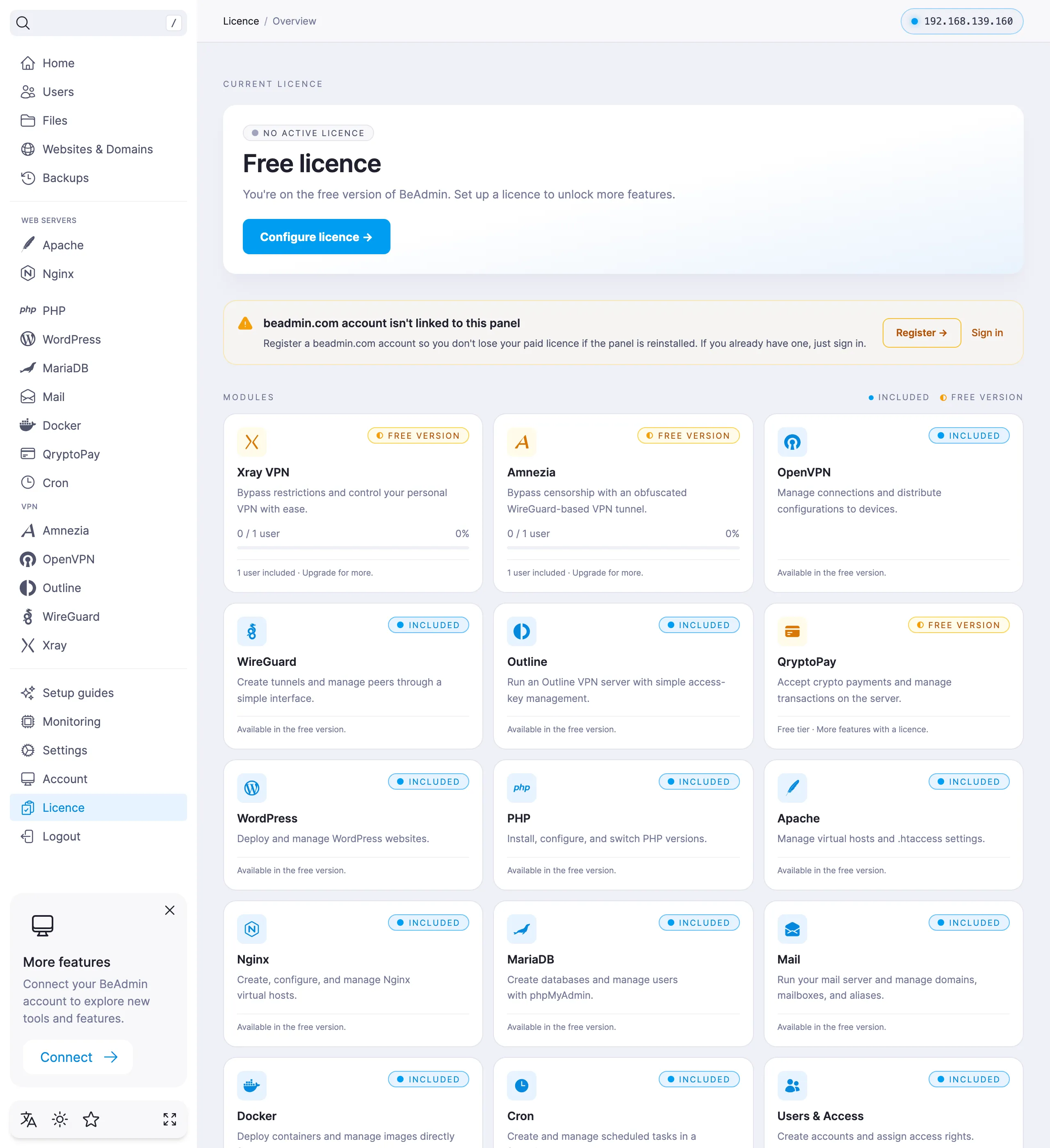
Without a licence, the panel runs in its free version: the core modules are available right away, while some capabilities (for example, extra VPN users) unlock with a licence.
If you don't have a server yet, you can get one from our partners — they offer virtual and dedicated servers with the BeAdmin panel pre-installed.
Proven over 15 years in hosting. Your VPS with BeAdmin is ready to go out of the box.
GermanyNetherlandsSwedenSwitzerlandSpainUSAEuropean reliability made simple. Launch BeAdmin with your VPS in just one click.
GermanyNetherlandsSweden Estonia
 RomaniaSwitzerlandSpain
'%3e%3cpath%20fill='%2300008b'%20d='M0%200h384v256H0z'/%3e%3cpath%20stroke='%23fff'%20stroke-width='42'%20d='m1.914-.001%20382.086%20256m-382.086%200L384-.001'/%3e%3cpath%20stroke='red'%20stroke-width='14'%20d='M5.437%200%20192%20122M378.563%200%20192%20122M5.437%20256%20192%20134m186.563%20122L192%20134'/%3e%3cpath%20fill='%23fff'%20d='M157.787-.001h68.359v256h-68.359z'/%3e%3cpath%20fill='%23fff'%20d='M-.067%2093.999H384v68H-.067z'/%3e%3cpath%20fill='red'%20d='M384%20107.789H211.862V-.001h-39.724l.001%20107.79H0v40.419h172.139v107.79h39.723v-107.79H384z'/%3e%3c/g%3e%3c/svg%3e) United KingdomUSA
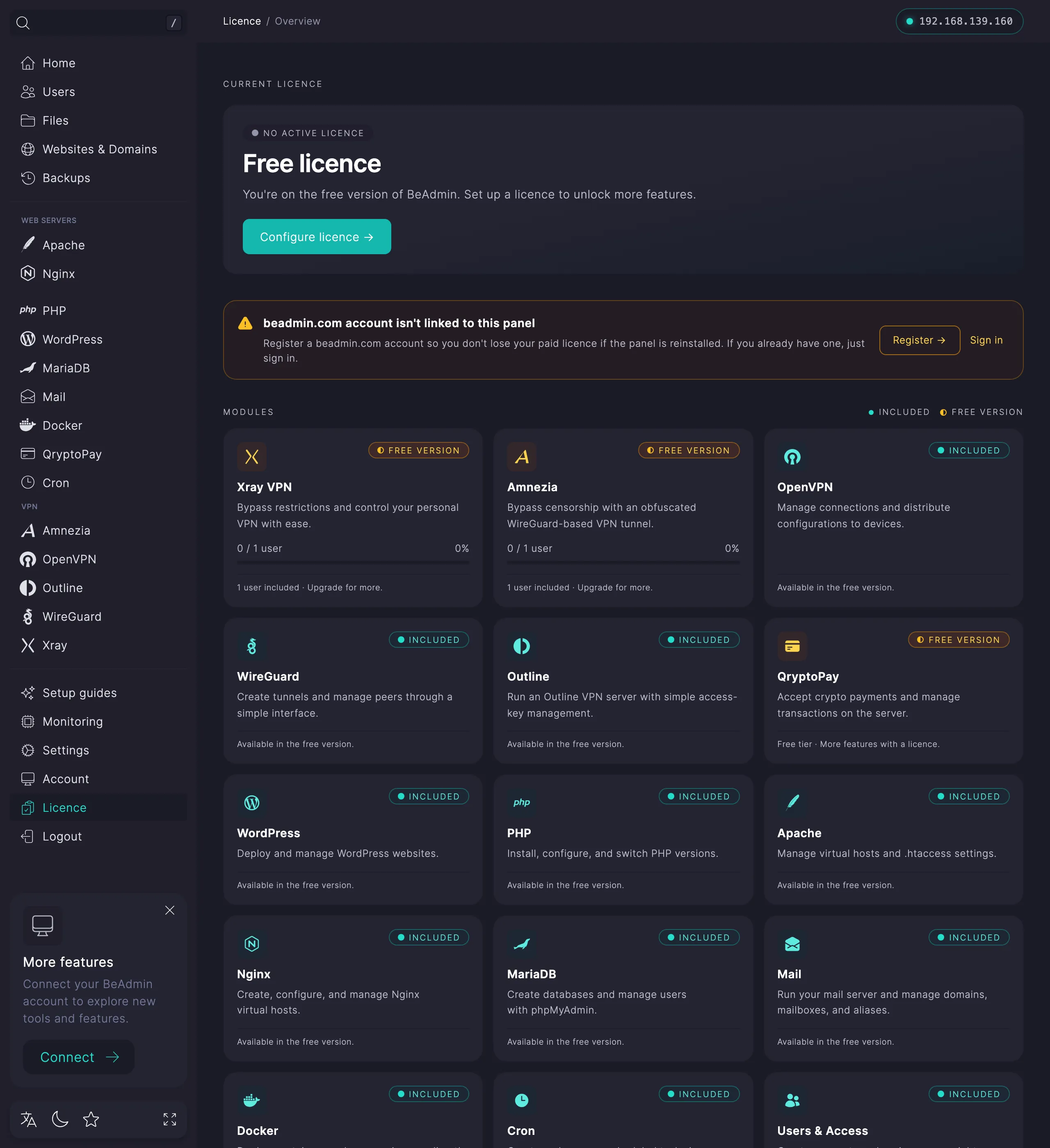
United KingdomUSAThe Licence page shows the current state and the list of modules. If there's no licence yet, the panel runs in its free version and a Configure licence button appears in the header — it takes you to the purchase flow.
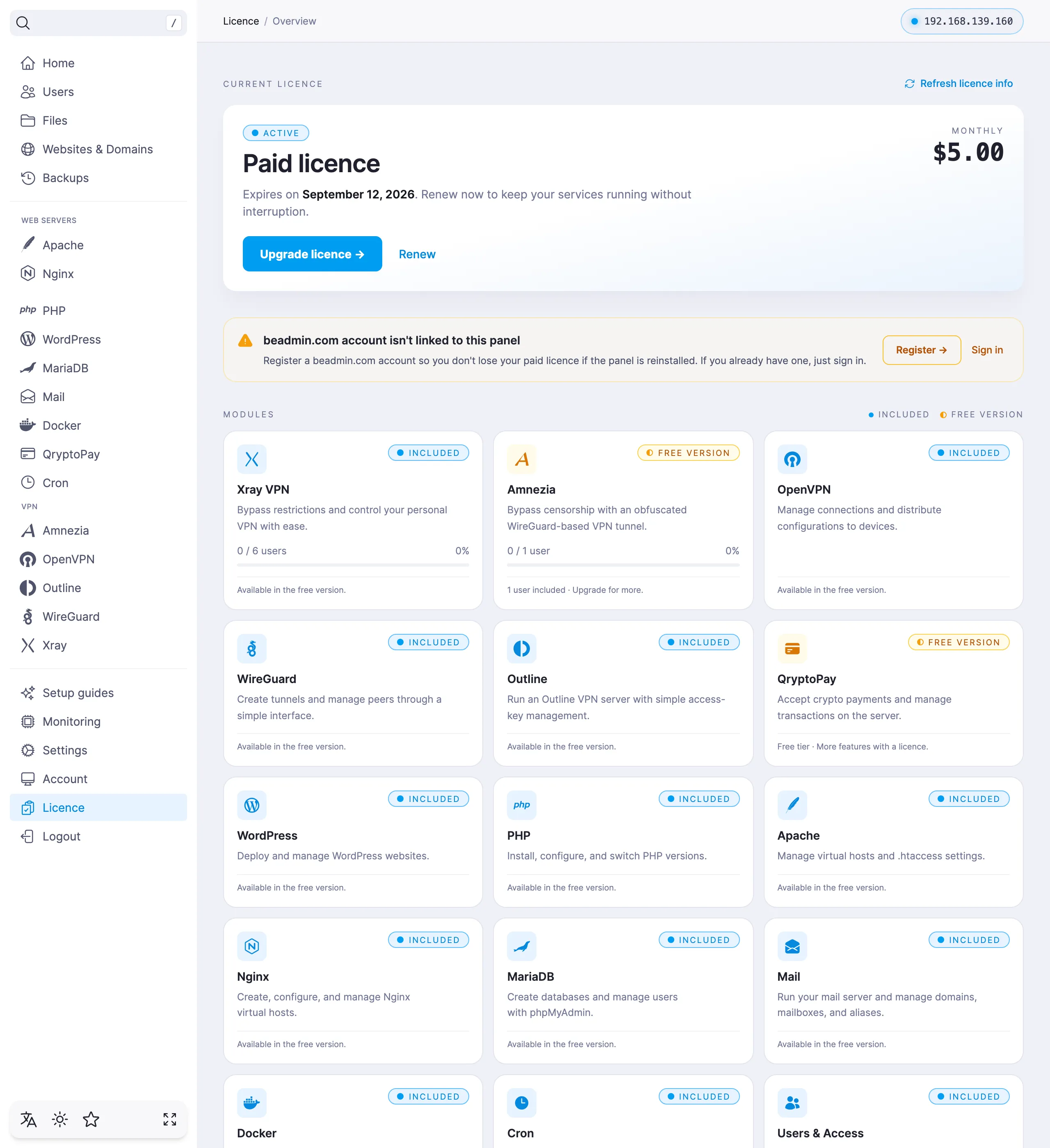
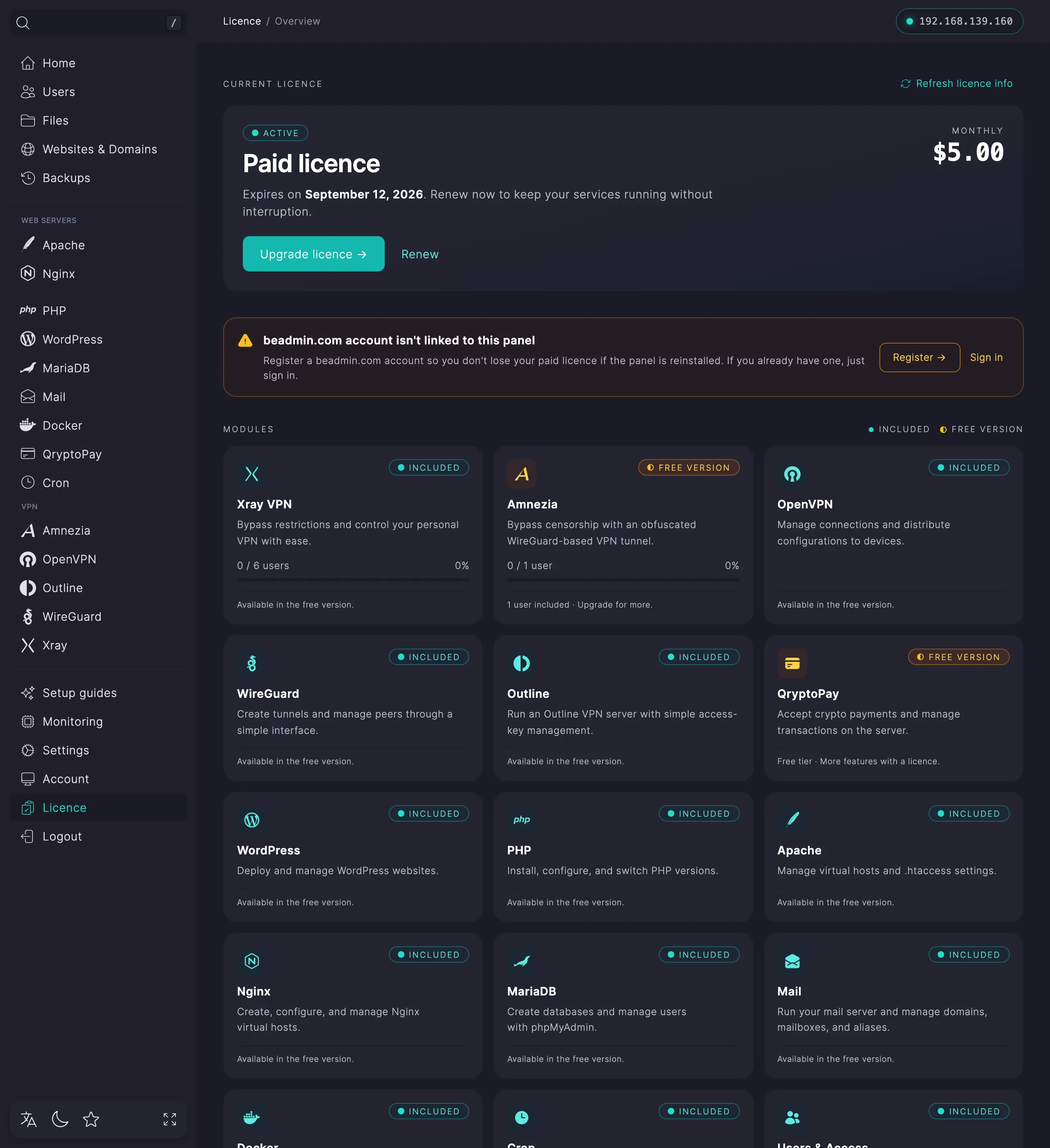
When a licence is active, the header shows its term and monthly price, along with the buttons: Upgrade licence adds options to the active licence, and Renew extends the current set of modules for a new term.
The header also shows whether the licence will renew automatically — see Auto-renewal below.
Be sure to link your beadmin.com account
The beadmin.com cloud account is a separate account for centrally managing all your servers running the BeAdmin panel. It's not your panel login and not the credentials your hosting provider gives you — you need to create it separately.
Link it to the panel: the licence you've paid for is then tied to the account and isn't lost if you reinstall the panel. Until the account is linked, a reminder sits at the top of the licence page with Register and Sign in buttons.
Auto-renewal is on by default: the licence renews automatically, and paid features don't get disabled when the term ends. The Auto-renewal switch sits in a card right below the header of the Licence page.
It renews for the same term you paid last time: if you renewed the licence for a year, auto-renewal will renew it for another year.
48 hours before the term ends, you'll get an email: how much will be charged and when, and how to turn auto-renewal off. The charge itself will go through in the last 24 hours before the term ends. The date and amount of the upcoming charge are also visible right in the panel, under the switch.
The charge is taken first from your beadmin.com account balance, and if there isn't enough money on it — from your default saved card. The charge to the card is attempted only once, and if it's declined, every later charge uses the balance only.
If the charge doesn't go through before the licence expires, you'll get a failure email. For 7 days after expiry, attempts to charge the balance will continue — top up your balance, and the next charge attempt will renew the licence. If the charge still hasn't gone through after those 7 days, auto-renewal will stop — you'll get a notification about that too. After that, you can only renew the licence manually — see Renew a licence below.
After a successful charge, the new licence term will appear in the panel right away.
Turning auto-renewal on for a licence that has already expired won't start its renewal — such a licence can only be renewed manually. But after that, auto-renewal will work normally again.
With auto-renewal off, you'll get reminders 7 days and 1 day before the licence expires, prompting you to renew manually.
beadmin.com account.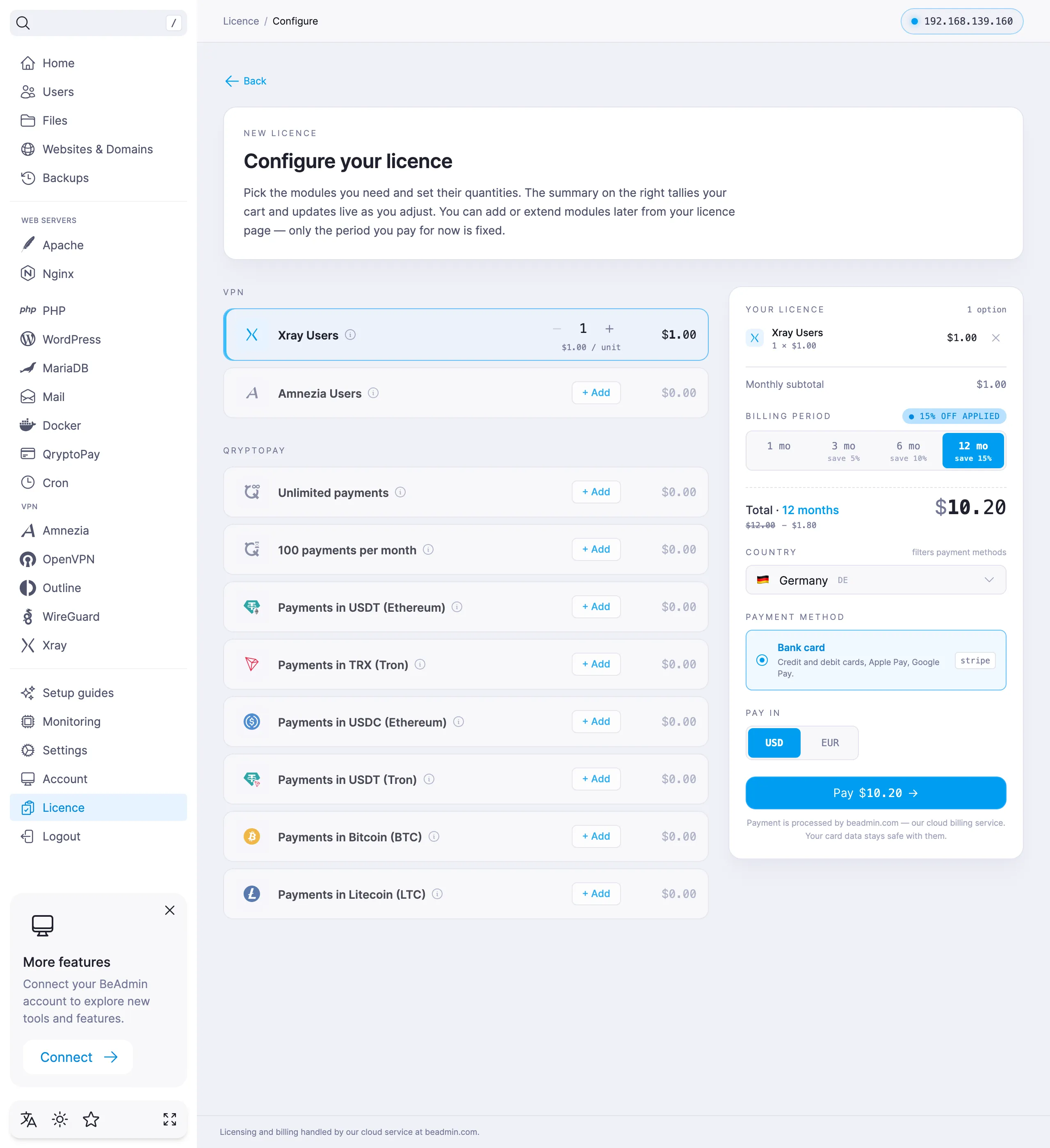
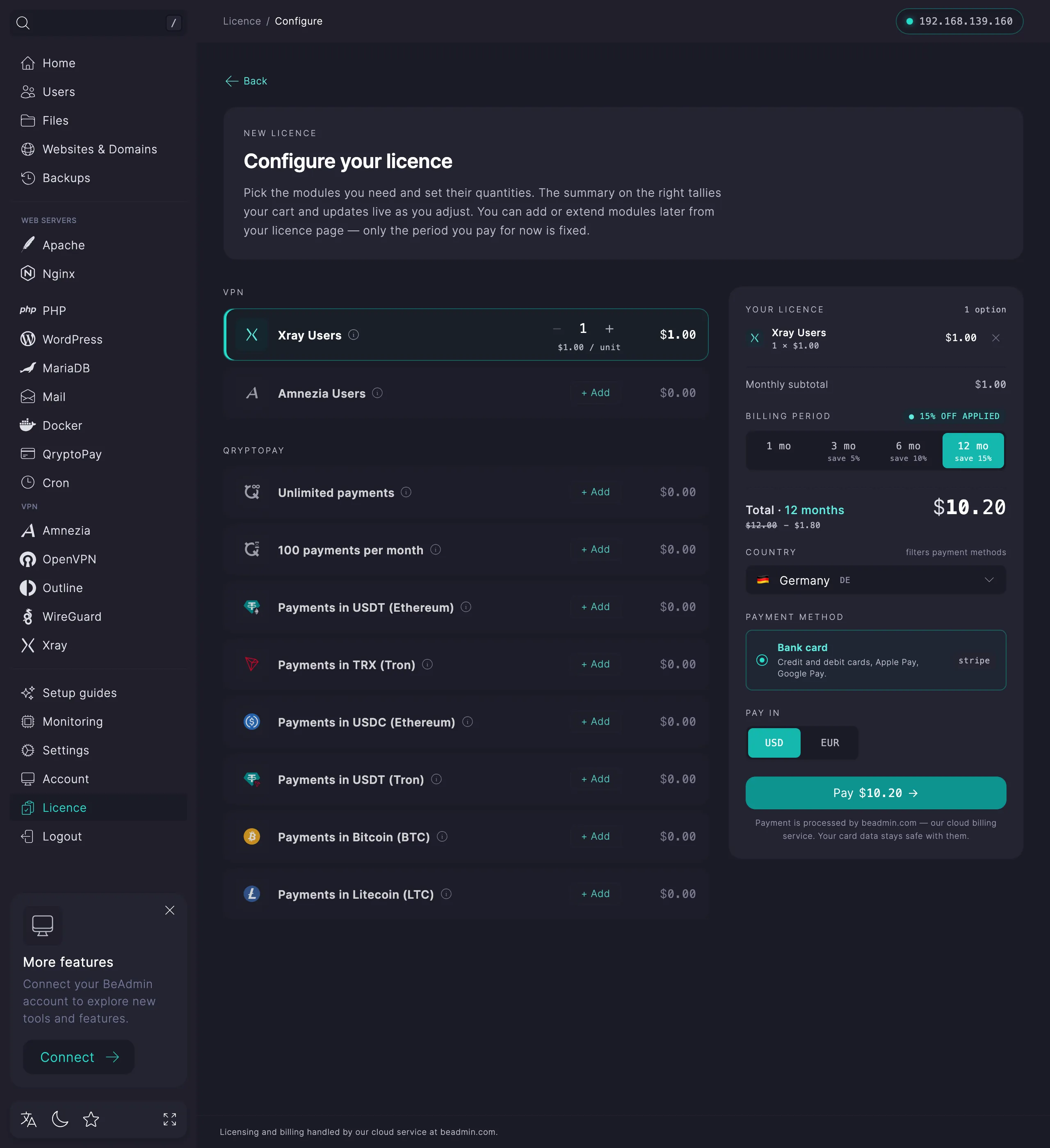
When paying by card, the panel asks for your personal details — they're needed to issue the invoice. The Save card toggle is on by default: it saves the card, so it can be used to pay for auto-renewal. After payment, the licence activates automatically; if the changes don't show up right away, refresh the page in a minute.
Payment handled on beadmin.com
The payment is processed through our beadmin.com cloud billing — your card details stay on its side. Licences and payments are handled through it as well.
When a licence is already active, you can add new options to it without waiting for the term to end.
The new options activate right away and run until the end of the current licence term — they renew along with it at the next renewal.
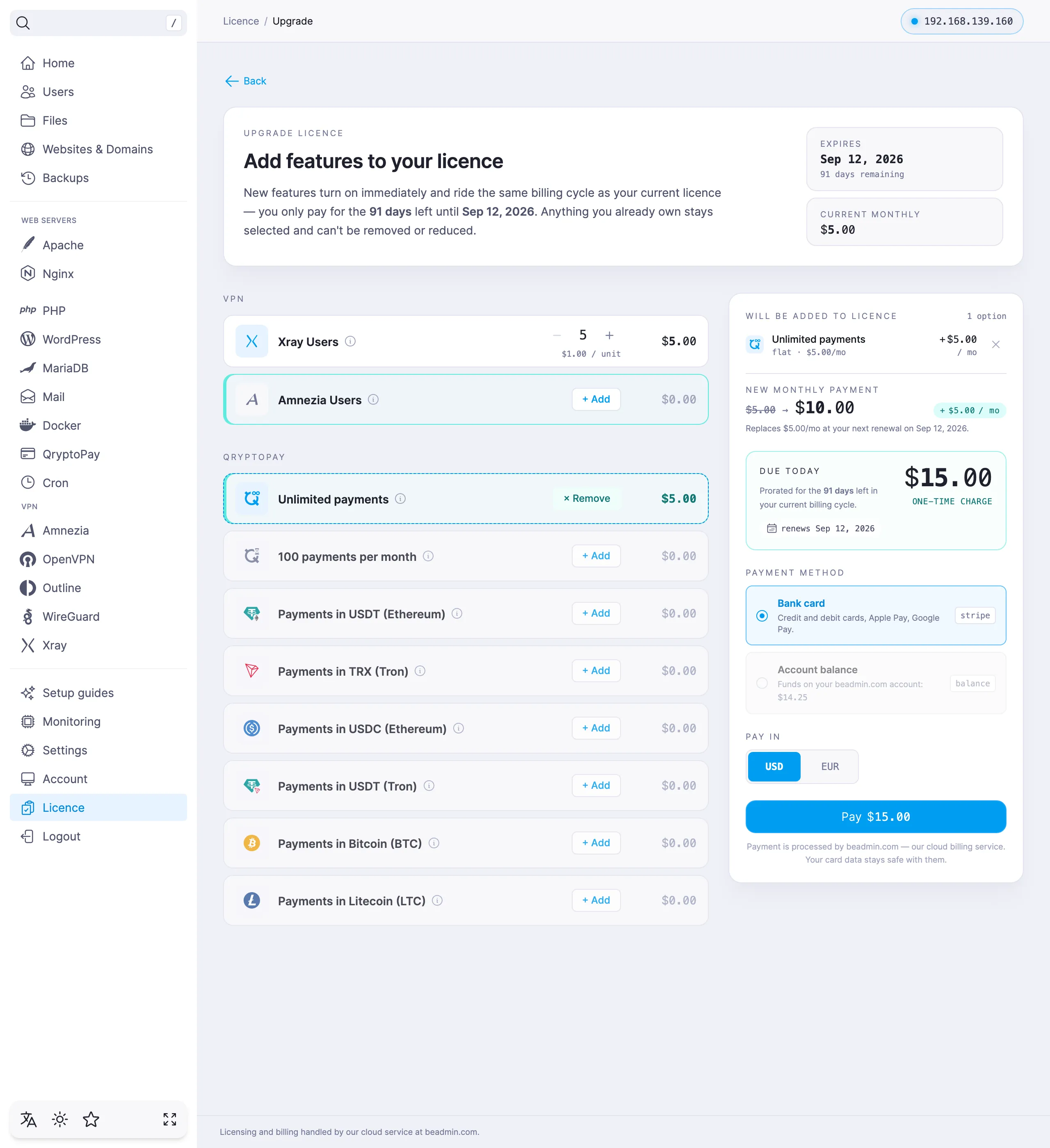
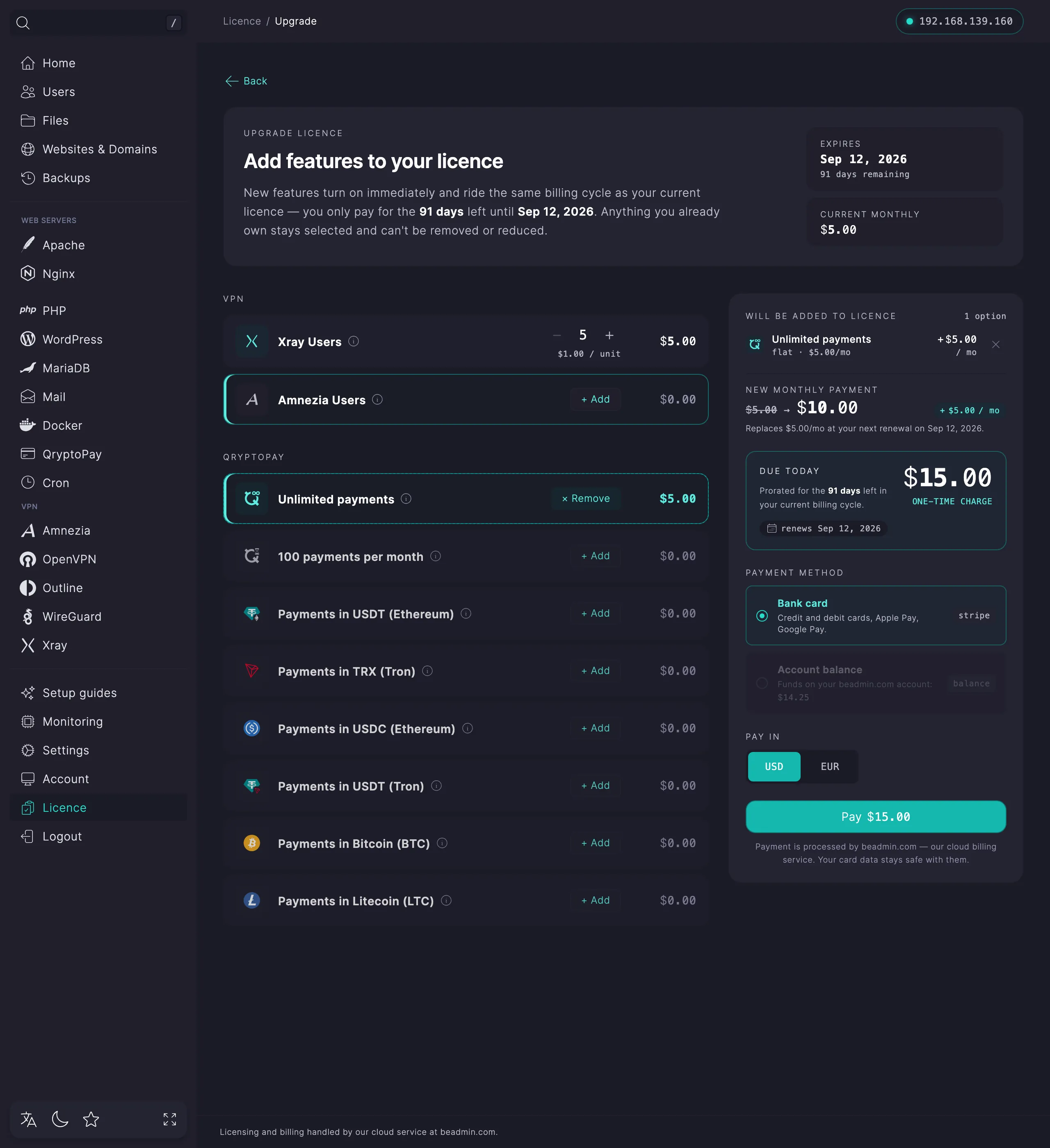
Renewing keeps the current set of modules and moves the expiry date forward.
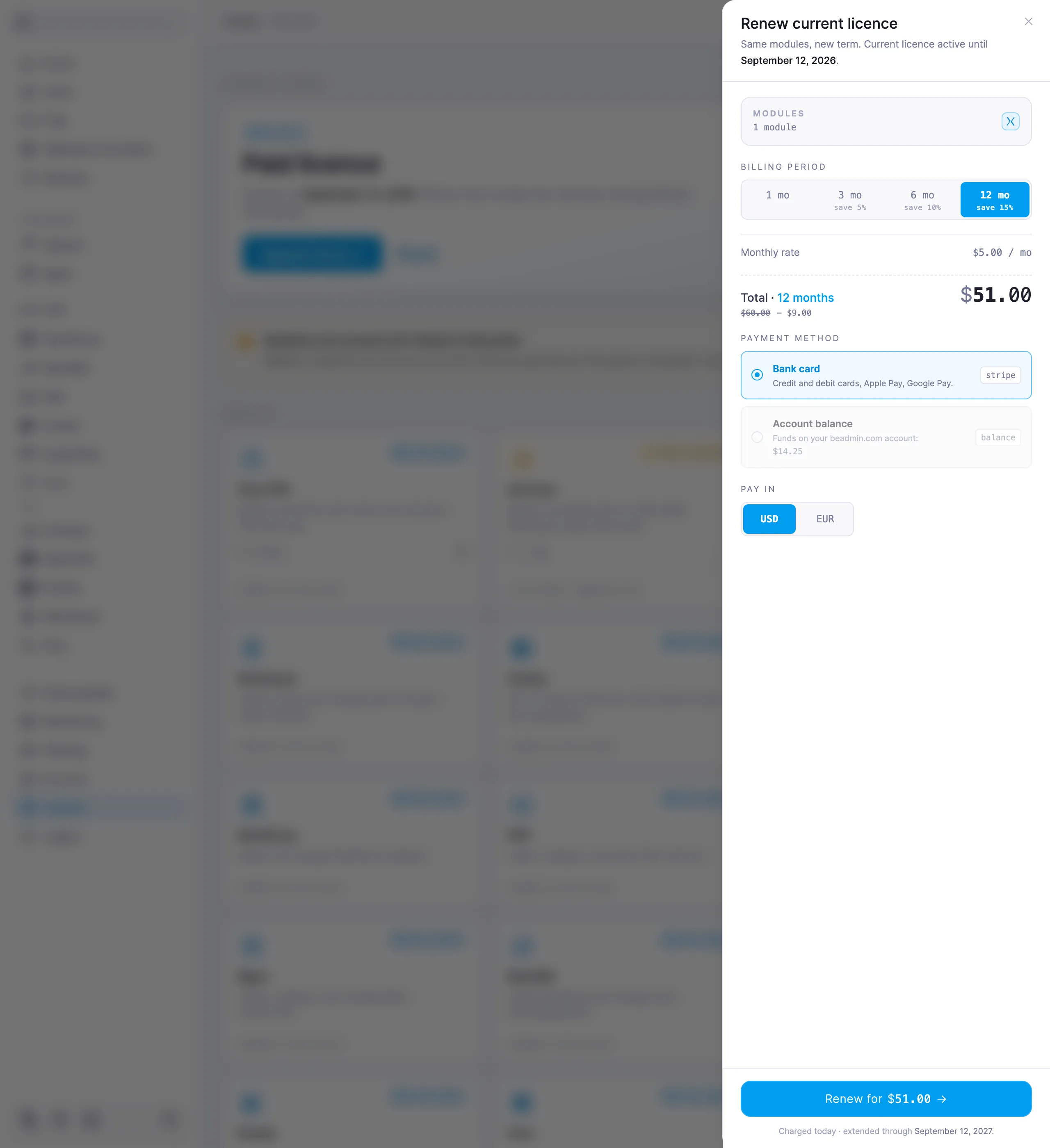
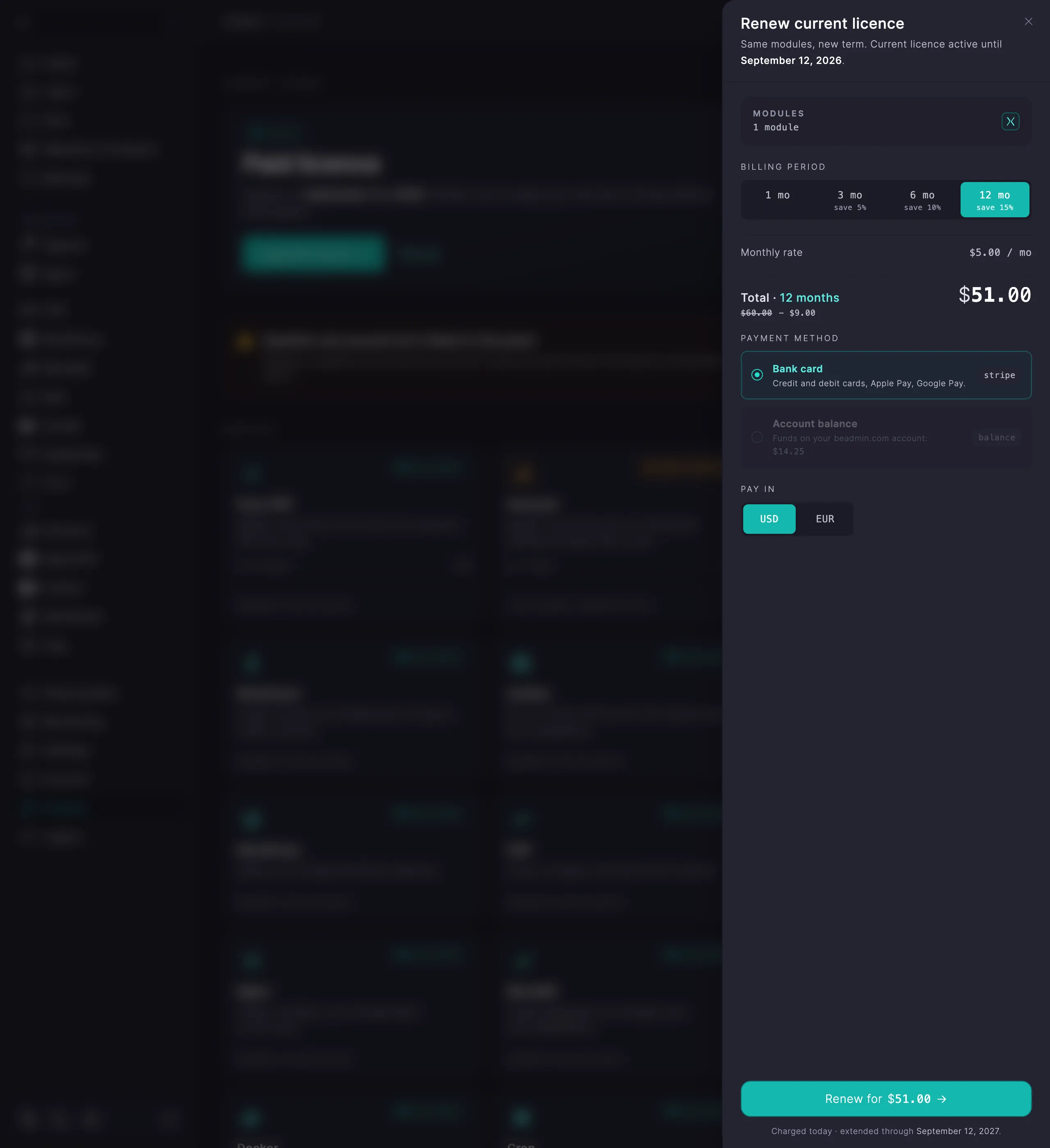
The charge happens right away, and the new term is counted from the current expiry date — so access to paid options isn't interrupted. If you renew early, the renewal takes effect when the current licence ends.
You don't have to buy VPN users protocol by protocol. You can add Universal VPN slots to your licence — a shared pool of seats for the users of any VPN protocol — or Unlimited VPN, which allows as many users as you like in every VPN protocol.
Both options work with panel version v0.19.6 and later. You can still buy them for an older panel: they start working once you update, and the panel owner gets a reminder by email. To update the panel, go to Settings → System. If the panel doesn't see the new version, see Why BeAdmin doesn't detect its own updates and how to fix it.
A slot is one seat for a user in any protocol: Xray, AmneziaWG, Hysteria, or Mimicry. Delete a user in one protocol and the slot is free for another right away. A Mimicry user takes two slots; users of the other protocols take one each.
Slots are sold in packs of 5 on the Licence page, like the other options — see Buy a licence from scratch and Upgrade a licence. The Buy more slots link on a protocol's page adds users for that protocol only.
Seats are used up in this order: first the protocol's free user, then the users you've bought for that protocol, and only then the universal slots. A disabled user still takes up a seat, and only deleting the user frees it.
If you end up with fewer slots than are in use, the most recently created users — across all protocols together — are disabled. They stay in the list and start working again as soon as slots free up.
Unlimited VPN removes the cap on the number of users in every VPN protocol of the panel, including protocols that are added later.
If you pick Unlimited VPN when buying a licence, the rows for the other VPN options are inactive — you won't need them. While Unlimited VPN is part of the licence, the other VPN options can't be added.
If you add Unlimited VPN to an active licence with Upgrade licence, the remaining value of your current VPN options is deducted from the price. If that value is higher than the price of Unlimited VPN, the difference isn't refunded. At renewal those options drop out of the licence automatically, and the renewal is priced without them.
With only a few users, buying users per protocol or slots will cost you less. Compare the prices on the purchase page.
BeAdmin — system requirements and a one-command panel install: interactive and automated modes.BeAdmin releases — version history with dates and a short summary of new features, fixes, and improvements.