AI agents. Workspaces and access
This article is a continuation of AI agents quick start. It does not repeat installing the module, the first connection, or starting the agent: if you have not gone through the quick start yet, begin there. Here you will find how to manage the workspaces themselves: creating, starting and stopping, renaming, deleting, SSH keys, returning to a session, and limits. Provider API keys are covered in a separate article, AI agents. Provider API keys.
How a workspace works
Each workspace is a separate user on the server with its own home directory, its own SSH keys, and its own tmux session. One workspace's files are not accessible to other workspaces, so you can create a separate workspace for every project or colleague: code and keys do not get mixed.
Workspaces share a common CPU and memory limit: by default, together they can use no more than two CPU cores and half of the server's RAM. Because of this, a heavy build in one workspace will not bring down the whole server, but the other workspaces get fewer resources while it runs. You cannot change the limit in the panel.
Creating a workspace
The module installation creates the first workspace, so the list already has one. Its name depends on the panel language at the time of installation: Main in English, Standard in German, or Основное in Russian. You can create additional workspaces yourself while the licence has free slots (see Limits and buying slots for details):
- Click Create workspace.
- In the Create workspace dialog, enter a Name and click Create.
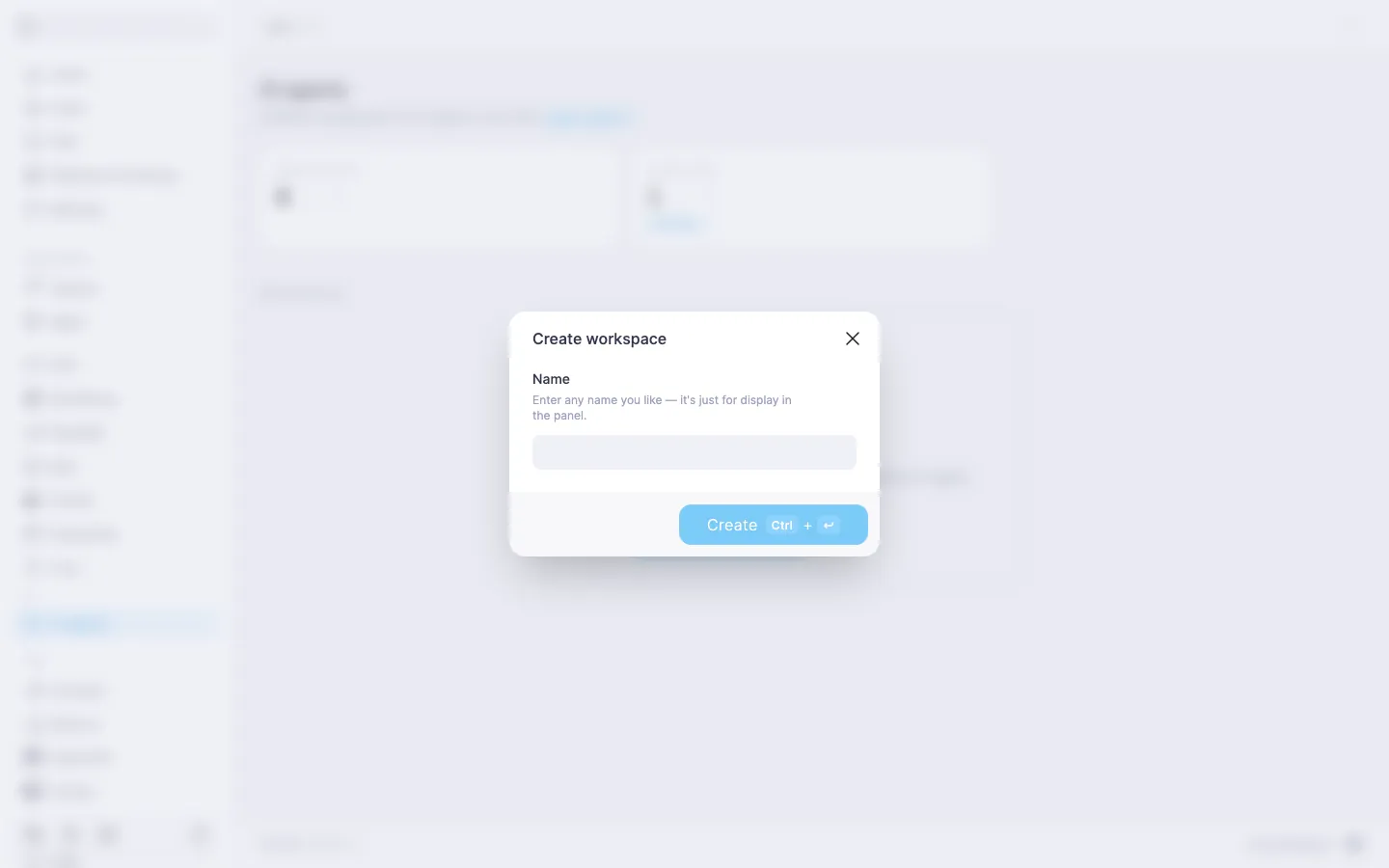
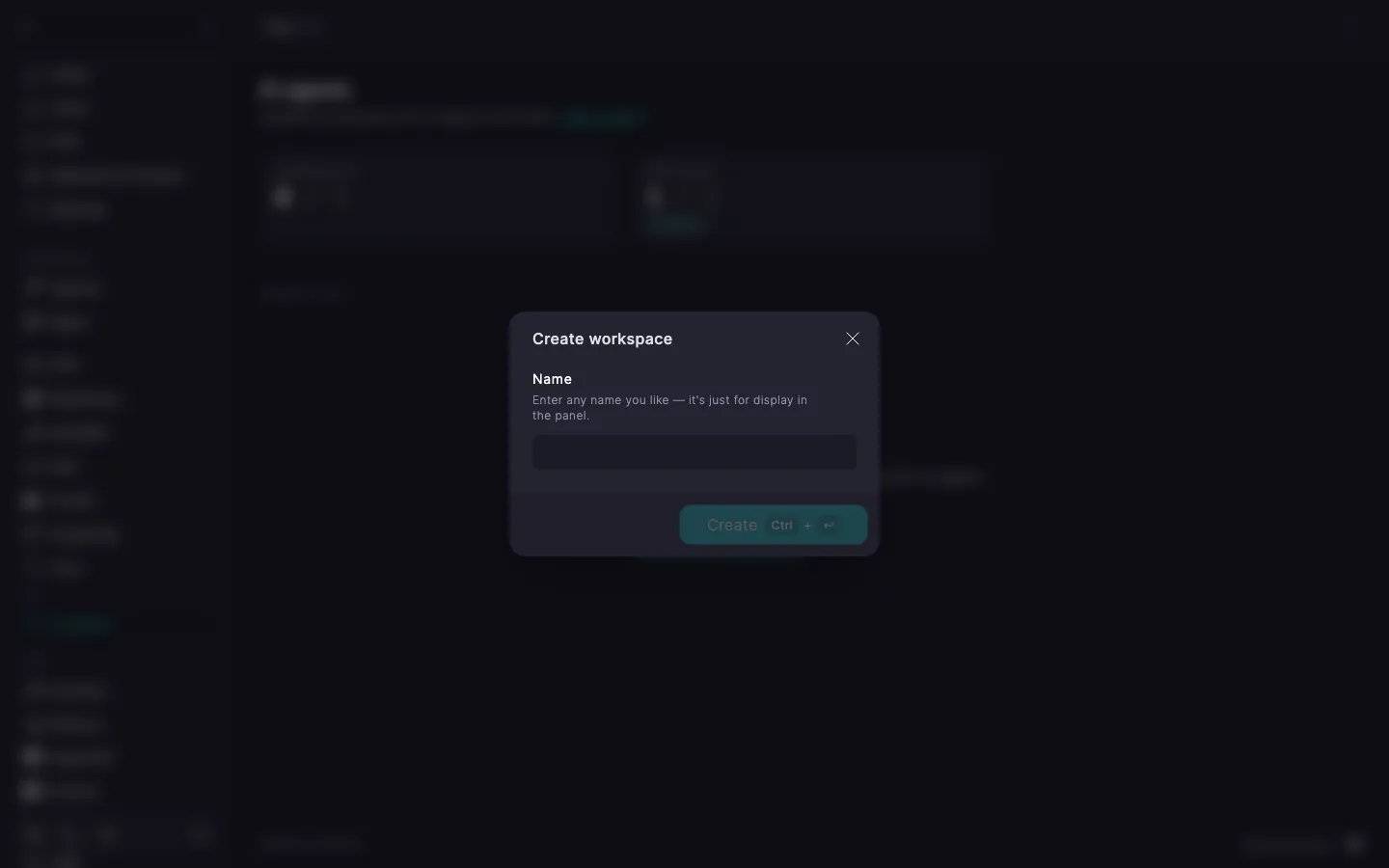
The name is a label in the panel that you use to tell workspaces apart, for example "Project A" or "Alex". It can be anything from 2 to 64 characters long and must not match another workspace's name; the comparison ignores letter case. On the server the workspace goes by a different name — a user aibox-… with an automatically assigned name — and the display name does not affect it.
If you are out of slots, you cannot create a new workspace — see Limits and buying slots.
A new workspace has no SSH keys yet and no key of its own for the provider. To connect, you need to add an SSH key (see SSH keys of a workspace). The agent uses the provider's shared key if one is set in the module settings; how the shared key relates to a workspace key is covered in the article AI agents. Provider API keys.
Workspace states
| State | What it means |
|---|---|
| Active | The tmux session is running and you can connect to the workspace. |
| Starting, Stopping, Restarting | A command is running. Wait for it to finish: the state changes on its own. |
| Stopped | The session has ended and no CPU or memory is used. The files are still there, but you cannot connect. |
| Blocked | The licence limit is exceeded. See Blocked workspace. |
Starting, stopping, and restarting
You start, stop, and restart a workspace with the Start, Stop, and Restart buttons. What happens to the session and its tasks depends on the action:
- Stopping ends the tmux session together with everything running in it and frees CPU and memory. The workspace files are kept. The licence slot stays occupied: it is released only when the workspace is deleted.
- Restarting does the same and immediately starts the session again. It helps when something in the session hangs.
- Starting opens a clean tmux session.
⚠️ Stopping and restarting interrupt tasks
The tmux session exists only while the workspace is running, so stopping or restarting interrupts the agent and any tasks running in it. Closing the terminal or shutting down your computer does not affect the session. Before stopping a workspace, wait for the tasks you need to finish.
Renaming
To rename a workspace, click Rename, change the Name, and click Update. The same name requirements apply as when creating.
Renaming changes only the label in the panel: the aibox-… login and the connection command stay the same, so there is nothing to reconfigure on your computer.
Deleting a workspace
To delete a workspace, open its page, click Delete, and confirm the deletion.
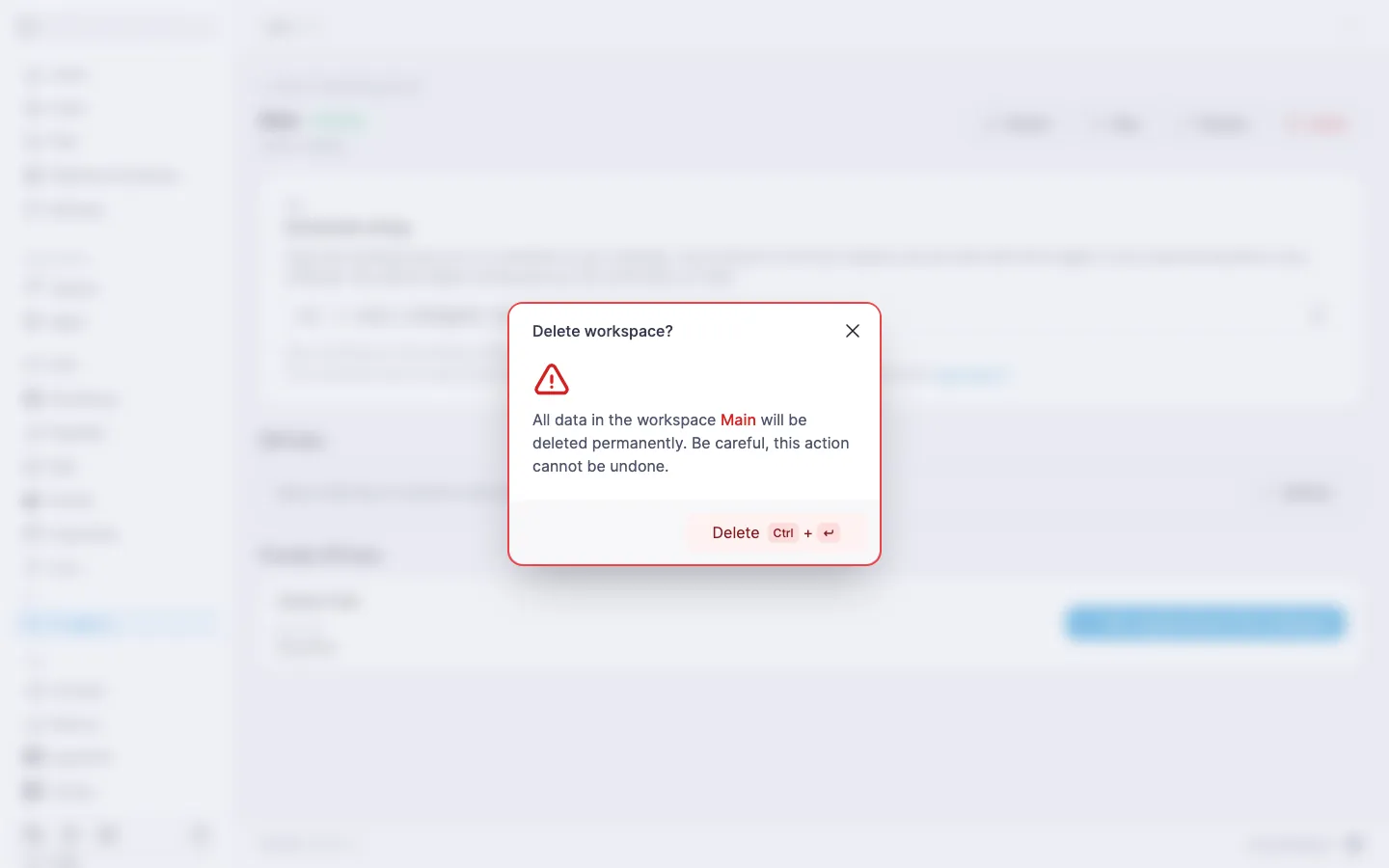
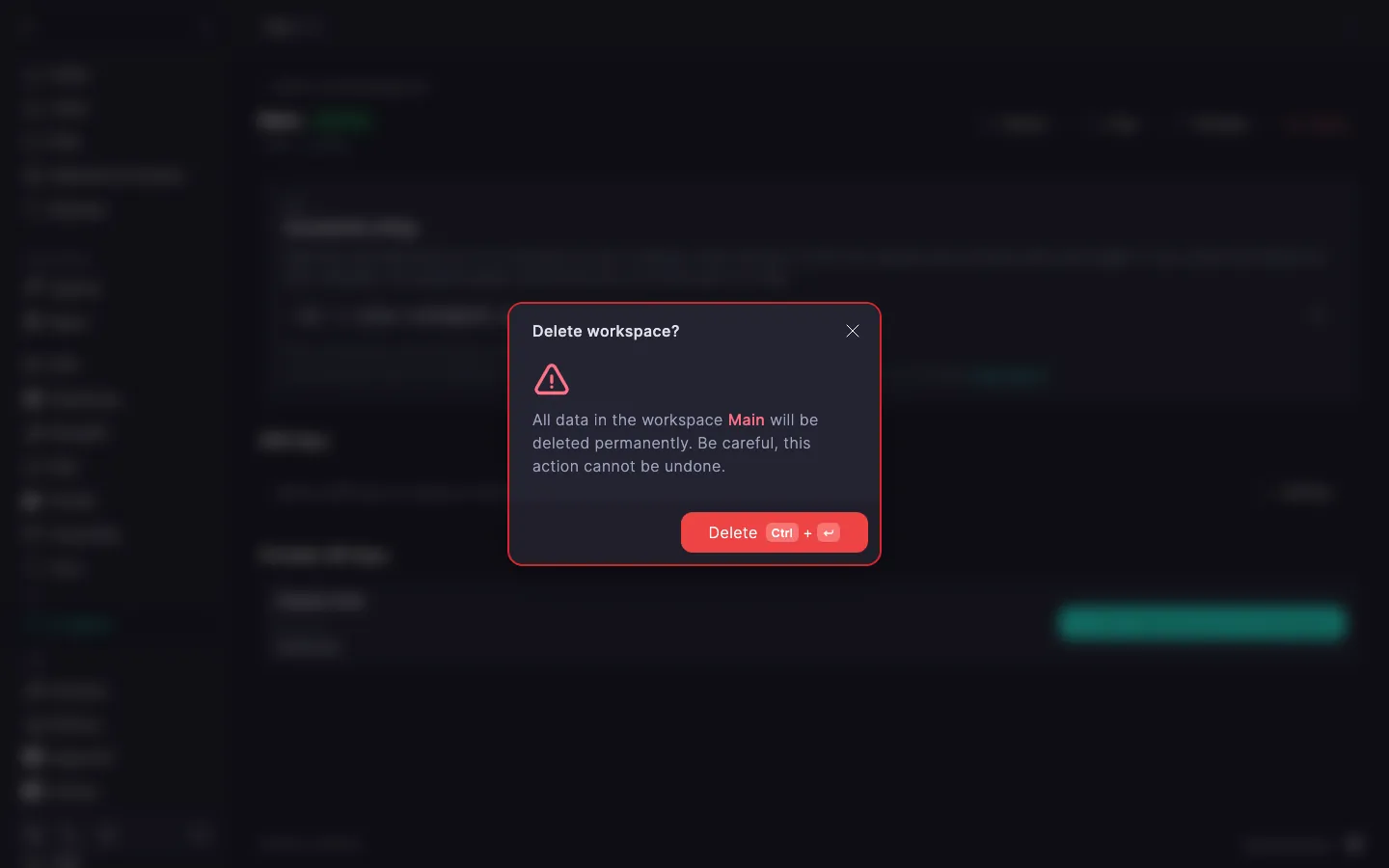
‼️ Deleting a workspace is irreversible
Deleting a workspace removes all of its data: the home directory with code and SSH keys, and the tmux session with its running tasks. They cannot be restored, so if you may need the files, copy them to your computer first.
After deletion the licence slot is released: you can create a new workspace, and a blocked workspace, if there was one, becomes available again.
SSH keys of a workspace
You can connect to a workspace only with an SSH key. A key has two parts: you add the public one to the workspace page in the panel, while the private one stays on your computer. For SSH to find the private key on its own, it must be in a standard file (~/.ssh/id_ed25519 or ~/.ssh/id_rsa) or be added to the SSH agent on your computer with ssh-add path/to/key. Otherwise SSH asks for a password — how to deal with that is described in the quick start. If you do not have a key pair yet, create one by following How to connect to a server via SSH.
Each workspace has its own list of keys: a key added to one workspace does not give access to others. You can add the same public key to several workspaces, which is handy if you work from a single computer.
Adding a key
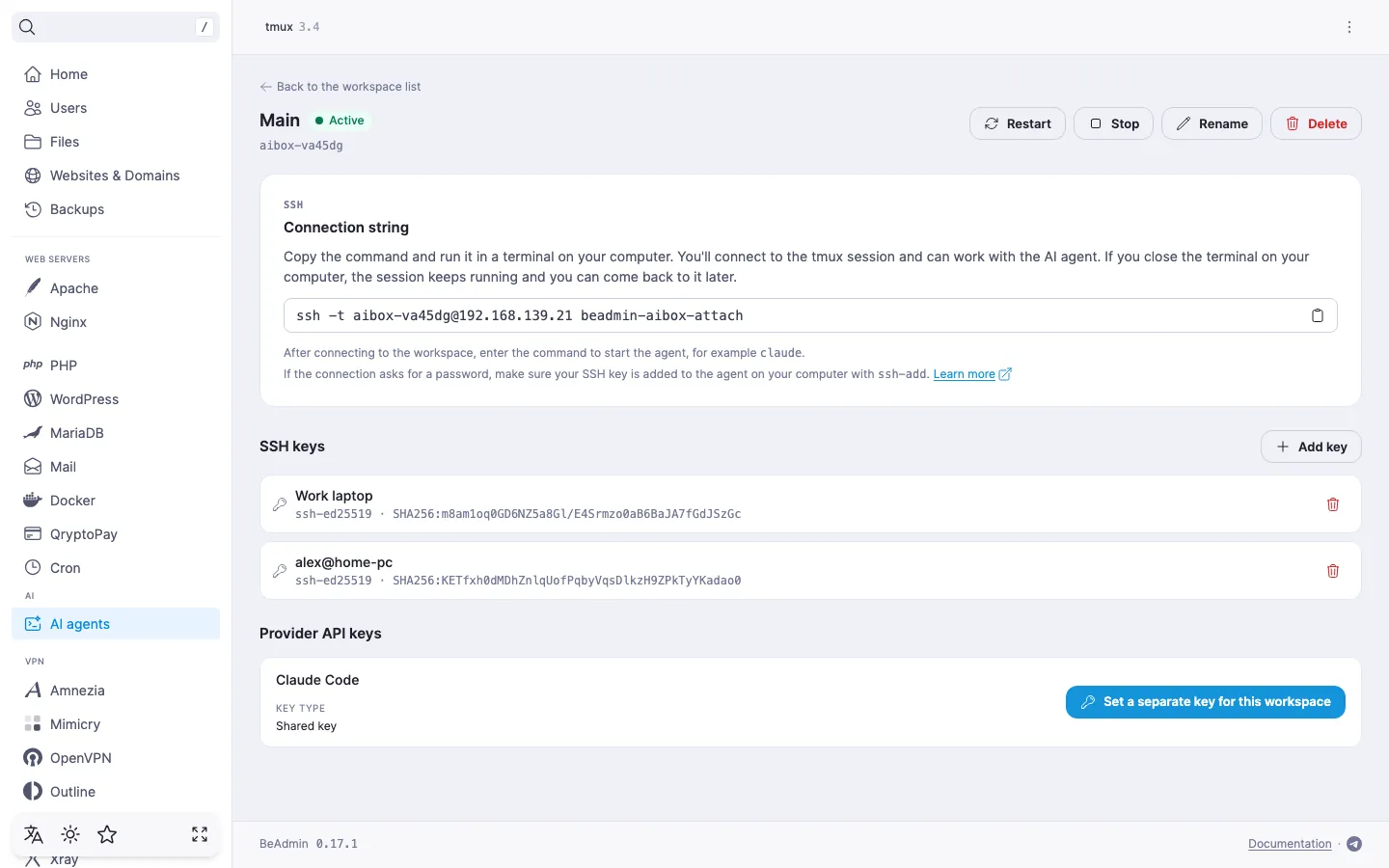
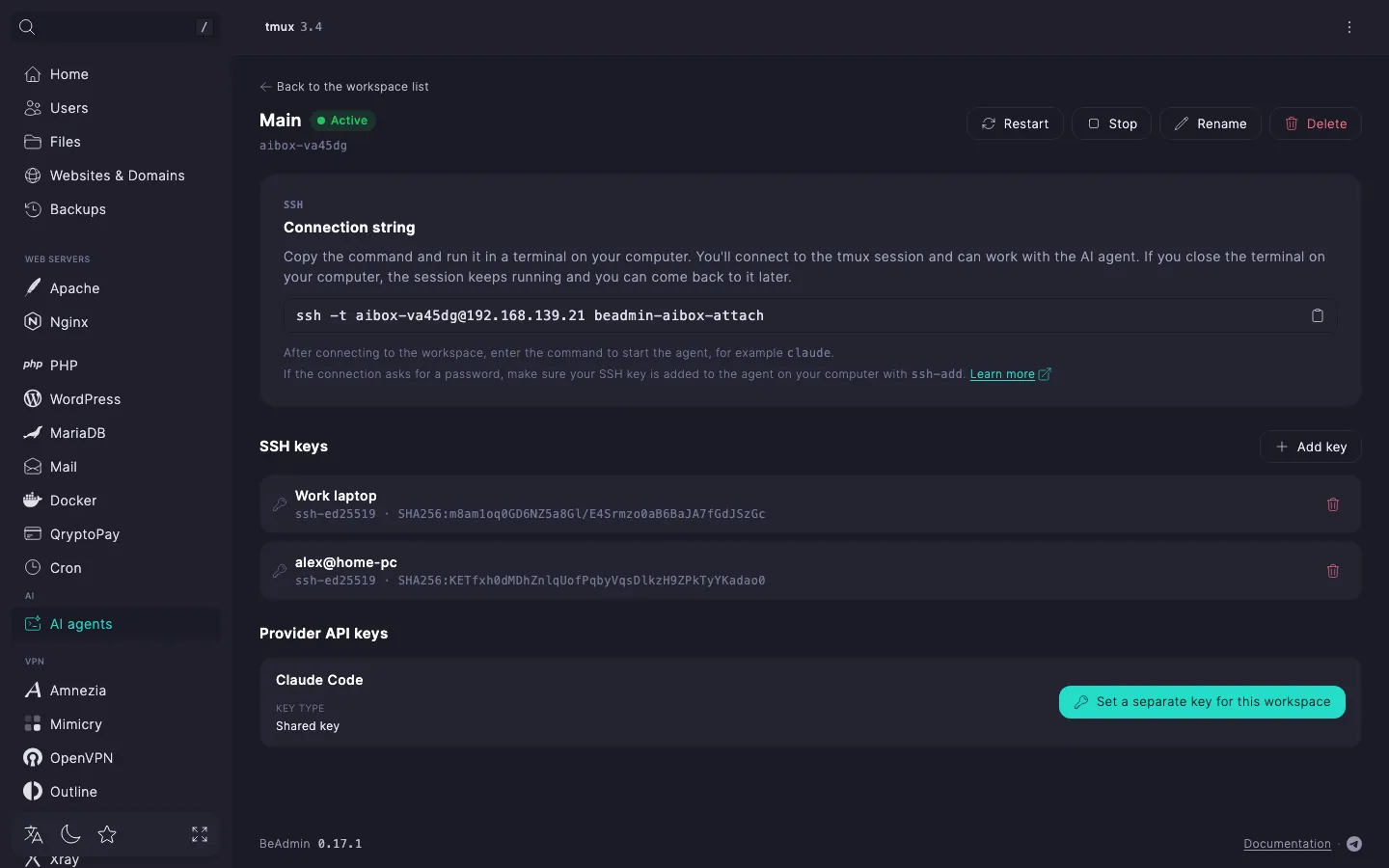
Click Add key in the SSH keys section of the workspace page; a step-by-step example is in the quick start. The Add SSH key dialog has two fields:
- Public key — the contents of the file with the
.pubextension, in full. Never paste a private key here. - Comment — an optional label, for example the device name. It shows in the list which computer a key belongs to. If you leave the field empty, the list shows the comment from the key itself (it is at the end of the
.publine).
The panel does not add a key if the value is not valid (the hint "This does not look like an SSH public key." appears under the field), if the key was copied incompletely, or if the same key has already been added to this workspace.
You can compare the SHA256 fingerprint the panel shows next to each key with the fingerprint of the file on your computer using ssh-keygen -lf ~/.ssh/id_ed25519.pub: this makes it easier to confirm which key was added.
Deleting a key
To delete a key, click the trash icon next to it and confirm. After that, the key can no longer be used to connect to the workspace. The workspace's other keys and other workspaces are unaffected, and you can add the deleted key again at any time.
Connecting and returning to a session
You take the connection command from the Connection string card on the workspace page. How to run it for the first time is described in the quick start. After connecting, you start the agent with the command of the chosen provider: for Claude Code it is claude.
The command ends with beadmin-aibox-attach and connects not to an ordinary shell but to the workspace's tmux session dev, creating it if it does not exist yet. So you use the same command both for the first login and for coming back.
A closed terminal, a lost network connection, or a shut-down computer does not interrupt the session: it stays on the server together with the agent and the running tasks. To return, run the same command. To detach without closing the terminal, press Ctrl+B, then D. The exit command in the session's shell, by contrast, ends it together with everything running in it — see the quick start for details.
You cannot start a stopped workspace over SSH: this is done only in the panel, so that stopped workspaces are guaranteed not to use server resources. An attempt to connect ends with the message This workspace's session is stopped. Start it in the BeAdmin panel. — click Start on the workspace page and run the command again.
Limits and buying slots
Without a licence you get one workspace: it is taken by the workspace created when the module was installed. Every additional workspace is a licence slot, and a single server can have up to 100 workspaces.
When all the slots are taken, you cannot create a new workspace: you need to buy more slots or delete a workspace you do not need.
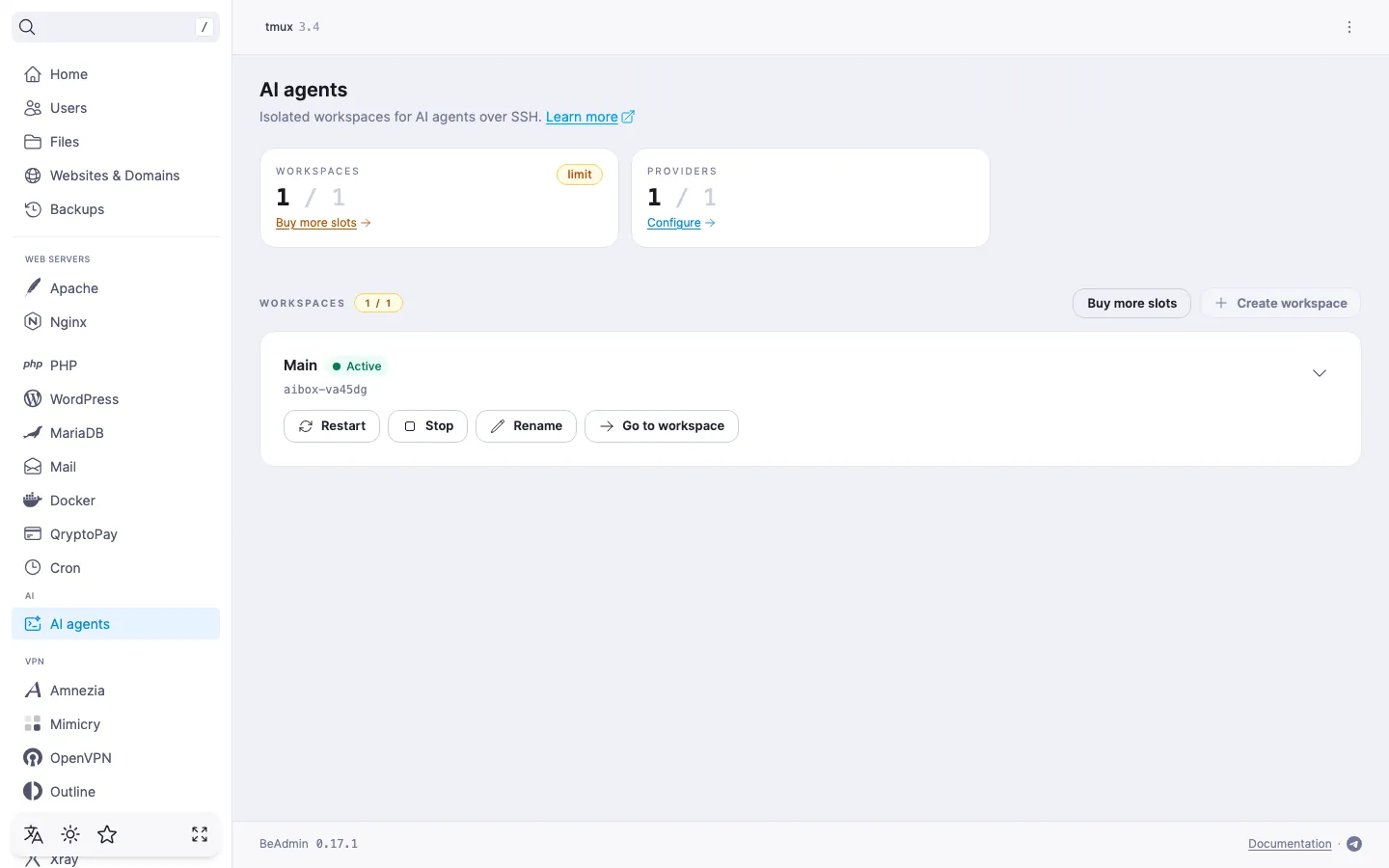
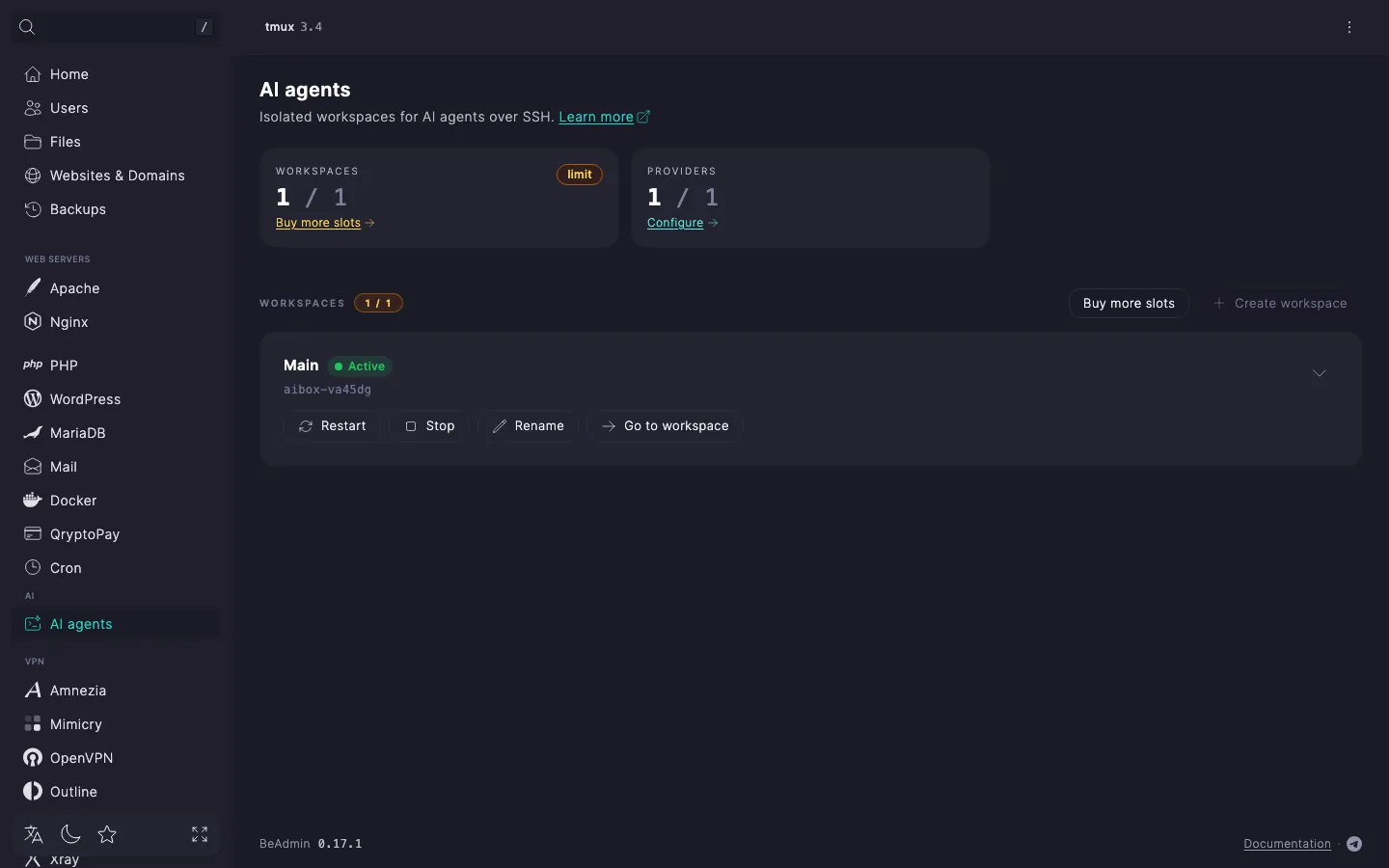
To buy more slots, click Buy more slots: the link opens the licence page right in the panel. If you do not have a licence yet, the page for setting up a new one opens with the "AI workspaces" item already added; if a licence is active, the slots are added to it. Buying, upgrading, and renewing a licence is covered in detail in How to get a licence, above all in the sections Buy a licence from scratch and Upgrade a licence.
Blocked workspace
If the licence limit drops below the number of workspaces — for example, the licence expired or slots were removed — the extra workspaces get the Blocked state. The newest workspaces are blocked; the oldest keep working.
A blocked workspace is not deleted: its files and SSH keys are kept. But its session ends and SSH login is closed. You can rename and delete a blocked workspace as usual.
To lift the block, you need to either buy more slots or delete extra workspaces so that their number fits the limit. After that the workspace unblocks on its own. The panel checks the limit when the licence changes and after a workspace is deleted, and otherwise once a day, so a block after the licence ends, and lifting it, may not happen instantly.
What's next
- AI agents. Provider API keys — the shared key and the workspace key, what happens when either is deleted, and where to get a key.
- "AI agents. Module management" — module settings, installing and removing a provider, updating, reinstalling, and removing the module.