WireGuard. Managing the module
This article continues WireGuard quick start. If you haven't installed the module and created the first user yet, start there. Here we cover operations on the module itself: starting and stopping the service, changing the UDP port, updating, reinstalling, and uninstalling. Managing VPN users lives in a separate article — WireGuard. Managing users.
Page header and actions menu
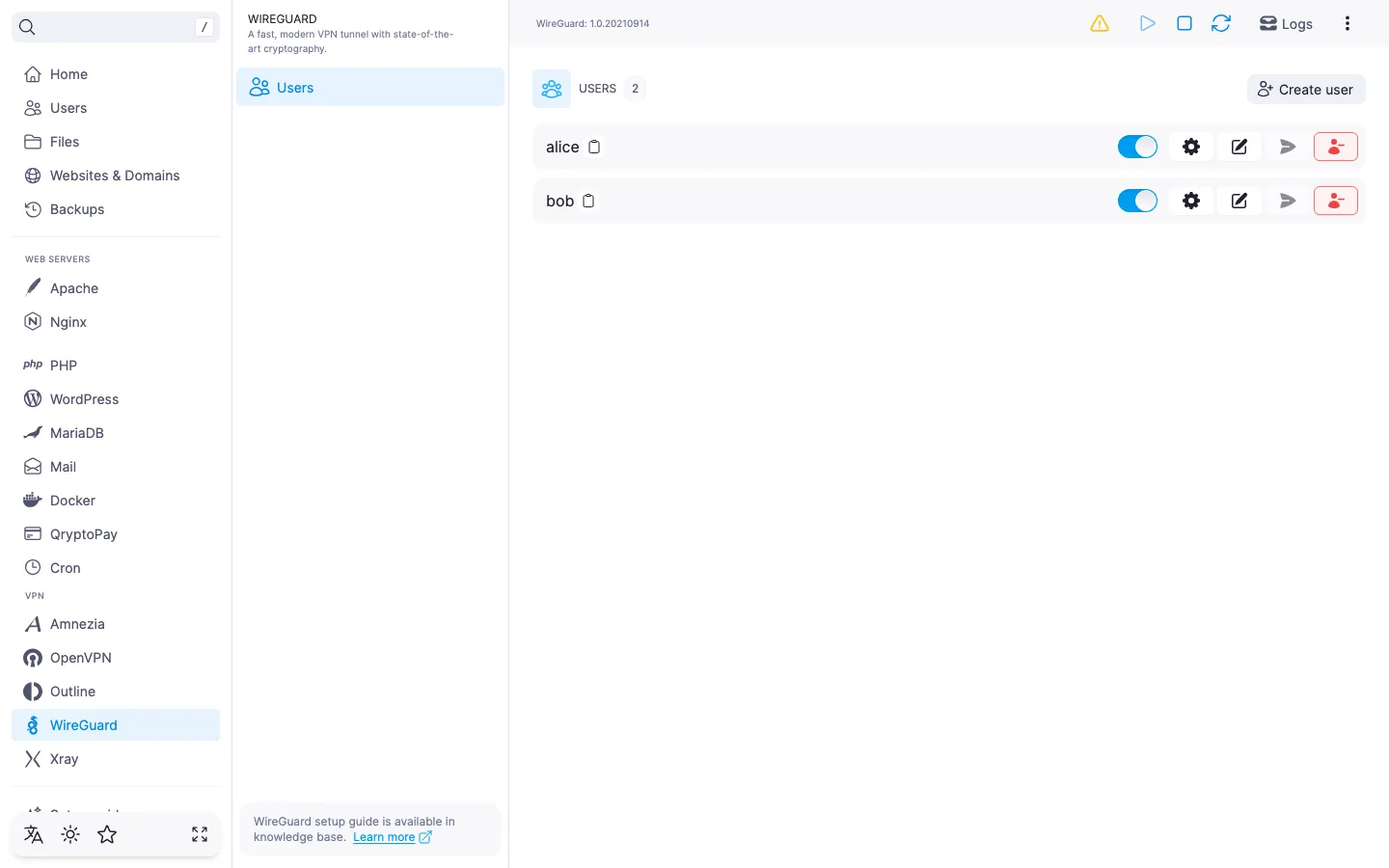
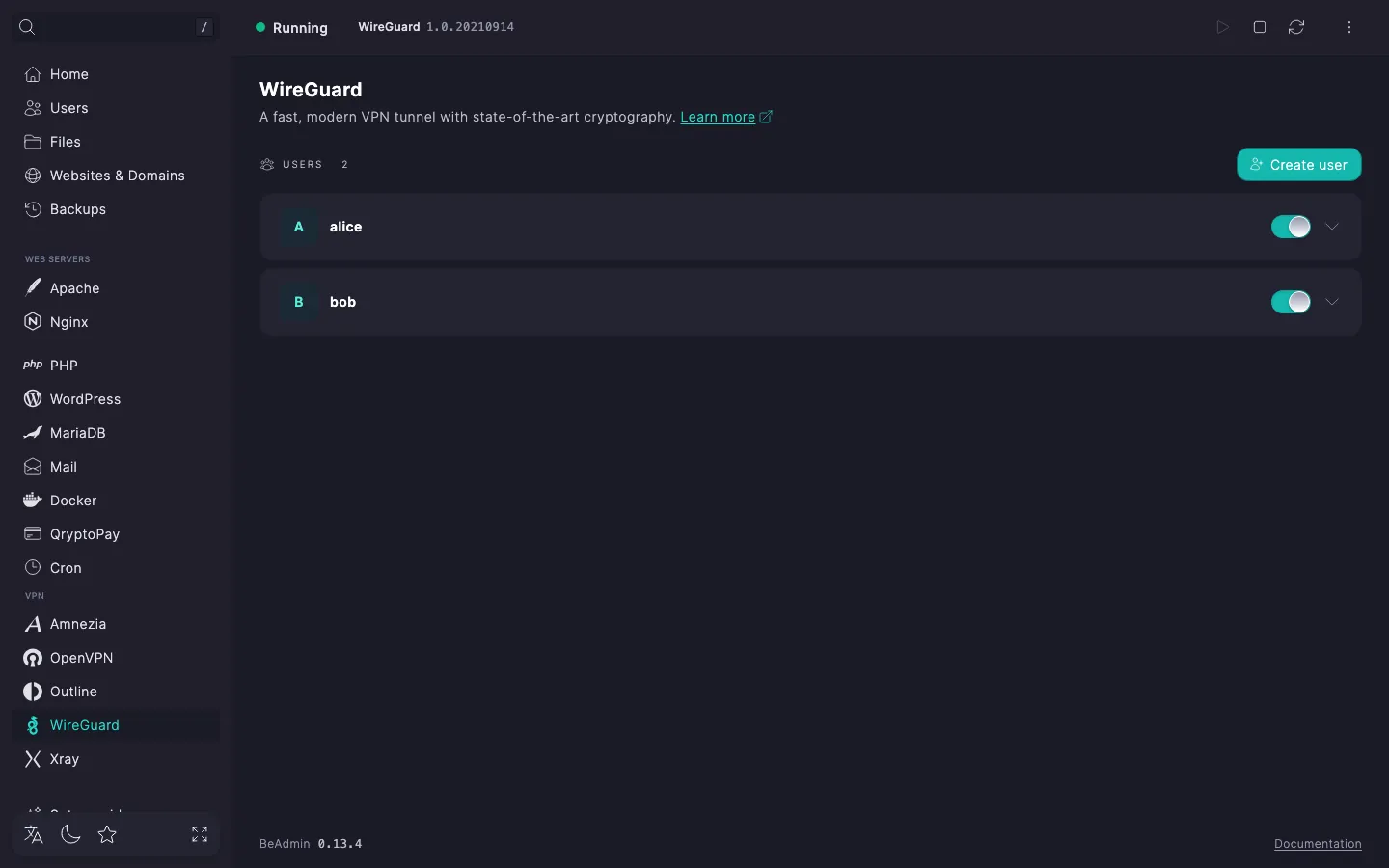
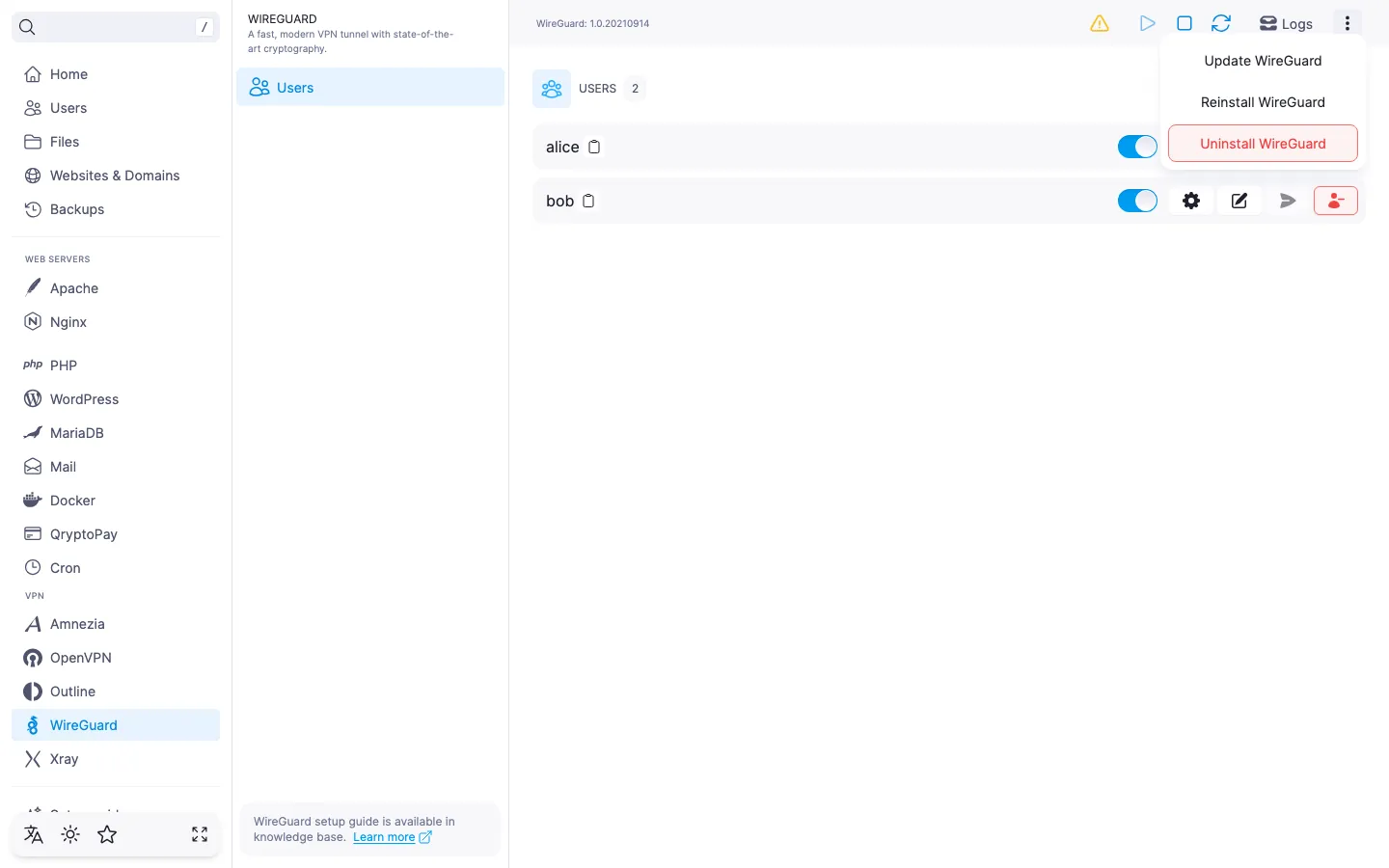
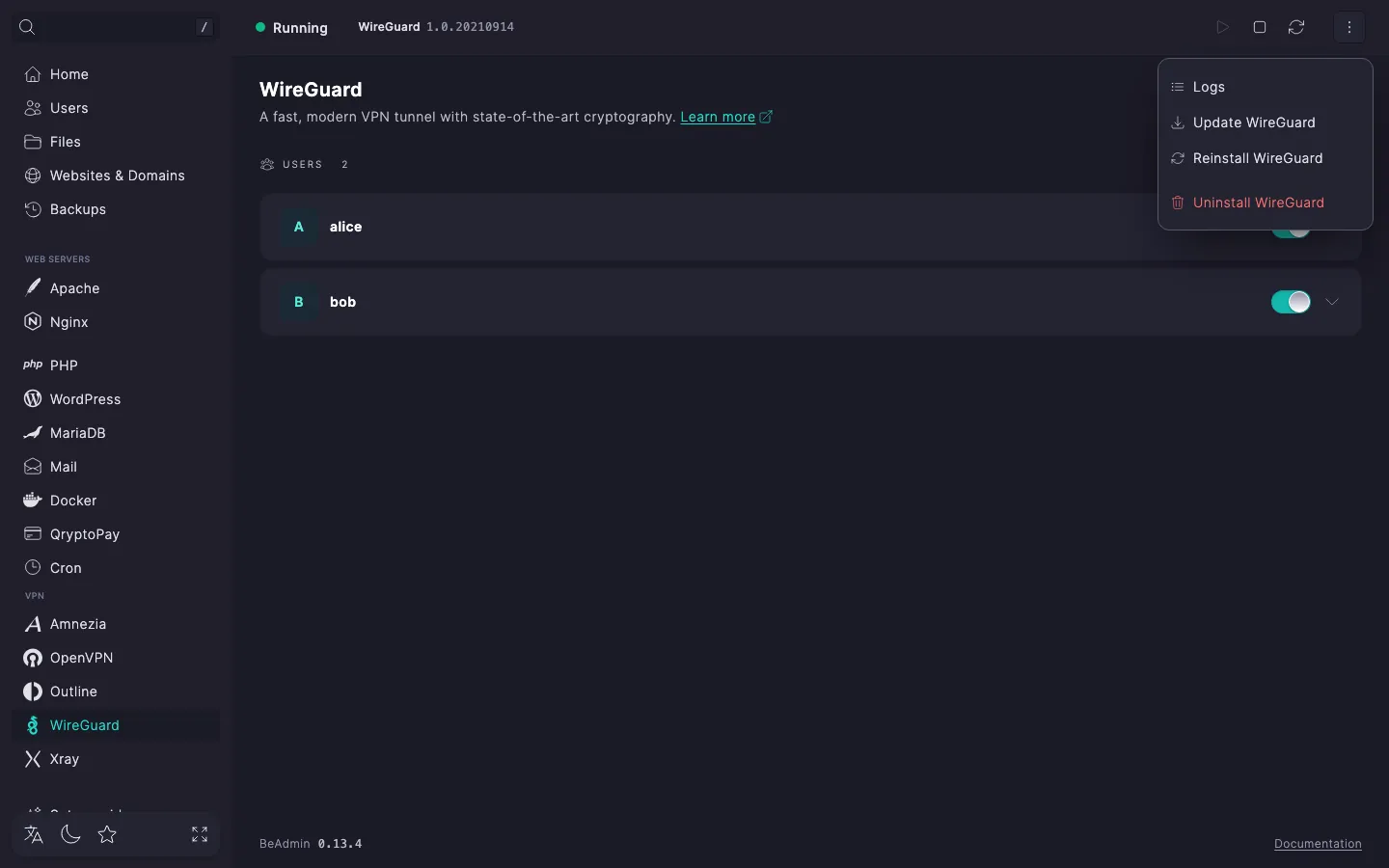
The page header exposes the core module actions — start, stop, and restart the service. The service state is shown by an indicator and a chip with the WireGuard version. The three-dot menu next to them groups the rest: open logs, go to module settings, run an update, reinstall, or uninstall the module.
Managing the service
- Start — brings the WireGuard service up from a stopped state.
- Stop — shuts the service down. All active VPN connections drop, and new ones can't be established.
- Restart — stops the service and immediately starts it again. Open sessions are reset.
The server picks up changes to the user list on the fly, without restarting the service: add, disable, or delete — the new configuration takes effect right away. However, if DNS server or persistent keepalive changed in a user's settings, the .conf file on the device needs to be re-imported — details in WireGuard. Managing users.
⚠️ Stopping the service drops all VPN connections
While the service is off, no user can connect. Schedule stops and restarts for a maintenance window, or warn users in advance.
While the module is being updated, reinstalled, or uninstalled, the service controls and the actions menu are temporarily unavailable.
Module logs
In the actions menu pick Logs — the lifecycle log opens: install, update, reinstall, uninstall, port change. Each entry shows a status and the full execution output. Helpful when an action ends in error and you need to understand why.
Module settings
The server parameters (interface private key, tunnel addressing, peer set) are picked by the BeAdmin panel itself at install time and kept under the hood. You can edit the UDP port WireGuard accepts incoming connections on. Open it via the actions menu → Module settings: the General tab is available, with a Connection section holding the Port field. The port is chosen at install time: 443 if it was free, otherwise 51820, the standard WireGuard port.
Changing the UDP port
- In the actions menu pick Module settings and go to the General tab.
- In the Port field of the Connection section enter a new number (valid range —
1–65535).443or8443are common picks, but they may conflict with otherBeAdminmodules — the panel will warn you under the field. - Click Save. The panel asks you to confirm the change in the Confirm module settings change dialog; after confirmation the new port is stored and the service restarts automatically.
⚠️ Changing the port breaks active connections
After a new port is applied, existing client configurations stop working — the .conf file has the old server's address and port baked in. The configurations need to be regenerated and re-imported to the devices. If you switch back to the previous port, the old configurations work again without re-issuing keys.
ℹ️ Changing the port ≠ evading DPI
Change the port if your provider blocks the module's current port, most often the standard 51820. But the WireGuard protocol itself is recognizable to deep packet inspection (DPI) regardless of port — switching the port won't help against blocking by protocol signature. In networks with heavy censorship, use Amnezia (AmneziaWG with obfuscation) or Xray.
Updating the module
In the actions menu pick Update WireGuard. The panel checks whether a newer WireGuard version is in the repository, installs it over the current one, and restarts the service. The user list and their keys are preserved — no need to re-import .conf files on devices.
There's no confirmation prompt — the action runs right away. While the update is in progress, the service controls and menu items are unavailable; the current module version is visible on the WireGuard chip in the header. If the latest version is already installed, the update doesn't run — the panel will say so.
Reinstalling the module
In the actions menu pick Reinstall WireGuard. The panel asks for confirmation in the Confirm WireGuard reinstall dialog — click Confirm. The same WireGuard version is deployed over the current one, and the service restarts. The user list, their keys, and the generated .conf files are preserved — no need to re-import settings on devices.
Use reinstall if the module is unstable and you want to run the install over again without losing users. Unlike uninstall, reinstall doesn't wipe users and their keys — .conf files already issued keep working without reconnecting or re-importing.
A reinstall keeps WireGuard on its current port and with the same interface keys. To move the module to a different port, enter it in the reinstall dialog or change it in Module settings — see Changing the UDP port. If the new port is taken, the module won't start until the port is freed.
After the move, the .conf files and QR codes issued earlier stop working — the port is baked into them. The keys stay the same, but the configurations need to be issued to users again.
If clients stop connecting after a reinstall, in the expanded user row download the .conf file again or regenerate the QR code. If errors persist, the last resort is to fully uninstall the module and install it again.
Uninstalling the module
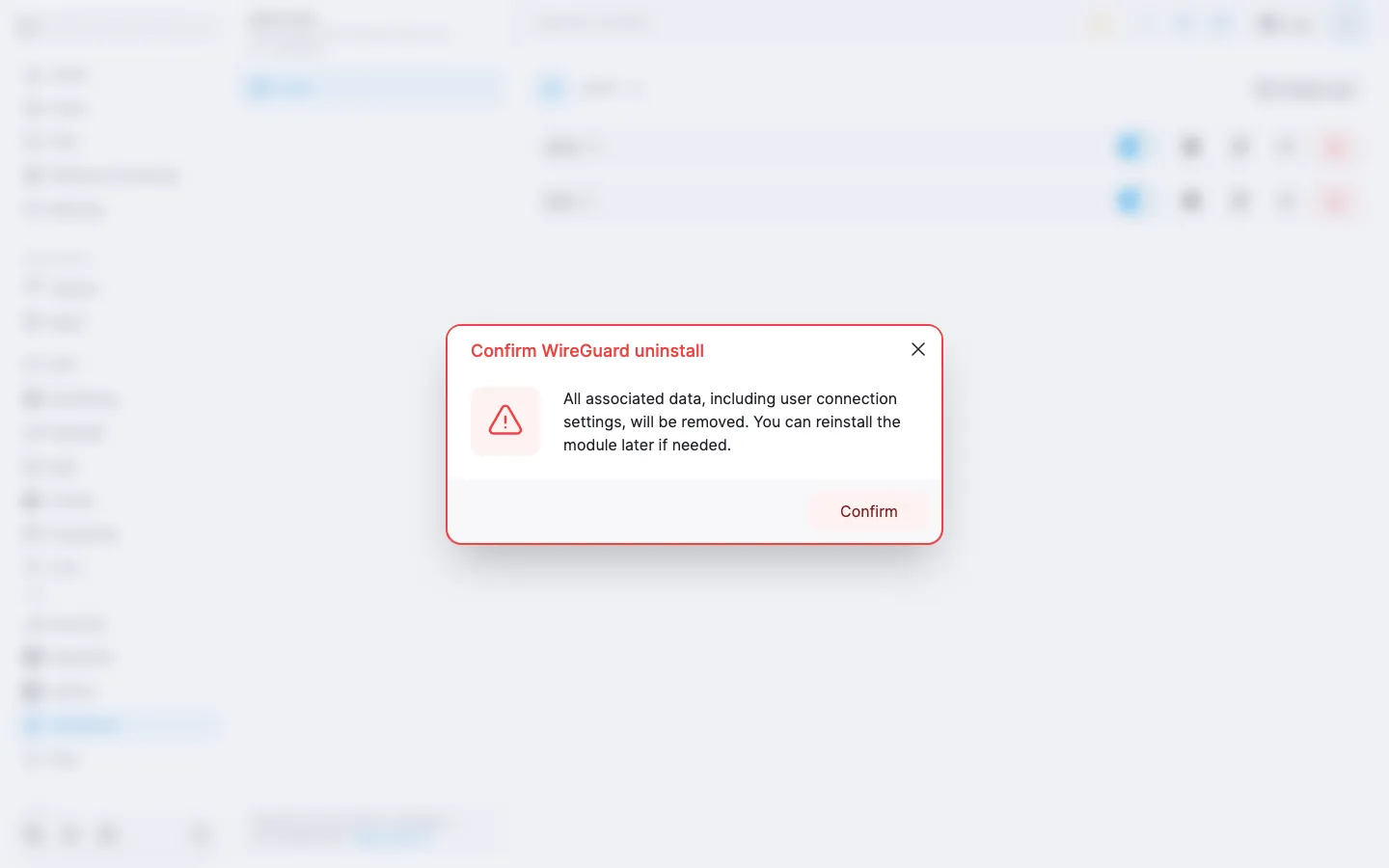
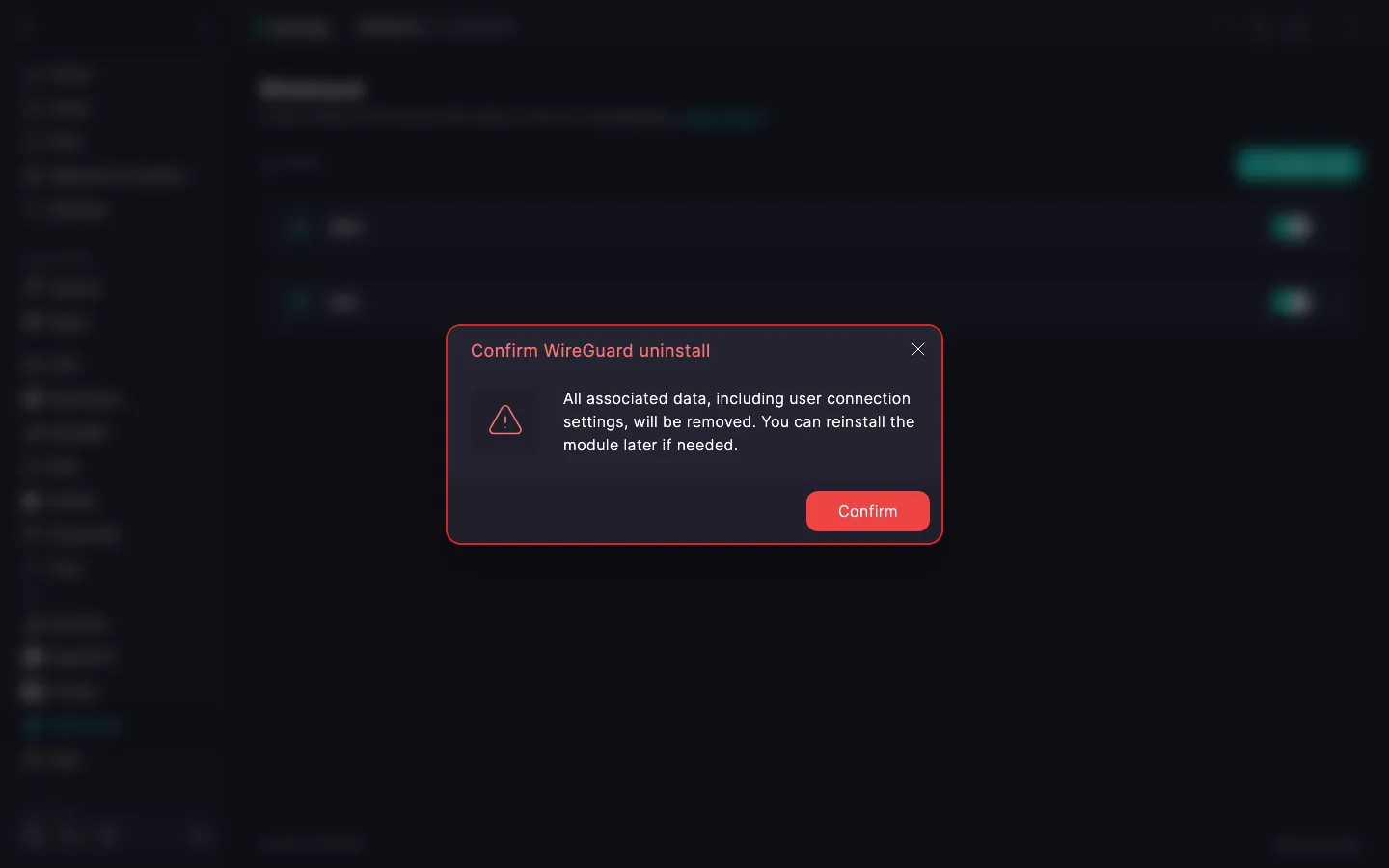
In the actions menu pick Uninstall WireGuard. The panel asks for confirmation in the Confirm WireGuard module uninstall dialog: along with the module, all user connection settings are removed; after a fresh install the module starts from scratch.
‼️ Uninstalling the module wipes all VPN users
Uninstall is irreversible: the module disappears together with all WireGuard users, their keys, and the generated .conf configuration files. Client configurations already imported won't be able to connect after uninstall — the server side of the tunnel is gone along with the private key. After a fresh install, the module and users have to be created from scratch; new keys are issued, and clients need to re-import the .conf files.
After confirmation, the panel runs the uninstall. When it finishes, the module page returns to its initial state with the Install button.
What's next
- WireGuard quick start — installing the module and the first connection.
- WireGuard. Managing users — creating, editing, and deleting users.
- How to set up an SMTP relay for sending email — so you can email users their
.conffile.