Hysteria. Managing users
This article covers operations on the VPN user list: how the list is laid out, how to grab the connection link, edit a user, temporarily disable or delete them, check their traffic, and purchase slots beyond the free quota. The minimum "install the module and connect the first device" scenario is described in Hysteria quick start; here we go into more detail.
The user list
The list opens by default on the Hysteria module page and contains every created user with the current state of each. Above the list are tiles with the server's traffic and the licence: the LICENCE tile shows how many slots are in use out of those available, for example "1 / 1". Users are created with the Create user button; when there are no free slots, the button is disabled and a tooltip explains why. Details on the limit and slots — in the User limit section.
Each user is a separate row that expands on click. Collapsed, the row holds the name (or the identifier if no name is set), the email address, and a toggle for temporary deactivation. User actions appear once the row is expanded: click it to expand.
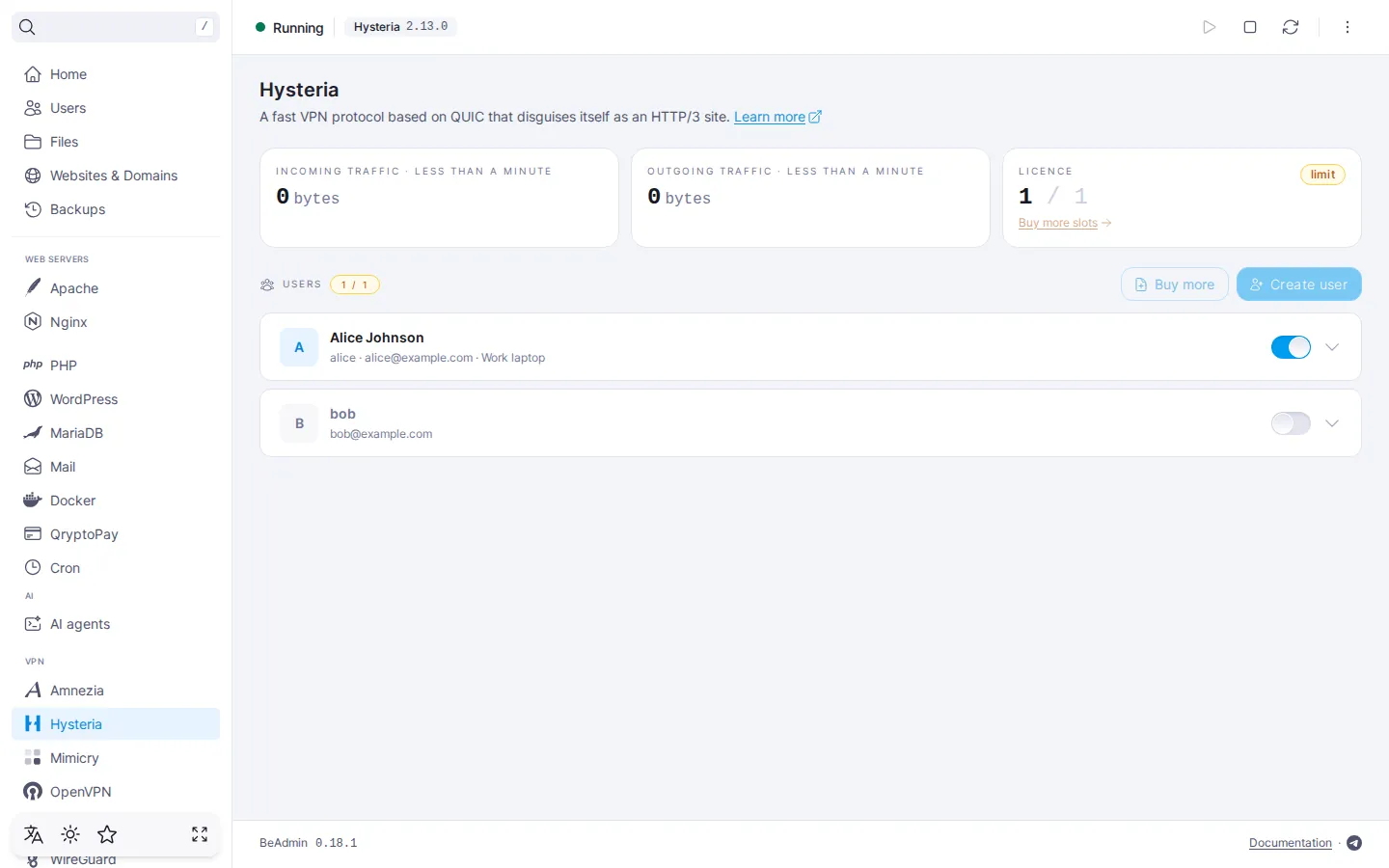
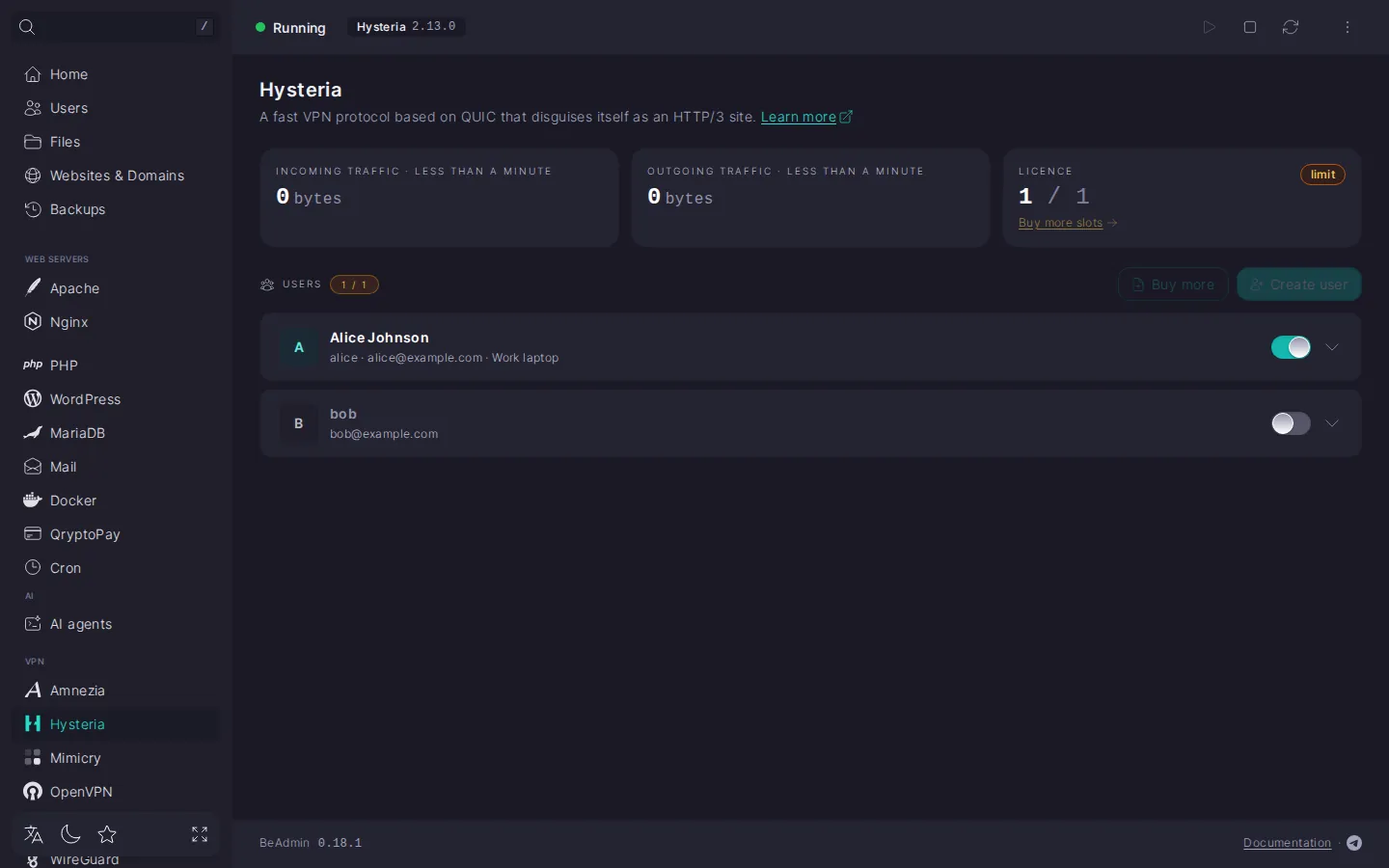
When there are no users yet
Right after install the list is empty: the panel shows an "It is empty here" card with a prompt to create the first user and a Create user button. Once the first user is created, the card disappears and a regular list takes its place.
Expanded user row
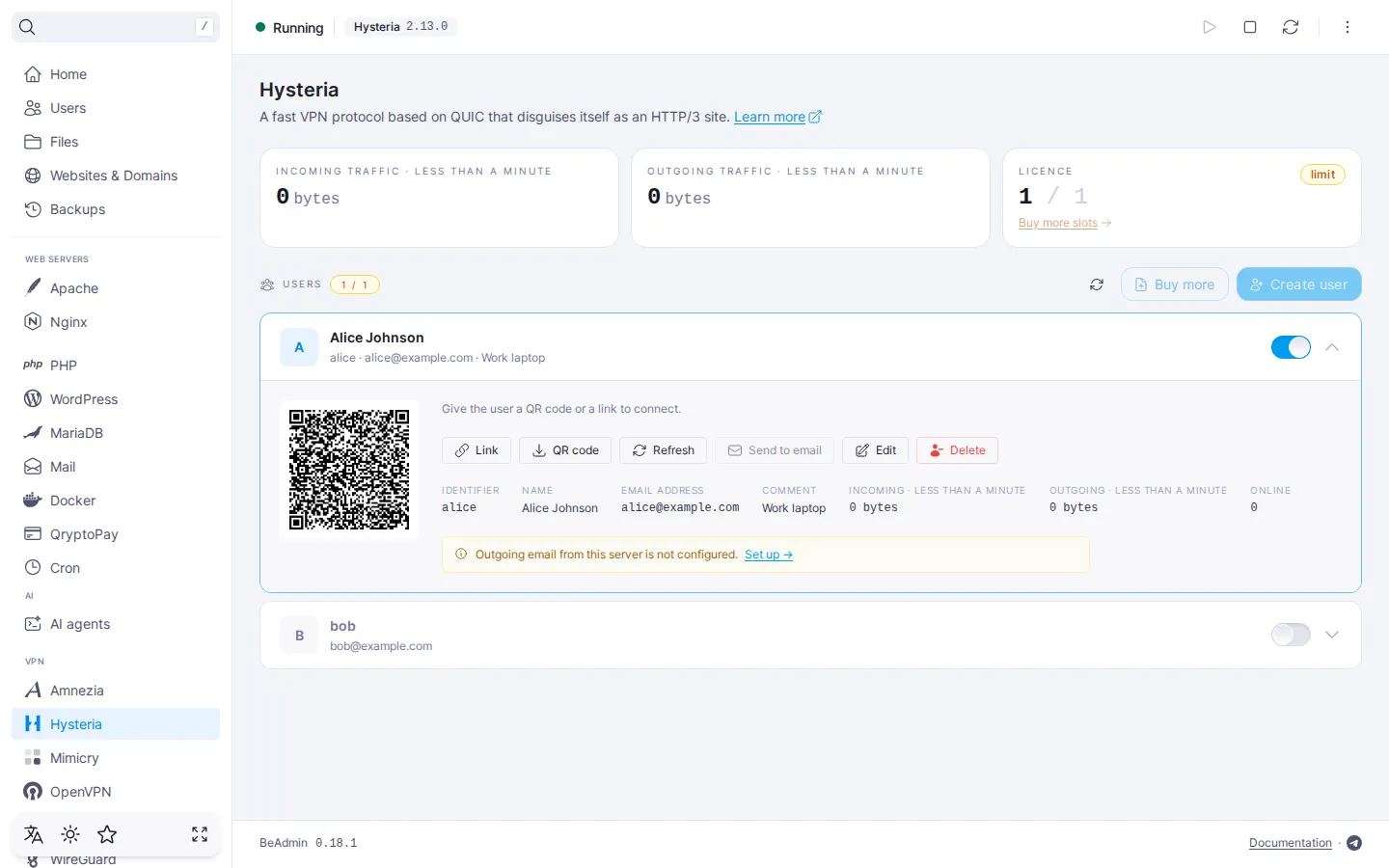
The expanded row is where the user gets the link for the device and where the actions on them live.
QR code and the connection link
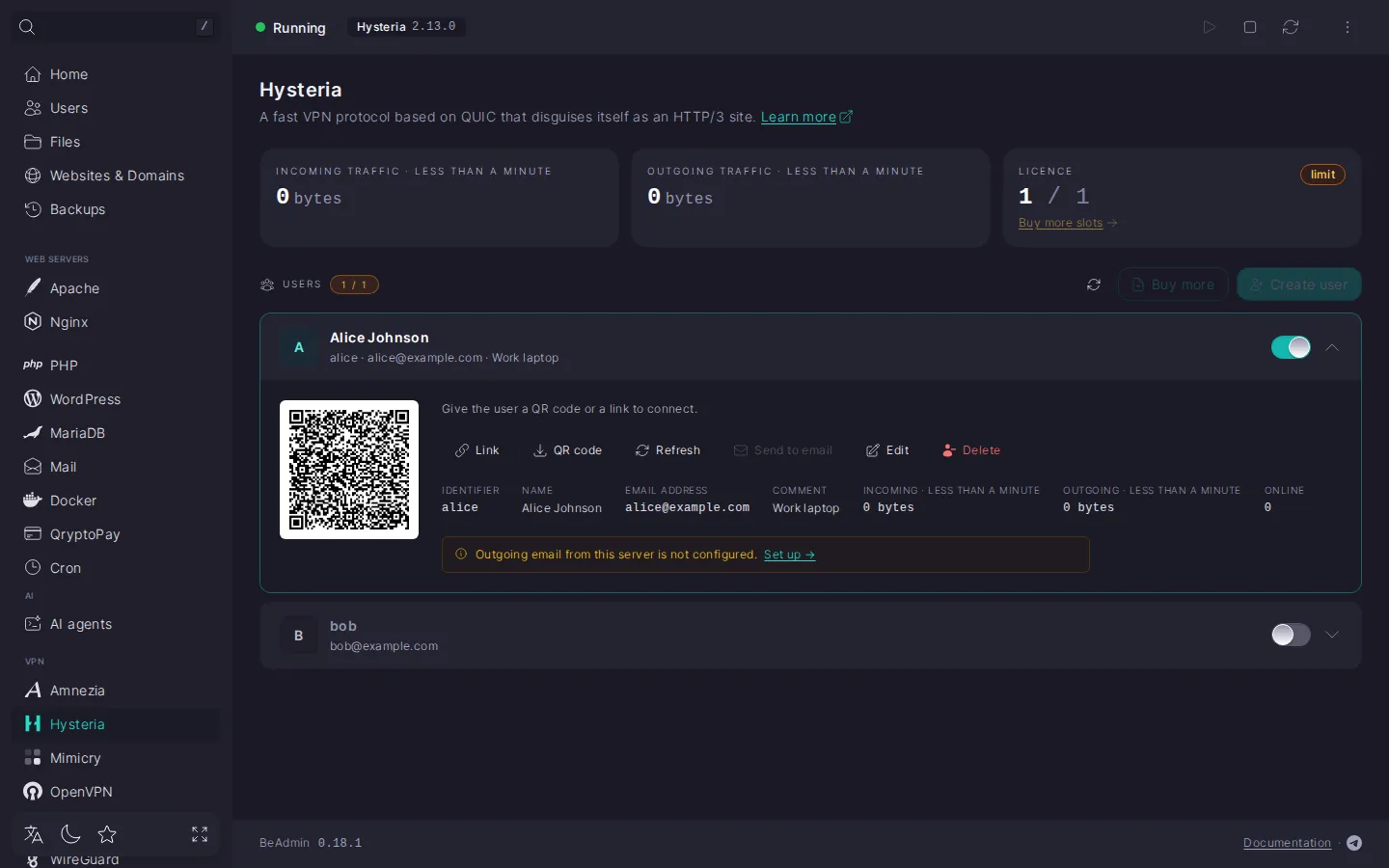
Right under the avatar the row shows a QR code — it contains a link of the form hysteria2://… for an app with Hysteria2 support. Show this QR code to the user on screen for a camera scan — or save the image file via the QR code button and send it any way you like. The Link button copies the same link to the clipboard. If you opened the panel from the same device you're going to connect from, copy the link directly and paste it into the app without a camera.
Hysteria doesn't use a configuration file — apps accept only the link or a QR code with the same link. A user's link is permanent: as long as you don't change the port or obfuscation, it is always the same, and there's no need to reissue it. While a user is disabled or doesn't fit within the licence limit, the link, the QR code, and refresh are unavailable.
⚠️ The link contains a password
The link and the QR code contain the user's password. Don't share them with outsiders: anyone who gets them can connect as this user.
Refreshing the link
The Refresh button requests the link and QR code from the server again. It doesn't change the user's password — you get the same link — so use it if you suspect the data shown in the panel is stale, not to revoke or replace a link. The icon with the Refresh all users tooltip in the list header does the same for all users whose links have already been requested: it appears once you've expanded the row of at least one user.
Emailing
The Send to email button sends the user an email with the link, the QR code, and a list of suitable apps, to the address from the user's card. Available if SMTP is configured in the panel and the user has an email address; without an address the button is inactive and a hint explains why. If SMTP isn't configured, the expanded row shows a hint "Outgoing email from this server is not configured." with a Set up link — it leads to the system settings of the panel, where the SMTP relay is enabled. Until the relay is configured, the Send to email button stays inactive; copying the link and downloading the QR code work independently. For relay setup details, see How to set up an SMTP relay for sending emails.
Editing and deleting
The Edit button opens a dialog with the user's settings (details — in the Editing a user section). The Delete button starts deletion — details in the Deleting a user section.
Traffic and devices online
Below the buttons — tiles with the user's identifier, name, email address, and comment (when they are filled in) and tiles with statistics for that user:
- INCOMING — traffic the user received from the internet through the VPN.
- OUTGOING — traffic the user sent through the VPN.
- ONLINE — the number of the user's devices connected to the server right now. If it is more than one, the same link is being used on several devices.
The traffic counters show the volume since the service started — next to the tile's name, it says over what period it has accumulated. When the service restarts, the counters reset: this also happens after a module update and after a change of port or obfuscation. The data is updated automatically.
Creating a user
The minimum scenario is described in Hysteria quick start: open the dialog with the Create user button in the list header and fill in the Identifier, Name, Email, and Comment fields. Identifier is prefilled and adjusts to Name until you edit it by hand; Name, Email, and Comment are optional. Optionally pick the User language for the email with the link. The new user is created enabled. If the licence has no free slot, a user can't be created (see User limit).
Editing a user
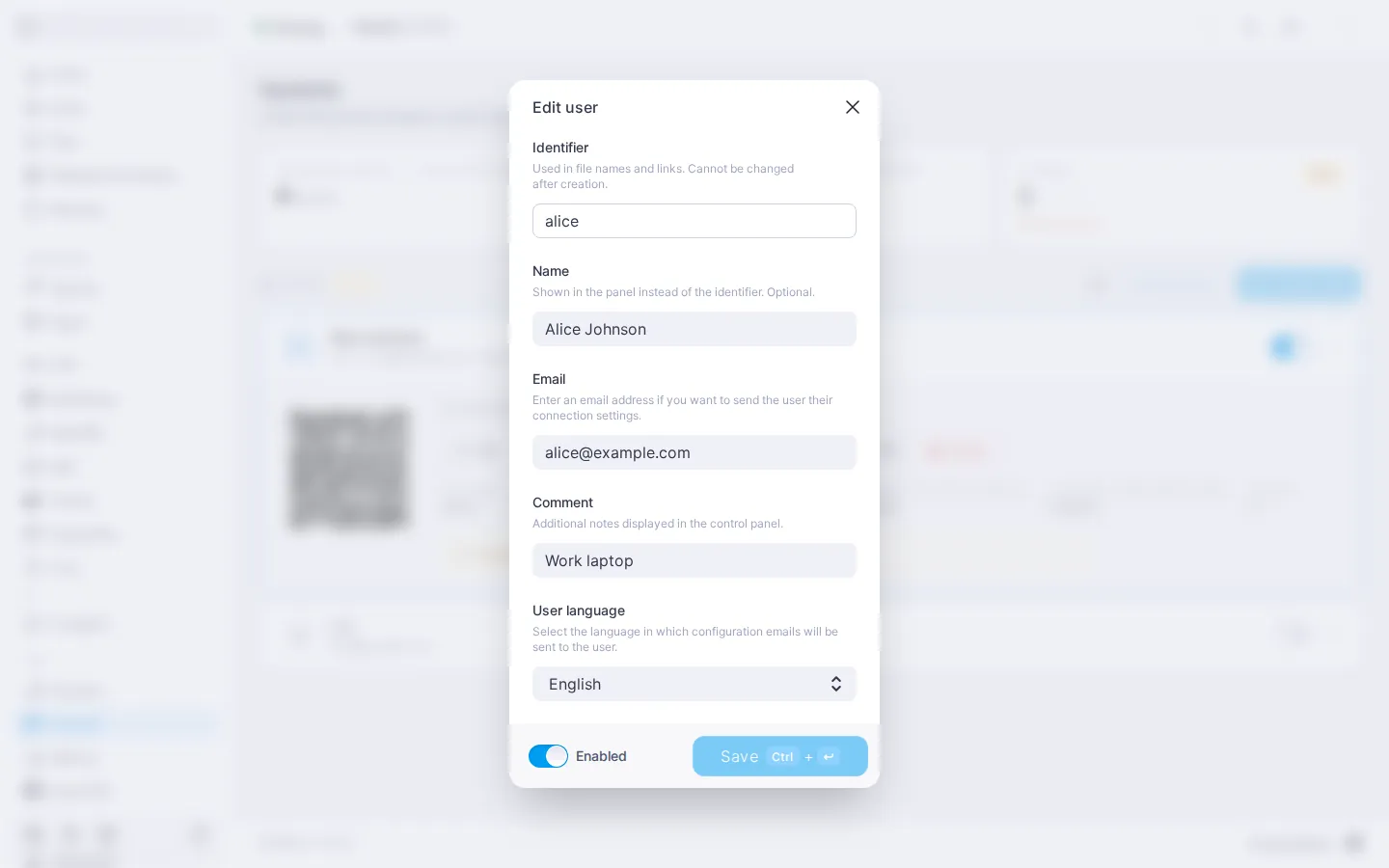
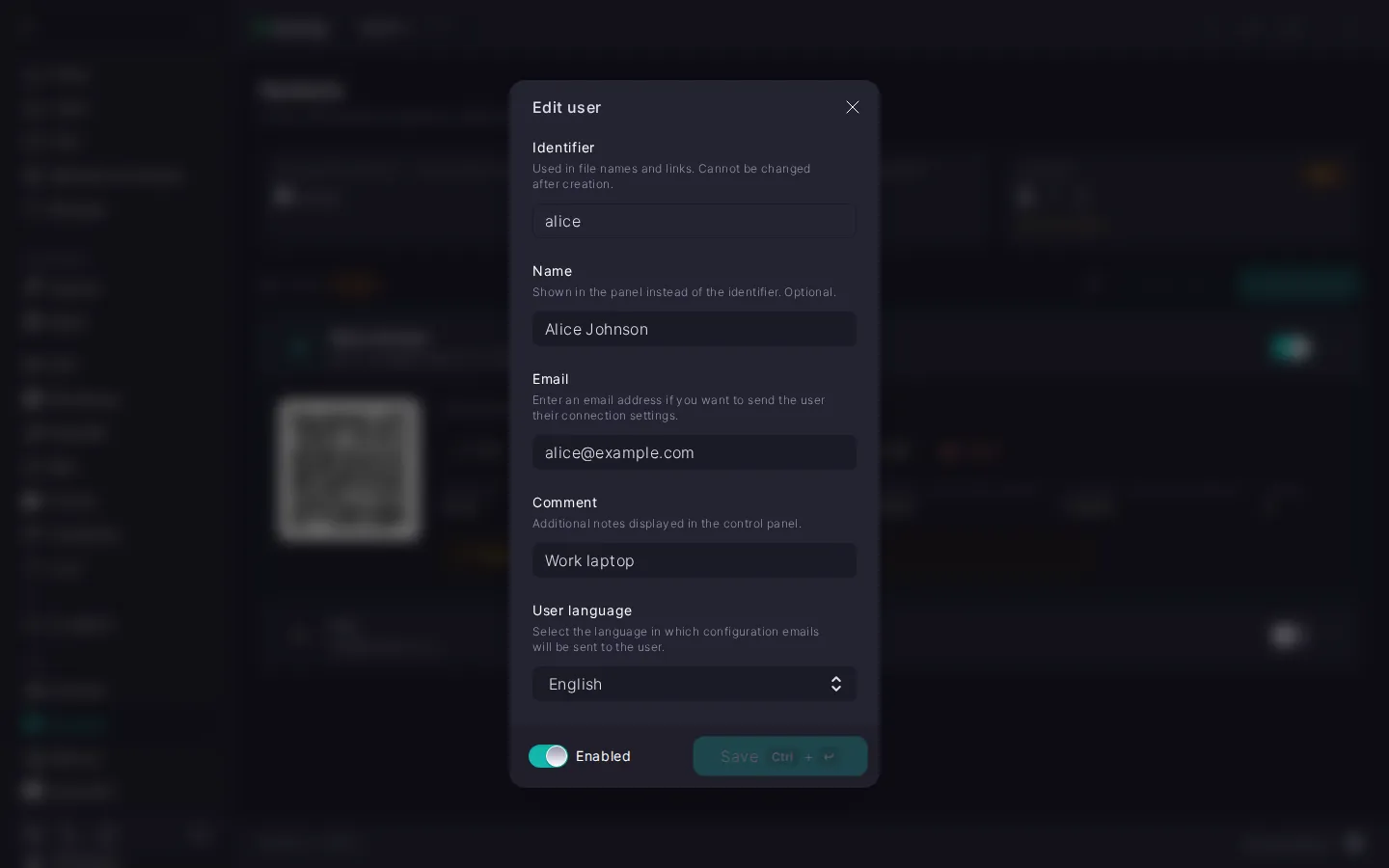
In the expanded row click Edit — the Edit user dialog opens.
The dialog lets you change:
- Identifier — shown but can't be edited: it doesn't change after creation.
- Name, Email, and Comment — edited by the same rules as on creation. To clear a value, leave the field empty and save.
- User language — the language of the email with the connection link. Default — English.
- Enabled — a toggle in the dialog footer: lets you temporarily disable the account without deleting it.
The Save button is active only when the form has changed compared to the current state.
Changing the name, email, comment, or language doesn't change the link: the user doesn't need to add it to the app again. The new name will appear only in apps where the link is added later.
Enabling and disabling a user
The user row has a toggle — a single press enables or disables the account without opening a dialog. A disabled user stays in the list but can't connect, and their current connections are dropped. Changes apply immediately, no service restart is needed.
When the user is re-enabled, the link does not change: the same hysteria2://… link already saved in the app starts working again. A user can be enabled only if the licence has a free slot.
A disabled user doesn't take up a licence slot — you can use this to free up room temporarily without deleting the user.
Deleting a user
In the expanded row click Delete. The panel asks for confirmation in the Delete user? dialog showing the name of the user being deleted (or the identifier if no name is set): active connections will be dropped, and the link issued to them will stop working. After confirmation the licence slot is freed — another user can be created in the empty slot. A user can always be deleted, even if the licence has run out or there aren't enough slots.
‼️ Deleting a user is irreversible
After confirmation the account and its password are lost forever. The hysteria2://… link that was added to the app stops working. The user can't be restored "as they were" — even if you create a new one with the same identifier, the password will be different, and a new link will have to be added to the app.
This is also how to replace a link that has fallen into the wrong hands: delete the user, create them again with the same identifier, and give them the new link.
User limit
ℹ️ The free licence allows one user
On the default plan the Hysteria module lets you create one enabled VPN user — enough for a single device, for example a personal smartphone. For several devices or family members you'll need to purchase additional slots.
Only enabled users take up a slot. What changes at different quota levels:
- Within quota (
N < M) — create new users freely. - Limit reached (
N = M) — no more new users can be created, and disabled ones can't be enabled. To continue, purchase slots via the Buy more slots link right in the tile, or delete or disable users you don't need. - Over the limit (
N > M, for example after a plan downgrade) — the most recently created of the enabled users are marked in the list as Slot needed: they can't connect, and the link, the QR code, refresh, and emailing are unavailable for them. Such users can still be edited and deleted. To bring them back, purchase slots or delete or disable the surplus users.
The Buy more slots link leads to the Licence section — to purchase a new licence if you don't have one yet, or to change the existing one with the slot count prefilled. The licence sums with the free quota: if the licence specifies, say, 5 slots, you'll have 6 users in total (1 free + 5 from the licence). In the Licence section this capability is shown under the human-readable label Hysteria.
What's next
- Hysteria quick start — installing the module and the first connection.
- Hysteria. Managing the module — managing the service, changing the port and obfuscation, updating and uninstalling the module.
- Hysteria. Setting up client apps — which app to install and what to do if the connection doesn't go through.
- How to set up an SMTP relay for sending emails — so you can email users the connection link.