Hysteria. Managing the module
This article continues Hysteria quick start. If you haven't installed the module and created the first user yet, start there. Collected here are the operations on the module itself: starting and stopping the service, viewing logs, connection settings (the port, obfuscation, the certificate), updating, reinstalling, and uninstalling. Managing VPN users is covered in a separate article — Hysteria. Managing users.
Page header and action menu
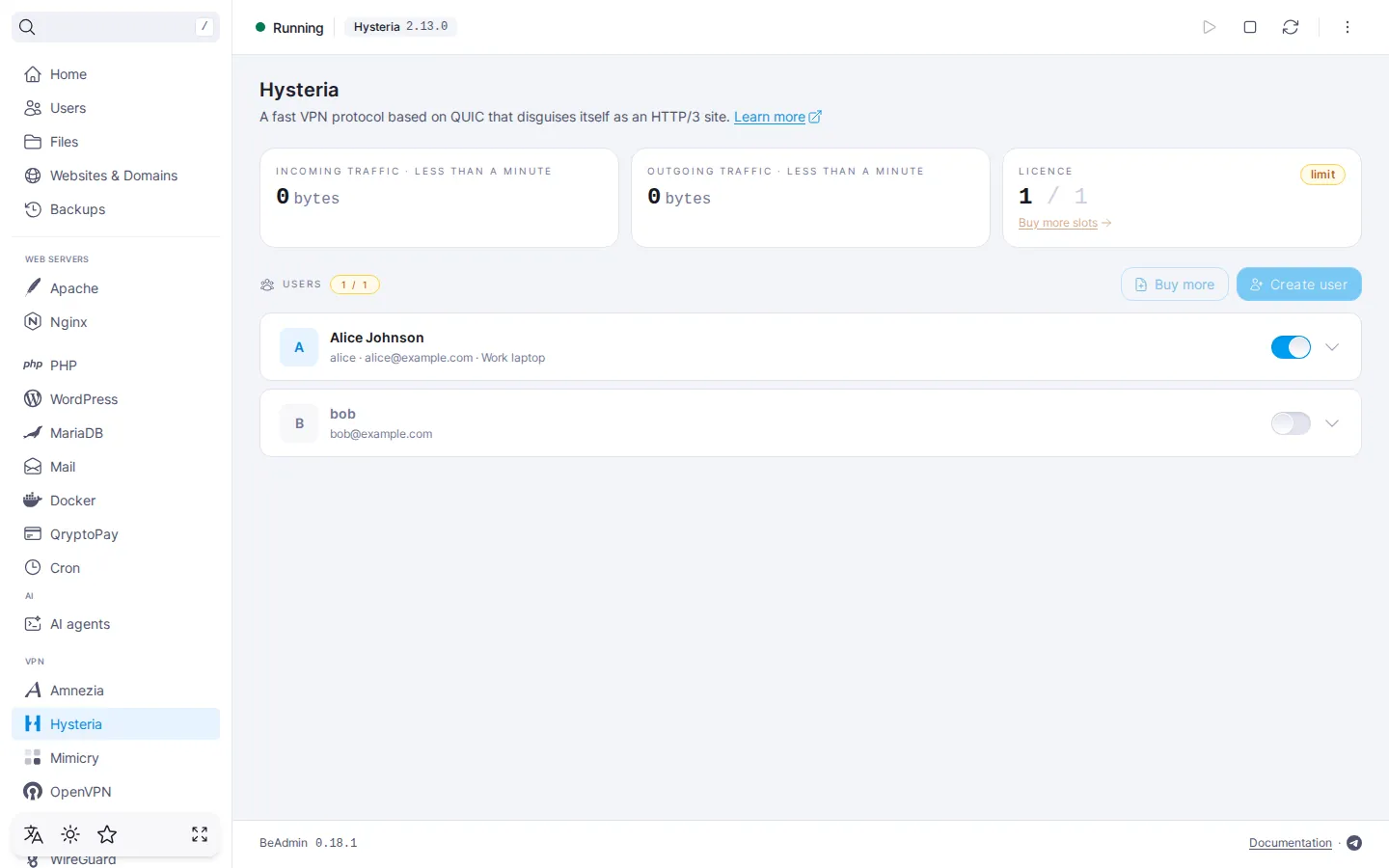
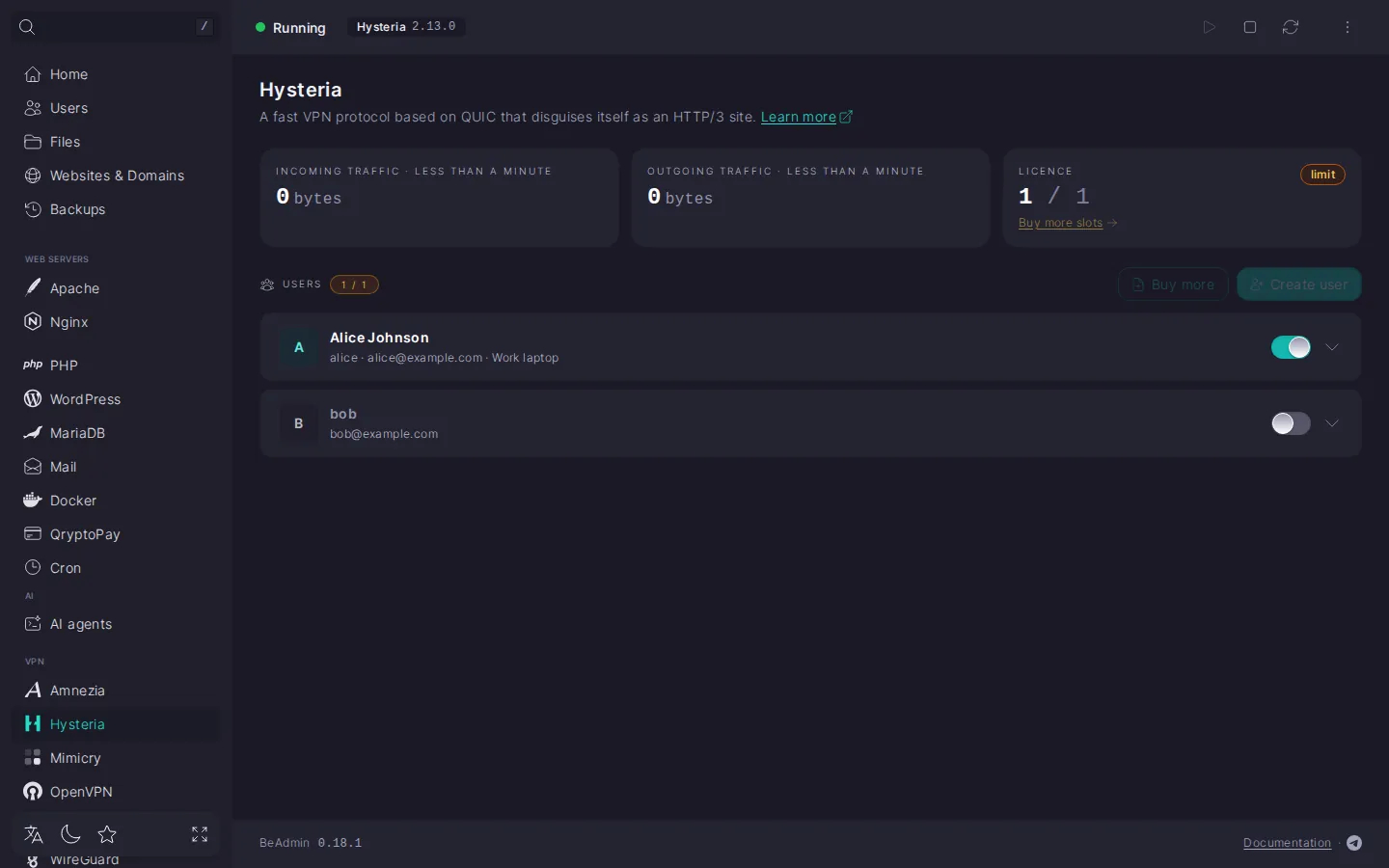
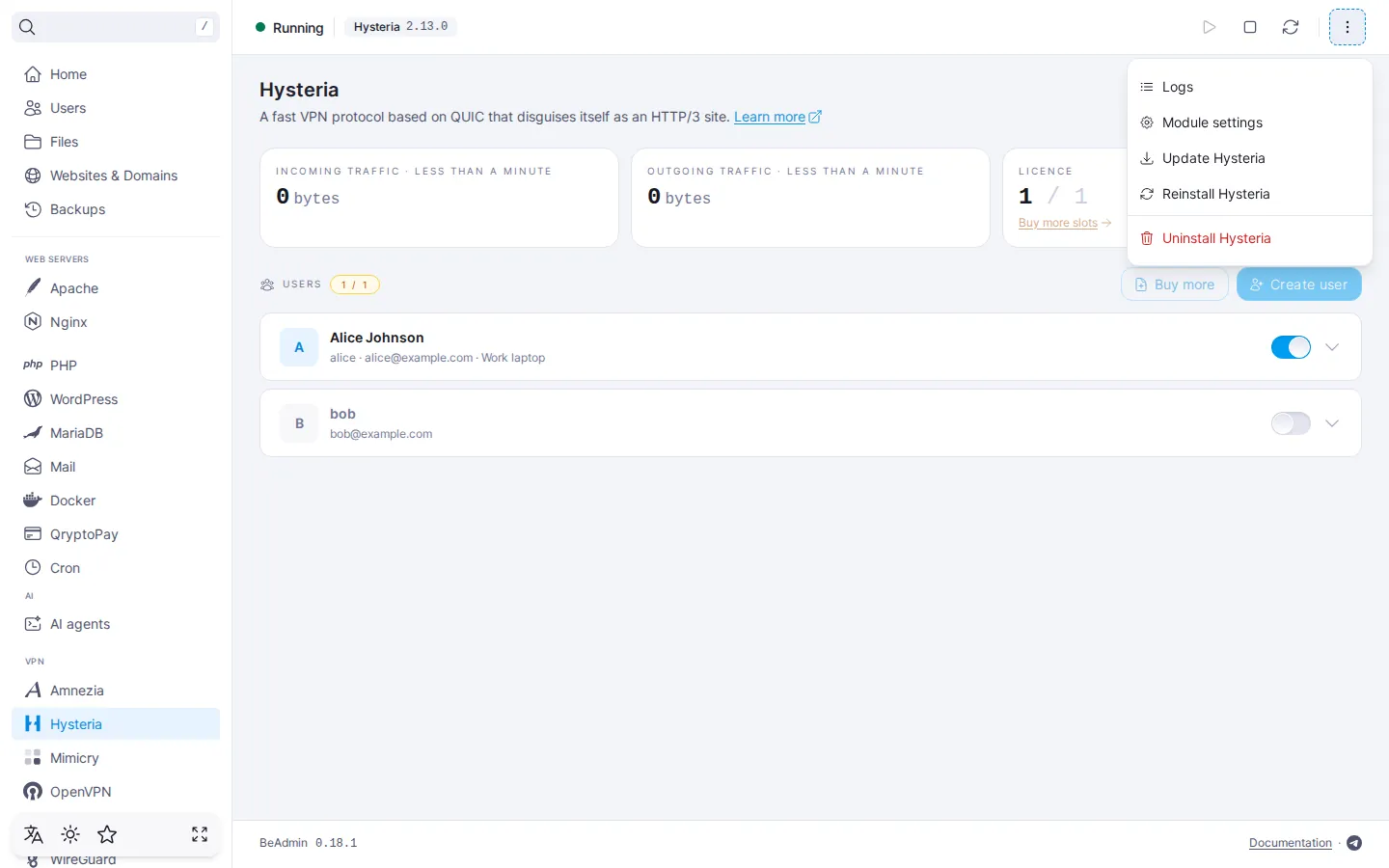
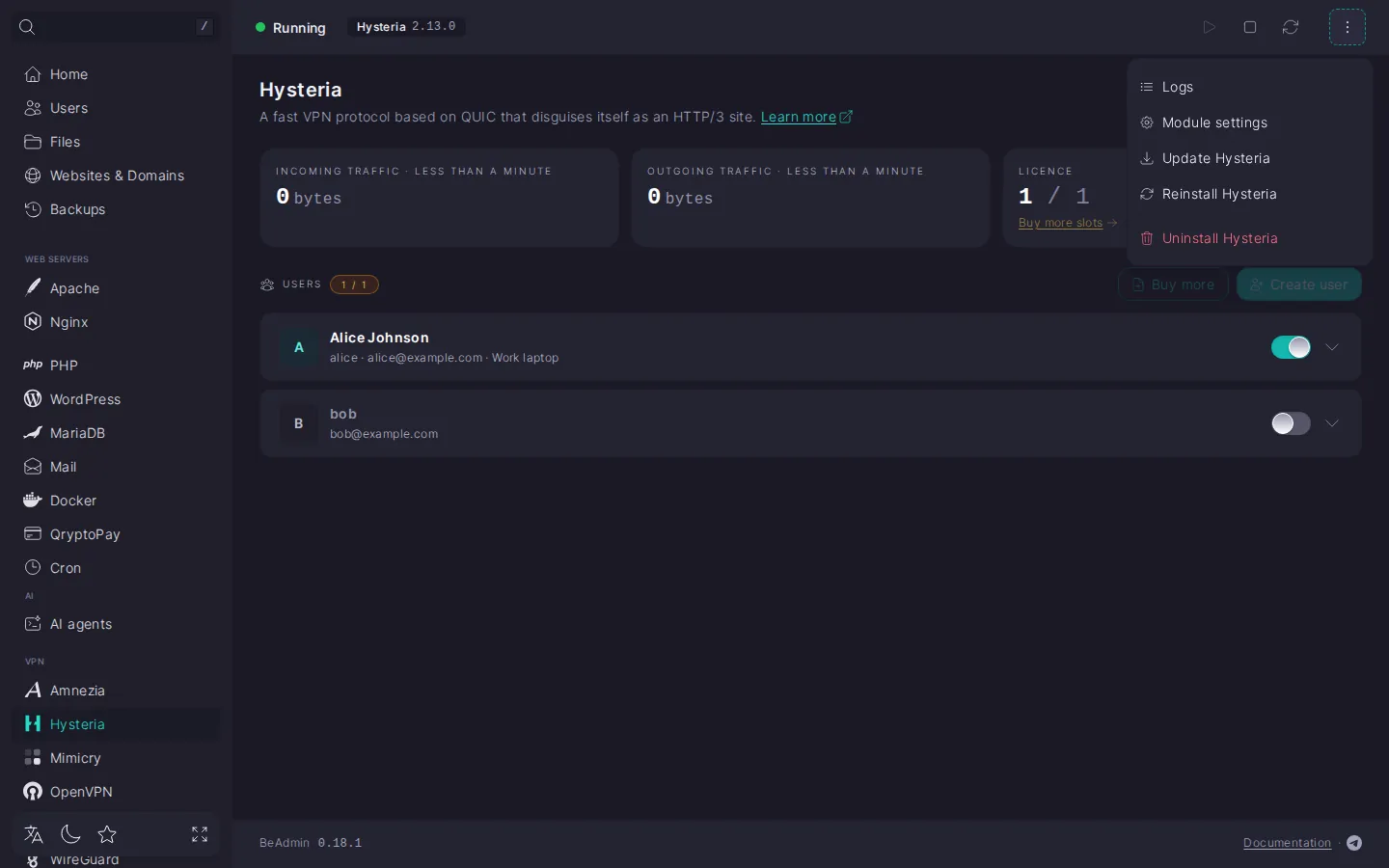
The page header exposes the core module actions — start, stop, and restart the service. The service state is shown by an indicator and a chip with the Hysteria version. The three-dot menu next to it groups the rest: open the logs, go to the module settings, run an update, reinstall, or uninstall the module.
Managing the service
- Start — brings the Hysteria service up from a stopped state.
- Stop — shuts the service down. All active VPN connections are dropped, and new ones can't be established.
- Restart — stops and starts the service back to back. Open connections are dropped.
Changes in the user list are applied by the server on the fly, without a service restart: a user added, disabled, or deleted — the change takes effect right away. The user's link stays the same — there's no need to add it to the app again.
⚠️ Stopping the service drops all VPN connections
While the service is off, no user can connect. Plan stops and restarts for a maintenance window or warn users in advance.
While the module is updating, being reinstalled, or being uninstalled, the service controls and the action menu are temporarily unavailable.
Module logs
In the action menu pick Logs — the lifecycle log opens with entries for install, update, reinstall, and uninstall. Each entry shows its status and the full execution output. Useful when an action ended with an error and you need to understand why.
Connection
In the action menu pick Module settings — the General page opens with a Connection group. This is where you change the parameters that devices use to reach the server: the port and obfuscation. The certificate mode is shown there too, but read-only. If connecting over the current port has stopped working or the provider blocks QUIC, you can change the parameters without reinstalling the module.
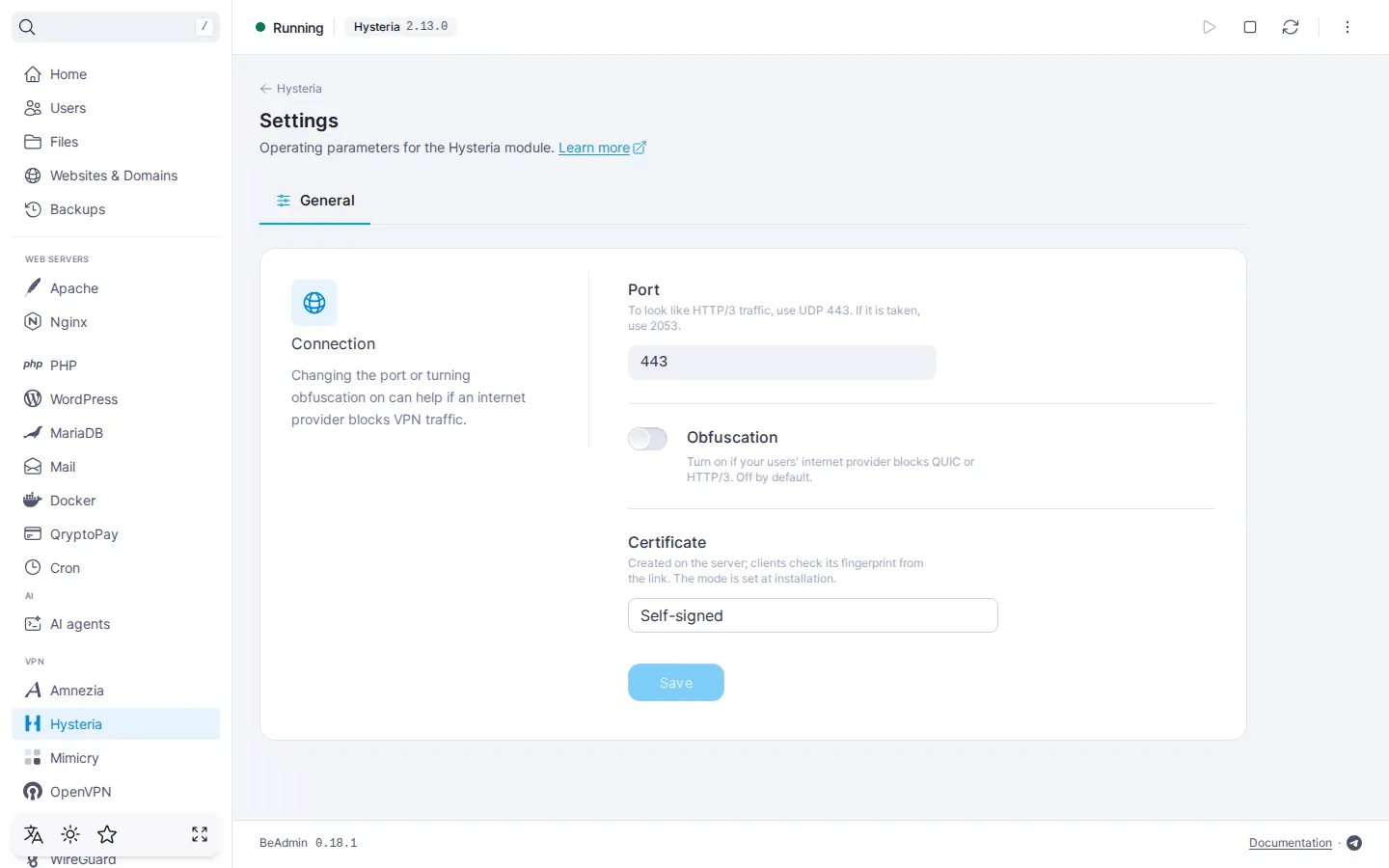
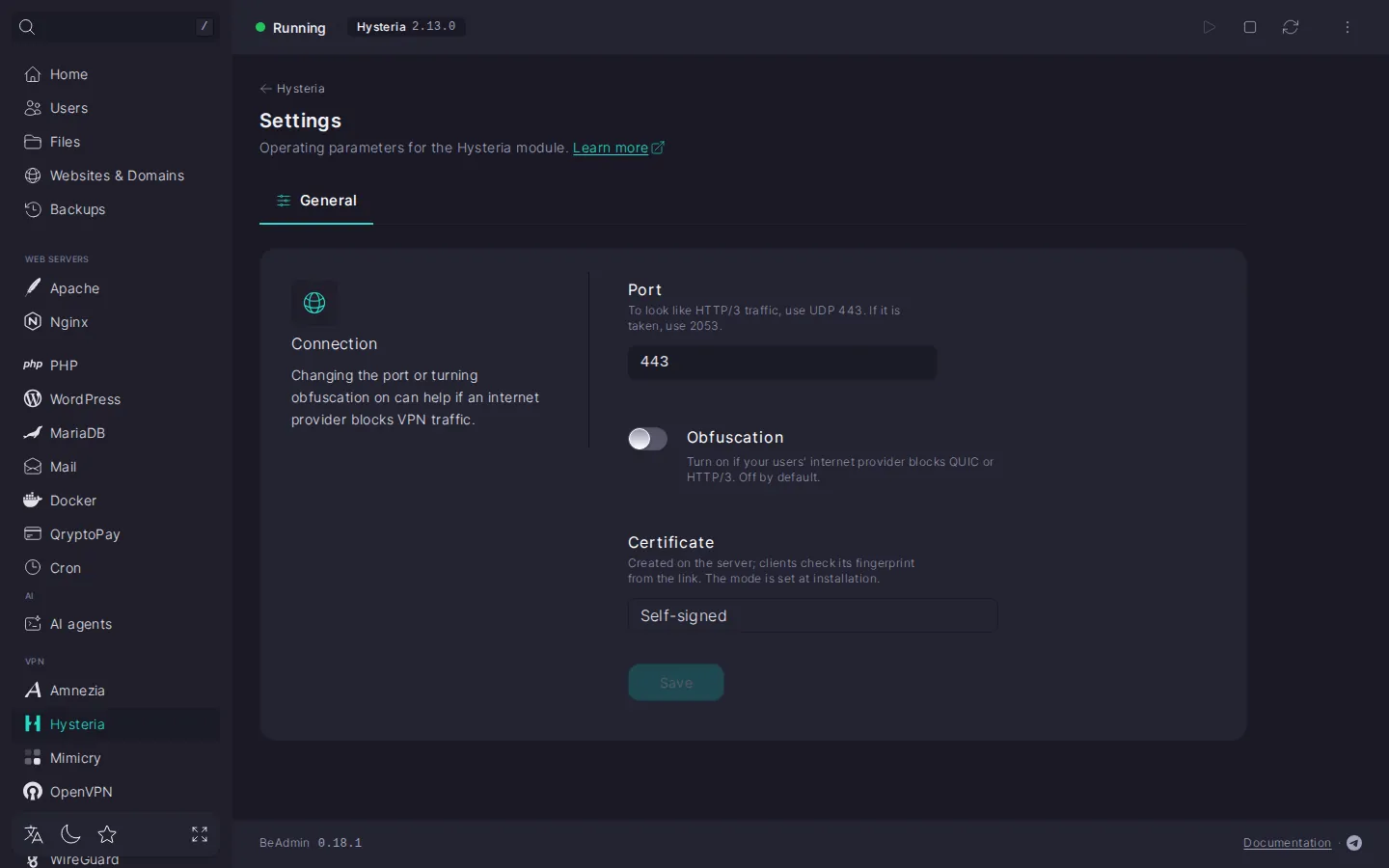
- Port — the UDP port Hysteria accepts connections on. It is set at install:
443if the port was free, otherwise2053. Valid numbers are 1 to 65535. Change it if the port is taken by another service on the server or if connecting over it has stopped going through. If the port is already taken by anotherBeAdminmodule, a warning appears under the field. If an outside process holds it, the panel reports an error and keeps the old port. - Obfuscation — a toggle, off by default. Turn it on if your internet provider blocks QUIC or HTTP/3. With obfuscation on, the server no longer looks like an HTTP/3 site and doesn't show the maintenance page — how it works is described in Hysteria. How the service works.
- Certificate — shows which certificate the server uses: Let's Encrypt on server IP or Self-signed. The mode can't be changed in the settings: it is chosen at the first install, see Certificate.
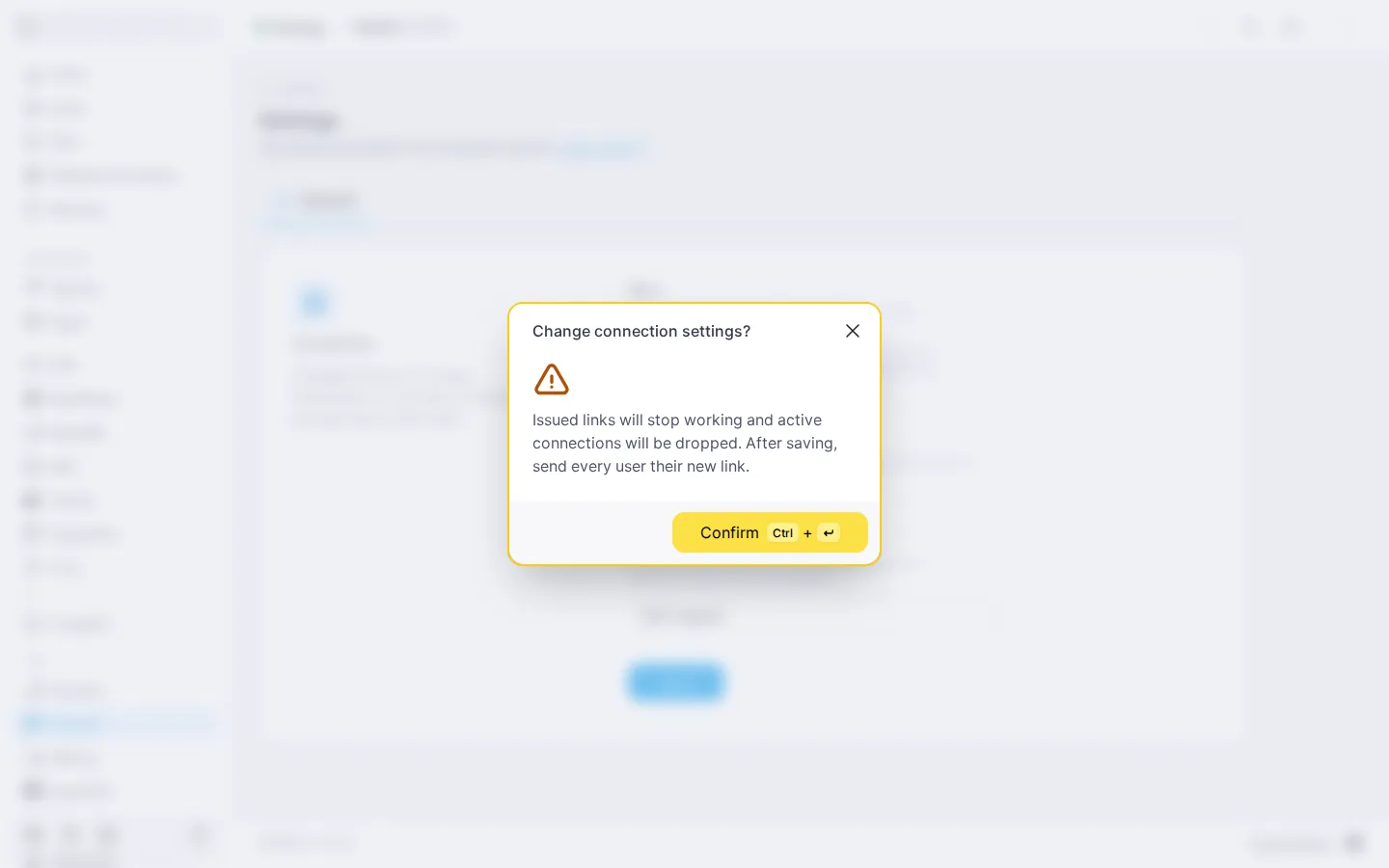
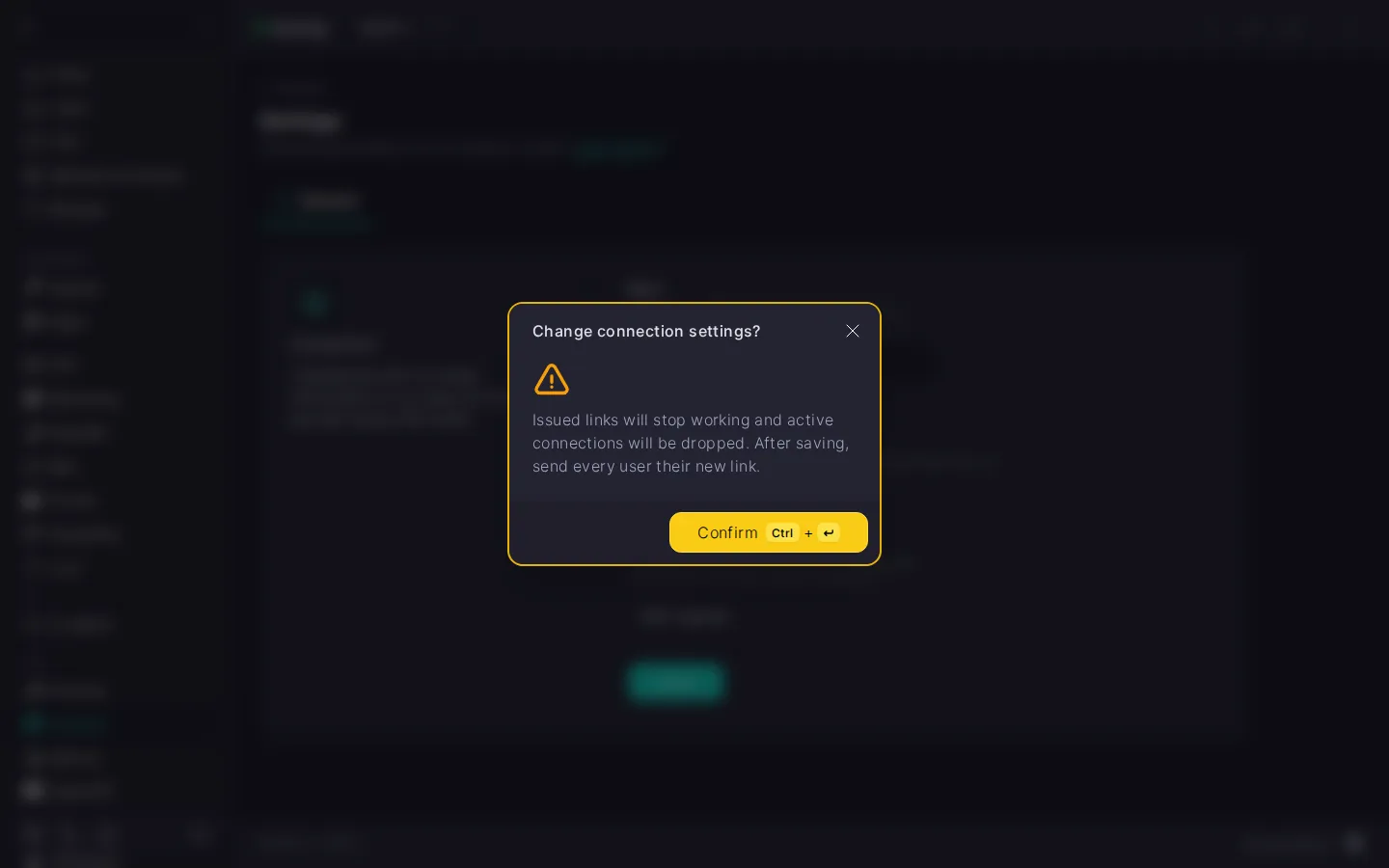
The Save button becomes active only once you've changed the port or obfuscation. When you click it, the panel asks for confirmation — a safeguard against cutting off every user at once.
‼️ Changing the port or obfuscation drops all connections and invalidates the links
The port and the obfuscation parameters are baked into every issued hysteria2://… link and QR code. After you confirm, the service restarts, active connections are dropped, and every previously issued link and QR code stops working: client apps can't connect. Each user will have to be given the link again and add it to their app. Plan the change for a maintenance window and warn users in advance. If you return the old values, the old links work again.
If the service didn't start after a port change, check that the port you chose is free and pick another one.
Certificate
The panel picks the certificate mode once, when the module is installed for the first time: if it has a Let's Encrypt certificate for the server's IP address, that one is used; otherwise a self-signed certificate is created. Either mode works for the module and for connecting users. The difference is in the link: with a self-signed certificate, the link carries its fingerprint, which the app uses to verify the server.
A reinstall keeps the mode. If you need a different one, uninstall the module and install it again — but keep in mind that uninstalling removes all users and issued links, see Uninstalling the module.
Updating the module
In the action menu pick Update Hysteria. The panel checks whether a newer version of Hysteria is available, installs it on top of the current one, and restarts the service. The user list, the port, obfuscation, and the links are preserved — there's no need to add the link to the apps again.
There's no confirmation for the update — the action starts right away. While the update is in progress, the service controls and the menu items are unavailable; the current module version is visible on the Hysteria chip in the header. If the latest version is already installed, the update doesn't run — the panel will tell you so. If a newer version has been released that hasn't yet been verified for compatibility with the panel, the panel will tell you that too: such a version becomes available with a panel update.
Reinstalling the module
In the action menu pick Reinstall Hysteria. The panel asks you to confirm the reinstall — click Confirm. The module is installed again and the service restarts. The users, the port, obfuscation, and the certificate mode are preserved, and issued links keep working.
Use reinstall when the module is acting up and you want to run the install again without losing users. Unlike uninstall, it doesn't wipe users or change links.
A reinstall keeps Hysteria on its current port. To move the module to a different port, enter it in the Port field of the reinstall dialog or change it in the Connection group. After the move, the issued links and QR codes stop working — the port is baked into them — and they have to be given to users again.
If clients stop connecting after a reinstall, copy the link again from the expanded user row or show the QR code again. If errors persist, the last resort is to fully uninstall the module and install it from scratch.
Uninstalling the module
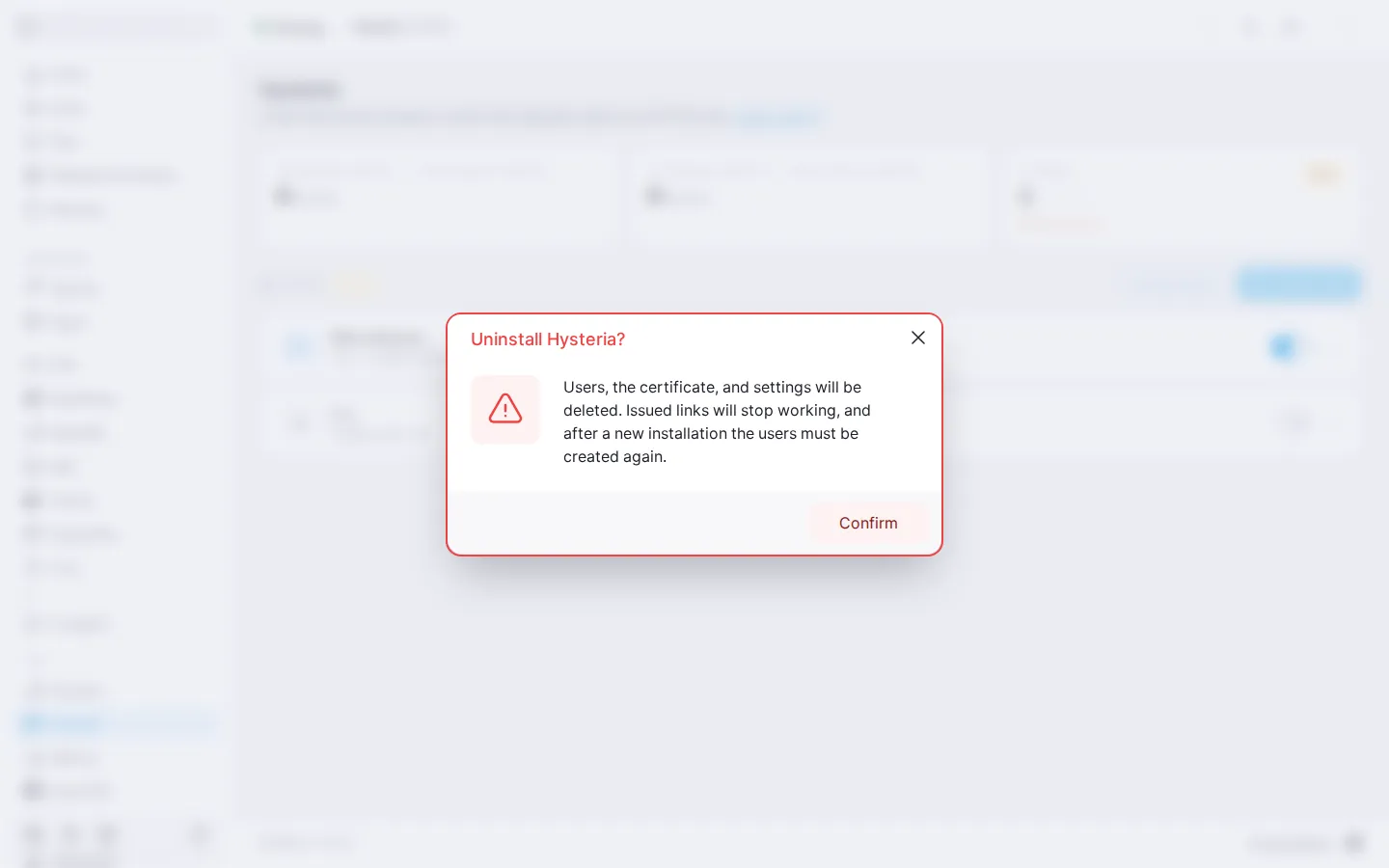
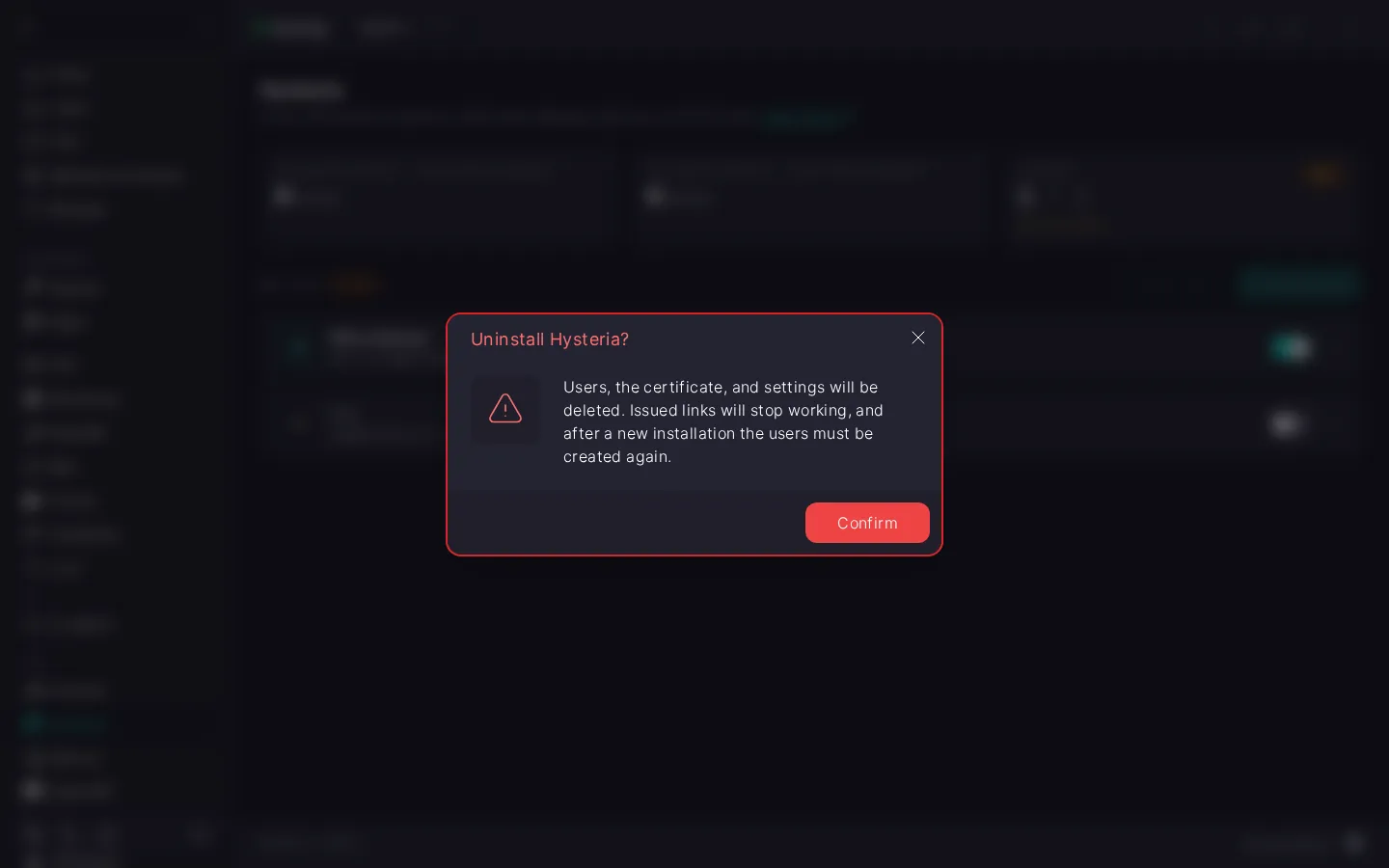
In the action menu pick Uninstall Hysteria. The panel asks for confirmation: along with the module, the users, the certificate, and the settings are removed.
‼️ Uninstalling the module wipes all VPN users
Uninstall is irreversible: along with the module, all Hysteria users disappear — their passwords and hysteria2://… links. Apps that already have a link added can't connect after the uninstall. After a fresh install the users have to be created again: the links will be different, and each one has to be added to the apps again. The Hysteria licence slots are freed — you can reuse them or forget about the module until the next install.
After confirmation, the panel runs the uninstall. When it finishes, the module page returns to its initial state with the Install button.
What's next
- Hysteria quick start — installing the module and the first connection.
- Hysteria. Managing users — creating, editing, deleting users, and purchasing slots.
- Hysteria. Setting up client apps — which app to install and what to do if the connection doesn't go through.
- How to set up an SMTP relay for sending emails — so you can email users the connection link.