Proven over 15 years in hosting. Your VPS with BeAdmin is ready to go out of the box.
 Germany
 Netherlands
 Sweden
 Switzerland
 Spain
Spain USA
USA
This article covers operations on the VPN user list: how the list is laid out, how to grab the connection link, edit a user, temporarily disable or delete them, and purchase slots beyond the free quota. The minimum "install the module and connect the first device" scenario is described in Xray quick start; here we go into more detail.
The list opens by default on the Xray module page and contains every created user with the current state of each. Above the list, the remaining free licence slots are shown — a hint as to whether there's room for a new user. Users are created with the Create user button; once the limit is reached, the button is disabled and a tooltip explains why. Details on the limit and slots — in the User limit section.
Each user is a separate row that expands on click. Collapsed, the row holds the name (or the identifier if no name is set), the email address, and the Enabled toggle for temporary deactivation. User actions appear once the row is expanded: click it to expand.
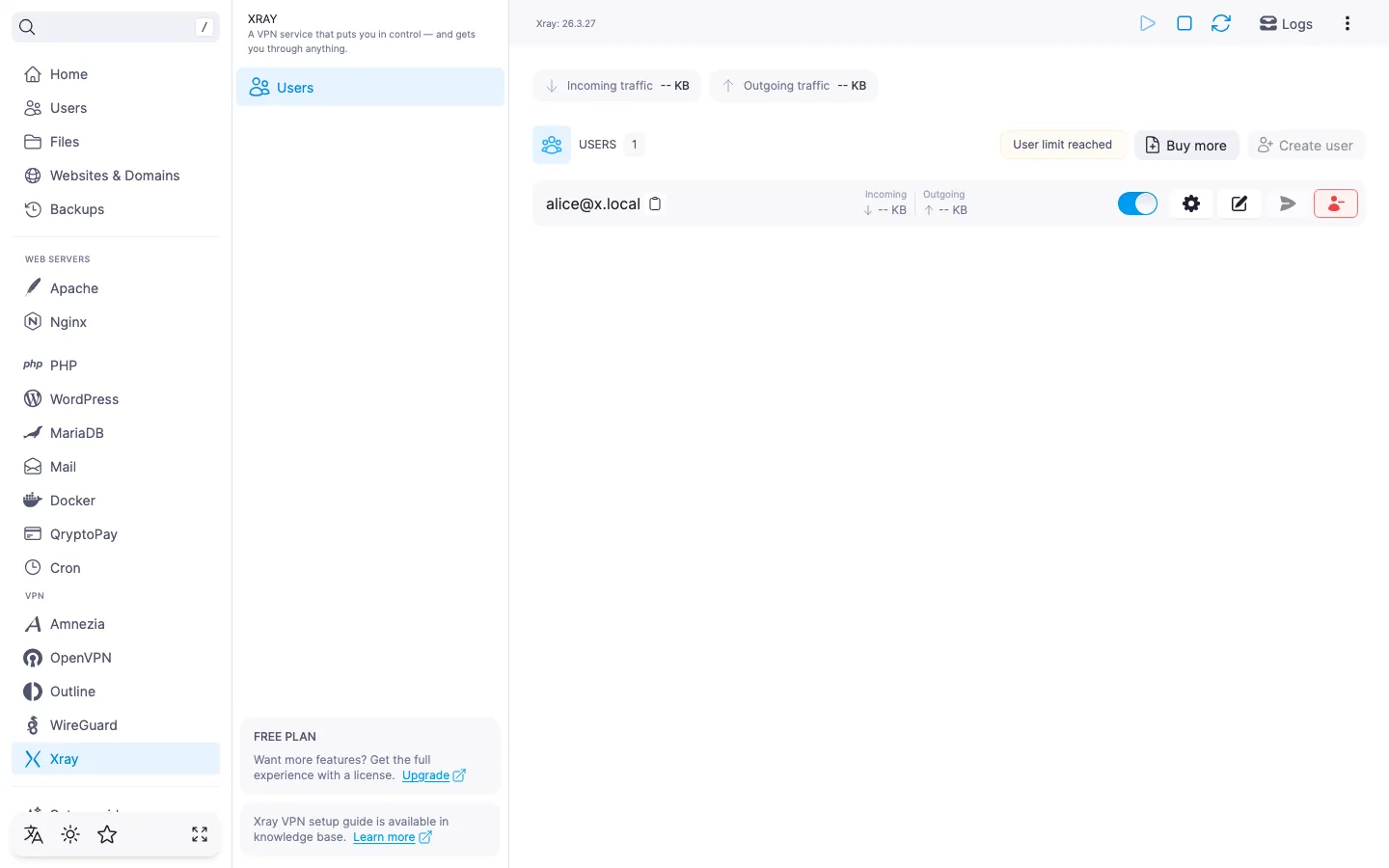
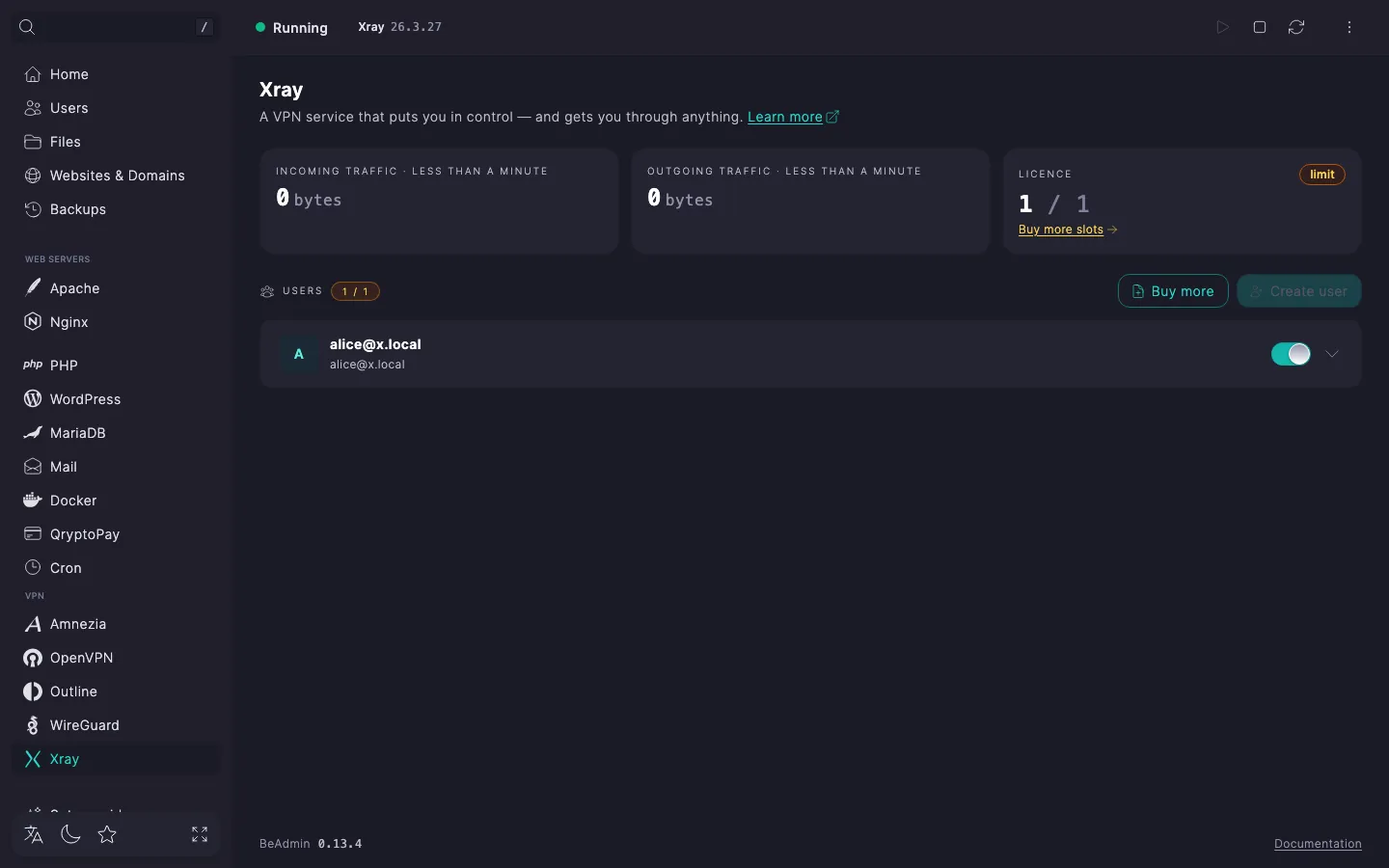
Right after install the list is empty: the panel shows an "It is empty here" card with a prompt to create the first user and a Create user button. Once the first user is created, the card disappears and a regular list takes its place.
The expanded row is where the user gets the configuration for the device and where the actions on them live.
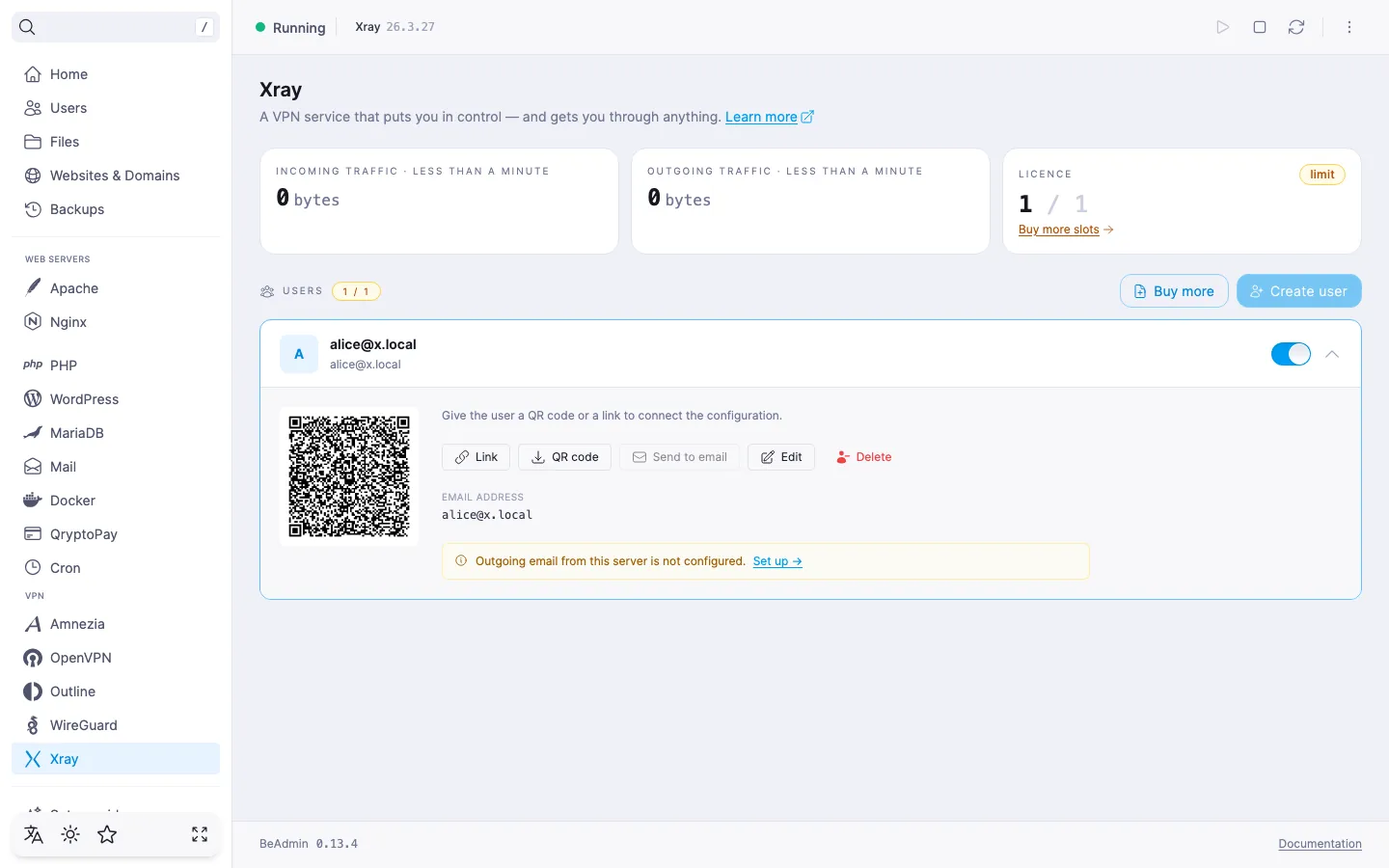
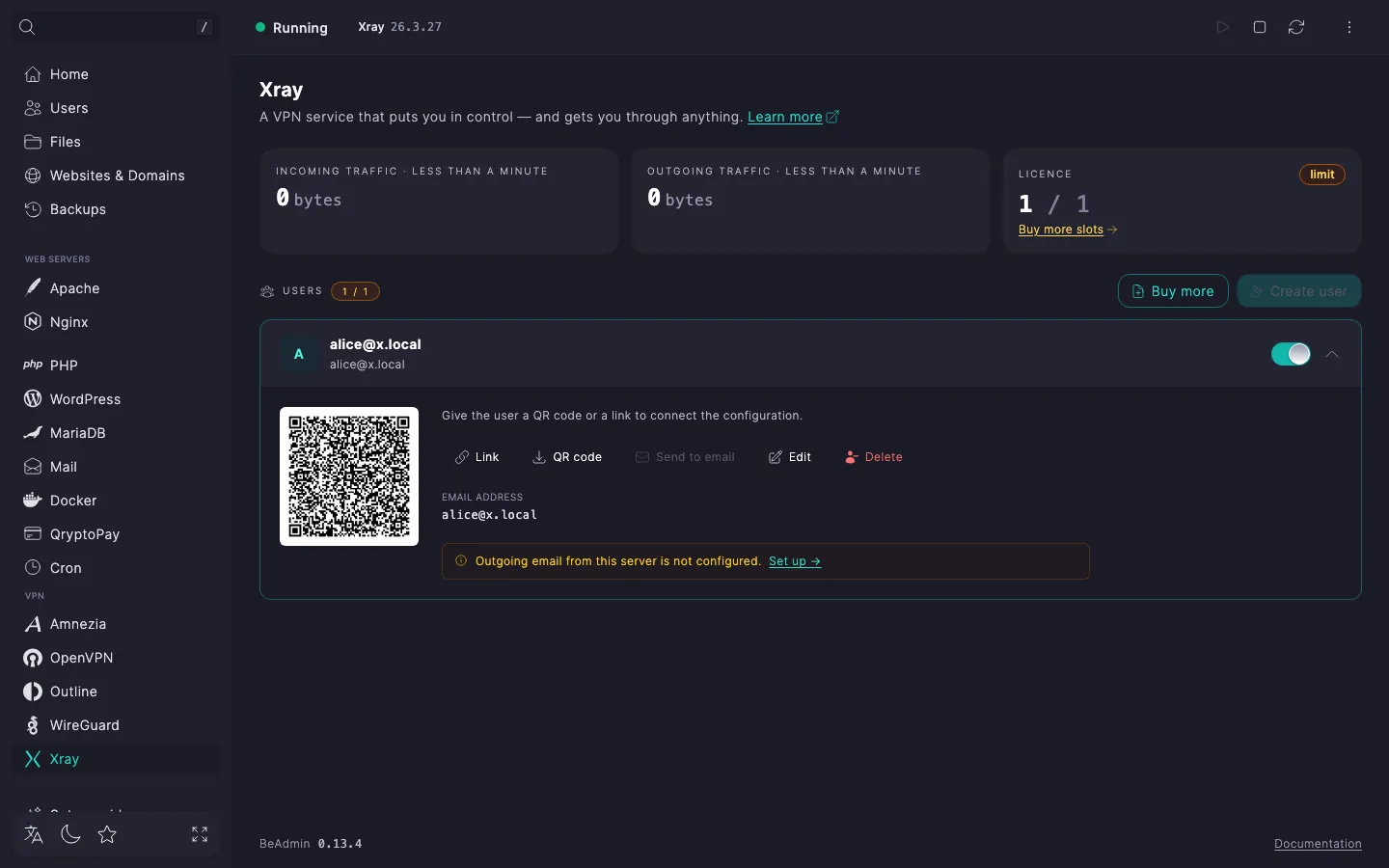
Right under the avatar the row shows a QR code — it contains a link of the form vless://… for an Xray-compatible client. Show this QR code to the user on screen for a camera scan — or save the image file via the QR code button and send it any way you like. The Link button copies the same vless://… string to the clipboard. If you opened the panel from the same device you're going to connect from, copy the link directly: the panel puts it on the clipboard so you can paste it into the client without a camera.
A .conf file isn't used by Xray — clients only accept the link or a QR code with the same link.
The Email button sends the connection link to the address from the user's card. Available if SMTP is configured in the panel and the user has an email address; without an address the button is inactive and a hint explains why. If SMTP isn't configured, the expanded row shows a hint "Email sending is not configured on the server." with a To settings link — it leads to the system settings of the panel, where the SMTP relay is enabled. Until the relay is configured, the Email button stays disabled; copying the link and downloading the QR code work independently. For relay setup details, see How to set up an SMTP relay for sending emails.
The Edit button opens a dialog with the user's settings (details — in the Editing a user section). The Delete button starts deletion — details in the Deleting a user section.
Below the buttons — tiles with the user's identifier, name, email address, and comment (when they are filled in) and tiles with traffic statistics for that user: inbound and outbound. The counters come from Xray statistics, are updated automatically, and show the cumulative volume since the service started. When the Xray service restarts, the counters reset.
The minimum scenario is described in Xray quick start: open the dialog with the Create user button in the list header and fill in the Identifier, Name, Email, and Comment fields. Identifier is prefilled and adjusts to Name until you edit it by hand; Name, Email, and Comment are optional. Optionally pick the User language for the email with the link; the Enabled toggle in the footer controls the user's state right after creation. The Create button is active while the form has no validation errors and while the licence has a free slot (see User limit).
At the top of the dialog sits the Mode selector — for a regular user, leave it on Single-hop. The other value, Multi-hop, turns the user into a link in a chain across two servers — covered below, in Mode: single-hop or multi-hop.
⚠️ ISP restrictions
Traffic encryption makes a VPN a reliable way to protect a connection, but in some countries and regions internet providers actively interfere with VPN protocols. Because of this, full availability of the service cannot be guaranteed — regardless of the connection type. If one protocol does not work for you, try another VPN module available in the panel. If none of them work on your network, contact support and we will issue a refund for the license.
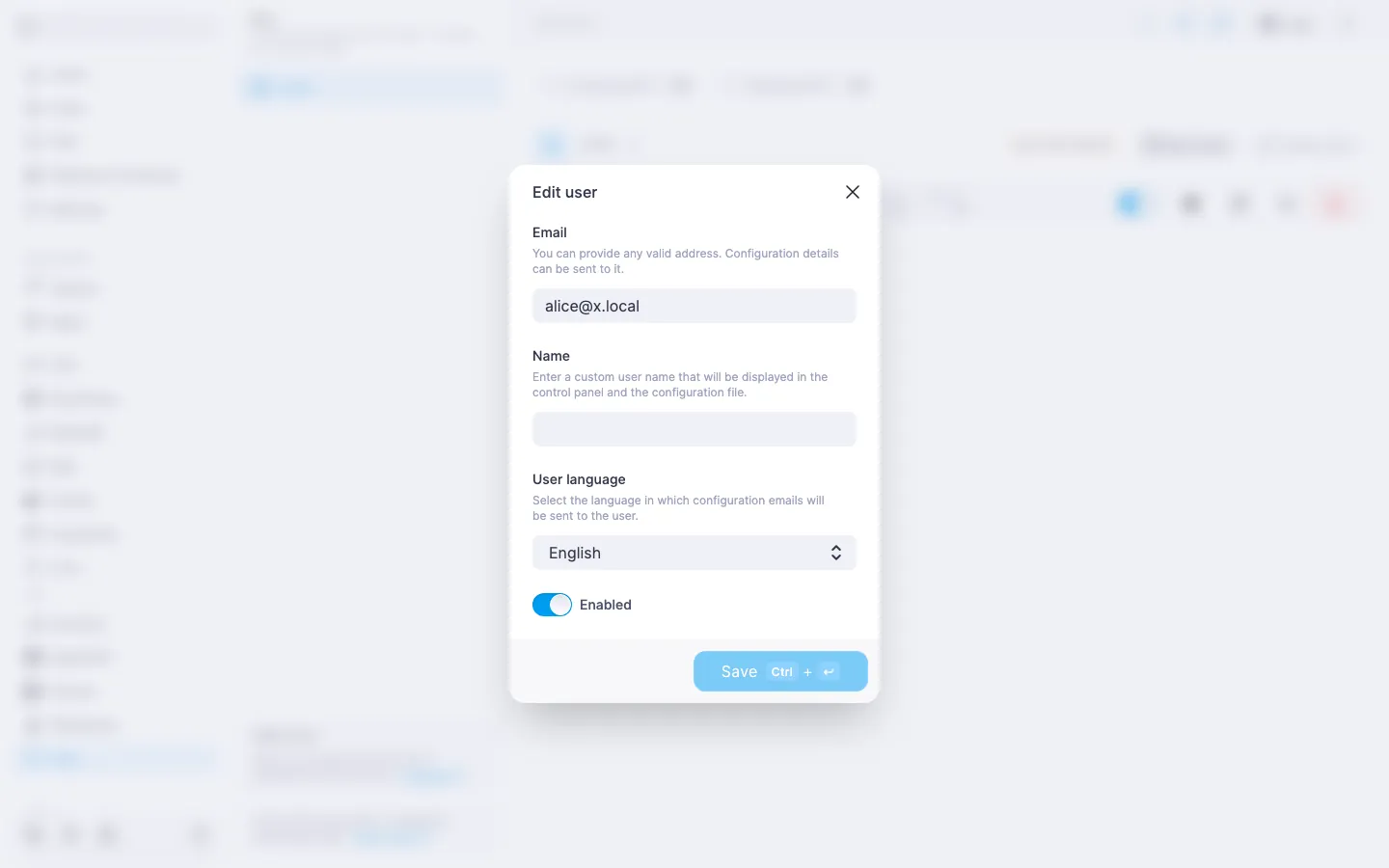
In the expanded row click Edit — the Edit user dialog opens.
The dialog lets you change:
The Save button is active only when the form has changed compared to the current state.
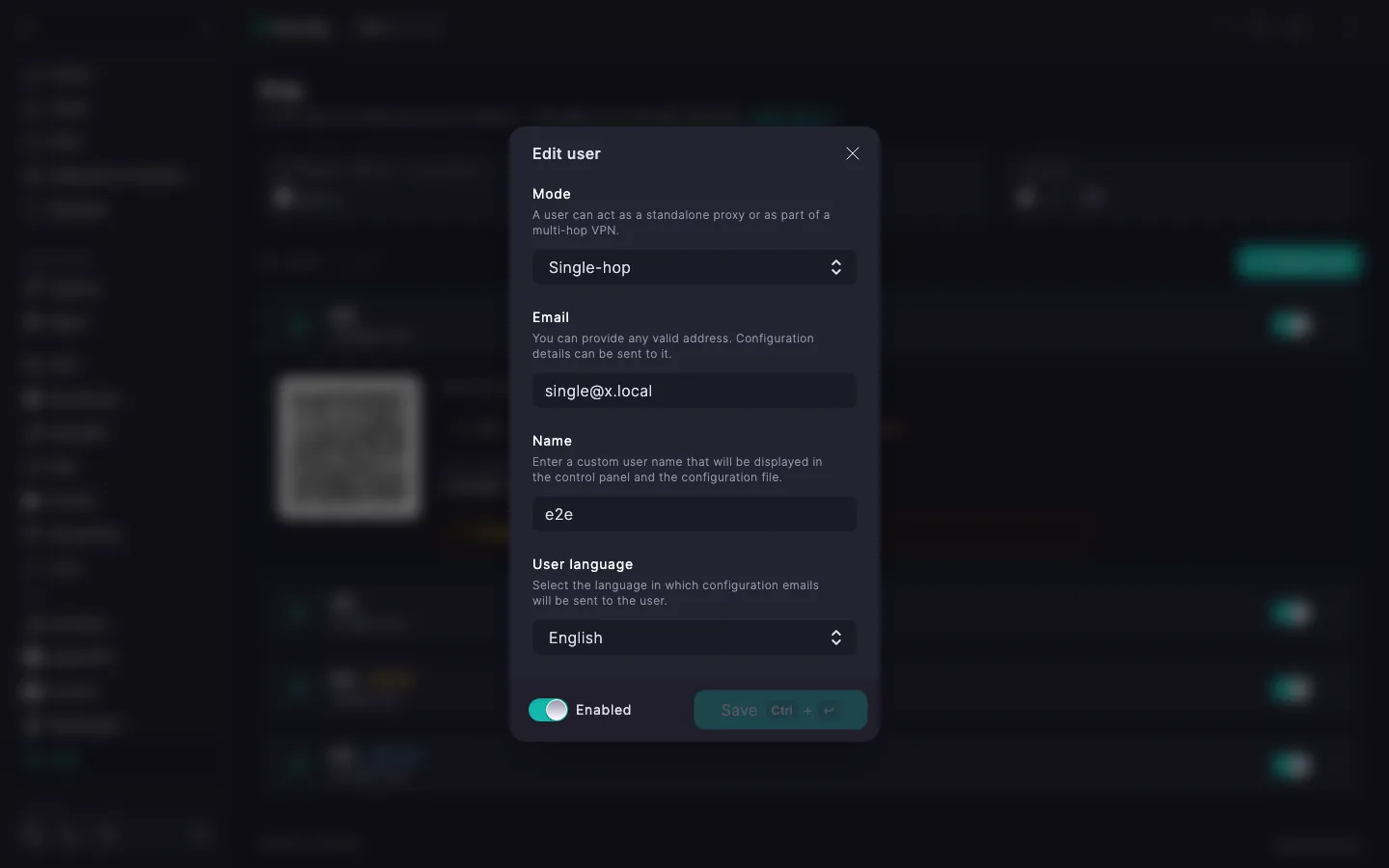
At the very top of the create and edit dialogs sits the Mode selector — the user works either as a standalone proxy or as part of a multi-hop VPN:
BeAdmin installs (entry → exit). A fit for when single-hop mode stops working.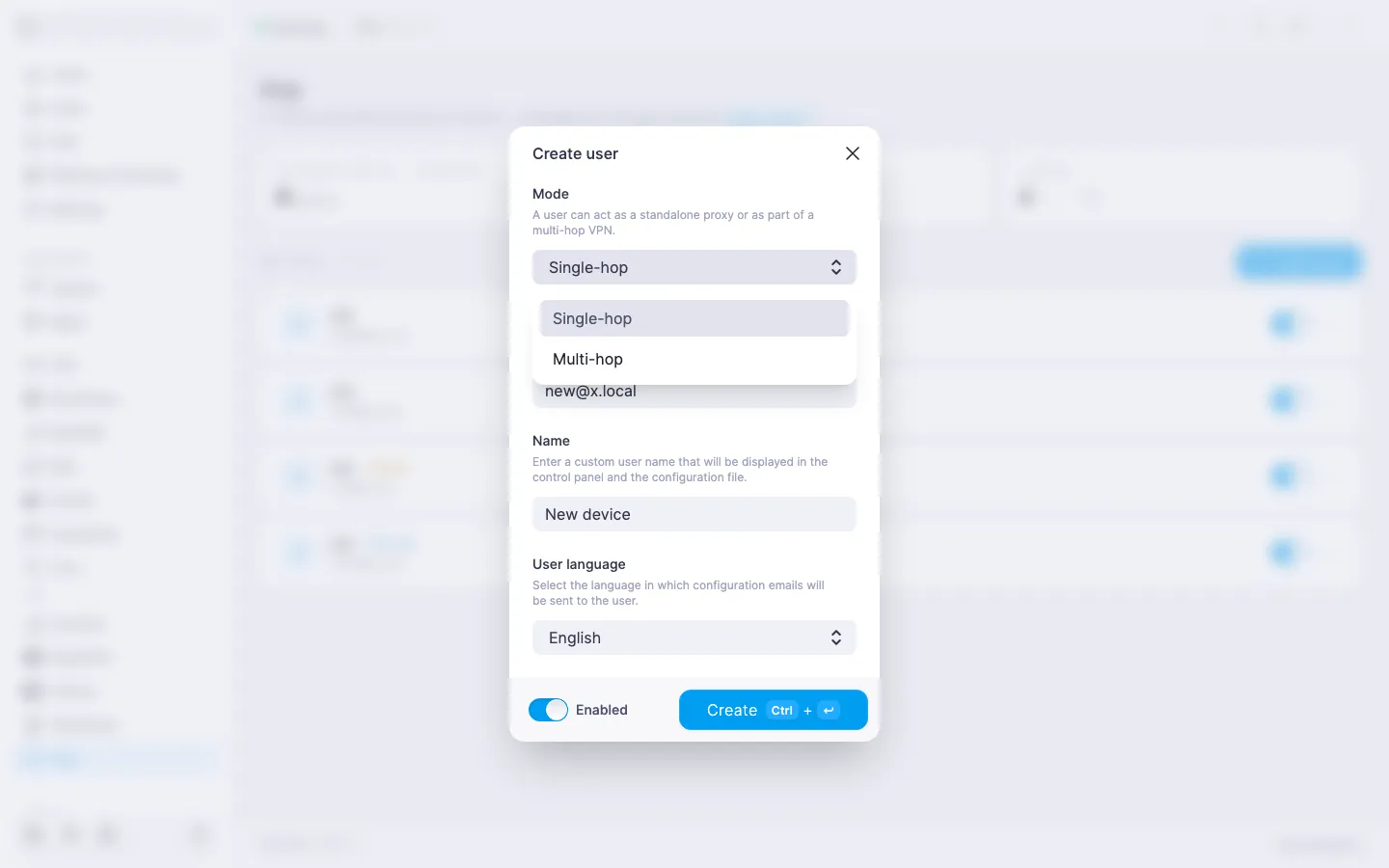
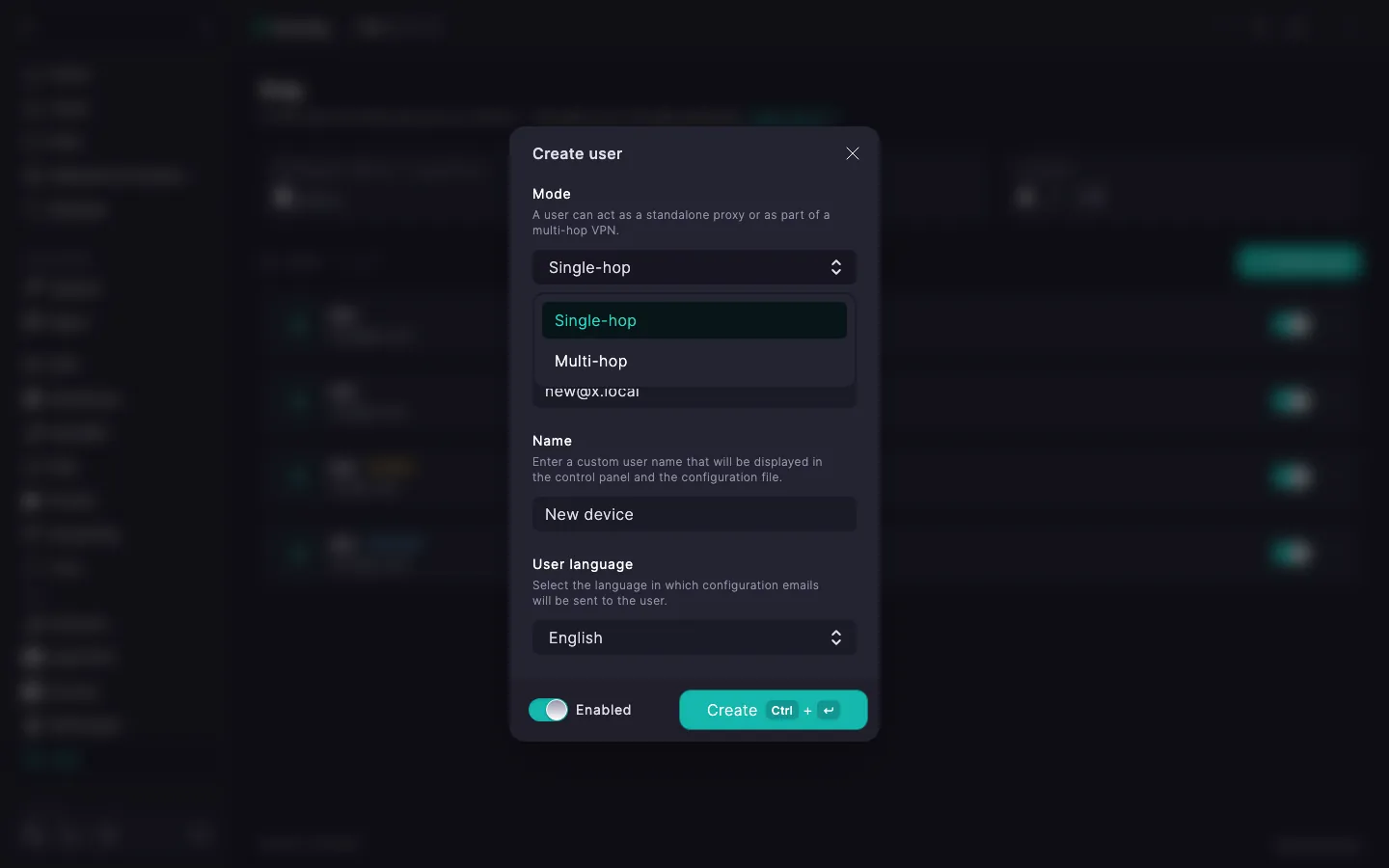
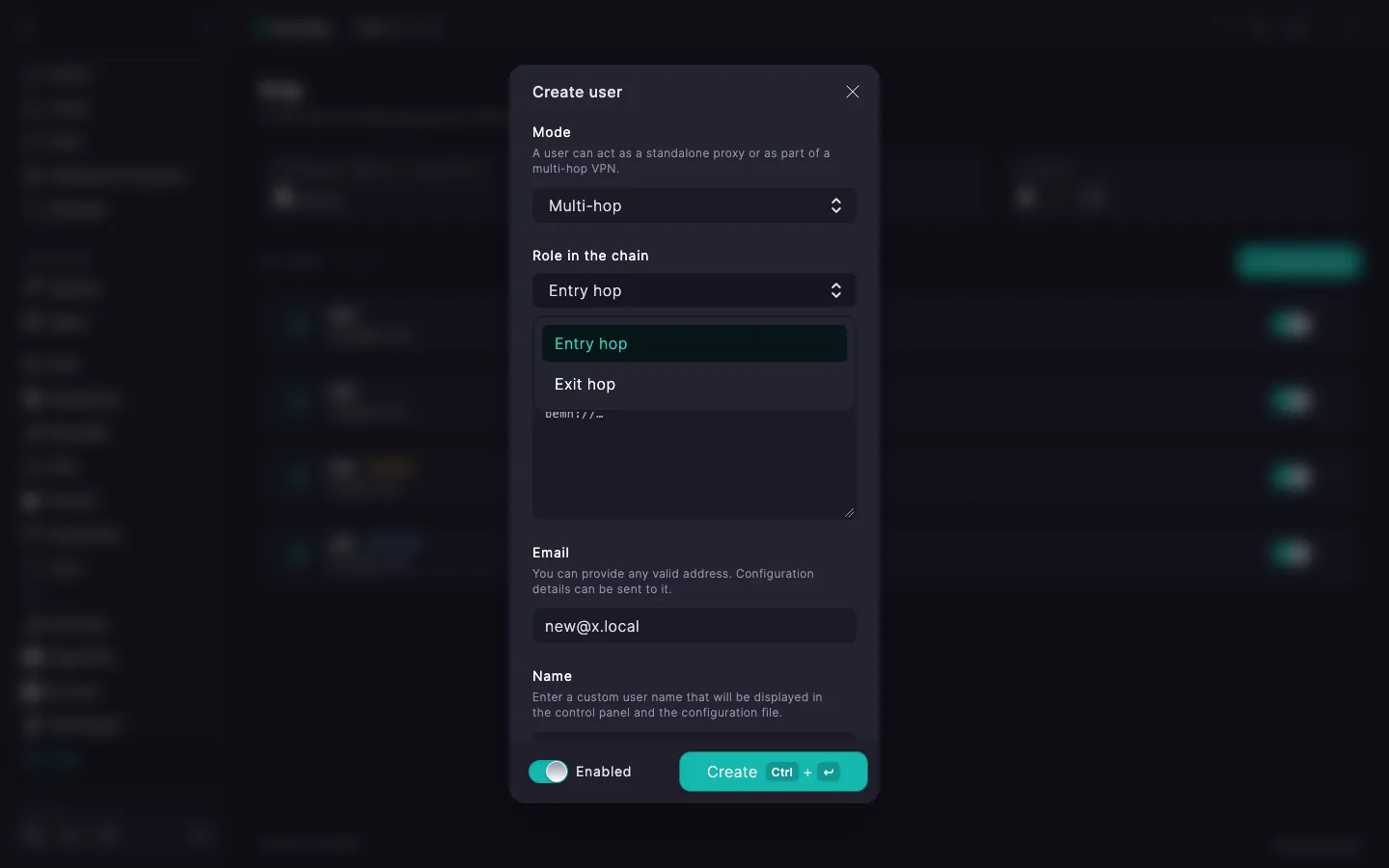
When Multi-hop is selected, a Role in the chain selector appears below — the entry hop receives traffic from the client, the exit hop sends it to the internet:
vless://… link that the end device receives.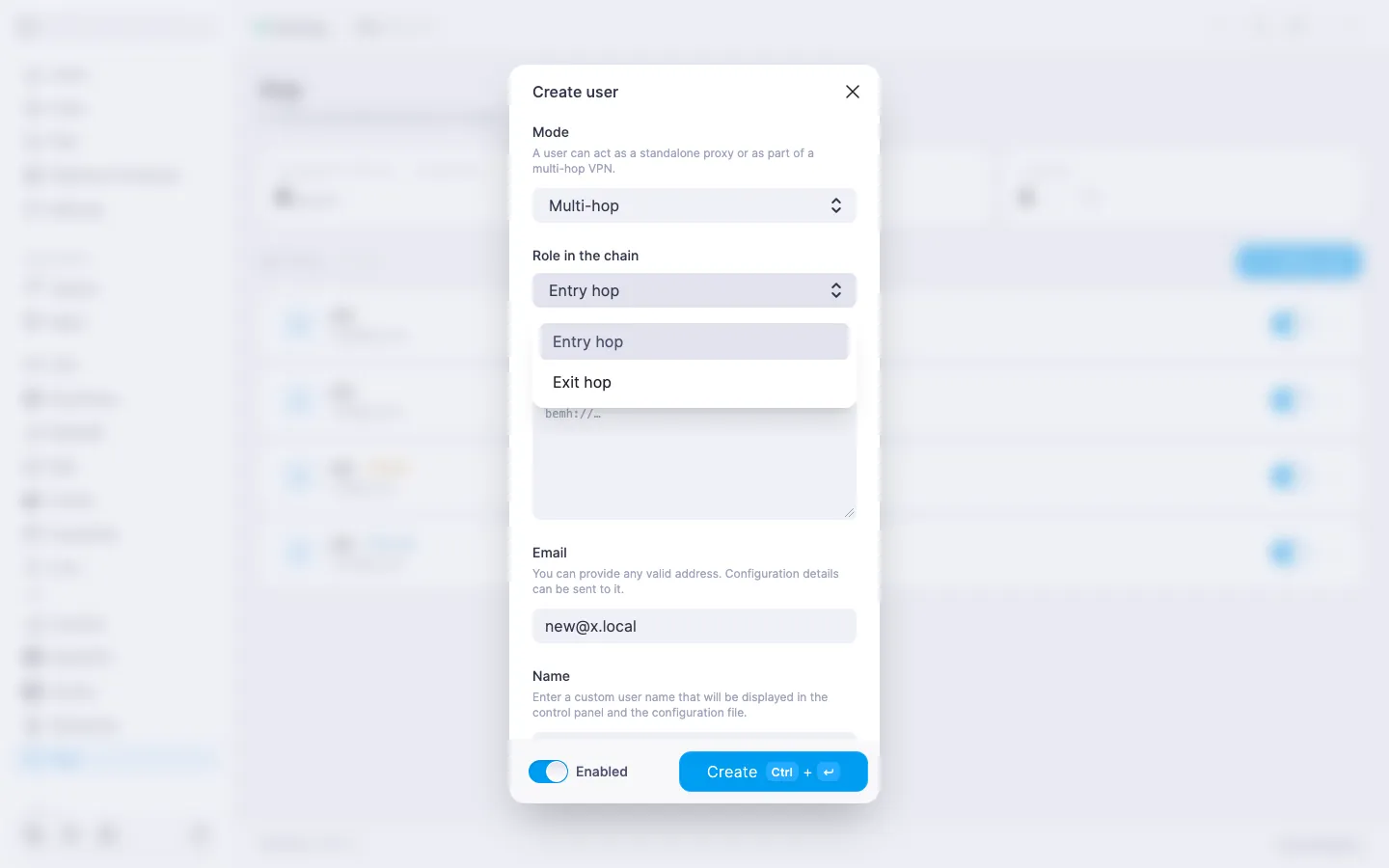
Multi-hop needs a second server with BeAdmin for the exit hop. If you don't have a suitable one yet, our partners offer a VPS with the panel already installed, in a range of locations.
Proven over 15 years in hosting. Your VPS with BeAdmin is ready to go out of the box.
GermanyNetherlandsSwedenSwitzerlandSpainUSAEuropean reliability made simple. Launch BeAdmin with your VPS in just one click.
GermanyNetherlandsSweden Estonia
 RomaniaSwitzerlandSpain
'%3e%3cpath%20fill='%2300008b'%20d='M0%200h384v256H0z'/%3e%3cpath%20stroke='%23fff'%20stroke-width='42'%20d='m1.914-.001%20382.086%20256m-382.086%200L384-.001'/%3e%3cpath%20stroke='red'%20stroke-width='14'%20d='M5.437%200%20192%20122M378.563%200%20192%20122M5.437%20256%20192%20134m186.563%20122L192%20134'/%3e%3cpath%20fill='%23fff'%20d='M157.787-.001h68.359v256h-68.359z'/%3e%3cpath%20fill='%23fff'%20d='M-.067%2093.999H384v68H-.067z'/%3e%3cpath%20fill='red'%20d='M384%20107.789H211.862V-.001h-39.724l.001%20107.79H0v40.419h172.139v107.79h39.723v-107.79H384z'/%3e%3c/g%3e%3c/svg%3e) United KingdomUSA
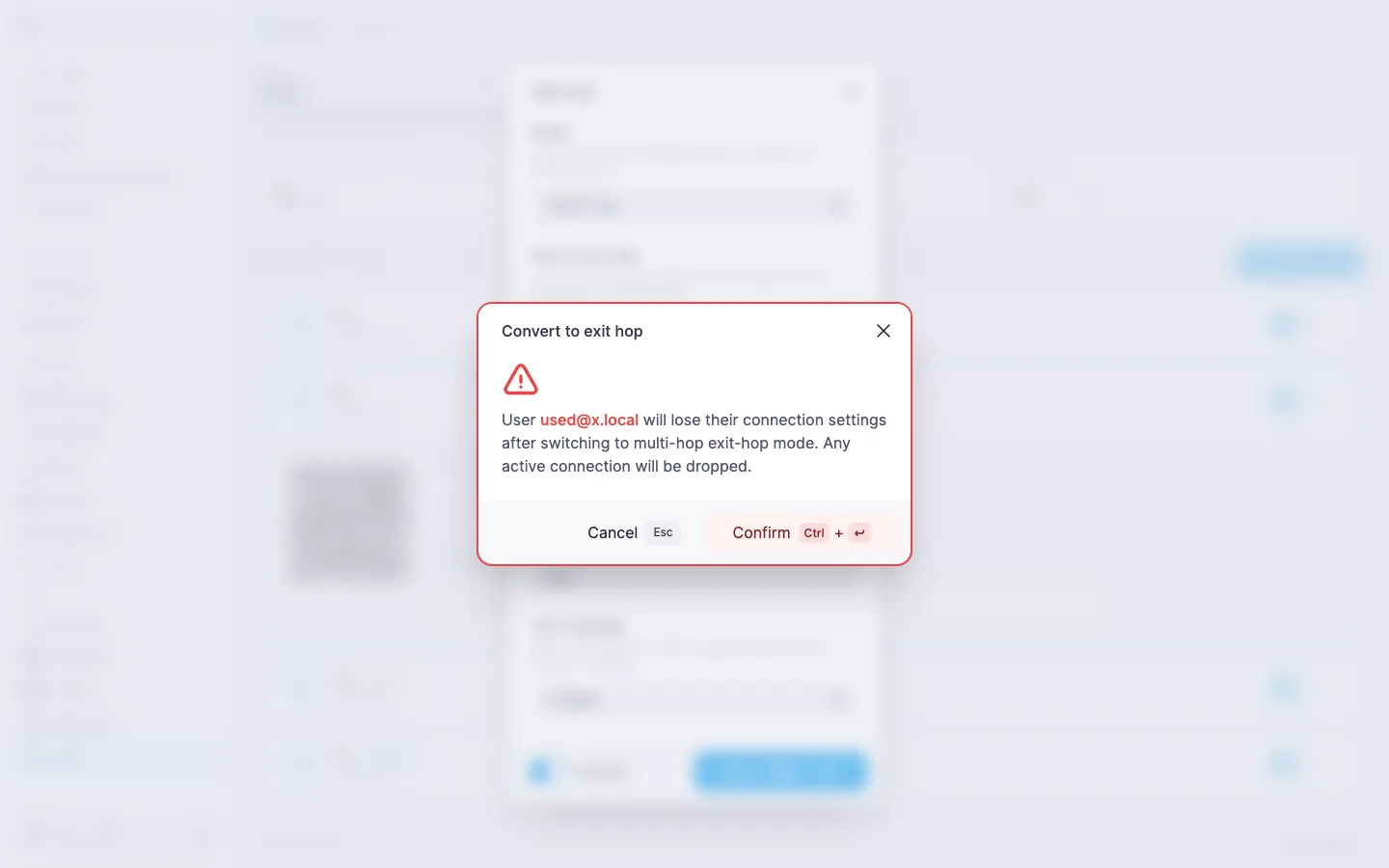
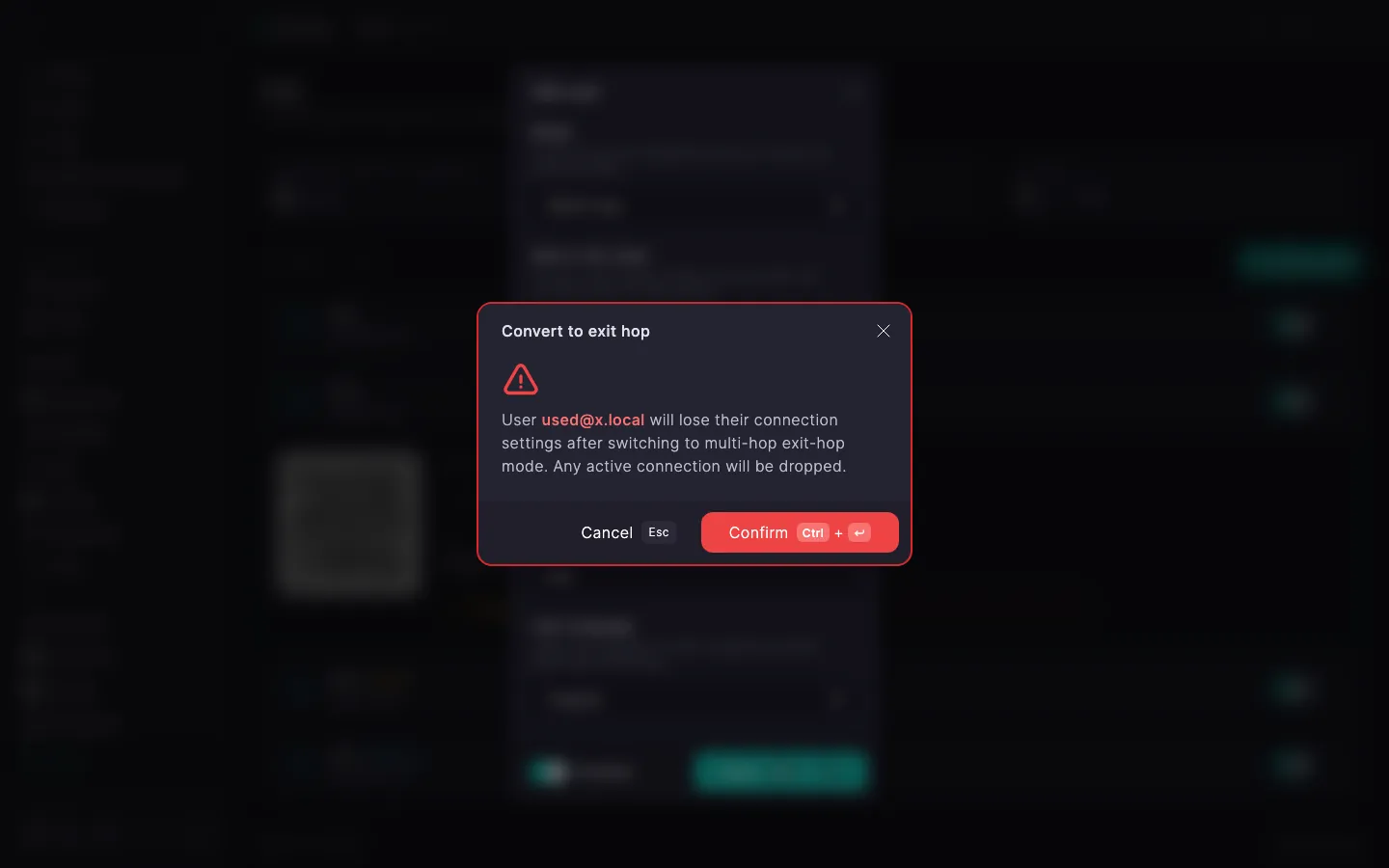
United KingdomUSAThe mode is switched on an existing user too, without recreation — the UUID and connection string are preserved for a single-hop user and for an entry hop. The exception is switching to exit hop: such a user's own connection configuration is turned off, so the panel warns you with the Convert to exit hop dialog: "User … will lose their connection settings after switching to multi-hop exit-hop mode. Any active connection will be dropped."
The full scenario — how to link two servers into a chain, where to get the link and where to paste it, what the multi-hop status means — is covered in a separate article, Xray. Multi-hop mode.
The user row has a toggle — a single press enables or disables the account without opening a dialog. A disabled user stays in the list, their traffic statistics are preserved, but their link can't be used to connect. Changes apply immediately, no service restart is needed.
When the user is re-enabled, the link does not change: the same vless://… string already saved in the client app starts working again.
In the expanded row click Delete. The panel asks for confirmation in the Delete user dialog showing the name of the user being deleted (or the identifier if no name is set). After confirmation the licence slot is freed — another user can be created in the empty seat.
‼️ Deleting a user is irreversible
After confirmation the account and its UUID are lost forever. The vless://… link that was imported into the client app stops working. The user can't be restored "as they were" — even if you create a new one with the same identifier, the UUID inside the link will change and the client will have to import a new configuration.
ℹ️ The free licence allows one user
On the default plan the Xray module lets you create one VPN user — enough for a single device, for example a personal smartphone. For several devices or family members you'll need to purchase additional slots.
What changes at different quota levels:
N < M) — create new users freely.N = M) — no more new users can be created. To continue, purchase slots via the Buy more slots link right in the tile, or delete users you don't need.N > M, for example after a plan downgrade) — the most recently created users stay in the list but without a working configuration: the link and QR code aren't issued to them, and emailing and editing are unavailable too. To bring them back, purchase slots or delete the surplus users.The Buy more slots link leads to the Licence section — to purchase a new licence if you don't have one yet, or to change the existing one with the slot count prefilled. The licence sums with the free quota: if the licence specifies, say, 5 slots, you'll have 6 users in total (1 free + 5 from the licence). In the Licence section this capability is shown under the human-readable label Xray VPN.