Logging in to the panel by temporary link
BeAdmin can let someone into the panel through a temporary link — no password, and only for as long as needed. It is a convenient way to give access to your hosting provider's support team, a contractor, or a freelancer: there is no password to come up with and pass along, the link stops working when its time runs out, and you can revoke access at any time.
Only a panel administrator can create a user who logs in by link. If the person needs administrator access, use the quick method. If their rights need to be limited, create a user who logs in by link with the limited-rights method.
Quick method: an administrator without a password
- Open the "Users" section in the side menu of the panel.
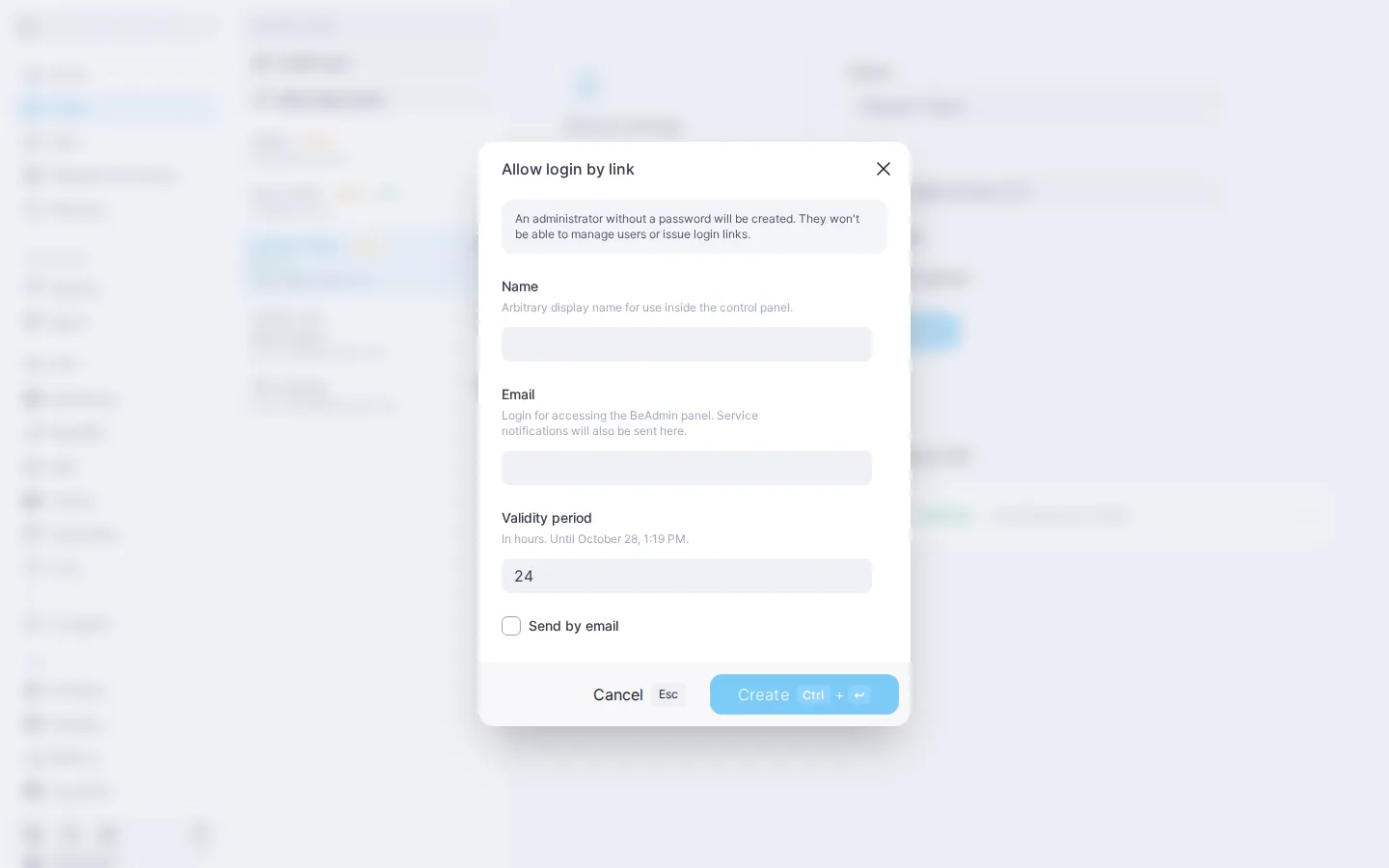
- Click "Allow login by link" above the list of users.
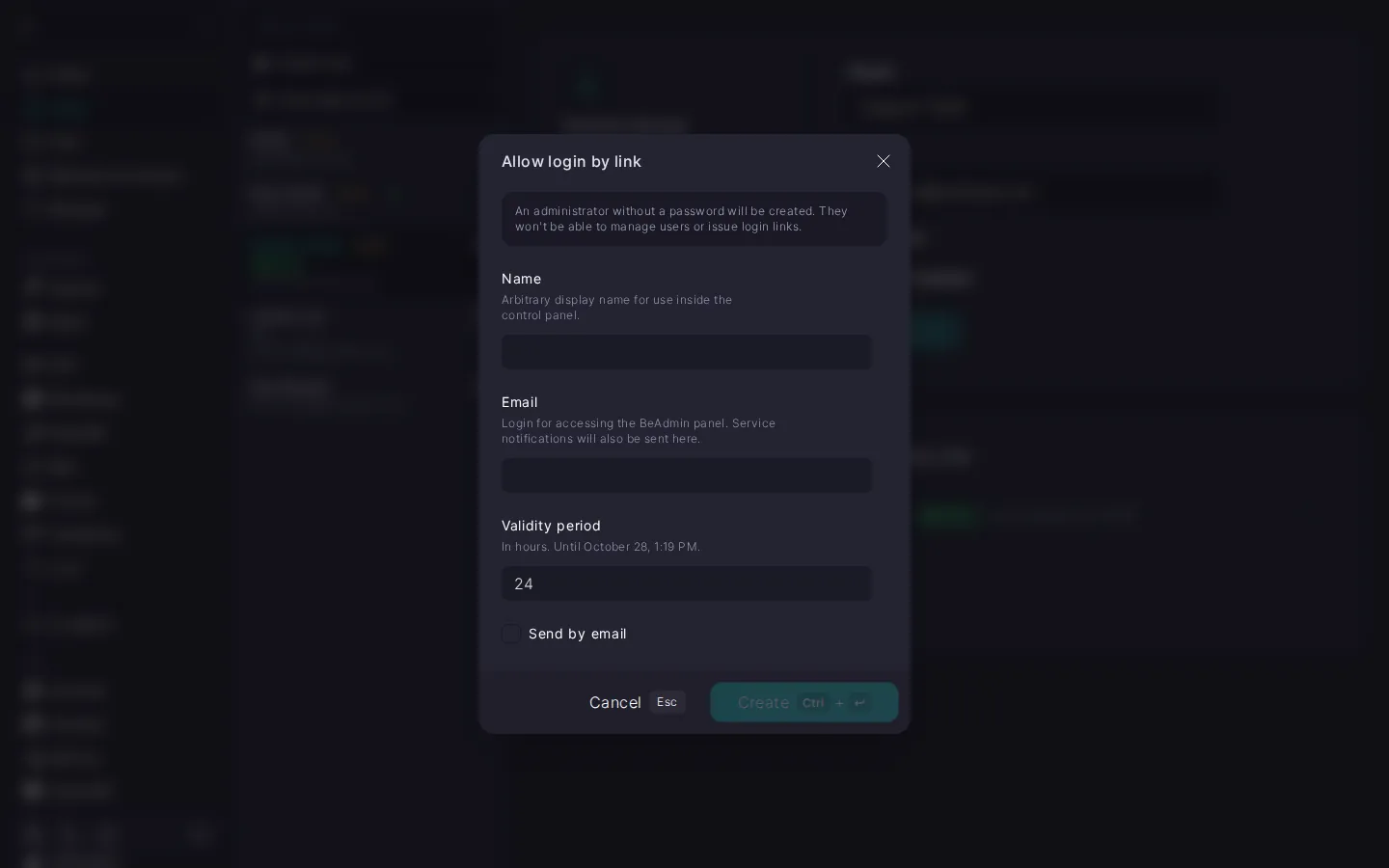
- Fill in the fields:
- "Name" — an arbitrary display name used inside the panel.
- "Email" — the recipient's address. It must be unique: if the address is already linked to another account, the user cannot be created.
- "Validity period" — how many hours the link will work: from 1 to 168 hours, 24 hours by default.
- "Send by email" — tick it if you also want the link sent by email to the address above. For details, see Passing the link on.
- Click "Create".
The same window will then show the "Login link". Copy it and click "Done".
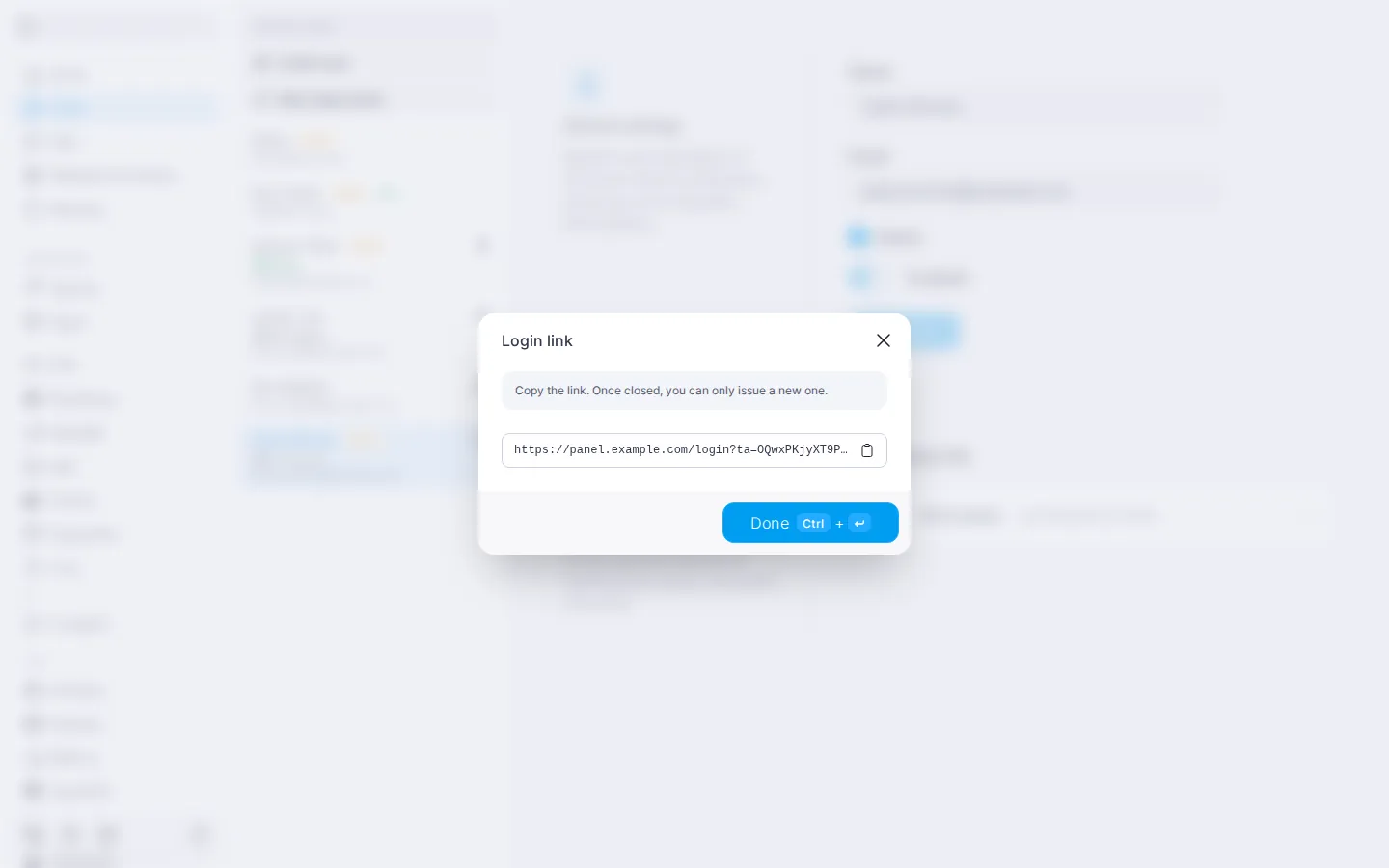
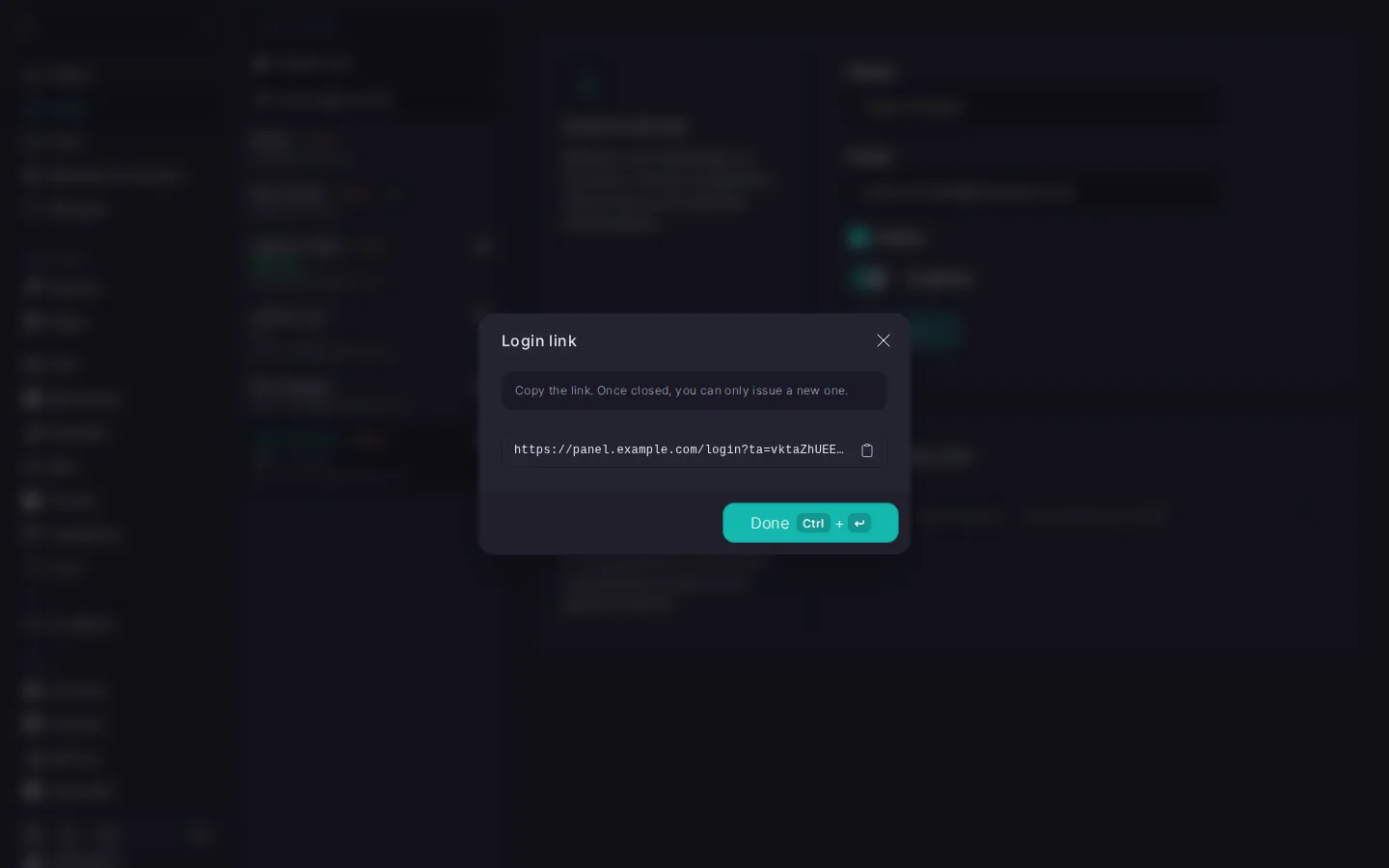
⚠️ The link is shown only once
Once the window is closed, you cannot see the link again — you can only issue a new one. Copy it before you click "Done".
⚠️ Full access to the panel
This method creates an administrator without a password: they get full access to the panel's tools but cannot manage users or issue login links. If access needs to be limited, use the limited-rights method.
Limited-rights method
This suits a person who needs only certain sections — for example, a contractor setting up a website.
- In the "Users" section, click "Create user".
- Fill in the "Name" and "Email" fields.
- In the "Login" block, choose "By link": the user will have no password.
- Leave the "Admin" checkbox cleared — you will grant rights separately. Click "Create".
- Open the new user's card and, on the "Access rights" tab, choose the levels you need — the same way as for a regular user. For how to do this, see Users. Quick start.
- Go back to the "Account" tab and, in the "Temporary link" block, click "Issue link".
- In the "Issue link" dialog, set the "Validity period", tick "Send by email" if needed, and click "Issue".
- In the "Login link" window, copy the link and click "Done".
Passing the link on
The link works like a one-time password, so pass it on only to the person you are giving access to — in a private message, for example.
You can also send it by email: tick "Send by email", and the link goes to this user's email address. Sending is available once outgoing email is set up in the panel — see How to configure SMTP relay for outgoing emails.
If the email could not be sent, the link has still been issued — copy it and pass it on yourself.
What the recipient will see
- Login without a password. The recipient opens the link and lands in the panel right away.
- The link works only once. Opening it again — in another browser, on another device, or by another person — will not get anyone in. So do not open the link yourself "just to check": after that, the recipient will not be able to log in with it.
- In the same browser, access lasts until the time runs out. If the session in the panel is interrupted, a prompt to log in again appears — no new link is needed.
- Rights follow the user's role. Someone who logs in by link cannot change users or issue links, and the actions they lack rights for are unavailable.
Access status
User list
The mark under a user's name in the list shows whether they have used the link:
- "No link" — the user has been created, but no link has been issued yet.
- "Not opened" — the link has been issued; the recipient has not logged in yet.
- "Active" — the recipient has logged in and the validity period has not ended yet.
- "Expired" — the validity period has ended.
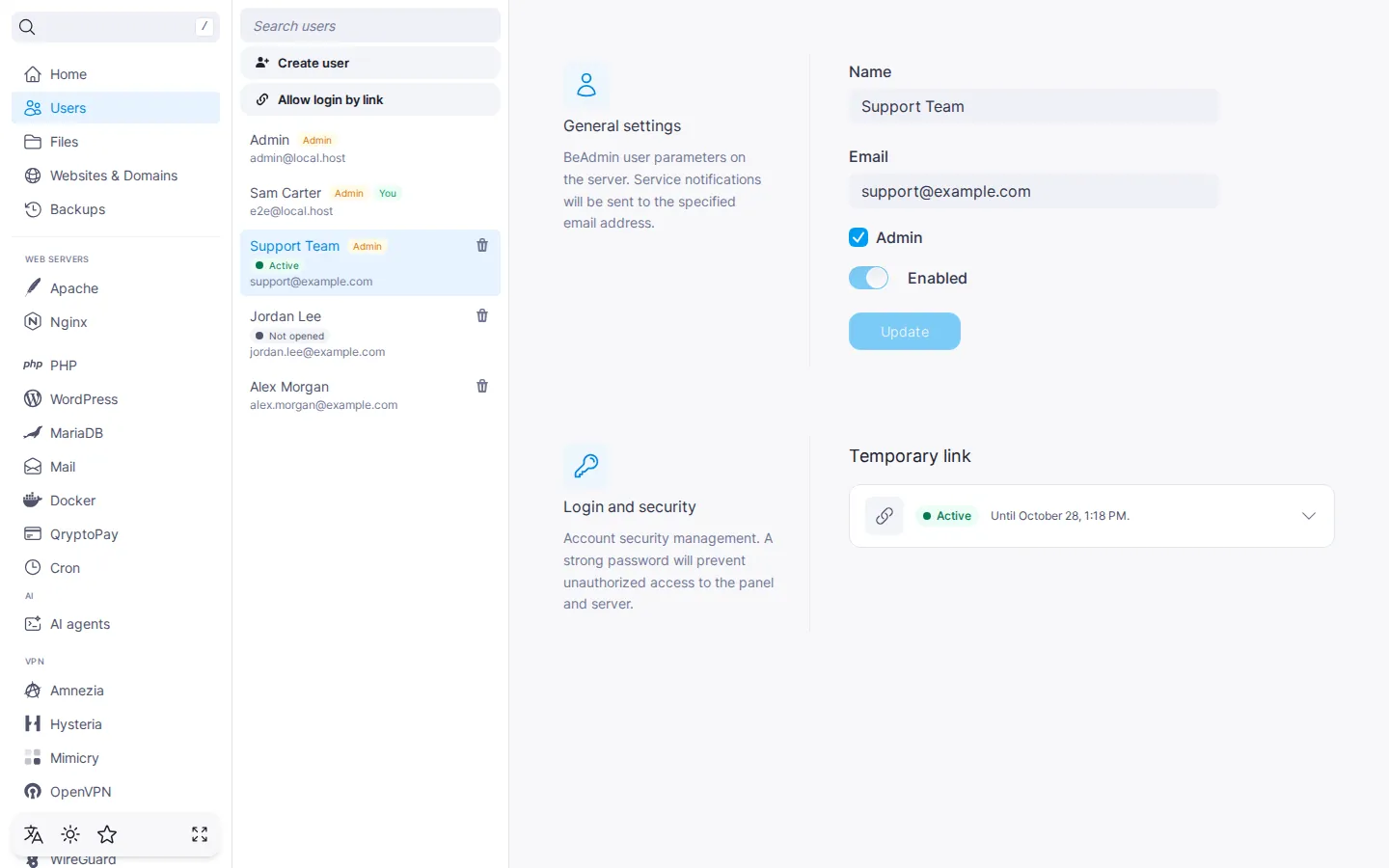
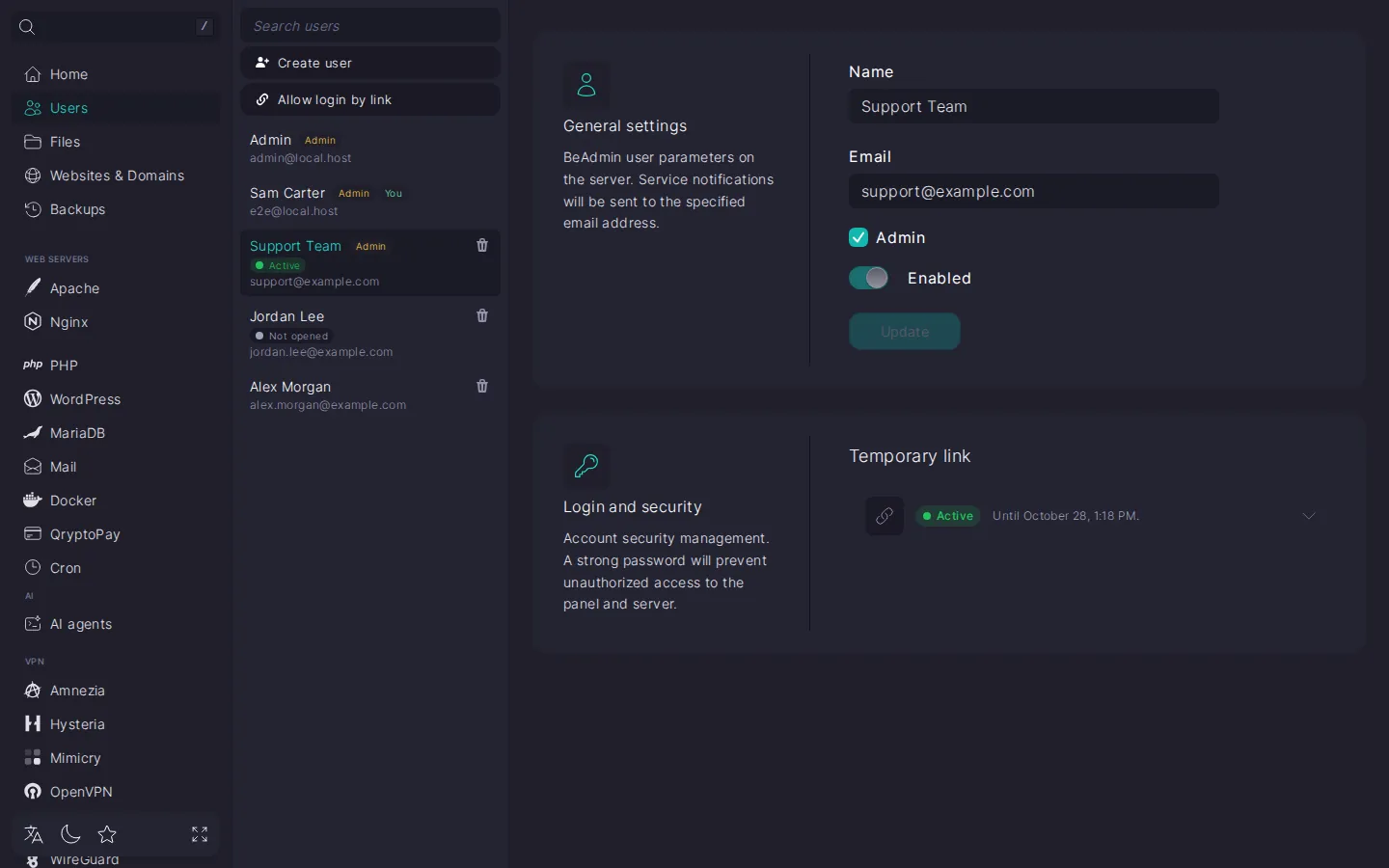
User card
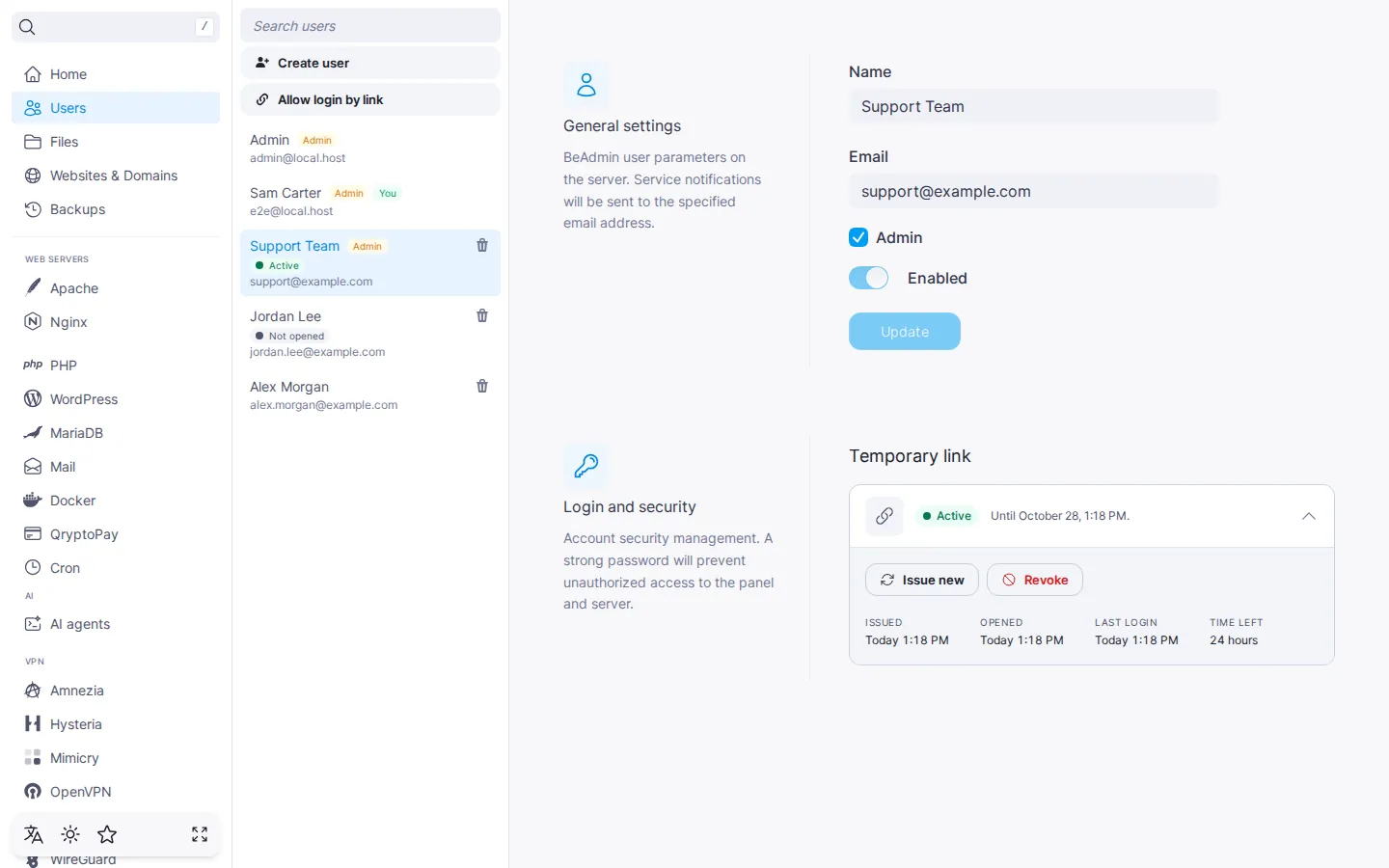
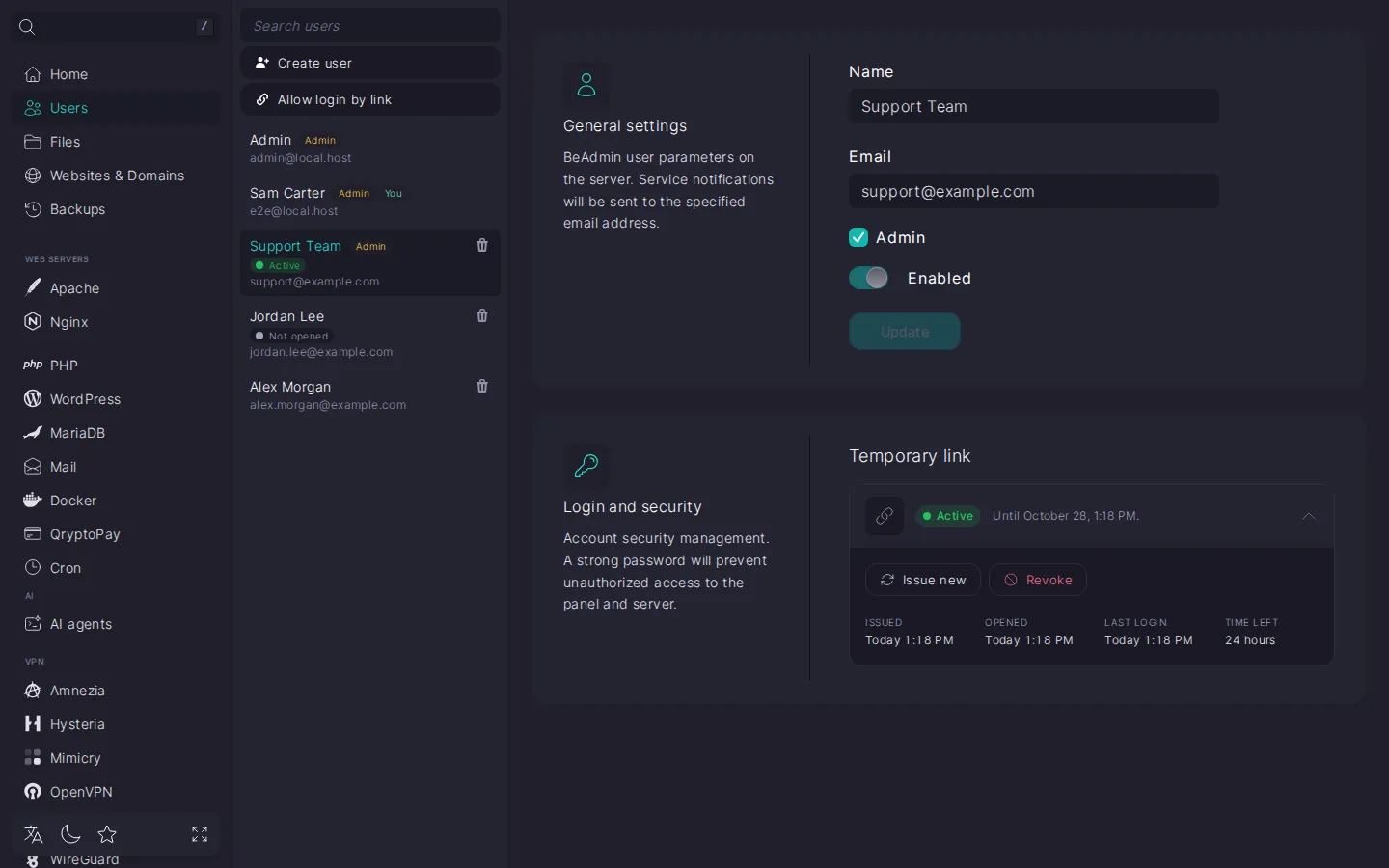
You will find the details in the "Temporary link" block of the user's card. Expand it to see when the link was issued and opened, when the recipient last logged in, and how much time is left. This is also where you issue the link again or revoke it.
New link and revoking access
A user always has just one link. To issue a new one, click "Issue new" in the expanded "Temporary link" block: the previous link stops working, and if the user is in the panel at that moment, their session ends.
To close access, click "Revoke" and confirm. The user will no longer be able to log in to the panel, and their current session will end. The user stays in the list: you can issue them a new link later. If you no longer need them, delete them from the list.
Useful recommendations
- Set the time to fit the task. Choose as many hours as the work needs: the maximum is 168 hours, which is a week. If the work runs over, issue a new link.
- The minimum necessary rights. An administrator without a password is for people you trust with full access to the panel. Give everyone else only the rights they need.
- Finished? Revoke. Do not wait for the time to run out: after revocation, the user can no longer log in.