Xray. Managing users
This article covers operations on the VPN user list: how to create another user, edit them, temporarily disable, delete, and where to look at traffic statistics. The minimum "install the module and connect the first device" scenario is described in Xray quick start; here we go into more detail.
The user list
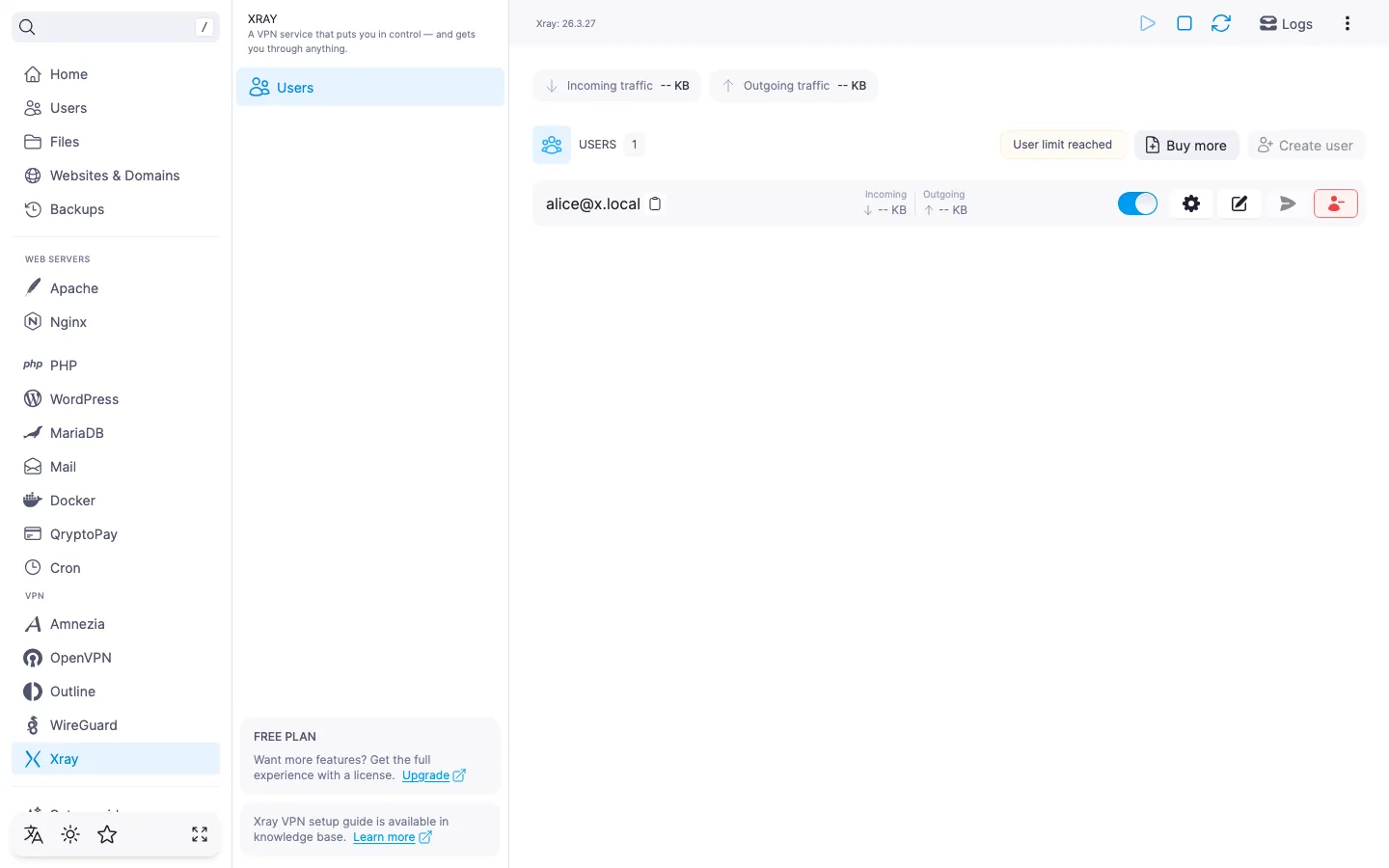
The list opens by default on the Xray module page. For each user it shows the email address (with a button to copy it to the clipboard), the free-form label, and incoming and outgoing traffic counters — the values come from Xray statistics and refresh automatically every 30 seconds.
Each row supports enabling and disabling the user, opening the connection settings, editing, sending the configuration by email, and deleting — all of those actions are described in the sections below.
Above the list there are overall traffic statistics for the whole module (server-wide incoming and outgoing), the slot counter, and the "Create user" button.
Creating a user
- Click "Create user" in the top-right corner of the list.
- Fill in the fields:
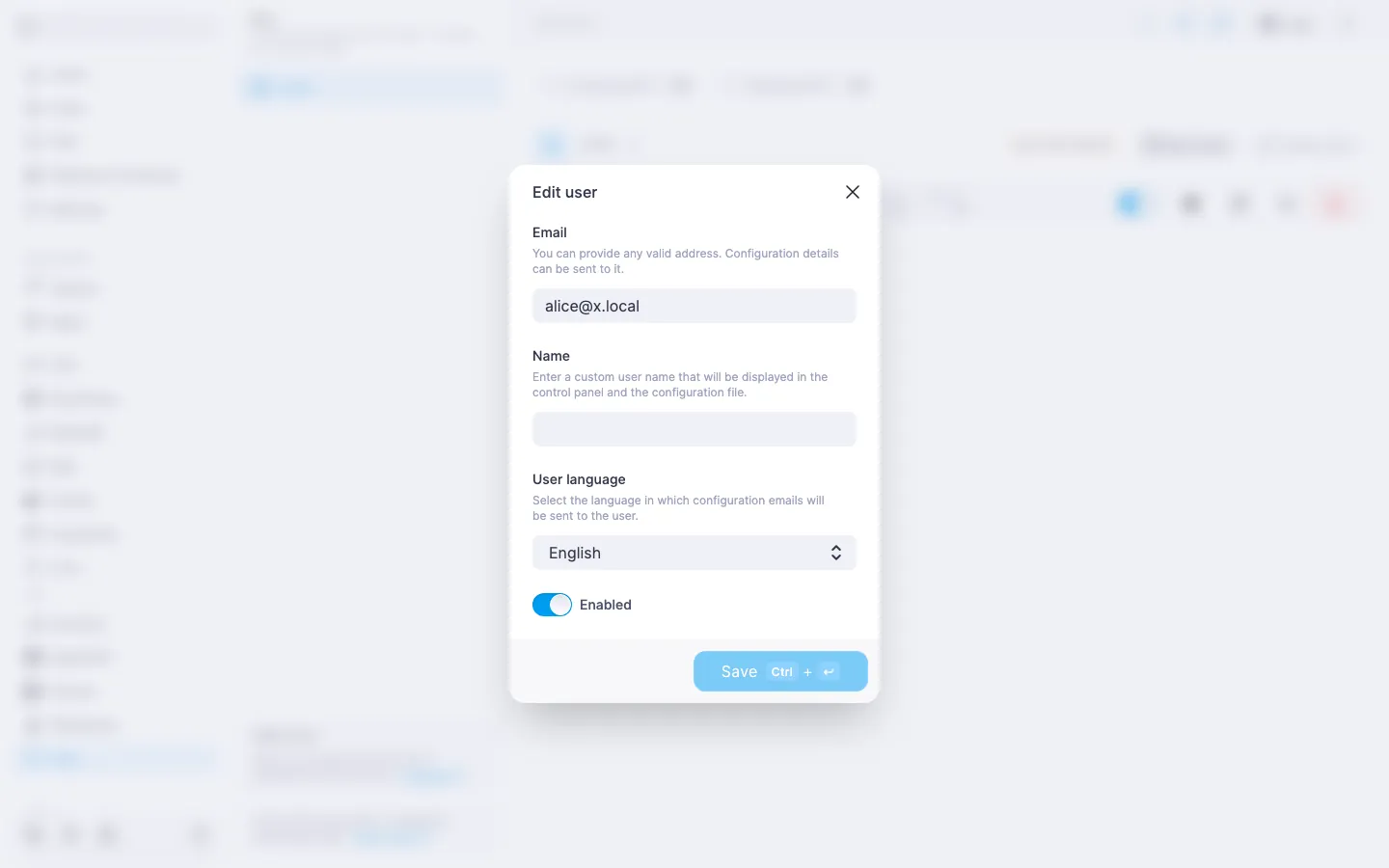
- "Email" — required, must be a valid address and unique among existing users. Used as the identifier and as the destination address for emailing the configuration. If it matches an existing one, the panel shows an error under the field.
- "Name" — required, 2 to 64 characters. An arbitrary label for easier navigation.
- "User language" — language of the email with the connection link. Defaults to English.
- "Enabled" — by default the user is created enabled and can connect right away. If you don't want to activate the account immediately, turn off the toggle.
- Click "Create".
The "Create" button is active only when both required fields are filled in and there are no validation errors.
⚠️ ISP restrictions
Traffic encryption makes a VPN a reliable way to protect a connection, but in some countries and regions internet providers actively interfere with VPN protocols. Because of this, full availability of the service cannot be guaranteed — regardless of the connection type. If one protocol does not work for you, try another VPN module available in the panel. If none of them work on your network, contact support and we will issue a refund for the license.
Editing a user
In the user row, click the "Edit" icon. The same set of fields opens as for creation: you can change the email, rewrite the name, pick another "User language", and toggle the enable flag. The "Save" button is active only when something in the form has actually changed compared to the current state.
ℹ️ Changing the email of active connections
The email is the user's identifier in Xray. If the user has already saved a connection link in the client app, the link is regenerated on the server side after the email changes: for the client to keep connecting, take the new link from the "Settings" dialog and re-import it into the app.
Enabling and disabling a user
Each user row has a toggle: a single click enables or disables the account without opening a dialog. A disabled user stays in the list, the traffic statistics for them are preserved, but no one can connect to the VPN with their link. Toggle it back on — and access is restored without reinstalling the configuration on the client.
This is useful when you need to cut access to a device temporarily — for example, if the link may have been leaked — but do not want to delete the user and lose the accumulated statistics.
Getting the connection link
In the user row, click the "Settings" icon. The "Connection settings" dialog shows a link of the form vless://... (with a copy button) and a QR code with the same link. The "Send to email" button sends the link to the user's address; if SMTP is not configured, the button is disabled.
The same "Send to email" button is also available in the user row in the list — without opening the settings dialog.
Deleting a user
In the user row, click the "Delete" icon (red). The panel asks you to confirm the deletion and shows the email of the user being deleted.
‼️ Deleting a user is irreversible
Right after confirmation, the account and its connection link are gone. Client apps that imported the link will stop connecting. The user cannot be restored "as it was" — even if you create a new one with the same email, the identifier inside the VLESS link will change, and clients will have to re-import the configuration.
User limit
ℹ️ The free licence allows one user
On the default plan, the Xray module lets you create one VPN user. That is enough for one device — for example, a personal smartphone. For several devices or family members, you will need to buy additional slots.
Above the user list, on the right, a slot counter shows how the current usage relates to the quota. Once the quota is exhausted, the "Create user" button is disabled. If the count exceeds the licence (which can happen after a downgrade), no new users can be created until it drops back within the limit.
When the limit is reached or exceeded, a "Buy more" button appears next to the list. It opens the licence management page right inside BeAdmin: if you already have an active licence — its amend page, otherwise — the new-licence page. There you can pick the desired number of additional slots and pay for them.
The licence stacks on top of the free quota: if the licence covers, say, 5 slots, you get 6 users in total (1 free + 5 from the licence).
💡 If you try to create a user beyond the limit
The "Create user" button is disabled in this case, but if a request still reaches the server (for example, when the list state and the licence state get out of sync), the panel shows a "User limit reached" toast and does not create the user.
The Xray module has no other paid features: install, update, restart, and create / edit / delete users within the quota are available on every licence, including the free one.
Useful links
- Xray quick start — installing the module and the first connection.
- Xray. Managing the module — managing the service, updating, and uninstalling.
- How to set up an SMTP relay for sending emails — so that connection links can be sent to users by email.