Amnezia. Managing users
This article covers operations on the VPN user list: how to create another user, edit them, temporarily disable, fetch the connection configuration, delete an account, and buy more slots beyond the free quota. The minimum "install the module and connect the first device" scenario is described in Amnezia quick start; here we go into more detail.
The user list
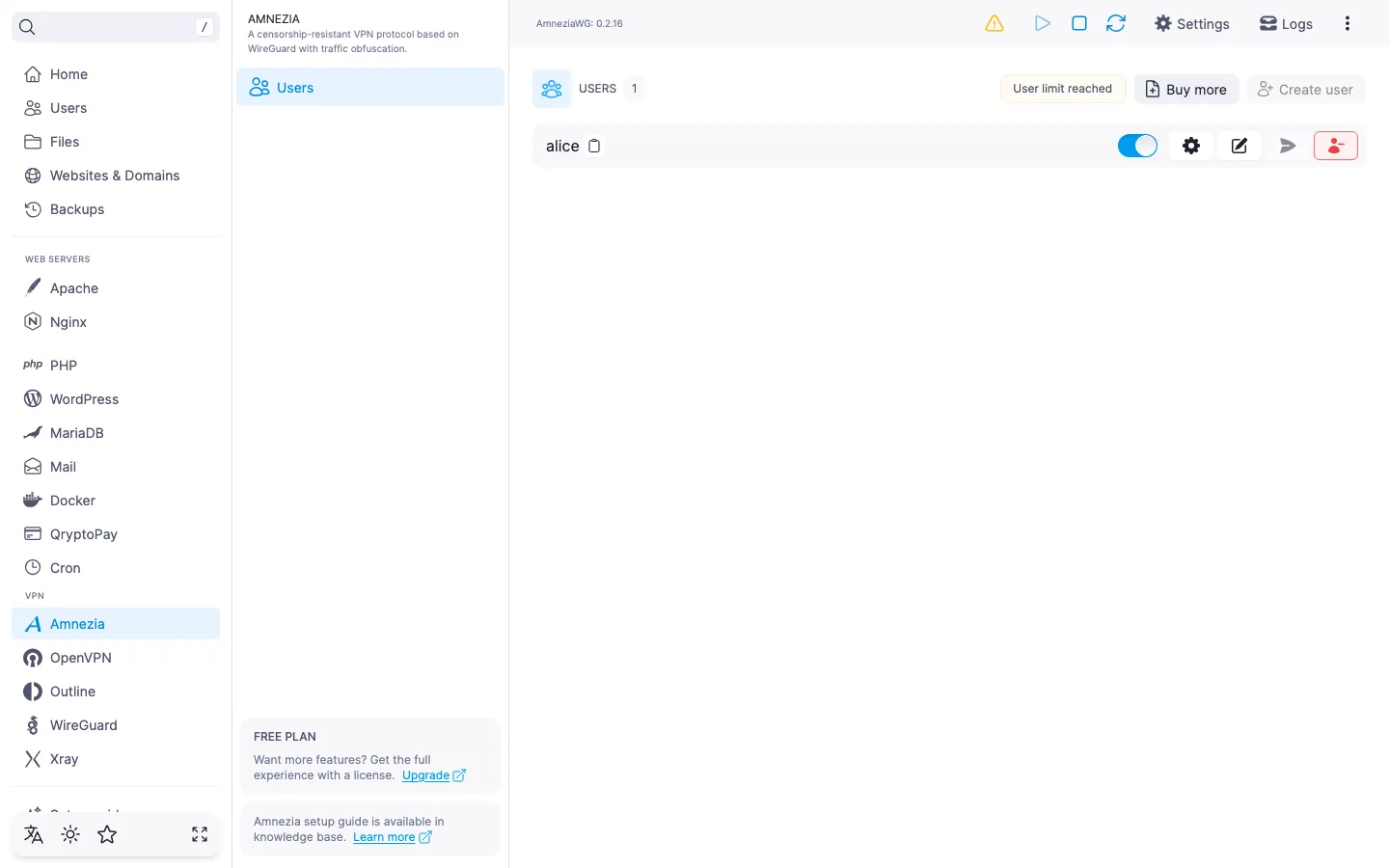
The list opens by default on the Amnezia module page. For each user, the row exposes the actions: enable or disable the account, open the connection settings, edit, send the configuration by email, and delete. The username can be copied to the clipboard with a single click.
Above the list there is the "Users" title, the total user count, the slot counter, and the "Create user" button.
When there are no users yet
Right after the module is installed, the list is empty: the panel shows the "No users created yet" title and an explanation that you need to create a user to start working with the Amnezia VPN server. Click "Create user" — the next steps are described below.
Creating a user
- Click "Create user" in the top-right corner of the list.
- Fill in the fields:
- "Username" — optional. From 2 to 32 characters: Latin letters, digits, dot, hyphen, underscore. If left empty, the panel generates the name itself. If you enter a name already taken by another user, the panel highlights the error under the field.
- "Email" — optional, must be a valid address if filled in. Used only to email the
.conf. - "Comment" — an optional label of up to 64 characters.
- "User language" — language of the email with the configuration. Defaults to English.
- "Enabled" — if you don't want to activate the user immediately after creation, turn off the toggle.
- Click "Create".
The "Create" button is active as long as there are no validation errors in the form and the user quota is not exhausted (see the limit section below).
ℹ️ Note
The client DNS server and persistent keepalive are not set in this form: when creating a user, the panel uses 1.1.1.1 from Cloudflare and a 25-second keepalive interval (service packets that hold the connection through NAT and public Wi-Fi). Both values can be changed afterwards in the edit dialog.
⚠️ ISP restrictions
Traffic encryption makes a VPN a reliable way to protect a connection, but in some countries and regions internet providers actively interfere with VPN protocols. Because of this, full availability of the service cannot be guaranteed — regardless of the connection type. If one protocol does not work for you, try another VPN module available in the panel. If none of them work on your network, contact support and we will issue a refund for the license.
Editing a user
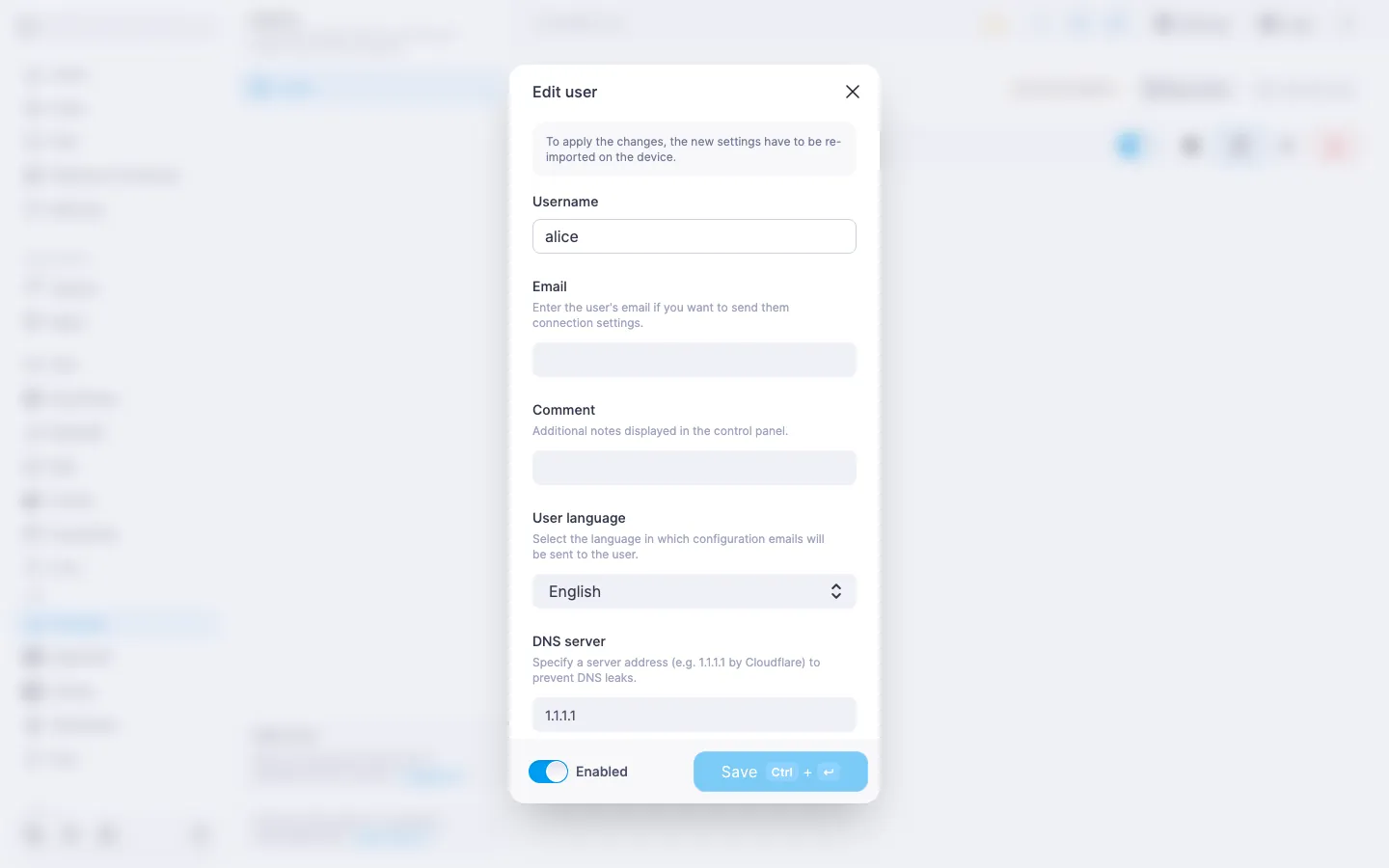
In the user row, click the "Edit" icon. The "Edit user" dialog opens with a reminder banner that, after saving, the new settings need to be re-imported on the client device — the existing configuration in the app keeps running with the old parameters until it is reloaded.
The fields available for editing in the dialog:
- "Email" and "Comment" — edited under the same rules as in the create form. To clear a value, leave the field empty and save: the panel wipes it on the server.
- "DNS server" — the DNS that ends up in the client config (
[Interface] DNS = ...). A free-text field, default1.1.1.1. Specifying a DNS server helps prevent DNS-request leaks into the local provider's network. - "Persistent keepalive" — a toggle. When enabled, the client sends a service packet every 25 seconds so the connection is not dropped by NAT or public Wi-Fi. When disabled, keepalive is not used.
- "User language" — language of the email with the configuration. Defaults to English.
- "Enabled" — the account state toggle.
The username in this dialog is read-only — an existing user cannot be renamed. The "Save" button is active only when something in the form has changed compared to the current state.
Enabling and disabling a user
Each user row has a toggle: a single click enables or disables the account without opening a dialog. A disabled user stays in the list, but no one can connect to the VPN with their keys — the account is temporarily detached from the server. Changes take effect immediately; restarting the service is not required.
When a user is re-enabled, the keys are not reissued: the same .conf file already saved in the client app starts working again.
Getting the connection configuration
In the user row, click the "Settings" icon. The "Connection settings" dialog brings together three ways to deliver the configuration to a device:
- Two QR codes — for the AmneziaVPN app (full "container" format) and for AmneziaWG (a regular AmneziaWG config). Click the smaller QR to switch the active one.
- Download the
.conffile — an AmneziaWG-format configuration with obfuscation parameters. The file name matches the username. - Send to email — a button in the dialog footer. Disabled if SMTP is not configured in the panel or if the user has no email address.
The same send action is available right from the user row — without opening the settings dialog.
⚠️ Scan the QR for the matching app
The QR for AmneziaVPN and the QR for AmneziaWG store different configuration formats. If you mix them up, the app will refuse to import or the connection will not work. Check the labels under the QR codes.
ℹ️ When the configuration did not generate
If the configuration cannot be obtained (for example, the service was off when the dialog was opened), the panel reports that the configuration is unavailable. Close the dialog, make sure the service is running, and open "Settings" again.
Deleting a user
In the user row, click the "Delete" icon (red). The panel asks you to confirm the deletion and warns that active connections will be terminated and a new configuration will be required to reconnect.
‼️ Deleting a user is irreversible
Right after confirmation, the account is deleted, and its key pair is lost forever. The .conf file imported into the client app stops working. The user cannot be restored "as it was" — even if you create a new one with the same name, the keys will be different, and the client will have to import a new .conf.
User limit
ℹ️ The free licence allows one user
On the default plan, the Amnezia module lets you create one VPN user. That is enough for one device — for example, a personal smartphone. For several devices or family members, you will need to buy additional slots.
Above the list, a slot counter shows how the current usage relates to the quota. Once the quota is exhausted, the "Create user" button is disabled. If the count exceeds the licence (which can happen after a downgrade), no new users can be created until it drops back within the limit.
When the limit is reached or exceeded, a "Buy more" button appears next to the list. It opens the licence management page right inside BeAdmin: if you already have an active licence — its amend page, otherwise — the new-licence page. There you can pick the desired number of additional slots and pay for them.
The licence stacks on top of the free quota: if the licence covers, say, 5 slots, you get 6 users in total (1 free + 5 from the licence). On the "Licence" page, this capability is shown under the human-readable label "Amnezia".
💡 If you try to create a user beyond the limit
The "Create user" button is disabled in this case, but if a request still reaches the server (for example, when the list state and the licence state get out of sync), the panel shows a "User limit reached" toast and does not create the user.
The Amnezia module has no other paid features: install, update, restart, port change, and create / edit / delete users within the quota are available on every licence, including the free one.
Free-licence info block
While the licence has no slots for Amnezia users, the side panel of the module page shows a "Free plan" info block explaining that functionality is limited and inviting you to get a licence, with a link to the "Licence" section — the same destination as the "Buy more" button above the list.
Useful links
- Amnezia quick start — installing the module and the first connection.
- Amnezia. Managing the module — managing the service, changing the port, updating, and uninstalling.
- How to set up an SMTP relay for sending emails — so that the
.conffile can be emailed to users.